
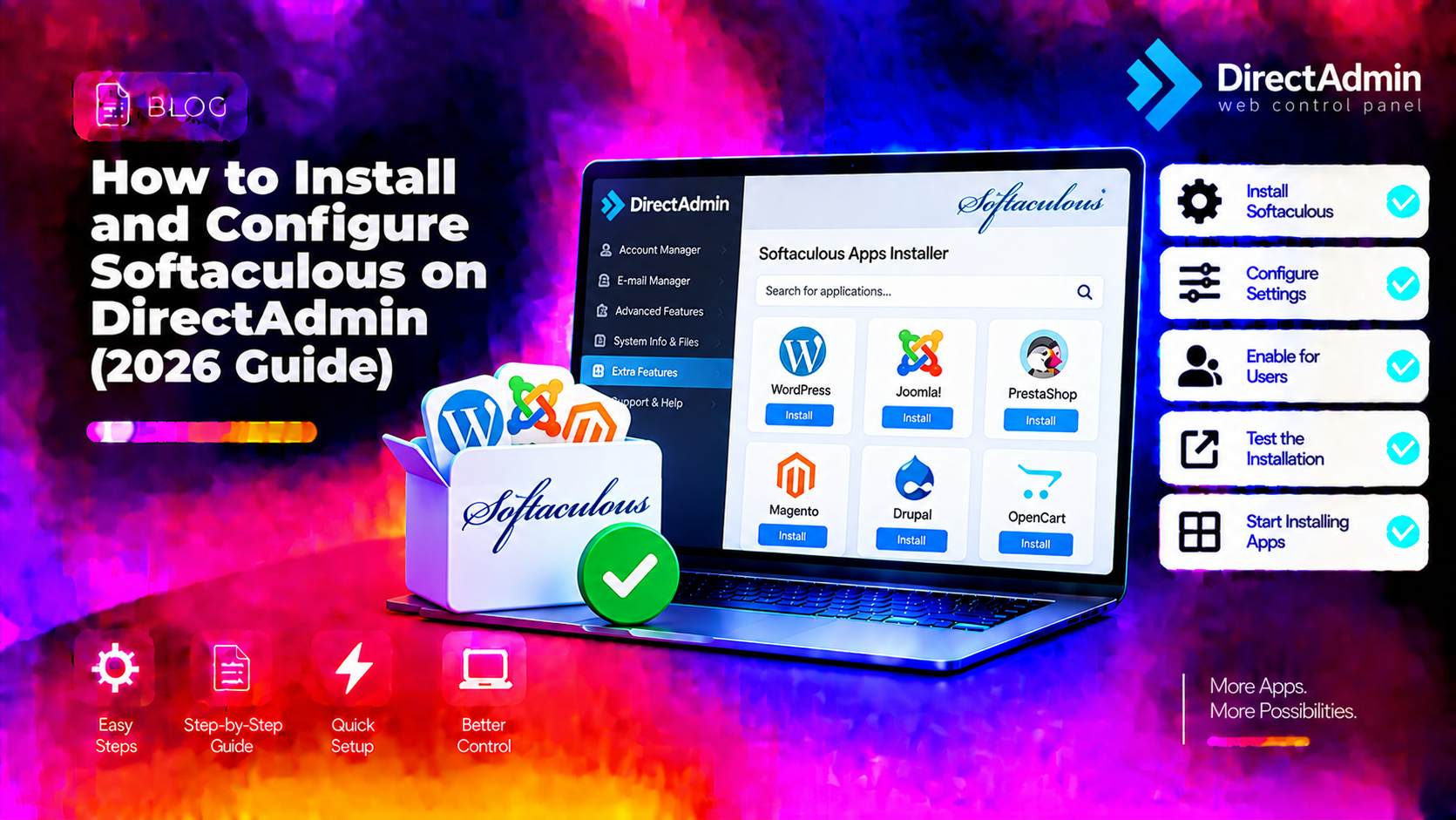
Softaculous is the most widely used auto-installer for web hosting control panels — it lets your customers install WordPress, Joomla, Magento, WooCommerce, and 400+ other applications in a single click without touching the command line. On DirectAdmin, installing Softaculous is straightforward but requires a valid Softaculous license, SSH access, and a few configuration steps to enable it properly for resellers and end users. This guide covers the complete setup: license activation, installation, DirectAdmin plugin registration, configuring default settings, and fixing the most common errors.
Prerequisites Before Installing Softaculous
- DirectAdmin version 1.55+ — Softaculous requires a reasonably recent DirectAdmin build. Check your version in DirectAdmin Admin Level → Admin Info.
- A Softaculous license — Softaculous is commercial software. Purchase a license at softaculous.com. For shared hosting servers, the Softaculous Shared Hosting license covers unlimited domains. You'll need your license key or the associated server IP registered on the Softaculous licensing server.
- Root SSH access — all installation commands run as root.
- curl installed — verify with
which curl. Install if missing:yum install curl -y(RHEL/CentOS) orapt install curl -y(Debian/Ubuntu). - PHP CLI installed — Softaculous requires PHP on the CLI. Verify:
php -v.
Step 1 — Download and Install Softaculous
Softaculous provides an official installer script. Run the following as root:
wget -N http://files.softaculous.com/install.sh
chmod 755 install.sh
./install.sh
The installer automatically detects your control panel (DirectAdmin in this case) and installs the appropriate components. The process takes 5–15 minutes depending on your server speed and downloads all application packages. You'll see output like:
Detected Control Panel : DirectAdmin
Installing Softaculous...
Downloading Packages...
Setting up Softaculous...
Installation Complete!
If the installer doesn't detect DirectAdmin, you can force it:
./install.sh --da💡 None of these worked? Skip the guesswork.
Get Expert Help →Step 2 — Register the Softaculous Plugin with DirectAdmin
After installation, register Softaculous as a DirectAdmin plugin so it appears in the control panel for admins, resellers, and users.
echo "softaculous" >> /usr/local/directadmin/conf/plugins.confOr manually edit the file and add softaculous on its own line.
service directadmin restartLog into DirectAdmin as admin. You should see the Softaculous icon in your admin dashboard. If it doesn't appear, check the plugin registration:
cat /usr/local/directadmin/conf/plugins.conf | grep softaculousStep 3 — Activate Your Softaculous License
Softaculous requires a valid license to function. The installer attempts to auto-activate using the server's IP address. To verify activation:
1. Open Softaculous from the DirectAdmin admin panel.
2. Go to Softaculous → Enduser Panel — if it loads the application list without a license error, you're activated.
3. If you see a license error, run the activation manually:
/usr/local/softaculous/enduser/install/cgi-bin/softaculous.cgi --activate KEY=YOUR_LICENSE_KEYReplace YOUR_LICENSE_KEY with the key from your Softaculous account dashboard. Alternatively, log into softaculous.com and add your server's IP address to the license under "Manage Licenses."
Step 4 — Enable Softaculous for Resellers and Users
By default, Softaculous may not be visible to all resellers and users. Configure access levels properly.
Enable for all resellers:
In DirectAdmin Admin Level → Reseller Level Features, find the Softaculous option and enable it. This grants all resellers access to Softaculous in their reseller panel.
Enable per user package:
In DirectAdmin Admin Level → Packages, edit each hosting package and enable the Softaculous option. Users on that package will see Softaculous in their cPanel-equivalent user panel.
Enable globally for all users:
# Add softaculous to the default skin for all users
echo "softaculous=ON" >> /usr/local/directadmin/data/templates/user.conf
Restart DirectAdmin after making template changes:
service directadmin restartStep 5 — Configure Softaculous Default Settings
After installation, configure Softaculous defaults for your hosting environment.
In DirectAdmin Admin Level → Softaculous → Admin Panel → Softaculous Settings:
- Admin Email: Set your admin email for Softaculous notifications and backup alerts.
- Backup Location: Set where Softaculous stores application backups. Default is within the user's home directory, but you can point to a dedicated partition or NFS share for better organisation.
- Cron Settings: Softaculous uses cron jobs for automated backups and updates. Verify the cron is running:
crontab -l | grep softaculous. - Auto-Update Settings: Configure whether Softaculous automatically updates installed applications (WordPress, Joomla, etc.) to the latest minor version. Enable auto-updates for security patches; disable for major version upgrades to avoid compatibility issues.
- SSL Settings: If your server has SSL enabled for DirectAdmin, ensure Softaculous is configured to use HTTPS for its panel links.
Step 6 — Test Softaculous by Installing WordPress
Verify the installation by installing WordPress on a test domain as a regular user.
1. Log into DirectAdmin as a user (not admin).
2. Find the Softaculous icon in the user panel and click it.
3. In Softaculous, click WordPress (listed under CMS).
4. Click Install and fill in the installation details: domain, directory, site name, admin username, admin email, admin password.
5. Click Install. Softaculous creates the database, copies files, and configures wp-config.php automatically. Installation takes 30–60 seconds.
6. Confirm the site loads at the domain URL after installation completes.
Step 7 — Update Softaculous and Application Packages
Keep Softaculous and its application packages current. Softaculous includes an updater that runs via cron, but you can trigger a manual update:
/usr/local/softaculous/enduser/install/cgi-bin/softaculous.cgi --updateTo update all installed application instances across all users (applies available patches):
/usr/local/softaculous/enduser/install/cgi-bin/softaculous.cgi --upgradesRun this from cron weekly to keep WordPress, Joomla, and other applications on the latest security releases without manual intervention.
Troubleshooting Common Softaculous Installation Errors
- Softaculous not appearing in DirectAdmin panel: The plugin wasn't added to plugins.conf, or DirectAdmin wasn't restarted after adding it. Run
echo "softaculous" >> /usr/local/directadmin/conf/plugins.confandservice directadmin restart. - License error / "Invalid license": Your server's IP isn't registered on the Softaculous licensing server. Log into softaculous.com → Manage Licenses and add your server IP. Or contact Softaculous support if you're using a licensed IP that's changed.
- Installation fails with permission error: The install.sh script needs execute permission:
chmod 755 install.sh. Also verify you're running as root, not a sudo user. - WordPress installation fails with "Database error": The MySQL user created by Softaculous couldn't connect. Check that MySQL/MariaDB is running (
systemctl status mariadb) and that the DirectAdmin MySQL root password in/usr/local/directadmin/conf/mysql.confis correct. - Softaculous loads but shows no applications: Application packages weren't downloaded during installation, possibly due to a network timeout. Re-run the updater:
/usr/local/softaculous/enduser/install/cgi-bin/softaculous.cgi --update. - Softaculous icon missing for users: The feature isn't enabled in the user's hosting package. Go to Admin Level → Packages, edit the package, and enable Softaculous.
Updating Softaculous to the Latest Version
When a new Softaculous version is released, update it without reinstalling:
wget -N http://files.softaculous.com/install.sh
chmod 755 install.sh
./install.sh --force
The --force flag updates existing components without removing user data, installed applications, or backup configurations.
Managing a DirectAdmin server takes time away from running your hosting business. CloudHouse's managed server team handles DirectAdmin administration — including Softaculous setup, updates, and plugin management — so you can focus on growth instead of server maintenance.