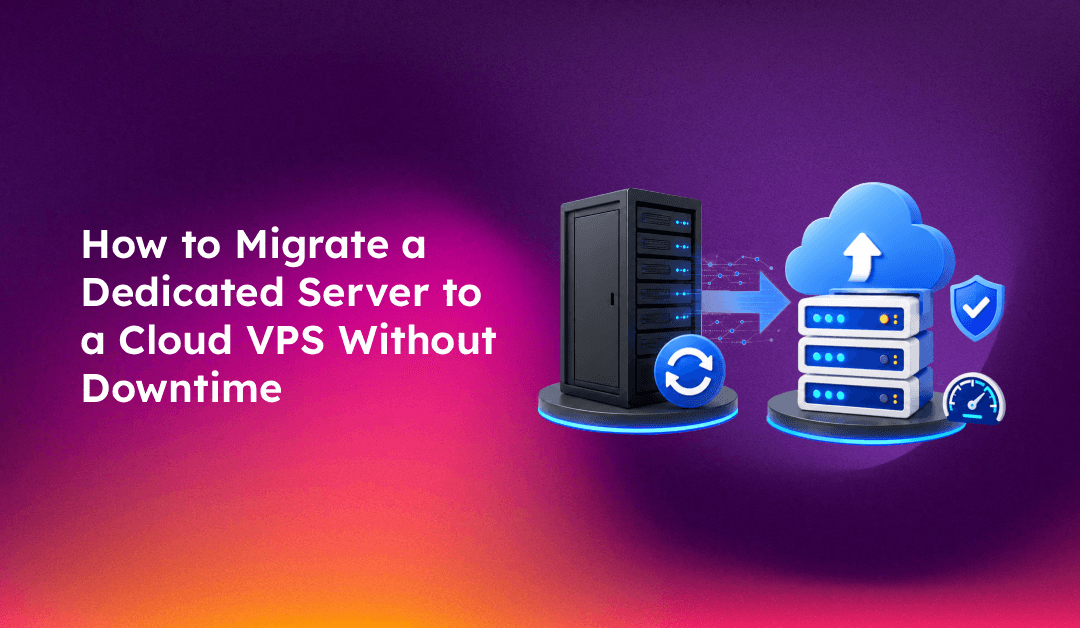
When a business outgrows a dedicated server — whether due to cost, scalability requirements, or the desire for managed infrastructure — migrating to a cloud VPS is the logical next step. The challenge is doing it without downtime that costs revenue and damages client trust. This guide covers the complete migration workflow: pre-migration audit, VPS provisioning, data synchronisation using rsync, DNS TTL management, and post-cutover validation — giving you a tested pattern that minimises risk and eliminates guesswork.
When to Migrate from Dedicated to Cloud VPS
Dedicated servers offer raw performance but come with fixed costs, single-point-of-failure risk, and high maintenance overhead. A cloud VPS migration makes sense when:
- Your dedicated server is approaching end-of-life and hardware refresh costs are high
- You need the ability to scale resources up or down without hardware changes
- You want automated snapshots, cloud-native monitoring, and one-click restore capabilities
- Your workload has variable traffic and a fixed-resource dedicated server is over-provisioned most of the time
- Managed cloud infrastructure reduces your in-house server administration burden
Phase 1: Pre-Migration Audit (1–2 Days Before)
A thorough pre-migration audit prevents surprises during cutover. Document the following from your existing dedicated server:
Software Inventory
# Operating system and kernel
cat /etc/os-release && uname -r

# Installed packages (save for reference)
dpkg -l > /root/package-list.txt          # Debian/Ubuntu
rpm -qa > /root/package-list.txt          # CentOS/AlmaLinux

# Web server version
nginx -v 2>&1 || apache2 -v 2>&1

# PHP version(s) in use
php -v

# Database engine and version
mysql --version || mariadb --version
psql --version
Application Configuration
- Export virtual host / server block configurations
- Document all cron jobs:
crontab -l -u rootand per-user crontabs - Record all active systemd services:
systemctl list-units --type=service --state=active - Note all firewall rules:
iptables-save > /root/firewall-rules.txt - Document SSL certificate paths and renewal methods (Let's Encrypt vs. purchased)
Data Size Assessment
# Total disk usage
df -h /

# Size of key directories
du -sh /var/www /home /etc /var/lib/mysql
This tells you how long the initial rsync transfer will take and whether you need a pre-sync run before the cutover window.
Take Full Backups
# Full database dump
mysqldump --all-databases --single-transaction --routines --triggers > /root/all-databases.sql

# Compress web files
tar -czf /root/webroot-backup.tar.gz /var/www/

# Backup cPanel/WHM accounts if applicable
/scripts/pkgacct username /root/backups/
Phase 2: Provision and Configure the Cloud VPS
Choose a cloud provider (DigitalOcean, Linode/Akamai, Vultr, Hetzner, or AWS EC2) and provision a VPS that matches or exceeds your dedicated server's resource usage — not its total capacity. Over-spec your VPS slightly: if your dedicated server averages 40% CPU usage, size the VPS for 60% expected load to give headroom.
Match Your Software Stack Exactly
Install the same OS distribution and major version as your dedicated server. Mismatched PHP minor versions or library versions cause application failures post-cutover. Use your package list from Phase 1 as the installation reference.
# Install base packages (example for AlmaLinux 8)
dnf update -y
dnf install nginx php-fpm php-mysql mariadb-server -y

# Verify versions match
php -v
mysql --version
Configure Firewall and Security
# Restore firewall rules
iptables-restore < /root/firewall-rules.txt

# Or use ufw
ufw allow 22/tcp
ufw allow 80/tcp
ufw allow 443/tcp
ufw enable
Set Up SSH Key Authentication
Ensure you can SSH from the old dedicated server to the new VPS using key authentication — this is required for rsync transfers:
# On the old dedicated server
ssh-keygen -t ed25519 -f /root/.ssh/migration_key

# Copy public key to new VPS
ssh-copy-id -i /root/.ssh/migration_key.pub root@NEW_VPS_IP
Phase 3: Initial Data Sync (rsync Pre-Copy)
Do not wait until the cutover window to copy data. Run an initial rsync 24–48 hours before cutover to copy the bulk of the data while the old server is still live. During cutover, you only need to sync the delta (changed files), which takes minutes rather than hours.
# Initial rsync — run from the old dedicated server
rsync -avz --progress   -e "ssh -i /root/.ssh/migration_key -p 22"   /var/www/   root@NEW_VPS_IP:/var/www/

# Sync web server configs
rsync -avz --progress   -e "ssh -i /root/.ssh/migration_key"   /etc/nginx/   root@NEW_VPS_IP:/etc/nginx/

# Sync cron configuration
rsync -avz --progress   -e "ssh -i /root/.ssh/migration_key"   /var/spool/cron/   root@NEW_VPS_IP:/var/spool/cron/
After the initial sync, restore your database dump to the new VPS and verify applications function correctly by editing /etc/hosts on your local machine to point the domain at the new VPS IP — this lets you test the new server without affecting live traffic.
Phase 4: DNS TTL Reduction (24–48 Hours Before Cutover)
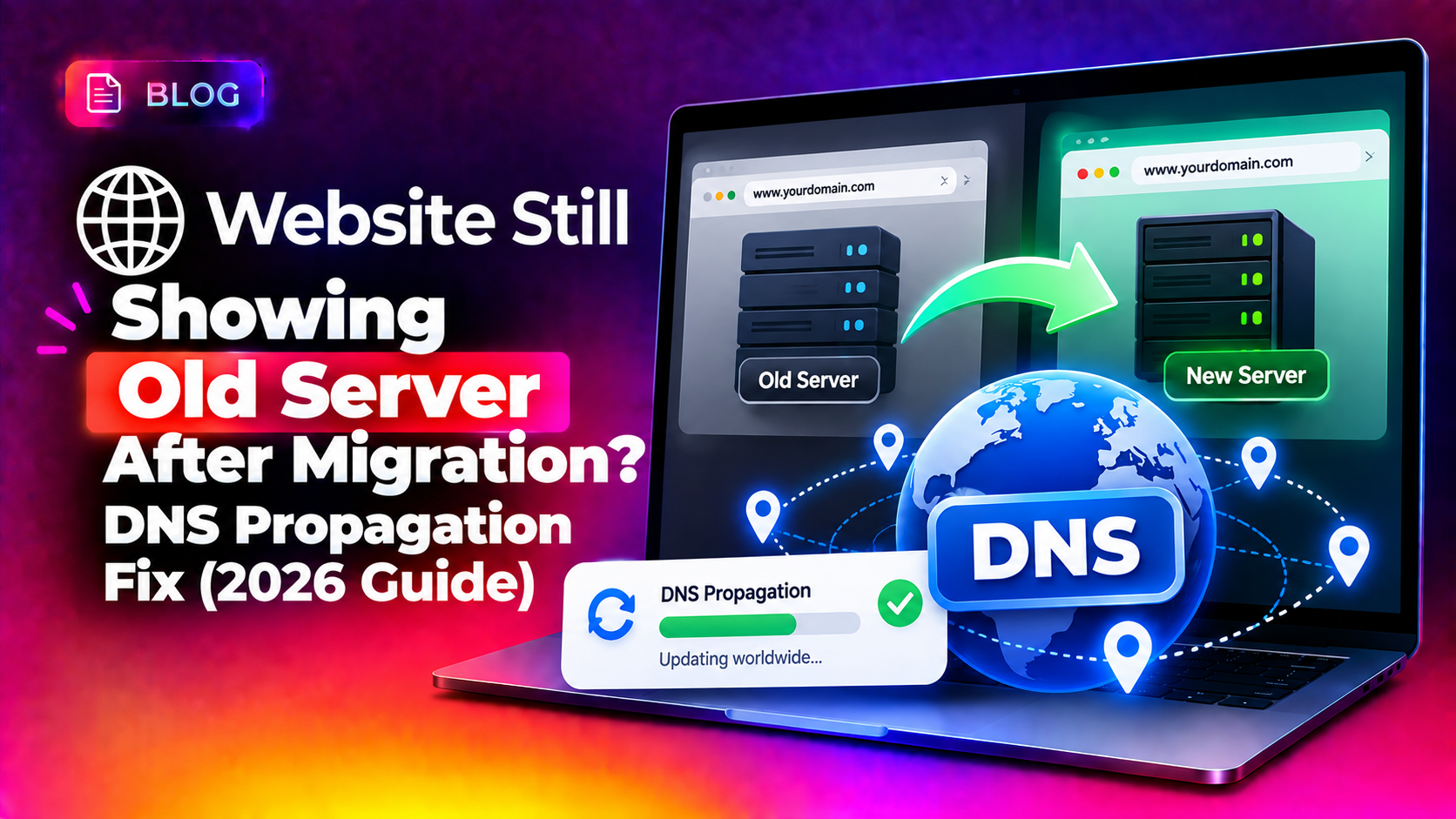
This is the step most admins skip — and pay for during cutover. DNS TTL (Time to Live) controls how long DNS resolvers cache your A record. Standard TTLs are 3600–86400 seconds (1–24 hours). During cutover, if TTL is high, some visitors will still reach the old server for hours after you change the DNS.
Lower TTL 24–48 hours before your cutover window:
# In your DNS management panel, change the A record TTL:
yourdomain.com  A  YOUR_OLD_IP  TTL: 60  (reduce from 3600 to 60)
After 24 hours, all DNS resolvers will have refreshed their cache and will respect the new 60-second TTL. When you change the A record during cutover, propagation completes within 1–2 minutes globally instead of hours.
Phase 5: Final Cutover (Maintenance Window)
Schedule your cutover during your site's quietest period — typically 2–4 AM in your primary user timezone. Allow 30–60 minutes.
1. Enable maintenance mode on your application to prevent new writes during the final sync.
2. Run the final delta rsync with the --delete flag to ensure the new server exactly mirrors the old one:
rsync -avz --delete --progress -e "ssh -i /root/.ssh/migration_key" /var/www/ root@NEW_VPS_IP:/var/www/3. Dump the live database one final time and restore to the new VPS:
# On old server
mysqldump --all-databases --single-transaction > /tmp/final-dump.sql
scp -i /root/.ssh/migration_key /tmp/final-dump.sql root@NEW_VPS_IP:/tmp/

# On new VPS
mysql < /tmp/final-dump.sql
4. Start all services on the new VPS and run a final test via /etc/hosts override.
5. Update DNS: change the A record to point to the new VPS IP. With your 60-second TTL, this propagates globally in 1–2 minutes.
6. Disable maintenance mode once DNS has propagated.
7. Keep the old dedicated server running for 48–72 hours as a fallback — do not cancel it immediately. If issues emerge, reverting DNS is a 60-second operation.
Phase 6: Post-Migration Validation Checklist
After DNS cutover, verify the following within the first 30 minutes:
- Homepage and key application pages load correctly from multiple geographic locations (use a tool like downforeveryoneorjustme.com)
- SSL certificate is active and shows no browser warnings (
curl -vI https://yourdomain.com 2>&1 | grep -A5 "SSL certificate") - Contact forms, login, and checkout functions work end-to-end
- Database writes are persisting (create a test record and verify it appears)
- Email delivery is working (send a test message and check mail logs)
- Cron jobs are running on the new server (
tail -f /var/log/cron) - Let's Encrypt auto-renewal is configured:
certbot renew --dry-run - Monitoring alerts are configured for the new VPS IP
Monitor server logs closely for the first 7 days: tail -f /var/log/nginx/error.log. Any 500-series errors that weren't present before indicate a configuration or dependency mismatch that needs investigation.
Common Migration Problems and Solutions
Problem: Application throws 500 errors on new VPS
Check PHP version, missing extensions, or incorrect file permissions. Run php -m on both servers and compare. Verify directory permissions: chown -R www-data:www-data /var/www/ (Ubuntu) or chown -R nginx:nginx /var/www/ (CentOS).
Problem: Email is not being delivered
Check your PTR record — the new VPS IP needs a reverse DNS record matching your mail domain. Set this in your VPS provider's dashboard. Also verify SPF records include the new IP.
Problem: MySQL performance is noticeably slower
Cloud VPS storage uses network-attached SSD, which has higher latency than local NVMe on dedicated servers. Tune innodb_buffer_pool_size to 70% of available RAM and add query caching as needed.
Problem: Old server still receiving traffic 2 hours after DNS change
Some ISPs and corporate networks use their own DNS resolvers with aggressive caching. This resolves itself within 24 hours. Maintain the old server in standby during this period. For critical applications, CloudHouse's server migration service implements dual-write patterns to handle traffic during the propagation window.
FAQs
How long does a dedicated server to cloud VPS migration take?
The planning and preparation phase takes 2–3 days. The initial data sync can take hours depending on your data volume. The actual cutover window is typically 30–60 minutes of low-traffic downtime or zero downtime if you use a dual-sync approach. Total elapsed time from decision to live is usually 3–7 days for a well-planned migration.
Will my website go down during the migration?
With the rsync pre-sync + DNS TTL reduction approach in this guide, downtime is limited to a brief maintenance window of 5–30 minutes for the final database sync and DNS propagation. With a 60-second TTL pre-set, DNS changes propagate in 1–2 minutes globally, keeping your exposure window very short.
Do I need to cancel my dedicated server immediately after migration?
No — keep the dedicated server running for at least 48–72 hours as a rollback option. Cloud VPS providers bill hourly or daily, so the cost of keeping both servers briefly is minimal compared to the risk of being without a rollback option. Only cancel or repurpose the dedicated server once the new VPS is confirmed stable.
How do I handle SSL certificates during migration?
If using Let's Encrypt, install Certbot on the new VPS and issue new certificates after DNS has propagated to the new IP. Let's Encrypt validates domain ownership via HTTP, so the certificate is only issuable once DNS resolves to the new server. If using a paid SSL certificate, re-key or transfer it through your certificate provider.
What is the biggest risk in a dedicated-to-VPS migration?
Database consistency is the biggest risk. Any writes that occur between your last database dump and the completion of DNS cutover can be lost. Mitigate this by enabling maintenance mode during the final sync window, or by using MySQL replication to keep databases synchronised in near-real-time during the migration period.
Conclusion
Migrating from a dedicated server to a cloud VPS without downtime requires careful planning — not heroic effort. The key steps are: audit your existing server thoroughly, provision and test the new VPS before touching DNS, use rsync pre-sync to transfer bulk data early, reduce DNS TTL 24–48 hours in advance, and execute a brief final sync during a quiet maintenance window. Keep the old server on standby for 48–72 hours as insurance. If you need expert guidance or hands-off execution for your dedicated-to-VPS migration, CloudHouse's server migration service handles the entire process with zero-downtime guarantees.