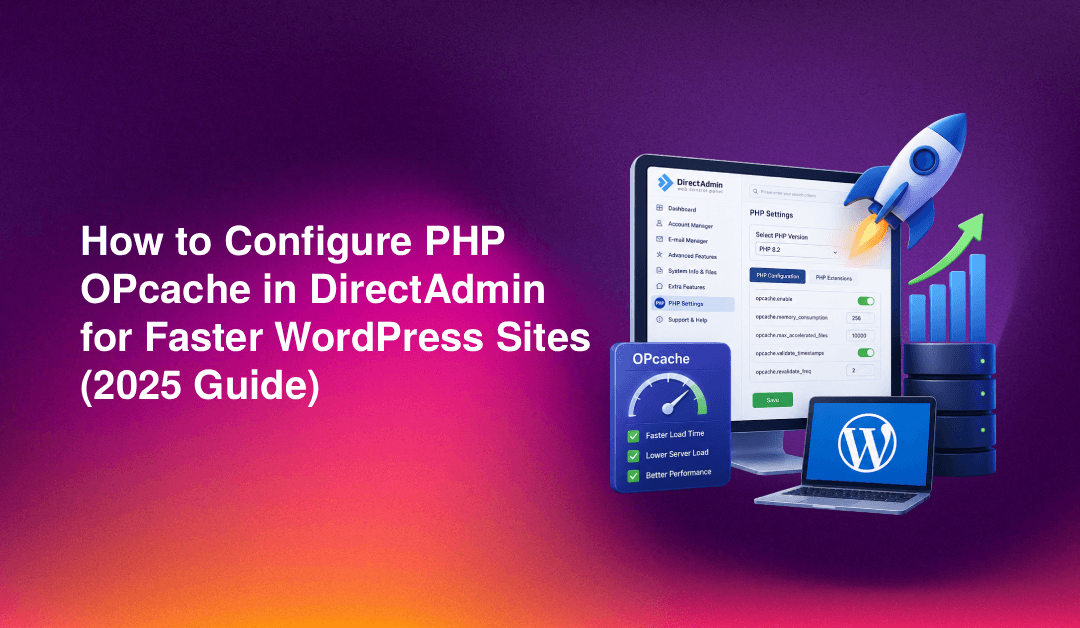
To configure PHP OPcache on a DirectAdmin server, enable it in CustomBuild, set the [opcache] directives in a conf.d include file that CustomBuild never overwrites, and size opcache.memory_consumption to the number of WordPress sites on the box. Done correctly, DirectAdmin OPcache configuration is one of the highest-impact performance changes you can make, often cutting page generation time by 30–70% without touching application code. Most guides stop at installation, which leaves default settings that underperform on shared servers, and custom edits to php.ini get wiped the next time CustomBuild rebuilds PHP. This guide, checked against current DirectAdmin and PHP releases in 2026, covers installation, memory sizing for 10–50 WordPress sites, and a reliable method to make your configuration survive rebuilds.
What Is PHP OPcache and Why It Matters for WordPress Performance
PHP is an interpreted language. Without a bytecode cache, every HTTP request forces the server to read each PHP file from disk, parse it into tokens, compile those tokens into opcodes, and then execute those opcodes. For a typical WordPress page load, that process repeats across hundreds of files — WordPress core, plugins, themes, and autoloaders — on every single request.
OPcache eliminates the read-parse-compile cycle by storing precompiled bytecode in shared memory. On subsequent requests, PHP skips directly to execution. The practical outcome on a WordPress site is significant:
- Server response time (TTFB) drops because PHP work per request shrinks dramatically.
- CPU usage falls, freeing resources for concurrent requests rather than burning cycles recompiling the same files.
- MySQL query load often decreases as faster PHP execution means less time holding database connections open.
- Hosting capacity increases — a server that previously handled 50 concurrent visitors can handle significantly more with OPcache active.
OPcache has shipped bundled with PHP since version 5.5 and is the recommended bytecode cache for WordPress by both the WordPress.org hosting team and major managed hosts. Enabling and correctly sizing it is foundational to any DirectAdmin PHP performance optimization strategy, and the same approach applies to every PHP version CustomBuild currently offers.
Prerequisites and Compatibility Check
- PHP version: 7.4, 8.0, 8.1, 8.2, 8.3, 8.4, or 8.5 — all include OPcache. Note that 7.4 and 8.0 no longer receive security fixes, and 8.1 has also reached end of life, so use a supported 8.x release for production WordPress sites wherever your plugins allow.
- DirectAdmin with CustomBuild 2.0: Run
cd /usr/local/directadmin/custombuild && ./build versionto confirm. - Root SSH access: All steps require root or sudo privileges.
- Available RAM: At least 128 MB free beyond existing usage. Run
free -hto check.
Check whether OPcache is already loaded:
php -r "echo opcache_get_status() ? 'OPcache active' : 'OPcache not active';"If you get a fatal error about an undefined function, OPcache is not compiled in — proceed to Step 1. If it returns OPcache active, skip to Step 2 to tune the settings. Keep in mind that the CLI and PHP-FPM are configured separately, so a result from the command line does not prove OPcache is running for your websites; Step 5 shows how to confirm the web context.
💡 None of these worked? Skip the guesswork.
Get Expert Help →Step 1: Install OPcache via DirectAdmin CustomBuild 2.0
grep opcache /usr/local/directadmin/custombuild/options.confYou should see opcache=yes. If it reads opcache=no, change it:
sed -i 's/^opcache=no/opcache=yes/' /usr/local/directadmin/custombuild/options.confReplace php82 with your target version (php81, php83, php84, php85). The examples in this guide use php82, so substitute your own version number in every command and path:
cd /usr/local/directadmin/custombuild
./build php82
./build php_extensions82
This takes 10–25 minutes depending on server CPU. Do not interrupt the process.
systemctl restart php82-fpm
php82 -m | grep -i opcache
You should see Zend OPcache in the output.
php82 --ini | grep "Scan for additional .ini files"Common path: /usr/local/lib/php82/conf.d/
cat > /usr/local/lib/php82/conf.d/99-opcache-custom.ini <<'EOF'
; CloudHouse custom OPcache settings - survives CustomBuild rebuilds
[opcache]
opcache.enable=1
opcache.enable_cli=0
opcache.memory_consumption=128
opcache.interned_strings_buffer=16
opcache.max_accelerated_files=10000
opcache.revalidate_freq=60
opcache.validate_timestamps=1
opcache.save_comments=1
opcache.max_wasted_percentage=5
opcache.use_cwd=1
EOF
The 99- prefix matters: PHP loads files in the scan directory alphabetically, so your file is read last and its values win over anything set earlier.
php82 -i | grep opcache.memory_consumptionShould return your custom value rather than the default. If you are testing with a value that matches the default, temporarily set a different number such as 192 so you can tell the include file is really being read.
chattr +i /usr/local/lib/php82/conf.d/99-opcache-custom.iniThe +i (immutable) flag prevents any process — including root — from modifying or deleting the file without explicitly removing the attribute first. This is the most reliable protection against CustomBuild overwrites. To edit the file in future, run chattr -i first, make changes, then re-apply chattr +i.
If you rely on our managed DirectAdmin server support, this protection step is part of the standard hardening we apply after every PHP upgrade.
Step 4: Size OPcache Memory for Multi-Site Shared Servers
The most common misconfiguration on shared servers running 10–50 WordPress sites is undersizing opcache.memory_consumption. When the cache fills up, OPcache starts evicting scripts — meaning some requests fall back to the full parse-compile cycle, negating the performance benefit.
Memory Sizing Formula
Required OPcache Memory (MB) = (Average PHP files per site x Number of sites x Average file size in MB) x 1.25 safety marginWordPress benchmarks by site type (approximate figures from typical installs; your own numbers will vary with the plugins you run):
- Plain WordPress + 10 plugins: ~3,500 PHP files, ~18 MB compiled bytecode per site
- WordPress + WooCommerce + 20 plugins: ~6,500 PHP files, ~35 MB compiled bytecode per site
- WordPress + Elementor + WooCommerce + 30 plugins: ~9,000 PHP files, ~55 MB compiled bytecode per site
Recommended opcache.memory_consumption values:
- 1–5 sites (light plugins):
64MB - 5–15 sites (mixed plugin load):
128MB - 15–30 sites (WooCommerce or page builders):
256MB - 30–50 sites (heavy plugin footprints):
512MB
Scale opcache.max_accelerated_files to match. Use a prime number for optimal hash table performance: 7963, 16229, 32531, 65537.
Count actual PHP files on your server:
find /home -name "*.php" | wc -lSet max_accelerated_files to the next prime number above this count. Remember that this count includes every PHP file on disk, including inactive plugins and backups, so it overestimates what is cached in practice; treat it as an upper bound and then refine it using the real figures from Step 5.
RAM Budget Check
Never allocate more than 25% of total RAM to OPcache alone. On a 4 GB server: max 1 GB. On a 2 GB server: max 512 MB. Leave remaining RAM for PHP-FPM workers, MySQL/MariaDB buffer pool, and OS overhead.
Step 5: Verify OPcache Is Working
Method 1: PHP CLI Status Check
php82 -r "
\$s = opcache_get_status();
echo 'OPcache enabled: ' . (\$s['opcache_enabled'] ? 'YES' : 'NO') . PHP_EOL;
echo 'Used memory: ' . round(\$s['memory_usage']['used_memory']/1024/1024, 1) . ' MB' . PHP_EOL;
echo 'Free memory: ' . round(\$s['memory_usage']['free_memory']/1024/1024, 1) . ' MB' . PHP_EOL;
echo 'Cached scripts: ' . \$s['opcache_statistics']['num_cached_scripts'] . PHP_EOL;
echo 'Cache hits: ' . \$s['opcache_statistics']['hits'] . PHP_EOL;
echo 'Cache misses: ' . \$s['opcache_statistics']['misses'] . PHP_EOL;
"
A healthy server shows used memory well below the allocation limit and a hit-to-miss ratio above 90% after 10–15 minutes of normal traffic.
One caveat: the CLI process has its own OPcache state, separate from the shared memory used by PHP-FPM. With opcache.enable_cli=0, as configured above, this command may report OPcache as inactive or return no data even when your websites are fully cached. To see the real figures for your sites, run the same opcache_get_status() call from a temporary PHP file served through the web server, and remove the file immediately afterwards.
Method 2: Before/After TTFB Test
# Before enabling OPcache
curl -o /dev/null -s -w "TTFB: %{time_starttransfer}s
" https://yourwordpresssite.com/

# After enabling OPcache
curl -o /dev/null -s -w "TTFB: %{time_starttransfer}s
" https://yourwordpresssite.com/
Expect a 30–60% reduction in TTFB on a non-cached WordPress page load. Run each test several times and ignore the first request after a restart, since that one has to fill the cache.
Troubleshooting Common OPcache Issues in DirectAdmin
OPcache active in CLI but not in PHP-FPM web requests
CLI and FPM use separate php.ini loading paths. Create a temporary phpinfo.php file in a site's webroot, verify OPcache is enabled in the web context, then delete the file.
Settings reset after CustomBuild rebuild
Move all OPcache directives to /usr/local/lib/php82/conf.d/99-opcache-custom.ini and apply chattr +i as described in Step 3. Repeat the process for each PHP version installed on the server, because every version has its own conf.d directory.
OPcache memory full — hit rate dropping
Check oom_restarts in opcache_get_status(). If non-zero, OPcache has run out of memory and restarted. Increase opcache.memory_consumption using the formula in Step 4. Also compare num_cached_keys with max_cached_keys; if the key count is close to the limit, raise opcache.max_accelerated_files as well.
WordPress plugin updates not reflecting after deployment
With opcache.revalidate_freq=60, updated files may serve stale bytecode for up to 60 seconds. Reset OPcache immediately after a plugin update:
php82 -r "opcache_reset();"Because the CLI has its own cache, this command may not clear the cache used by PHP-FPM. Restarting PHP-FPM with systemctl restart php82-fpm reliably clears it, or you can call opcache_reset() from a script served through the web server.
Fatal errors after enabling OPcache
Confirm opcache.save_comments=1. Plugins using PHP annotation-based dependency injection fail when docblock comments are stripped. Also ensure opcache.enable_file_override=0 to avoid include path resolution bugs.
Properly configured OPcache is one of the most cost-effective performance improvements on a DirectAdmin server — it requires no application changes, no additional software licenses, and pays dividends across every WordPress site on the server. By installing via CustomBuild, applying the correct memory sizing formula, and protecting your settings with a conf.d include file and chattr +i, you ensure those gains are permanent and survive every PHP rebuild. If you want these optimizations applied by engineers who manage DirectAdmin servers daily, our team provides expert managed DirectAdmin server support ready to help.