DirectAdmin email account setup is straightforward on the surface — a few clicks to create an address — but sysadmins quickly discover that the real work lies in DNS configuration. Without properly configured SPF, DKIM, and DMARC records, emails sent from your DirectAdmin-hosted domain will land in spam folders or bounce entirely. This guide covers every layer: prerequisites, account creation in the Evolution skin, anti-spam DNS hardening, quota management, and client configuration with SSL.
Prerequisites: DNS and Hostname Checks Before Creating Any Email Account
Skipping this section is the most common reason DirectAdmin email fails silently. Verify these items before touching the Email Manager.
1. Confirm a Valid Server Hostname
Your server hostname must resolve to a real PTR (reverse DNS) record. A hostname like ip.address-da.direct is a placeholder — sending mail from it will trigger spam filters immediately.
Check your current hostname:
hostname -fVerify forward and reverse DNS match:
# Forward lookup — should return your server IP
dig +short mail.yourdomain.com A

# Reverse lookup — should return your hostname
dig +short -x YOUR.SERVER.IP PTR
If PTR is missing, request it from your hosting provider or VPS panel. It must match hostname -f exactly.
2. Check Existing MX Records
Confirm your domain has an MX record pointing to your server:
dig +short yourdomain.com MXExpected output: 10 mail.yourdomain.com. — if empty, add it in DirectAdmin DNS Management before creating email accounts.
3. Verify Exim is Running
systemctl status eximIf stopped: systemctl start exim && systemctl enable exim
4. Confirm Port 25 is Not Blocked
Many VPS providers block outbound port 25 by default to prevent spam abuse. Test it:
telnet smtp.gmail.com 25If it times out, contact your provider to unblock port 25, or configure an SMTP relay (Mailgun, SendGrid, or Amazon SES).
💡 None of these worked? Skip the guesswork.
Get Expert Help →Creating Email Accounts in DirectAdmin (Evolution Skin Step-by-Step)
The Evolution skin is DirectAdmin's default interface since 2019. Here is the exact path to create a new mailbox.
Navigate to your DirectAdmin panel (typically https://yourdomain.com:2222) and log in with your reseller or user credentials — not the admin account.
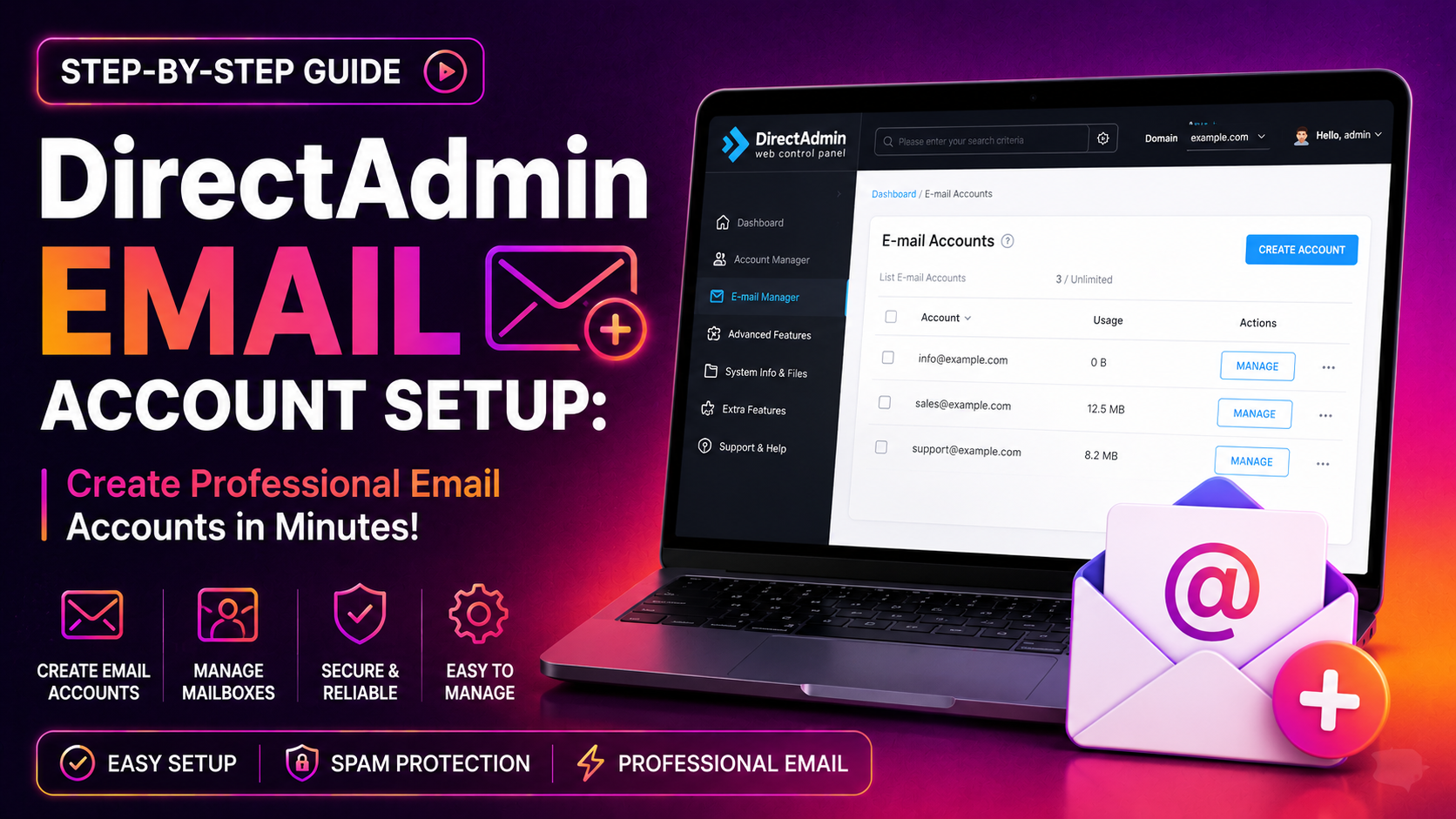
From the Evolution skin dashboard, click E-Mail Manager in the left sidebar, then select E-Mail Accounts.
Click the blue + Create Mail Account button in the top-right corner.
Complete the form:
- Username: the local part only (e.g.,
infoforinfo@yourdomain.com) - Password: use a minimum 16-character password — DirectAdmin enforces this if the admin has set password strength rules
- Quota: set in MB; leave as 0 for unlimited (not recommended — see the quota section below)
- Send limit: optionally cap outbound email per day to prevent abuse
Click Create. The account appears in the list immediately. Verify by checking the Exim queue log:
tail -f /var/log/exim/mainlogWebmail Access
DirectAdmin ships with three webmail clients accessible at https://yourdomain.com/webmail or https://mail.yourdomain.com:
- Roundcube — modern interface, best for daily use
- SquirrelMail — lightweight, works on slow connections
- RainLoop — optional, if installed by admin
In E-Mail Manager → E-Mail Accounts, click the pencil icon next to any account. Set the quota in MB. Recommended minimums:
- Standard mailbox: 2,048 MB (2 GB)
- Shared mailbox (e.g.,
info@,support@): 5,120 MB (5 GB) - Archive mailbox: 10,240 MB (10 GB)
When a mailbox reaches its quota, Dovecot returns a 452 4.2.2 Mailbox full error to the sending server. The sender gets a bounce or a retry queue entry. Check mailbox usage from SSH:
# Check a specific mailbox size
du -sh /home/USERNAME/imap/yourdomain.com/EMAILUSER/

# List all mailboxes over 1 GB
find /home/*/imap/ -maxdepth 3 -name "cur" -exec du -sh {} + | sort -rh | head -20
Domain-Wide Quota
As a reseller or admin, you can cap total email storage per domain. Go to Admin Level → Manage User, edit the user, and set the Inode and Disk Quota limits. Alternatively, via SSH:
grep "email_quota" /usr/local/directadmin/data/users/USERNAME/user.confQuota Alerts
DirectAdmin can send quota warning emails when a mailbox reaches 90% capacity. Enable via Admin Settings → E-Mail Quota Warning. Set the threshold to 85% to give users time to clean up before bounces start.
Navigate to Account Manager → SSL Certificates.
Select Free & automatic certificate from Let's Encrypt. Ensure mail.yourdomain.com is included in the domain list alongside yourdomain.com and www.yourdomain.com.
Check Use the certificate for the mail server before saving. DirectAdmin will configure Exim (SMTP) and Dovecot (IMAP/POP3) to use this certificate automatically.
# Test IMAP SSL
openssl s_client -connect mail.yourdomain.com:993

# Test SMTP STARTTLS
openssl s_client -starttls smtp -connect mail.yourdomain.com:587
Look for Verify return code: 0 (ok) — any other code means the certificate chain is broken and clients will show security warnings.
Auto-Discovery Configuration (Optional)
To enable automatic configuration in Outlook and Thunderbird, add these DNS records:
# Thunderbird auto-discovery (SRV records)
_imap._tcp.yourdomain.com.  IN SRV 0 1 143 mail.yourdomain.com.
_imaps._tcp.yourdomain.com. IN SRV 0 1 993 mail.yourdomain.com.
_submission._tcp.yourdomain.com. IN SRV 0 1 587 mail.yourdomain.com.

# Outlook auto-discover (CNAME)
autodiscover.yourdomain.com. IN CNAME autoconfig.yourdomain.com.
Managing all of this — especially across dozens of domains — is precisely what a managed CloudHouse server management service handles daily: DNS audits, DKIM key rotation, quota monitoring, and Exim/Dovecot SSL renewals without interrupting live mail flow.
FAQs
See the FAQ section below for the most common questions about DirectAdmin email setup.
Conclusion
A complete DirectAdmin email account setup goes far beyond clicking "Create Mail Account." Proper hostname PTR records, DKIM key generation, SPF hardening, graduated DMARC enforcement, and quota planning are the difference between a mail server that works and one that silently drops messages into spam. Follow the steps in this guide in order — prerequisites first, DNS authentication second, then client configuration — and verify each layer before moving to the next. A 10/10 score on mail-tester.com is your confirmation that the setup is production-ready.