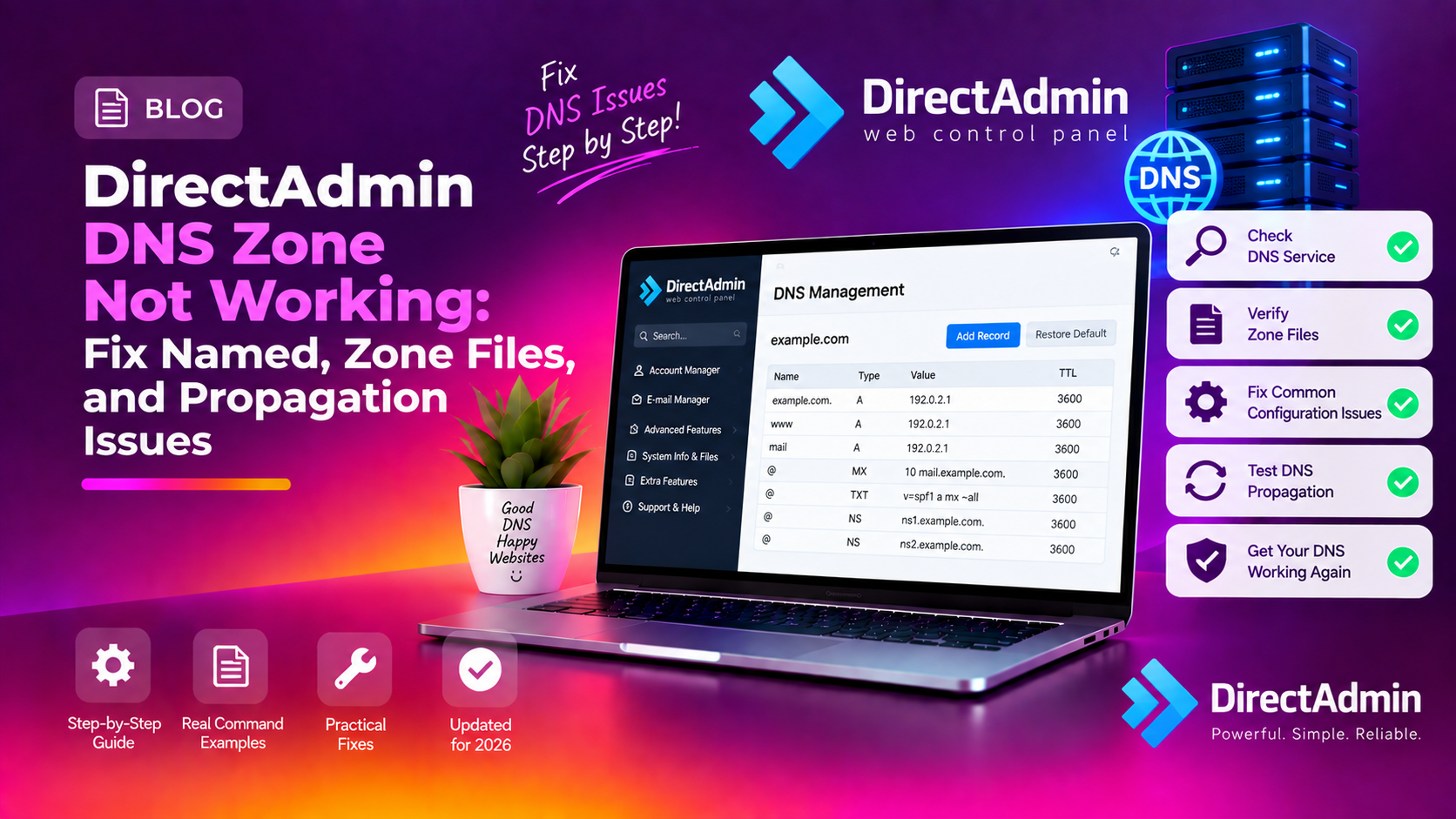
When DNS stops working on a DirectAdmin server, every domain it hosts goes dark. Websites return NXDOMAIN, emails bounce, and clients start calling. DNS failures in DirectAdmin almost always trace back to one of three root causes: the Named (BIND) service isn't running, a zone file is corrupted or incorrectly formatted, or port 53 is blocked in the firewall. This guide walks through each scenario with the exact commands to diagnose and fix them fast.
💡 None of these worked? Skip the guesswork.
Get Expert Help →Step 1: Check if Named (BIND) Is Running
Named is the DNS server daemon that DirectAdmin uses. If it's stopped, no DNS queries will resolve — for any domain on the server.
systemctl status named
# or on CentOS/RHEL:
service named status
If the output shows inactive or failed, restart the service:
systemctl restart named
systemctl enable named # ensure it starts automatically after rebootjournalctl -u named --since "30 minutes ago"
# or:
tail -50 /var/log/messages | grep namedIf Named fails to start and the log shows a zone file error, proceed to Step 3.
ss -tlnup | grep ":53"
# or:
netstat -tlnup | grep named
If Named is running but not showing on port 53, a configuration error is preventing it from binding to the interface. Check /etc/named.conf for listen-on directives that might restrict which interfaces Named binds to.
named-checkconf /etc/named.conf
named-checkzone yourdomain.com /var/named/yourdomain.com.db
Run named-checkzone against any domain that was recently added or modified. A "zone not loaded due to errors" message pinpoints the problem file.
grep -i "zone.*not loaded\|error.*zone\|lame server" /var/log/messages | tail -30The safest fix for a corrupted zone is to delete and recreate it through DirectAdmin's interface:
- Log in to DirectAdmin as Admin
- Go to DNS Administration
- Find the problem domain and delete its DNS zone
- Re-add the domain's DNS zone — DirectAdmin will regenerate a clean zone file
If /etc/named.conf references a zone but the .db file doesn't exist in /var/named/:
ls /var/named/ | grep yourdomain
# If no file exists:
# Delete the zone reference in DirectAdmin, then re-add itwhois yourdomain.com | grep -i "Name Server"
dig NS yourdomain.com @8.8.8.8dig A ns1.yourdomain.com @8.8.8.8
dig A ns2.yourdomain.com @8.8.8.8These must return your server's IP address. If they return nothing or the wrong IP, log in to your domain registrar and update the glue records (host records) to point to your server's IP.
grep -A2 "^@ " /var/named/yourdomain.com.db | head -10The NS records in the zone file must match the nameservers registered at the registrar.
Step 6: Check the DirectAdmin Task Queue
DirectAdmin processes DNS changes through a task queue. If the task queue is stalled, DNS zones created through the panel won't be written to the filesystem — the zone exists in DirectAdmin's database but Named never gets the file.
Check and restart the DirectAdmin task queue processor:
# Check if dataskq is running
ps aux | grep dataskq

# Restart DirectAdmin to reset task processing
systemctl restart directadmin

# Force task queue processing manually
echo "action=rewrite&value=named" >> /usr/local/directadmin/data/task.queue
/usr/local/directadmin/dataskq
After this, check if the missing zone file now appears in /var/named/.
Step 7: Rebuild All DNS Zones
If multiple domains are missing DNS or zone files are inconsistent, a full DNS rebuild from DirectAdmin is the cleanest fix:
# Rebuild all named zones
echo "action=rewrite&value=named" >> /usr/local/directadmin/data/task.queue
/usr/local/directadmin/dataskq

# Force a complete DNS rebuild
cd /usr/local/directadmin/
./directadmin rewrite_confs

# Reload Named after rebuild
rndc reload
systemctl restart named
Step 8: Check DNSSEC for Resolver-Specific Failures
If a domain resolves on some DNS resolvers (like 8.8.8.8) but not others (like ISP resolvers), DNSSEC misconfiguration is often the cause. Strict DNSSEC-validating resolvers reject responses with invalid DNSSEC signatures.
# Check if DNSSEC is enabled for the zone
dig yourdomain.com +dnssec @8.8.8.8 | grep -i "AD\|RRSIG"
Use an online DNSSEC analyzer to check for DNSSEC chain errors. If DNSSEC was enabled in DirectAdmin but the DS records were never added to the registrar, disable DNSSEC for the zone in DirectAdmin DNS Administration to restore universal resolution.
Step 9: Fix DNS After DirectAdmin Server IP Change
If you changed the server's IP address (after migrating or upgrading), every DNS zone still has the old IP in A records. Update them in bulk via SSH:
# Find all zone files with old IP
grep -rl "OLD_IP" /var/named/*.db

# Replace old IP with new IP in all zone files
sed -i 's/OLD_IP/NEW_IP/g' /var/named/*.db

# Increment serial numbers (required for resolvers to pick up changes)
# DirectAdmin handles this automatically if you use the panel — prefer the panel method for safety

# Reload Named
rndc reload
After changing IPs, also update the glue records at the domain registrar as described in Step 5.
DNS Quick Reference — DirectAdmin File Locations
- Named configuration:
/etc/named.conf - Zone files:
/var/named/(one.dbfile per domain) - Named log:
/var/log/messages(filter fornamed) - DirectAdmin task queue:
/usr/local/directadmin/data/task.queue - DirectAdmin config:
/usr/local/directadmin/conf/directadmin.conf
For hosting companies running large DirectAdmin fleets, proactive DNS monitoring — alerting when Named stops responding or a zone fails to load — prevents client-facing outages entirely. CloudHouse's server management service includes DNS health monitoring and automatic recovery for DirectAdmin, cPanel, and Plesk servers.