
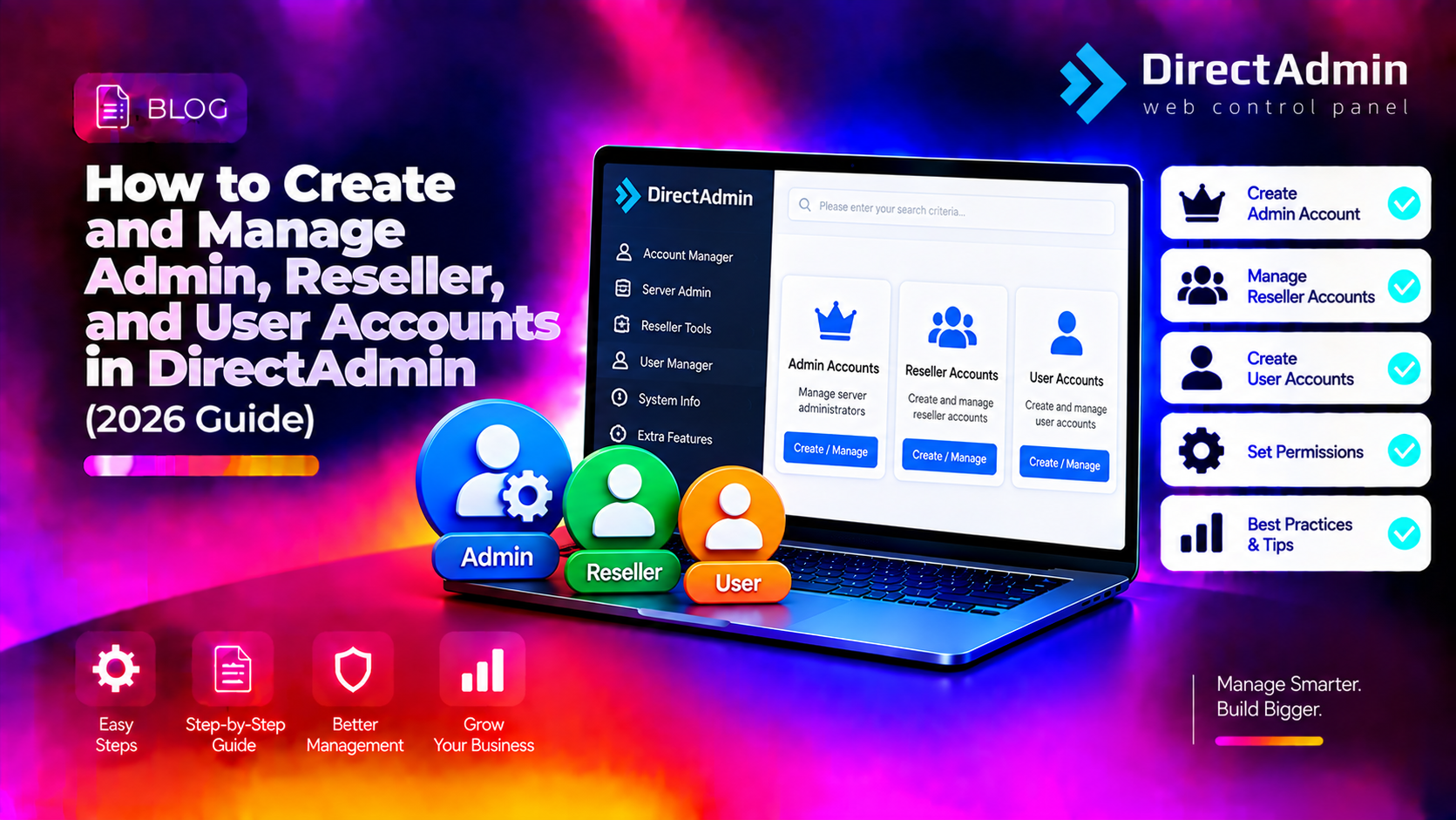
DirectAdmin uses a three-tier account hierarchy — Admin, Reseller, User — and understanding how these levels interact is essential for anyone managing a DirectAdmin-powered hosting server. Set up accounts incorrectly and you'll face permission errors, resource overuse, or resellers accidentally gaining access to other clients' data.
This guide covers every aspect of creating and managing accounts at all three levels in DirectAdmin: setting up reseller accounts with correct resource limits, creating user accounts under resellers, configuring packages, suspending accounts, and common problems to avoid.
Understanding the DirectAdmin Account Hierarchy
DirectAdmin has three account levels, each with different permissions:
- Admin — Full server control. Can create resellers, set server-wide settings, access all accounts, and manage packages for all levels. There is only one Admin account per server (the root/admin user).
- Reseller — Can create and manage their own User accounts, within the resource limits assigned to them by the Admin. Cannot access other resellers' users or server-level settings.
- User — The end customer. Can manage their own domains, email, databases, and files within the limits set by their Reseller package. Cannot create sub-accounts.
Resource allocation flows downward: Admin assigns a pool of resources to a Reseller, the Reseller allocates portions of that pool to each User. A Reseller can never give a User more than their own total allocation.
💡 None of these worked? Skip the guesswork.
Get Expert Help →Step 1: Create a Reseller Account
Only the Admin account can create Reseller accounts.
Navigate to https://your-server-ip:2222 and log in. Ensure your Access Level is set to Administrator in the top navigation.
Before creating the reseller account, define a package that sets the resource limits. Go to Admin Level → Manage Reseller Packages → Add Package. Configure:
- Bandwidth — total monthly bandwidth the reseller can distribute to their users
- Disk Space — total storage available to allocate across all their user accounts
- Number of Domains — maximum domains across all user accounts
- Number of Users — how many user accounts the reseller can create
- Overselling — whether the reseller can allocate more resources to users than they technically have (useful for shared hosting but risky for dedicated servers)
Go to Admin Level → Create Reseller. Fill in:
- Username (lowercase, max 8 characters, letters and numbers only)
- Email address
- Password
- Domain (the reseller's own primary domain)
- Package (select the package you created)
- IP address (shared or dedicated)
Click Create. DirectAdmin creates the account and sends a welcome email to the reseller's address.
Step 2: Create User Accounts (as Reseller or Admin)
User accounts can be created either by the Admin (on behalf of any reseller) or by the Reseller directly from their own dashboard.
Create a User Package
Before creating users, define user packages. As Reseller, go to Reseller Level → Manage User Packages → Add Package. Set:
- Disk quota
- Monthly bandwidth
- Number of email accounts
- Number of MySQL databases
- Number of FTP accounts
- Number of subdomains
- PHP version (if multiple PHP versions are available)
Create the User Account
Go to Reseller Level → Add New User. Fill in:
- Username
- Email address
- Password
- Domain (the user's primary domain)
- Package
- IP address
- Send Welcome Email (recommended — sends login credentials to the user)
Click Add. The account is created instantly.
Step 3: Manage Existing Accounts
View and Edit a Reseller's Users
As Admin, go to Admin Level → List Resellers. Click on a reseller username to view their account details, then click List Users to see all user accounts under that reseller.
Modify User Package or Limits
To change an individual user's resource limits without changing the whole package:
As Reseller: Reseller Level → List Users → click username → Modify User. Change the package or adjust individual quota values.
As Admin: go to Admin Level → List Resellers → click reseller → List Users → click username → Modify User.
Switch Between Account Levels (Login as User)
DirectAdmin allows Admins and Resellers to log in as any of their lower-level accounts without knowing their password. This is essential for troubleshooting client issues.
As Admin: List Resellers → click reseller username → the DirectAdmin session switches to that reseller's view.
As Reseller: List Users → click username → session switches to that user's cPanel-like view.
Step 4: Suspend and Delete Accounts
Suspend an Account (Preserve Data)
Suspending an account disables it without deleting files, email, or databases. Use this for non-payment, abuse investigations, or maintenance.
As Reseller: List Users → check the checkbox next to the username → Suspend Selected. The account's website returns a suspended page. Email delivery stops.
To unsuspend: same process → Unsuspend Selected.
Delete an Account (Permanent)
Deleting a user account removes all files, databases, email, and DNS zones permanently.
# Backup the account first via SSH before deleting:
/usr/local/directadmin/scripts/user_backups.sh username
In DirectAdmin: List Users → check username → Delete Selected → confirm. There is no undo.
Common DirectAdmin Account Management Errors
"Username already exists"
DirectAdmin usernames must be unique across the entire server — not just within a reseller. If the username exists anywhere on the system (even a deleted account in some cases), you'll get this error. Choose a different username.
"Unable to create user: limit reached"
The reseller has hit their maximum user account limit from their package. Either increase the reseller's package limit (Admin → List Resellers → Modify Reseller) or remove an unused user account to free up a slot.
"Disk quota exceeded" when creating account
The reseller doesn't have enough unallocated disk space to provision the new user's package. Either reduce the new user's disk quota, or increase the reseller's total disk space allocation (Admin → Modify Reseller).
Reseller can't see or manage a user account
If a user was created by the Admin directly (not under a reseller), it won't appear in any reseller's user list. Admin accounts created this way are "admin-level users." To assign them to a reseller, use the command line:
echo "action=move&user=username&reseller=resellername" | /usr/local/directadmin/directadmin --stdinBest Practices for DirectAdmin Account Management
- Always create packages before accounts — individual account limits are harder to track and audit than package-based limits
- Enable IP logging for resellers — helps identify which reseller a security incident originated from
- Set overselling to OFF for dedicated server environments — prevent resellers from allocating more resources than physically available
- Use the built-in backup before deleting any account — DirectAdmin deletions are permanent and cannot be recovered from the panel
For hosting businesses running DirectAdmin at scale, CloudHouse provides full DirectAdmin server management including account setup, package configuration, and reseller onboarding support.