
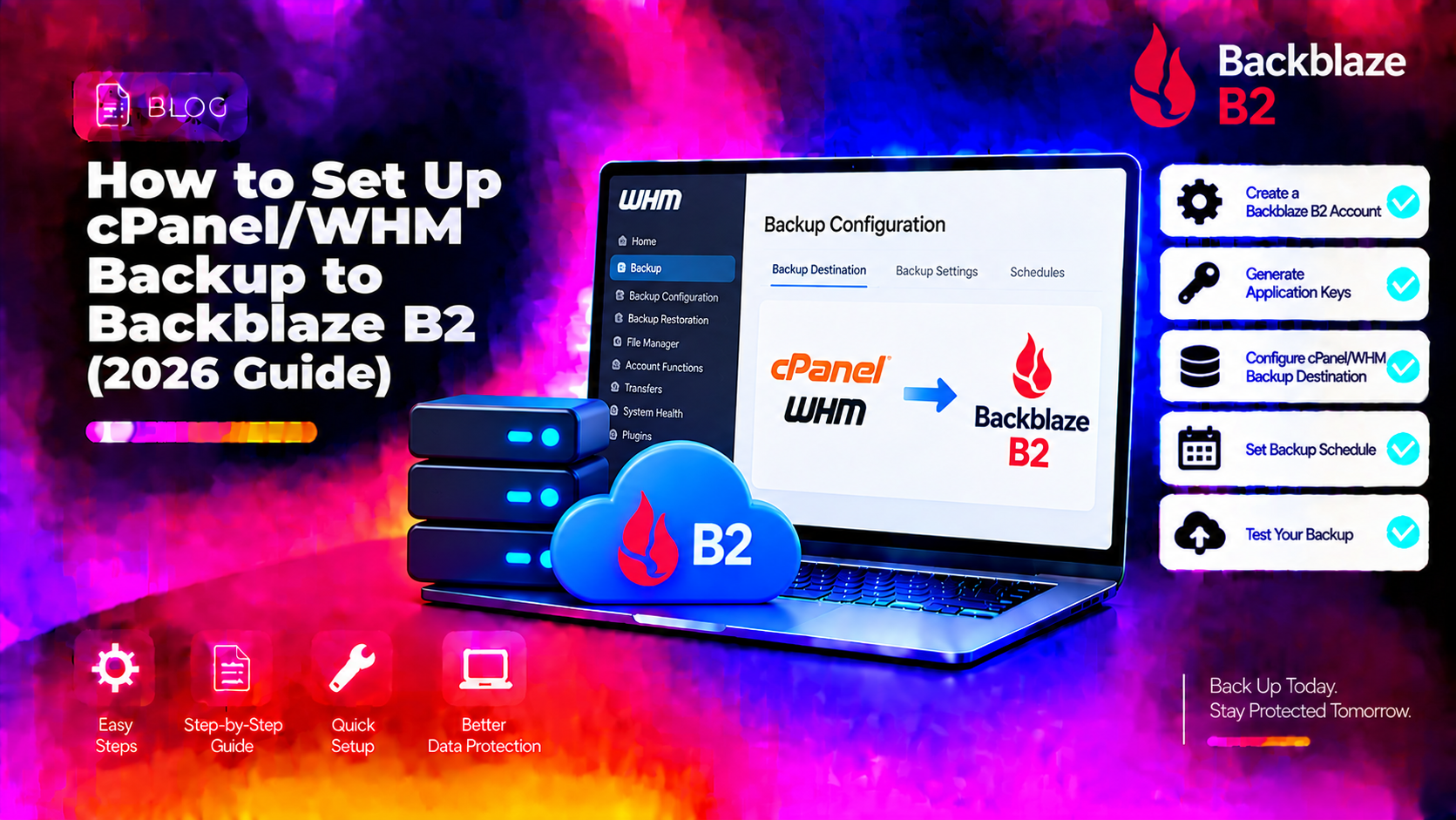
If you're running a cPanel/WHM server, storing backups only on the same server is a disaster waiting to happen. A single disk failure, ransomware attack, or data-centre outage can wipe out both your live data and your backups simultaneously. Offsite backup to Backblaze B2 costs as little as $0.006 per GB per month — roughly 74% cheaper than Amazon S3 — and WHM has had native B2 support since version 78. This guide walks you through the complete setup: creating your B2 bucket, generating a scoped application key, configuring WHM's Additional Destinations, and verifying your first backup.
Why Choose Backblaze B2 for WHM Offsite Backups
Before configuring anything, it's worth understanding why Backblaze B2 has become the go-to offsite destination for cPanel/WHM servers.
- Cost: $0.006/GB/month storage vs $0.023/GB on Amazon S3. For a server with 500 GB of backups, that's $3/month vs $11.50/month.
- Free egress: Download up to 3× your stored data per month at no charge — which covers almost every restore scenario without unexpected egress bills.
- No minimum retention: Daily backups that get pruned after 7 days cost exactly what they store, unlike Wasabi's 90-day minimum that makes short-lived backups expensive.
- Native WHM integration: WHM has a dedicated Backblaze B2 destination type (since WHM v78, February 2019) — no third-party plugin required for basic full-account backups.
- JetBackup native driver: If you run JetBackup 5, it has a dedicated B2 driver that outperforms the generic S3-compatible mode.
💡 None of these worked? Skip the guesswork.
Get Expert Help →Step 1 — Create Your Backblaze B2 Bucket
Log in to your Backblaze account and navigate to B2 Cloud Storage → Buckets, then click Create a Bucket.
Choose a globally unique name (6–63 characters, letters/digits/hyphens only). Bucket names are public and globally unique across all Backblaze accounts, so use something specific like yourserver-whm-backups. Avoid generic names like backups — they're almost certainly taken.
Never use a public bucket for server backups. Set visibility to Private.
Under Lifecycle Settings, select "Keep only the last version of the file". If you leave versioning enabled, WHM cannot prune old backups and your B2 storage will grow indefinitely, accumulating old versions of every file.
Leave Object Lock off. Enabling it prevents WHM from overwriting or deleting backup files, causing backup jobs to fail.
After creating the bucket, note the Bucket ID (a long alphanumeric string shown in the bucket list — different from the bucket name) and the S3 Endpoint from the bucket detail page. The endpoint follows the format s3.<region>.backblazeb2.com, for example s3.us-west-004.backblazeb2.com.
In the Backblaze console sidebar, click App Keys, then Add a New Application Key.
- Name: Something descriptive like
whm-backup-key - Allow access to Bucket(s): Select your specific backup bucket (not "All Buckets")
- Allow List All Bucket Names: Check this box — it is required for S3-compatible API operations even when the key is scoped to one bucket
- Type of Access: Read and Write
- File name prefix: Leave blank unless you want to scope backups to a subdirectory
After clicking Create New Key, Backblaze shows you the keyID and the applicationKey. The applicationKey is shown only once and cannot be retrieved later. Copy both values to a secure location (password manager) before closing the page. If you lose the applicationKey, you must delete and recreate the key.
Click the Additional Destinations tab. From the Destination Type dropdown, select Backblaze B2, then click Create new destination.
- Destination Name: A label for this destination (e.g.
Backblaze-B2-Primary) - Transfer System Backups to Destination: Check if you want WHM-level system backups transferred offsite
- Backup Directory: Leave blank to store at the bucket root, or enter a prefix path
- Bucket ID: The long alphanumeric Bucket ID from the Backblaze dashboard (not the bucket name)
- Bucket Name: The human-readable bucket name you created
- Application Key ID: The
keyIDfrom your application key - Application Key: The
applicationKeysecret value
Click Save and Validate Destination. A green success message confirms WHM can connect to your B2 bucket with the provided credentials. If you see an error, check the troubleshooting section below.
Return to the main Backup Configuration tab. Set your schedule (Daily/Weekly/Monthly), retention counts (how many copies to keep), and backup type (Compressed .tar.gz is recommended for offsite storage). Click Save Configuration.
To trigger an immediate backup without waiting for the schedule:
/usr/local/cpanel/bin/backup --forceUnder the Restore by Account tab, search for the cPanel username. Dates with available backups are highlighted in blue on the calendar.
Click the desired date, check Overwrite existing account if the account still exists on the server, then click Add Account to Queue → Restore. Monitor the restoration log for completion.
For a CLI restore (useful if the backup archive has already been downloaded locally from B2):
/scripts/restorepkg /path/to/cpmove-username.tar.gzLimitation of WHM native restore: You can only restore full accounts. If you need to restore a single database, file, or email account without touching the rest, you need JetBackup 5 (see below).
Step 5 — JetBackup 5 as an Alternative for Granular Restores
WHM's native backup is adequate for full-account backup and restore. But if your customers need self-service restore or you need to restore individual MySQL databases or files, JetBackup 5 is a better fit. It has a dedicated Backblaze B2 driver (not just S3-compatible mode) and supports:
- True incremental backups (JetBackup 5.1+ EDGE tier)
- Multiple simultaneous destinations (local + B2 + SFTP at the same time)
- Granular restores: individual files, MySQL databases, email accounts, DNS zones
- cPanel end-user self-service restore without admin involvement
In JetBackup 5, navigate to WHM → JetBackup 5 → Destinations → Add Destination and select Backblaze B2 as the Destination Type (not "S3 Compatible" — the native B2 driver is faster and avoids endpoint resolution issues). Enter your keyID, applicationKey, and bucket name, then click Test Connection before saving.
Troubleshooting Common WHM Backblaze B2 Errors
- 401 Unauthorized / bad_auth_token: You used the master Account ID instead of the application
keyID. Recreate the application key and use the keyID value in the Application Key ID field. - bad_bucket_id / invalid_bucket_id: The Bucket ID was entered incorrectly. The Bucket ID is different from the bucket name — copy it directly from the Backblaze dashboard bucket list.
- Connection failed / region mismatch: Use the full endpoint from your bucket's detail page:
s3.<region>.backblazeb2.com. Do not include the bucket name in the endpoint URL. - Old backups not being deleted: Bucket lifecycle rules or Object Lock are enabled. Set lifecycle to "Keep only the last version of the file" and disable Object Lock.
- JetBackup slow transfers: You're using "S3 Compatible" instead of the native "Backblaze B2" destination type. Switch to the native driver.
- duplicate_bucket_name: Bucket names are globally unique across all Backblaze accounts. Choose a more specific name.
Cost Comparison: Backblaze B2 vs Amazon S3 vs Wasabi
For a WHM server with 500 GB of backup data, here's what each provider costs per month:
- Backblaze B2: ~$3.00/month storage. Egress free up to 1.5 TB/month. No minimum retention.
- Amazon S3: ~$11.50/month storage. Egress $0.09/GB — a 100 GB restore costs an additional $9.
- Wasabi: ~$2.45/month storage (cheapest raw price), but 90-day minimum retention. Daily backups deleted before 90 days still get billed for 90 days — making it expensive for frequently-rotating backup schemes.
For most cPanel/WHM servers with daily backups retained for 7–30 days, Backblaze B2 offers the best combination of low cost, no egress surprises, and native WHM integration. Need help setting up automated offsite backups for your server? Our managed server team handles the full backup configuration, testing, and monitoring for you.