Cloud House Technologies Logo
CloudHouse Technologies
HomeServicesProjectsBlogAbout UsCareersContact UsLogin
    Cloud House Technologies Logo
    CloudHouse Technologies
    HomeServicesProjectsBlogAbout UsCareersContact UsLogin

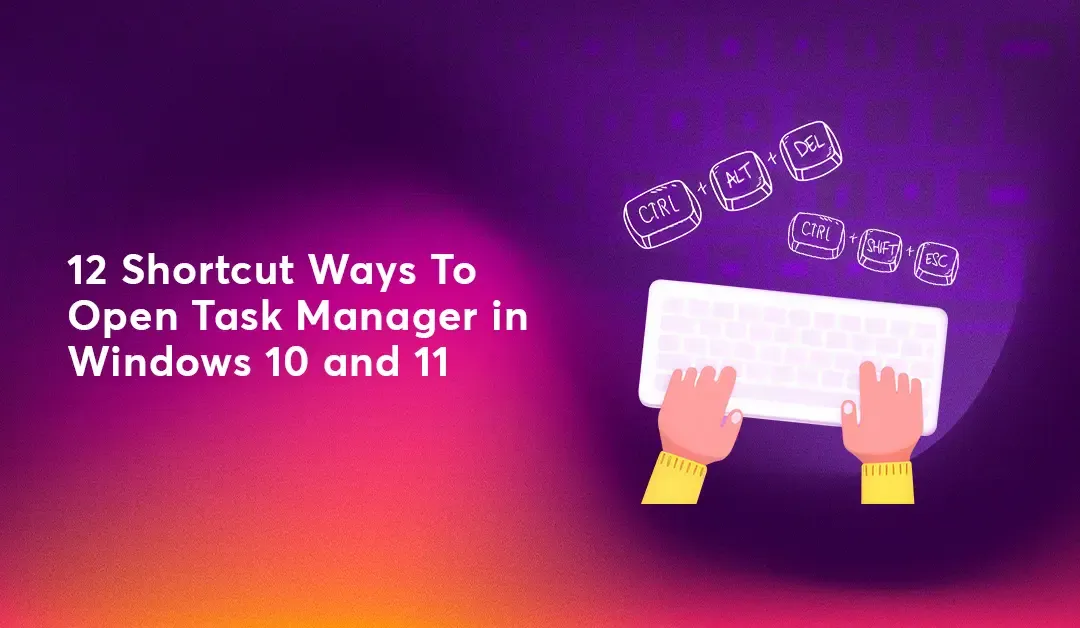
    12 Shortcuts To Open Task Manager in Windows 10 and 11

    ABHILASH CA

    Junior Devops Engineer

    Last Updated: 27 June 2026
    12 Shortcuts To Open Task Manager in Windows 10 and 11
    🖥️12,400+PCs Fixed
    ⭐4.9★Google Rating
    ⚡<15 minAvg. Response
    🛡️ISO 27001Certified

    Shortcut Ways to Open Task Manager in Windows 10/11

    Method 1: Via Keyboard Shortcut

    You can easily use the shortcut for Task Manager in different combinations such as:

    Press the Ctrl + Shift + Esc keys simultaneously to open the Task Manager window.

    Press the Ctrl + Shift + Delete keys simultaneously to open a list of options and select Task Manager.

    Method 2: Via Start Menu and Windows Search

    Another way to do the same is directly using the Start menu:

    1. Click on the Start icon on the taskbar.

    2. Type in Task Manager in the search bar

    3. Now, select Open.

    Method 3: Via Windows Power User Menu

    1. Right-click on the Start icon.

    2. Now, select Task Manager.

    Method 4: Via Taskbar

    1. Right-click anywhere on the taskbar.

    2. Now, select Task Manager.

    Method 5: Via Run Command

    1. Press the Windows and R keys together to open the Run window.

    2. Type in taskmgr.

    3. Then, click on OK or hit Enter.

    Method 6: Via Task Manager Executable in File Explorer

    1. Open File Explorer and click on the search bar at the top right corner.

    2. Type in Task Manager and select from the results.

    Method 7: Via Desktop Shortcut

    1. Right-click anywhere in the home screen.

    2. Click on New.

    3. Select Shortcut.

    4. Type in the path C:\Windows\System32\Taskmgr.exe and select Next.

    5. Type in Control Panel under Type a name for this shortcut.

    6. Then, select Finish.

    Method 8: Via Command Prompt or PowerShell Command

    1. Click on the search bar and type in cmd.

    2. Select Command Prompt.

    3. Now, type in taskmgr.

    4. Hit Enter.

    Method 9: Via Control Panel

    1. Open Control Panel and click on the search bar at the top right corner.

    2. Type in Task Manager and select from the results.

    Method 10: Windows Tools

    1. Open the Start icon and click on All apps.

    2. Scroll down and select Windows Tools.

    3. Now, click on Task Manager

    Method 11 : Open Task Manager Using Ctrl+Alt+Del Windows Hotkey

    1. Press Ctrl + Shift + Del together.
    2. From the GINA (security) screen, select Task Manager

    Method 12 : Bring Up Task Manager on Windows From File Explorer

    You can open Task Manager from File Explorer in just two quick steps.

    Step 1:

    Open File Explorer

    Or press Win + E on your keyboard

    Step 2:

    Click the address bar

    Type taskmgr.exe

    Press Enter

    Task Manager will open instantly

    Conclusion

    There are multiple ways to open Task Manager on Windows, but the above-mentioned steps are a few of the efficient ways to do it. We hope this guide helped you in opening Windows Task Manager effectively and efficiently.

    Task Manager ShortcutTask Manager

    Get the Free Windows Troubleshooting Cheatsheet (PDF)

    25 common Windows errors with step-by-step fixes — printable, one page. Delivered to your inbox instantly.

    Running a business? Stop fighting PC issues alone.

    Our Managed IT Support plans cover every desktop and laptop in your office — unlimited fixes, proactive monitoring, and guaranteed response times.

    • 24×7 remote + onsite Windows support
    • Proactive patching to prevent crashes and BSODs
    • Backup, antivirus, and asset management included
    • Flat per-device pricing — no surprise bills
    See Pricing Plans →

    What our customers say

    “Screen went black the morning of a board meeting. CloudHouse had me back up in 12 minutes over a remote session. Lifesavers.”

    Priya R.

    Operations Manager

    “Moved our 38-machine office to their managed plan. Tickets resolved before staff even notice. Worth every rupee.”

    Rahul M.

    IT Lead

    Frequently Asked Questions

    Yes — 90% of fixes are done over a secure remote session in 15–30 minutes. Our technicians connect safely using industry-standard tools.

    Book your free 15-minute diagnosis

    A certified technician will call you back within 15 minutes during business hours.

    Share this article

    Leave a Comment

    Comments (0)

    Loading comments...

    Still stuck?

    Free remote diagnosis by a certified engineer. 15 minutes. No credit card.

    Call Now — FreeWhatsApp Us

    Why CloudHouse?

    • ISO 27001:2022 certified
    • 12,400+ devices supported
    • 4.9★ on Google
    • Sub-15-minute response

    CloudHouse Technologies

    Innovative cloud solutions for modern businesses. We deliver cutting-edge technology with exceptional service.

    Contact Us

    CloudHouse Technologies Pvt.Ltd
    Special Economic Zone(SEZ),
    Infopark Thirissur,4B-15,
    Indeevaram,Nalukettu Road,
    Koratty, Kerala, India-680308
    0480-27327360
    info@cloudhousetechnologies.com

    Quick Links

    • Our Services
    • Gold Loan Software
    • About Us
    • Contact
    • Terms and Conditions
    • Privacy Policy
    ISO27001:2022
    Certified

    © 2026 CloudHouse Technologies Pvt.Ltd. All rights reserved.

    Back to top