
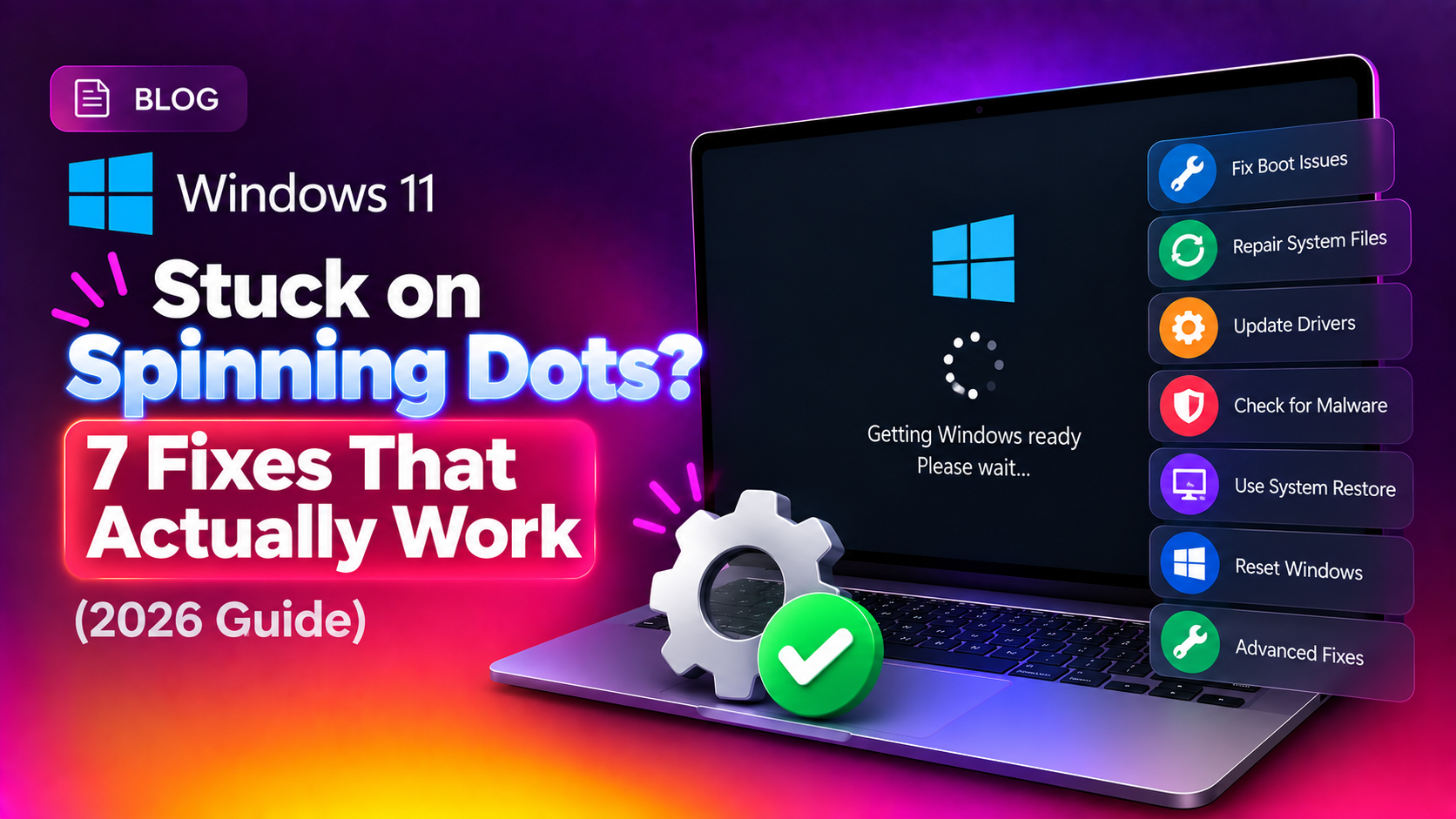
Why Is Windows 11 Stuck on Spinning Dots?
If your Windows 11 PC powers on but hangs at the logo screen with three spinning dots and never reaches the desktop, you're dealing with one of the most frustrating boot failures in modern computing. The spinning circle means Windows is trying to load — but something is blocking it.
The most common culprits are:
- A failed or stuck Windows Update that corrupted key system files mid-install
- Corrupted Boot Configuration Data (BCD) — the map Windows uses to find and start itself
- Driver conflicts — a newly installed GPU, USB, or storage driver that fails to initialise
- External devices that are confusing the boot order (USB drives, docks, external HDDs)
- Damaged system files flagged by SFC or DISM
- Hardware issues — improperly seated RAM, a failing drive, or overheating components
Work through the fixes below in order — most people solve the problem by Fix 3 or Fix 4. Each step is safe and won't delete your files unless explicitly stated.
Fix 1: Disconnect All External Devices and Force a Cold Boot
Before touching any settings, eliminate the simplest cause: external hardware forcing a bad boot order or loading a faulty driver.
Step 1. Hold the power button until your PC shuts off completely (about 5–10 seconds).
Step 2. Unplug everything from USB ports — flash drives, external hard drives, USB hubs, headsets, and any USB-connected monitors or docks. Leave only the keyboard and mouse.
Step 3. If you have a desktop, also disconnect any PCIe cards you recently added (USB expansion cards, capture cards, etc.).
Step 4. Power the PC back on and watch for the spinning dots. If Windows boots normally, plug devices back in one at a time, rebooting between each one, to identify the offender.
Step 5. Once the problematic device is identified, check the manufacturer's website for updated Windows 11 drivers before reconnecting it permanently.
Fix 2: Force Windows Into Recovery Mode (WinRE)
Many of the fixes below require access to the Windows Recovery Environment (WinRE). Here's how to get there when Windows won't boot:
Method A — Interrupt Boot 3 Times:
Step 1. Power on the PC. As soon as you see the spinning dots, hold the power button until it shuts off.
Step 2. Repeat this two more times. On the third boot, Windows will detect the repeated failures and launch Automatic Repair mode automatically.
Step 3. On the Automatic Repair screen, click Advanced options to open WinRE.
Method B — Boot from Installation Media:
Step 1. Download the Windows 11 Media Creation Tool on another PC and create a bootable USB drive.
Step 2. Insert the USB into your stuck PC. Enter BIOS/UEFI (press F2, F10, F12, or Del at startup — varies by manufacturer) and set the USB drive as the first boot device.
Step 3. Boot from the USB. On the Windows Setup screen, click Next, then Repair your computer (bottom-left corner). This opens WinRE without reinstalling Windows.
Once inside WinRE, navigate to Troubleshoot > Advanced options to access all recovery tools.
Fix 3: Run Startup Repair
Windows Startup Repair is the fastest automated fix — it scans for and corrects the most common boot problems without any commands.
Step 1. Inside WinRE, go to Troubleshoot > Advanced options > Startup Repair.
Step 2. Select your Windows account when prompted and enter your password.
Step 3. Let the tool run — it typically takes 5–15 minutes. Do not interrupt it or power off the PC.
Step 4. When it finishes, Windows will either report "Startup Repair couldn't repair your PC" (proceed to Fix 4) or automatically reboot into Windows.
Startup Repair fixes issues like missing or corrupted boot files, incorrect partition flags, and some BCD problems automatically. It's the least risky option — try this before any command-line work.
Fix 4: Rebuild the Boot Configuration Data (BCD)
If Startup Repair didn't help, the Boot Configuration Data is likely damaged. The BCD is a database that tells Windows where to find its loader and how to start. Rebuilding it is safe and one of the most effective fixes for the spinning dots hang.
Step 1. From WinRE, go to Troubleshoot > Advanced options > Command Prompt.
Step 2. In the Command Prompt window, run these commands one at a time, pressing Enter after each:
bootrec /fixmbr
bootrec /fixboot
bootrec /scanos
bootrec /rebuildbcd
What each command does:
bootrec /fixmbr— rewrites the Master Boot Record without touching the partition table. Safe on all systems.bootrec /fixboot— writes a new boot sector for the system partition. Run this if/fixmbralone doesn't help.bootrec /scanos— scans all disks for Windows installations. Check that your Windows installation is listed in the output.bootrec /rebuildbcd— scans for all Windows installations and lets you add them to the BCD store. Type Y and press Enter when prompted.
Step 3. If bootrec /fixboot returns "Access is denied", run these commands first to assign a drive letter to the EFI partition:
diskpart
list vol
Identify the EFI volume (usually ~100–260 MB, FAT32, no drive letter). Then:
select vol X
assign letter=Z:
exit
Z:
cd EFI\Microsoft\Boot
bootrec /fixboot
Step 4. After all commands succeed, close Command Prompt, click Continue to exit WinRE, and let Windows boot normally.
Still stuck? Contact CloudHouse remote support — our engineers can rebuild BCD and fix boot errors without you needing to touch the command line.
Fix 5: Boot into Safe Mode and Undo Recent Changes
Safe Mode loads Windows with only the essential drivers and services — if your PC boots fine in Safe Mode, the problem is caused by a third-party driver or a recently installed application.
Step 1. From WinRE, go to Troubleshoot > Advanced options > Startup Settings > Restart.
Step 2. After the PC restarts, you'll see a numbered list. Press 4 for Safe Mode or 5 for Safe Mode with Networking (needed for downloading drivers).
Step 3. Once in Safe Mode, identify and remove the likely cause:
- Uninstall recent drivers: Right-click the Start button → Device Manager → expand the relevant category → right-click the device → Uninstall device. Check "Delete the driver software" box.
- Uninstall recent applications: Settings → Apps → Installed apps → sort by Install date → uninstall anything added recently.
- Uninstall recent Windows Updates: Settings → Windows Update → Update history → Uninstall updates → remove the most recent cumulative update.
Step 4. Restart normally (not into Safe Mode) and check if the spinning dots issue is resolved.
Tip: You can also run SFC and DISM in Safe Mode's Command Prompt to repair system files:
sfc /scannowIf SFC finds corruption it can't repair, run:
DISM /Online /Cleanup-Image /RestoreHealthThen run sfc /scannow again. Restart when complete.
Fix 6: Disable Fast Startup
Windows 11's Fast Startup feature saves a hibernation snapshot at shutdown to speed up the next boot. If this snapshot becomes corrupted, it can cause Windows to hang on the spinning dots every time.
If you can reach Safe Mode:
Step 1. Open Control Panel (search for it in the Start menu) → Power Options → Choose what the power buttons do.
Step 2. Click Change settings that are currently unavailable.
Step 3. Uncheck Turn on fast startup (recommended) and click Save changes.
Step 4. Shut down (not restart) the PC and power it back on. A full cold boot will bypass the corrupted snapshot.
If you cannot reach Safe Mode:
From WinRE Command Prompt, run:
bcdedit /set {current} safeboot minimalThis forces a Safe Mode boot on the next restart. After fixing the issue in Safe Mode, remove the flag with:
bcdedit /deletevalue {current} safebootFix 7: Use System Restore to Roll Back to a Working State
If Windows was working fine before a specific event (update, driver install, software change), System Restore can rewind the system to a point before the problem began — without affecting your personal files.
Step 1. From WinRE, go to Troubleshoot > Advanced options > System Restore.
Step 2. Select your Windows account and enter your password if prompted.
Step 3. Click Next on the System Restore wizard. You'll see a list of restore points with dates and descriptions (e.g., "Windows Update", "Driver Install").
Step 4. Select a restore point from before the spinning dots issue started. Click Scan for affected programs to see what will be removed (apps and drivers installed after that date).
Step 5. Click Next, then Finish. The restore takes 10–30 minutes. Do not interrupt or power off during this process.
Important: System Restore only works if restore points were created before the problem. If no restore points exist, skip to the last resort option below.
Last Resort: Reset Windows 11 Without Losing Files
If none of the above fixes work, a Cloud Reset re-downloads a fresh copy of Windows 11 from Microsoft's servers and reinstalls it — while keeping your personal files (documents, photos, etc.) intact. Apps and settings will be removed.
Step 1. From WinRE → Troubleshoot > Reset this PC.
Step 2. Choose Keep my files.
Step 3. Choose Cloud download (downloads a fresh Windows image from Microsoft) rather than Local reinstall (uses potentially corrupted local files).
Step 4. Click Reset and let the process complete. This takes 30–90 minutes depending on your internet speed and hardware.
If even the Cloud Reset fails, the drive itself may be failing. Run a drive health check using the manufacturer's diagnostic tool, or contact CloudHouse remote support for a full hardware and software diagnosis.
Frequently Asked Questions
Why does Windows 11 get stuck on spinning dots after an update?
Windows Updates sometimes fail mid-installation, leaving the system in a half-updated state with corrupted boot files or incompatible drivers. The spinning dots appear because Windows is trying to apply changes that can no longer complete. Running Startup Repair or uninstalling the problematic update from WinRE usually resolves this.
Will fixing the BCD delete my files?
No. bootrec /fixmbr, bootrec /fixboot, and bootrec /rebuildbcd only affect the boot sector and BCD database — they do not touch your personal files, documents, photos, or installed applications. These commands are safe to run when following the correct steps.
How do I get into WinRE if Windows won't start at all?
Interrupt the boot process three times in a row by holding the power button until the PC shuts off during startup. On the third attempt, Windows automatically enters Automatic Repair mode and gives you access to WinRE. Alternatively, boot from a Windows 11 USB drive and click "Repair your computer."
Is it safe to disable Fast Startup permanently?
Yes. Disabling Fast Startup means slightly longer boot times (usually just a few seconds on an SSD), but it eliminates hibernation-related boot corruption and often fixes persistent startup hangs. Most IT professionals recommend disabling it on machines that have experienced boot issues.
Windows 11 is stuck on spinning dots after every restart — not just once. What's wrong?
A recurring spinning dots hang after every restart typically points to a driver that loads at startup and crashes the boot sequence, or a corrupted Windows Update that keeps re-applying itself. Boot into Safe Mode, uninstall recently added drivers and updates, then run sfc /scannow and DISM /Online /Cleanup-Image /RestoreHealth to repair any underlying system file corruption.