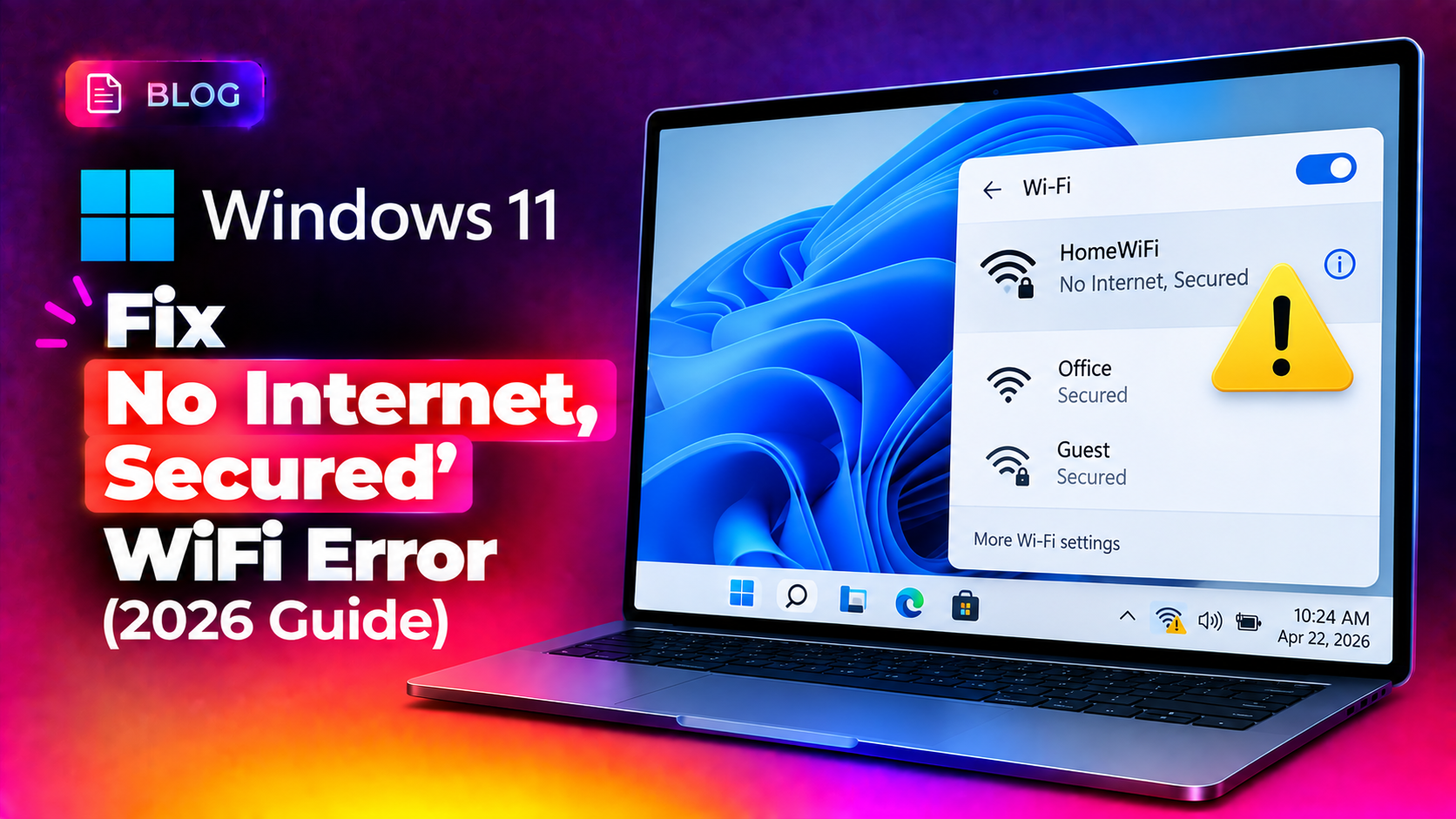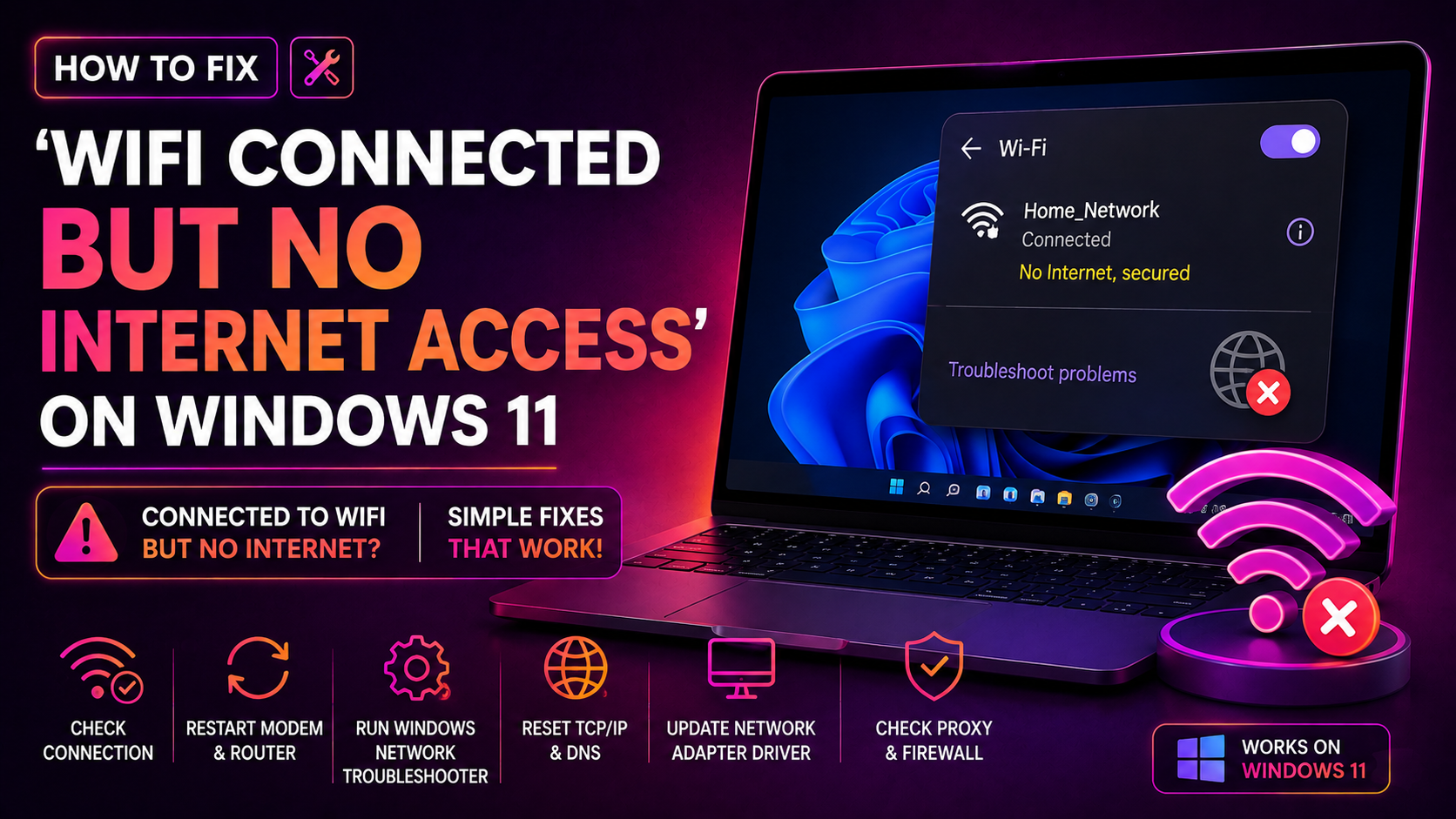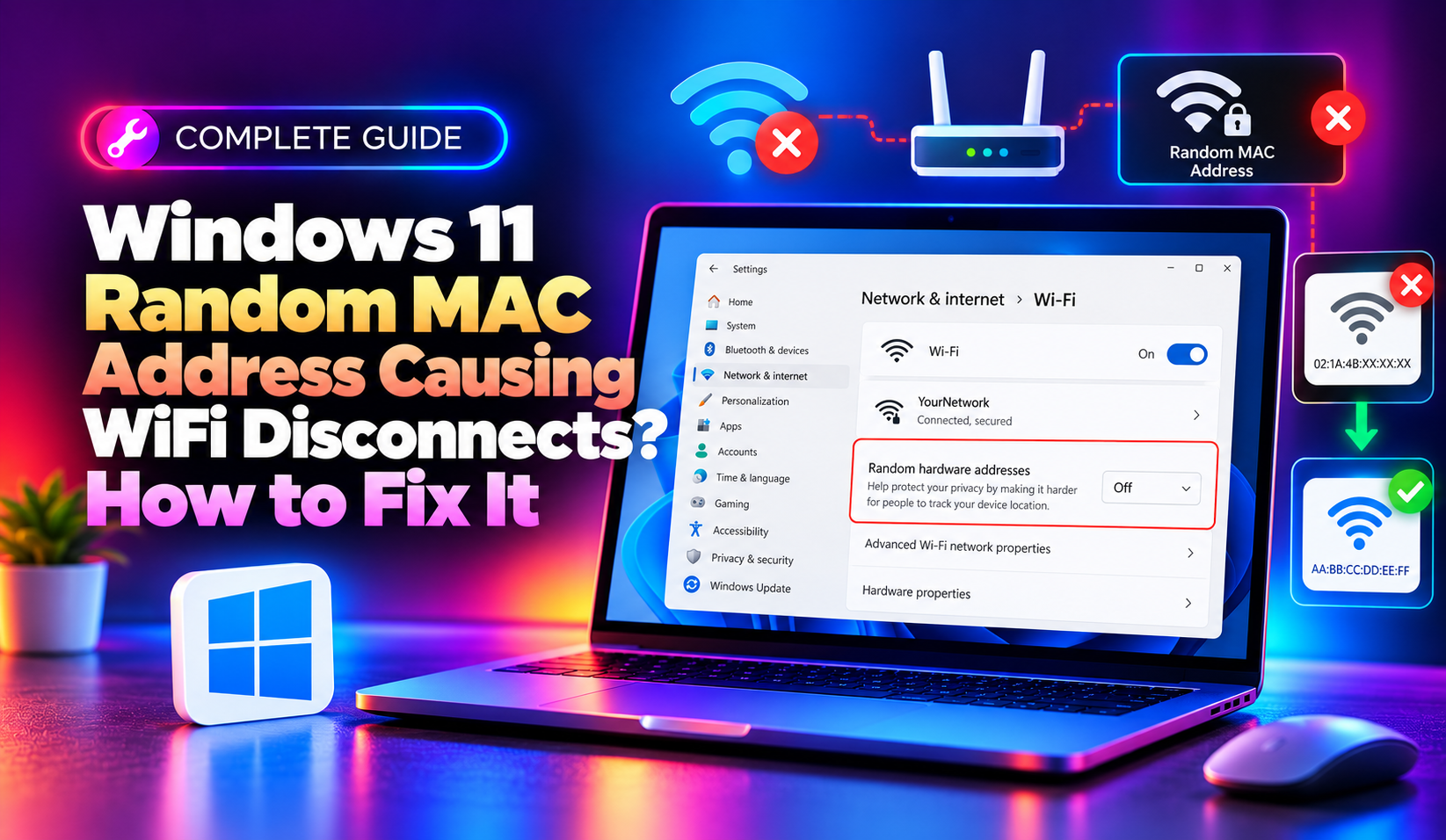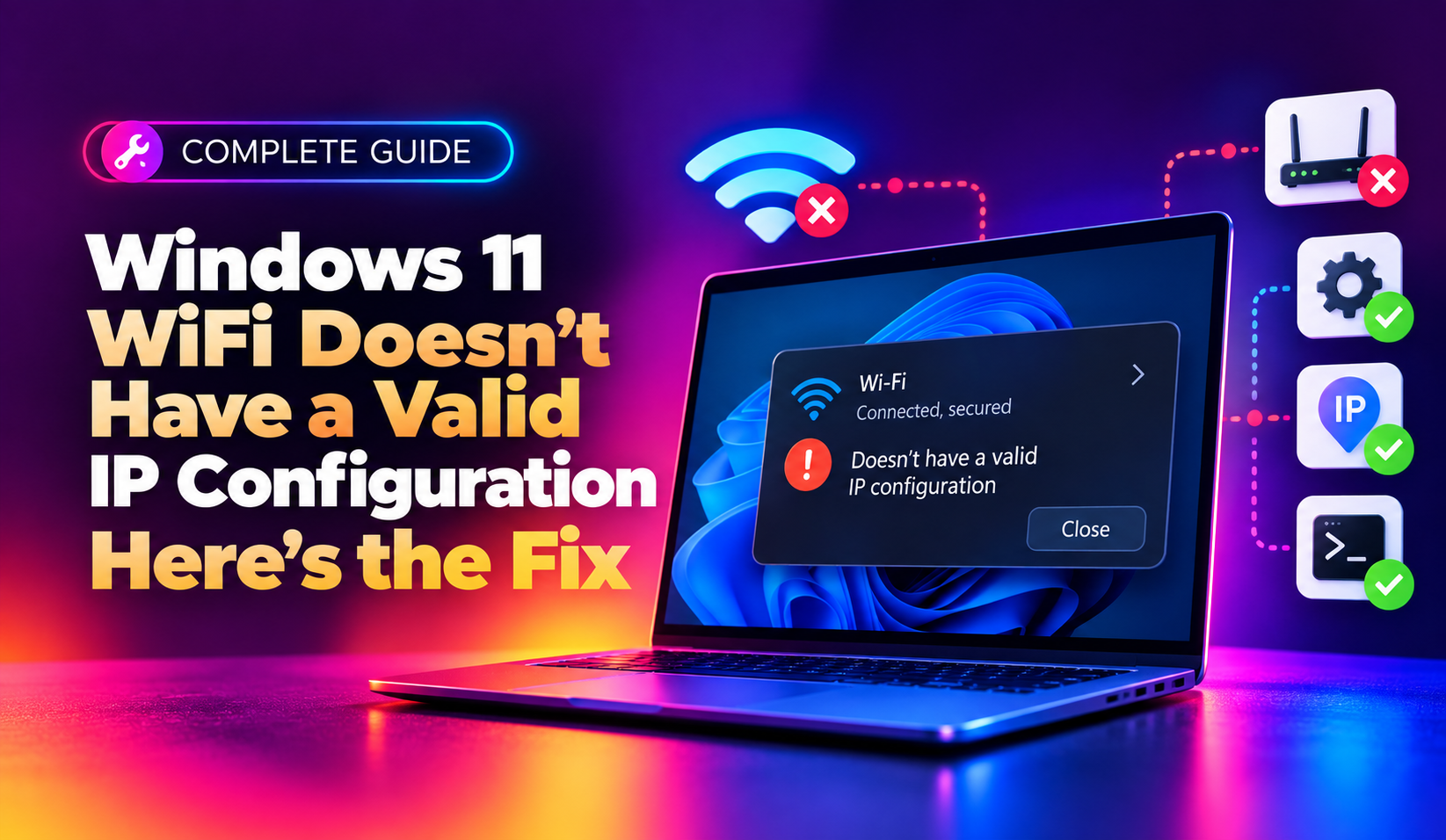
Few Windows 11 errors are as frustrating as connecting to your WiFi network only to see the yellow warning triangle and the message "WiFi doesn't have a valid IP configuration." Your PC shows a connection, but there is no internet access, no browsing, nothing. This happens when Windows fails to receive a proper IPv4 address from your router's DHCP server, leaving your network adapter stuck with an invalid or duplicate address. In this 2026 guide, we walk through every proven fix, from a simple ipconfig /renew to a full TCP/IP stack reset, so you can get back online in minutes.
What Does "WiFi Doesn't Have a Valid IP Configuration" Mean?
Every device on a network needs a unique IP address to send and receive data. Normally, your router's DHCP (Dynamic Host Configuration Protocol) server assigns this address automatically the moment you connect. When Windows 11 shows this error, it means the DHCP handshake failed, the lease expired without renewal, or a corrupted network stack is preventing your adapter from accepting a valid address. The result is a WiFi icon that looks "connected" but has zero real connectivity.
Common Causes on Windows 11 in 2026
- Outdated, corrupted, or incompatible WiFi adapter drivers
- A stuck or expired DHCP lease that never renewed properly
- Corrupted TCP/IP stack or Winsock catalog after a Windows Update
- IPv6 conflicts or a static IP that no longer matches your router's subnet
- Router-side DHCP pool exhaustion or firmware glitches
- Third-party VPN or antivirus software interfering with the network adapter
💡 None of these worked? Skip the guesswork.
Get Expert Help →Fix 1: Release and Renew Your IP Address
This is the fastest fix and resolves the issue in most cases within seconds.
Right-click the Start button and select "Terminal (Admin)" or "Windows PowerShell (Admin)".
Type the following command and press Enter:
ipconfig /releaseNow request a new lease from your router's DHCP server:
ipconfig /renewIf this returns an error or hangs, move on to Fix 2.
netsh winsock resetnetsh int ip resetipconfig /flushdnsRestart your PC after running these three commands. This clears out any corrupted configuration entries that a simple release/renew cannot fix.
Right-click Start and select "Device Manager", then expand "Network adapters".
Right-click your WiFi adapter and choose "Update driver" > "Search automatically for drivers".
Right-click the adapter, choose "Uninstall device", check "Attempt to remove the driver", then restart your PC. Windows 11 will reinstall a fresh driver automatically on boot.
You can also check Settings > Windows Update > Advanced options > Optional updates for a manufacturer-supplied driver update that Windows hasn't installed automatically yet.
Fix 4: Disable IPv6 or Static IP Conflicts
Sometimes a leftover static IP configuration or an IPv6 conflict blocks a valid IPv4 lease from being assigned.
1. Go to Settings > Network & internet > WiFi and click your network name.
2. Under "IP assignment," click "Edit" and make sure it is set to Automatic (DHCP), not "Manual".
3. If you suspect an IPv6 conflict, open the adapter's properties (Control Panel > Network Connections > right-click adapter > Properties) and temporarily untick "Internet Protocol Version 6 (TCP/IPv6)", then reconnect.
Fix 5: Flush DNS and Reset Network Settings
Windows 11 includes a built-in network reset that reinstalls all network adapters and resets networking components to factory defaults — useful when the above fixes don't resolve a persistent issue.
1. Go to Settings > Network & internet > Advanced network settings.
2. Under "More settings," select Network reset.
3. Click "Reset now" and confirm. Your PC will restart automatically after about 5 minutes.
Note that this removes and reinstalls all network adapters, so you may need to reconnect to WiFi networks and re-enter passwords afterward.
Fix 6: Check Router/DHCP Server Settings
If the problem affects multiple devices on the same network, the issue is likely on the router, not your PC.
- Restart the router — power it off for at least 10 seconds, then back on. This clears a full or corrupted DHCP lease table.
- Check the DHCP pool size in your router's admin panel — a small pool (e.g., only 10 addresses) can run out of addresses on busy networks.
- Update router firmware — outdated firmware is a common source of DHCP handshake failures.
- Reserve a static IP for your device in the router's DHCP settings if the problem keeps recurring on one specific machine.
When to Get Professional Help
If you've run through every fix above and your WiFi still won't get a valid IP configuration, the issue may involve deeper driver corruption, a failing network adapter, or router hardware faults that need a trained technician. Rather than losing hours to trial and error, CloudHouse Technologies' pay-per-ticket IT support connects you with a remote technician who can diagnose and fix persistent Windows 11 networking issues without a long-term contract.
Frequently Asked Questions
Why does my WiFi say connected but no internet on Windows 11?
This usually means your PC has a valid link to the router but hasn't received a proper IP address from the DHCP server, or the assigned IP conflicts with another device. Running ipconfig /release followed by ipconfig /renew resolves most cases.
How do I fix "no valid IP configuration" without losing my saved WiFi networks?
Try Fix 1 through Fix 4 first (release/renew, TCP/IP reset, driver update, disabling static IP) — none of these remove saved WiFi profiles. Only the full Network Reset in Fix 5 clears saved networks and adapter settings.
Does netsh winsock reset delete my network settings?
No. netsh winsock reset only rebuilds the Winsock catalog that applications use to access network services — it does not delete saved WiFi passwords, IP settings, or adapter configurations. A restart is required afterward for changes to take effect.
Can a driver update cause the IP configuration error?
Yes. A botched WiFi driver update, especially after a major Windows 11 feature update, can prevent the adapter from correctly requesting or accepting a DHCP-issued IP address. Rolling back or reinstalling the driver via Device Manager typically fixes this.
Why does this error only happen on one device but not others?
If other devices connect fine, the problem is isolated to that PC's network stack, driver, or IP configuration rather than the router. Focus on Fixes 1-4 (release/renew, TCP/IP reset, driver reinstall, static IP check) since the router's DHCP server is clearly working for other clients.