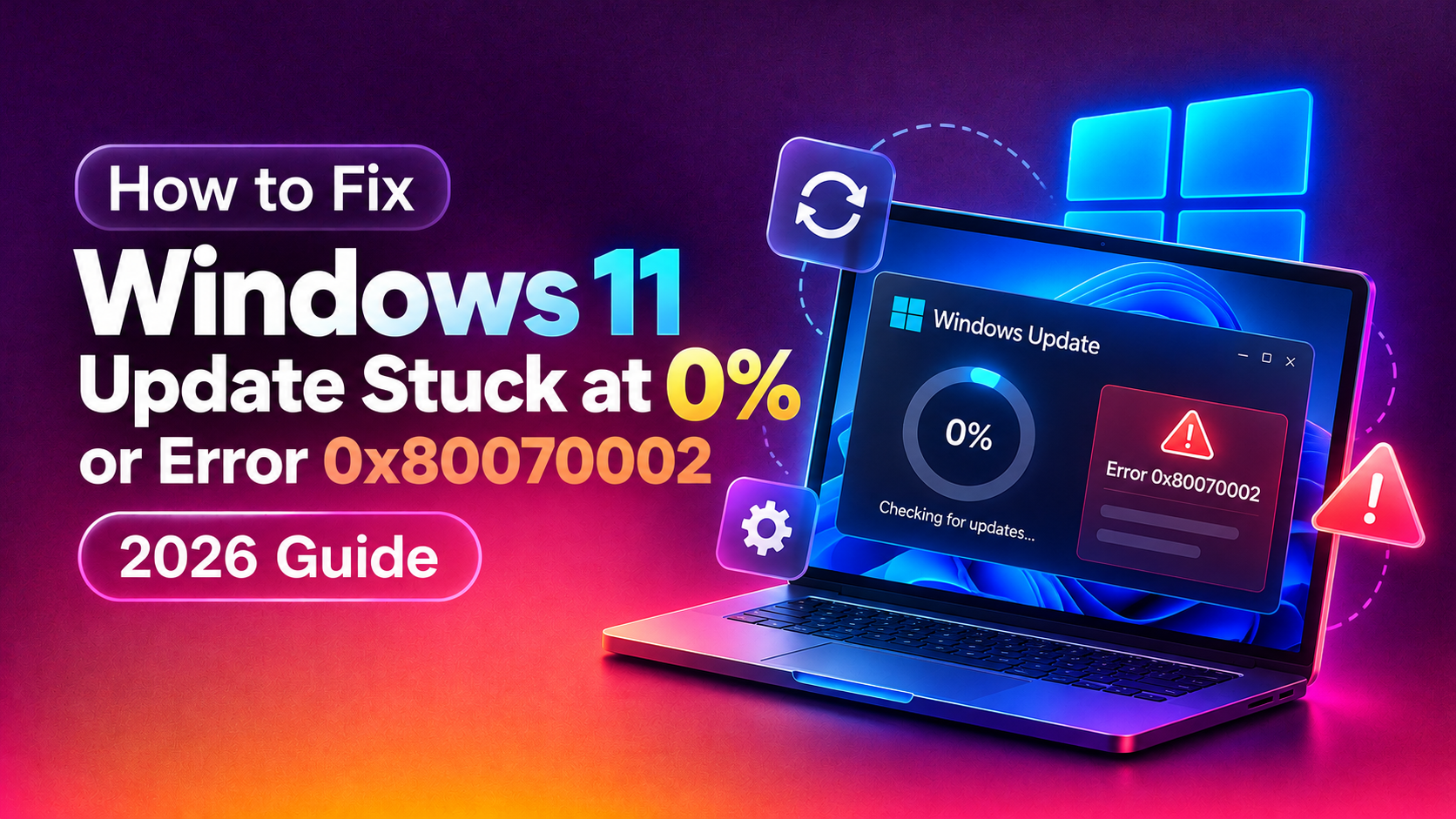
Why Windows 11 Updates Get Stuck or Fail with 0x80070002
The error code 0x80070002 translates to "The system cannot find the file specified." It appears when the Windows Update service expects a file — typically inside the SoftwareDistribution folder or the component store — and finds it missing or corrupted. Updates stuck at 0% usually have the same root causes: corrupted update cache, stopped update services, full disk, wrong system clock, or interference from antivirus software.
In 2026, a specific Microsoft-acknowledged issue with Windows 11 24H2's new checkpoint-based update architecture causes some machines to stall permanently at 0% unless the checkpoint files are cleared manually.
Fix 1: Run the Windows Update Troubleshooter
Always start here — it catches and fixes the most common causes automatically:
- Press Win + I → System → Troubleshoot → Other troubleshooters.
- Find Windows Update → click Run.
- Follow the on-screen prompts.
- After it completes, go back to Windows Update and try again.
Fix 2: Check Date, Time, and Time Zone
Windows Update uses TLS certificate validation. If your clock is wrong by more than a few minutes, all HTTPS connections — including update downloads — fail silently.
- Right-click the clock in the taskbar → Adjust date and time.
- Toggle Set time automatically to Off, then back On.
- Click Sync now under "Synchronize your clock".
- Verify your time zone is correct.
Fix 3: Reset Windows Update Components
This is the most effective fix for both 0x80070002 and stuck-at-0% issues. It stops all update services, clears the corrupted download cache, and restarts everything cleanly.
Open Command Prompt as Administrator (search "cmd" → right-click → Run as administrator) and run:
:: Stop Windows Update services
net stop wuauserv
net stop cryptSvc
net stop bits
net stop msiserver

:: Rename (clear) the cached update files
ren C:\Windows\SoftwareDistribution SoftwareDistribution.old
ren C:\Windows\System32\catroot2 catroot2.old

:: Restart services
net start wuauserv
net start cryptSvc
net start bits
net start msiserver
After running this, go to Windows Update → Check for updates. Windows will redownload fresh update metadata and restart the update process.
Fix 4: Repair System Files with SFC and DISM
Corrupted Windows system files cause 0x80070002 errors. Run both repair tools in sequence:
:: System File Checker (fixes protected system files)
sfc /scannow

:: DISM — repairs the Windows component store
DISM /Online /Cleanup-Image /CheckHealth
DISM /Online /Cleanup-Image /ScanHealth
DISM /Online /Cleanup-Image /RestoreHealth
The RestoreHealth scan can take 15–30 minutes and requires internet access (it downloads replacement files from Microsoft's servers). After it completes, run sfc /scannow again, then reboot.
Fix 5: Clear the Update Checkpoint Files (Windows 11 24H2 Specific)
Windows 11 24H2 introduced a new "checkpoint cumulative update" system. A known bug causes stale checkpoint files to prevent new updates from downloading, leaving the progress bar permanently at 0%.
:: Stop update services
net stop wuauserv
net stop bits

:: Delete checkpoint update files (not the entire SoftwareDistribution folder)
del /f /s /q C:\Windows\SoftwareDistribution\Download\*.psf
del /f /s /q C:\Windows\SoftwareDistribution\DataStore\Logs\*.jrs
del /f /s /q C:\Windows\SoftwareDistribution\DataStore\Logs\*.log

:: Restart services
net start wuauserv
net start bits
Fix 6: Free Up Disk Space
Windows 11 requires at least 10 GB of free space for major feature updates and 2–3 GB for cumulative updates. A full disk silently stalls the download at 0%.
# Check free space
Get-PSDrive C | Select-Object Used,Free
Clean up via:
- Press Win + R → type
cleanmgr→ select C: drive. - Check Temporary files, Recycle Bin, Windows Update Cleanup, Previous Windows installations.
- Click Clean up system files for additional space.
Also run Disk Cleanup from an elevated command prompt for a deeper sweep:
cleanmgr /sageset:65535 /sagerun:65535Fix 7: Re-register Windows Update DLLs
Corrupted or unregistered DLLs used by the Windows Update service cause 0x80070002. Re-register them:
regsvr32 atl.dll
regsvr32 urlmon.dll
regsvr32 mshtml.dll
regsvr32 shdocvw.dll
regsvr32 browseui.dll
regsvr32 jscript.dll
regsvr32 vbscript.dll
regsvr32 scrrun.dll
regsvr32 msxml.dll
regsvr32 msxml3.dll
regsvr32 msxml6.dll
regsvr32 actxprxy.dll
regsvr32 softpub.dll
regsvr32 wintrust.dll
regsvr32 dssenh.dll
regsvr32 rsaenh.dll
regsvr32 gpkcsp.dll
regsvr32 sccbase.dll
regsvr32 slbcsp.dll
regsvr32 cryptdlg.dll
regsvr32 oleaut32.dll
regsvr32 ole32.dll
regsvr32 shell32.dll
regsvr32 initpki.dll
regsvr32 wuapi.dll
regsvr32 wuaueng.dll
regsvr32 wuaueng1.dll
regsvr32 wucltui.dll
regsvr32 wups.dll
regsvr32 wups2.dll
regsvr32 wuweb.dll
regsvr32 qmgr.dll
regsvr32 qmgrprxy.dll
regsvr32 wucltux.dll
regsvr32 muweb.dll
regsvr32 wuwebv.dll
Run these in an elevated Command Prompt. If a DLL is missing, skip it — that file itself may need replacement via DISM (covered in Fix 4).
Fix 8: Temporarily Disable Antivirus and VPN
Some endpoint security products intercept Windows Update's HTTPS connections and break them. Temporarily disable your third-party antivirus (Windows Defender is fine), disconnect any VPN, and try the update again. Re-enable after the update completes.
Check if Windows Firewall is blocking update services:
netsh advfirewall show allprofiles stateIf the firewall is off and you have a third-party firewall, temporarily disable it too.
Fix 9: Manually Install the Update from Microsoft Update Catalog
If the automatic process keeps failing, download the specific update manually:
- Go to Windows Update and note the failing KB number (e.g., KB5041585).
- Visit catalog.update.microsoft.com.
- Search for the KB number.
- Download the
.msufile matching your Windows version and architecture (x64). - Double-click the downloaded file to install it manually.
Fix 10: Check Windows Update Log for the Exact Error
For hard-to-fix cases, the Windows Update log reveals the precise failure point:
# Convert the ETL log to a readable text file
Get-WindowsUpdateLog -LogPath "$env:TEMP\WindowsUpdate.log"
# Open the log
notepad "$env:TEMP\WindowsUpdate.log"
Search for lines containing FAILED or error. The line immediately before a failure usually names the missing or corrupted file.
If updates are still failing after all ten steps, the component store may be too damaged to self-repair. At that point, an in-place upgrade (running setup.exe from a Windows 11 ISO while preserving files and apps) or a fresh install is the cleanest path. Our professional desktop support team can remotely diagnose your exact Windows Update error and get it resolved without data loss.
Frequently Asked Questions
What exactly does Windows Update error 0x80070002 mean?
Error 0x80070002 translates to "The system cannot find the file specified." It means the Windows Update service was looking for a specific file — usually in the SoftwareDistribution folder or the Windows component store — and couldn't find it. The fix is to clear the corrupted cache (Fix 3) and repair system files (Fix 4).
Why is my Windows 11 update stuck at exactly 0% and not moving?
A stuck-at-0% update almost always means the download hasn't started. Causes include: stopped Windows Update service, full SoftwareDistribution folder, no internet connection, or the Windows 11 24H2 checkpoint file bug. Fix 3 (reset update components) and Fix 5 (clear checkpoint files) resolve this in most cases.
How long should a normal Windows 11 cumulative update take?
A typical monthly cumulative update (600 MB–1.5 GB) takes 15–45 minutes depending on your internet speed and disk speed. Feature updates like 24H2 can take 30–90 minutes. If an update shows 0% for more than 20 minutes, it is genuinely stuck and needs intervention.
Is it safe to delete the SoftwareDistribution folder?
Yes — renaming or deleting SoftwareDistribution forces Windows to recreate it from scratch. You lose cached update files (they'll redownload), but no personal files, installed apps, or system settings are affected. This is a standard Microsoft-recommended troubleshooting step.
My DISM RestoreHealth command fails with "Source files could not be found." What do I do?
This happens when the Windows Update service itself is broken and DISM can't download replacement files. Point DISM at a local Windows 11 ISO instead: Mount the ISO, then run: DISM /Online /Cleanup-Image /RestoreHealth /Source:wim:D:\sources\install.wim:1 /LimitAccess (replace D: with your ISO drive letter).