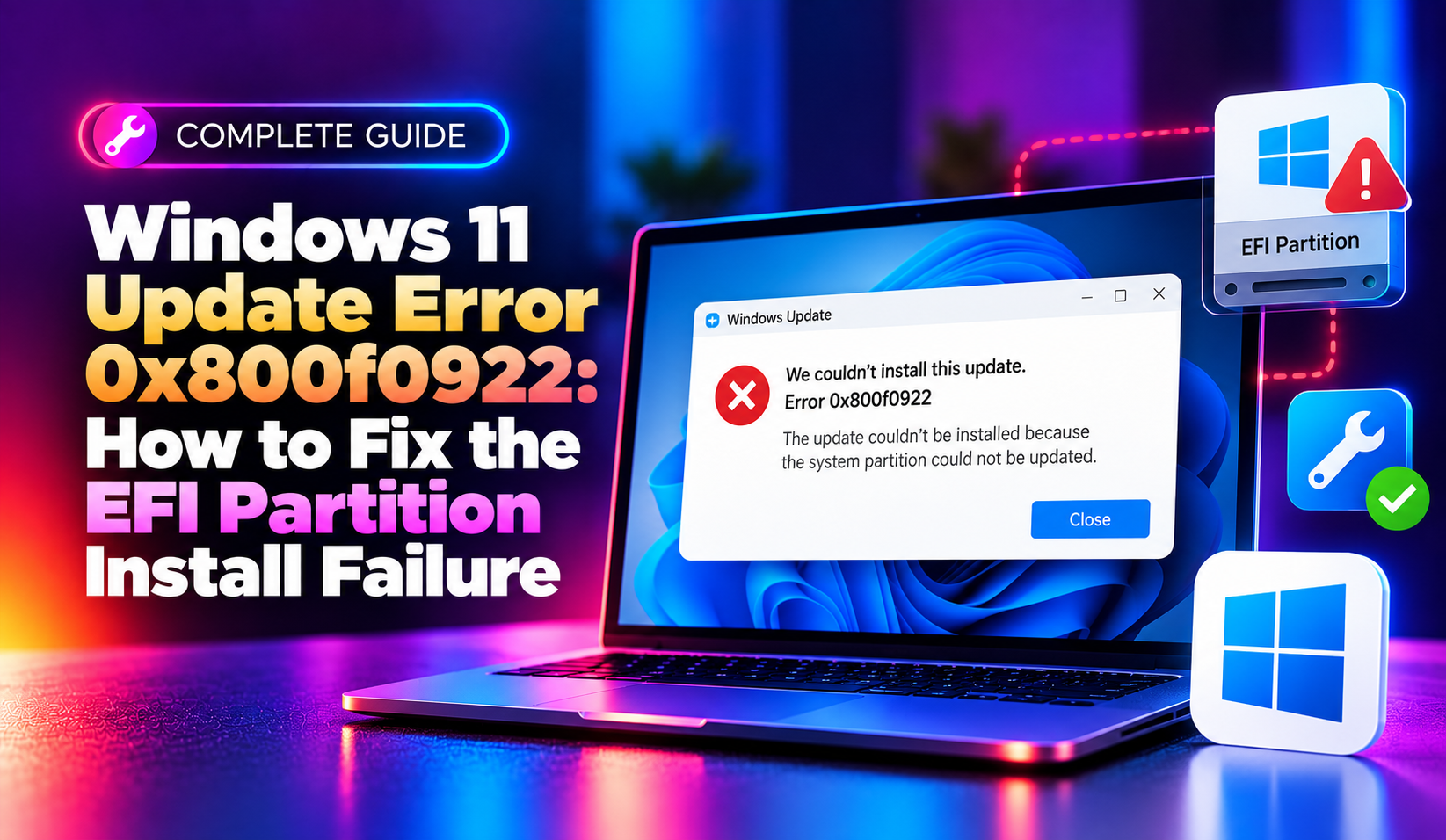
What Is Windows 11 Update Error 0x800f0922?
If you have tried installing a recent Windows 11 cumulative update and watched the progress bar freeze at 98% before rolling back with the message "the update was not installed," there is a good chance you are dealing with error 0x800f0922. This code has become one of the most reported Windows Update failures of 2026, spiking sharply after the May and June cumulative update rollouts (including builds tied to KB5089549 and KB5083631) began flagging installation failures on a wide range of laptops and desktops.
Behind the scenes, 0x800f0922 translates to CBS_E_INSTALLERS_FAILED — a signal that the Component-Based Servicing (CBS) stack, which Windows uses to stage and apply update packages, hit a hard stop mid-installation. In the overwhelming majority of 2026 cases, Microsoft and independent researchers traced the root cause to one specific culprit: the hidden EFI System Partition (ESP) running critically low on free space. Devices with 10 MB or less of free space on this partition are the most likely to fail, though corrupted system files, a broken Windows Update cache, and .NET Framework dependency issues can also trigger the same error.
This guide walks through every verified fix for 0x800f0922 on Windows 11, in the order most technicians recommend trying them — starting with the quickest wins and ending with the more involved repair options.
Why This Error Is Spiking in 2026
Unlike older, generic update failures, this year's wave of 0x800f0922 errors has a well-documented cause. Microsoft confirmed that recent feature and quality updates increased the amount of servicing data temporarily staged inside the EFI partition during installation. On PCs that shipped with a default 100 MB EFI partition (common on budget OEM laptops manufactured several years ago), that partition simply does not have enough headroom left once boot manager entries, recovery data, and firmware files accumulate over time.
The practical result: an update that installs cleanly on a newer machine with a larger ESP can fail outright on an older device, even though both machines are running the same build of Windows 11. If you manage several machines for family members or a small office, this is why some PCs update without issue while others get stuck in a repeating "install, fail, roll back" loop.
Fix 1: Check and Free Up EFI System Partition Space
This is the single most effective fix for the 2026 wave of 0x800f0922 errors and should be your starting point.
- Open Disk Management (right-click Start > Disk Management).
- Locate the partition labeled EFI System Partition — it's usually 100 MB and does not have a drive letter by default.
- Right-click it and note the free space. If it shows less than 30 MB free, this is very likely your issue.
- To inspect it directly, assign a temporary drive letter, then open a Command Prompt as Administrator and run:
mountvol S: /s
dir S:\EFI /s
Look for old, duplicate, or unused boot loader folders (particularly from previous dual-boot setups, prior Windows installations, or third-party recovery tools) and remove anything you can safely confirm is unnecessary. When finished, unmount the partition:
mountvol S: /dIf the partition is genuinely too small for your current Windows 11 build (common on machines that shipped with Windows 10 and were upgraded in place), you may need to resize it using a partition management tool, since Windows does not offer a built-in GUI method to grow the ESP after installation.
Fix 2: Apply Microsoft's Registry Workaround
For systems where freeing space isn't fully possible, Microsoft published a registry-based mitigation that reduces the amount of reserved padding Windows sets aside inside the EFI partition during servicing operations. To apply it:
- Press Win + R, type
regedit, and press Enter. - Navigate to:
HKEY_LOCAL_MACHINE\SYSTEM\CurrentControlSet\Control\SecureBoot\ServicingCreate a new DWORD (32-bit) value named MinimumFreeSpaceMB and set it to a lower value as recommended in Microsoft's advisory for your specific KB. Restart the PC and retry Windows Update. Always back up the registry (File > Export) before making changes, and only apply values Microsoft has published for your exact update — arbitrary edits can affect future servicing operations.
Fix 3: Reset Windows Update Components
A corrupted update cache is the second most common cause of 0x800f0922. Resetting the Windows Update components clears out any stuck or damaged download data:
- Open Command Prompt as Administrator.
- Run the following commands one at a time:
net stop wuauserv
net stop bits
net stop cryptsvc
ren C:\Windows\SoftwareDistribution SoftwareDistribution.old
ren C:\Windows\System32\catroot2 catroot2.old
net start wuauserv
net start bits
net start cryptsvc
Restart your PC and check for updates again. This forces Windows to rebuild a fresh update cache from scratch.
Fix 4: Run DISM and SFC to Repair System Files
If the EFI partition has enough space and the cache reset didn't help, corrupted system image files may be blocking installation. Run these two tools in sequence, in an elevated Command Prompt:
DISM /Online /Cleanup-Image /ScanHealth
DISM /Online /Cleanup-Image /RestoreHealth
sfc /scannow
DISM checks and repairs the underlying Windows image using Windows Update as a source (make sure you have an active internet connection), while SFC scans and replaces damaged protected system files. Reboot afterward and retry the update.
Fix 5: Confirm App Readiness and .NET Framework 3.5 Are Enabled
Windows 11 relies on the App Readiness service during the "finalizing" stage of many updates. If it has been disabled (often by third-party "debloat" or privacy scripts), the update can fail and roll back with 0x800f0922.
- Press Win + R, type
services.msc, and press Enter. - Find App Readiness, right-click > Properties, and set Startup type to Manual if it's disabled.
Separately, check whether .NET Framework 3.5 is enabled, since some cumulative updates carry a dependency on it:
- Open Control Panel > Programs > Turn Windows features on or off.
- Ensure .NET Framework 3.5 (includes .NET 2.0 and 3.0) is checked, then click OK and restart.
Fix 6: Temporarily Disable VPN Software
Several 2026 reports link 0x800f0922 (and the related 0x80073712 error) to active VPN clients interfering with the update download or installer verification process. Fully exit your VPN application (not just disconnect from the taskbar icon) before retrying Windows Update, then re-enable it once the update completes successfully.
Fix 7: Perform an In-Place Upgrade Repair Install
If none of the above resolves the issue, an in-place upgrade will reset the entire Windows servicing stack without touching your files or installed programs:
- Download the official Windows 11 ISO from microsoft.com/software-download/windows11.
- Double-click the ISO to mount it, then run
setup.exefrom within it. - Choose Keep personal files and apps and let the process run (typically 30–60 minutes).
This replaces the Windows system files while preserving your data, applications, and settings, which clears out whatever corrupted servicing state was causing the repeated 0x800f0922 rollback.
When to Bring in Professional Help
EFI partition resizing in particular carries real risk if done incorrectly — a misjudged partition operation on the wrong disk can affect your ability to boot at all. If you are not comfortable running Disk Management partition operations, editing the registry, or you manage multiple machines that are all hitting this same update failure, it is often faster and safer to get an expert involved rather than risk a boot failure while troubleshooting alone. CloudHouse Technologies' pay-per-ticket remote support connects you with a technician who can diagnose the exact cause of your update failure, safely resize or repair the EFI partition, and confirm the update installs cleanly — all without a subscription commitment.
How to Prevent This Error Going Forward
- Periodically check your EFI System Partition's free space, especially on machines upgraded from Windows 10.
- Keep at least 30–50 MB free on the ESP if your hardware and partition layout allow it.
- Avoid third-party "Windows debloat" scripts that disable core services like App Readiness without understanding the downstream effects on updates.
- Create a system restore point before installing major cumulative or feature updates, so you have a fast rollback path if something goes wrong.
Frequently Asked Questions
What does error 0x800f0922 mean on Windows 11?
It means the Component-Based Servicing (CBS) stack failed to complete an update installation, most commonly because the hidden EFI System Partition has run out of free space, though corrupted system files and update cache issues can also cause it.
Will I lose my files if I fix 0x800f0922 with an in-place upgrade?
No. When you choose "Keep personal files and apps" during the in-place upgrade via setup.exe, your documents, installed programs, and settings are preserved. Only the core Windows system files are replaced.
How do I check how much free space is on my EFI partition?
Open Disk Management, locate the partition labeled "EFI System Partition" (typically 100 MB, with no drive letter), and check the free space shown in its properties. Less than 30 MB free is a strong indicator of your issue.
Is it safe to edit the registry to fix this update error?
It can be, provided you only apply the specific value Microsoft has published for your exact KB update and you back up the registry key first. Editing unrelated registry values or guessing at settings can cause other servicing problems.
Why does this error only affect some of my PCs and not others?
It typically depends on how the EFI partition was originally created. Older PCs upgraded in place from Windows 10, or budget OEM machines shipped with a default 100 MB EFI partition, are far more likely to run out of space than newer machines with larger reserved partitions.