What Is Windows 11 Update Error 0x8007000d and Why Does It Happen?
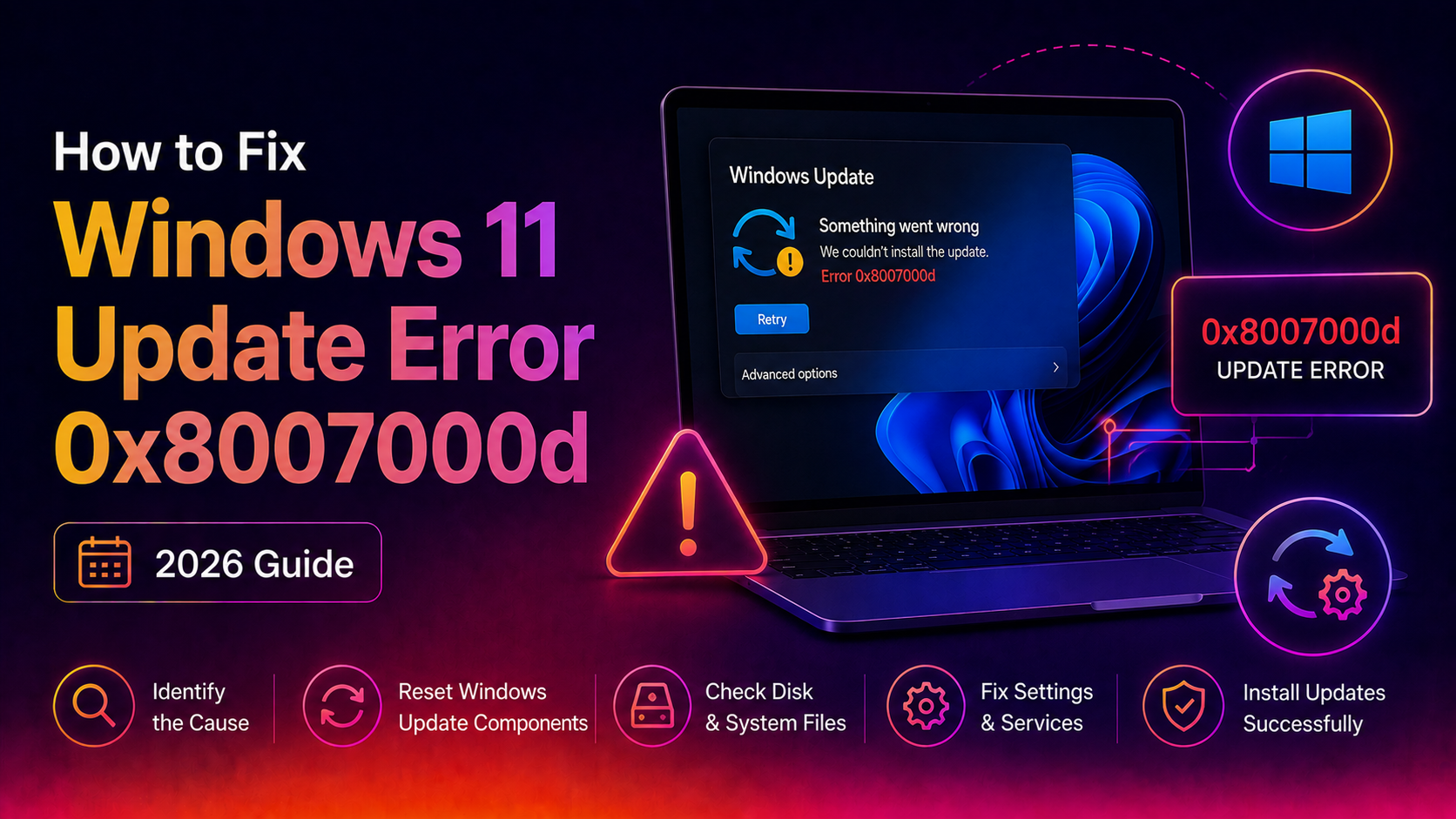
If you've been staring at a failed Windows Update screen with the code 0x8007000d, you're not alone. This error translates literally to "The data is invalid" — and it's one of the more frustrating update failures Windows 11 throws at users. It appears most commonly during cumulative updates, feature upgrades (like moving to 24H2 or 25H2), and sometimes during in-place repair installations.
The root causes typically fall into one of these buckets:
- Corrupted Windows component store — The CBS (Component-Based Servicing) store that Windows Update reads from has damaged or missing files.
- Damaged system files — Protected Windows files have been altered or corrupted, causing the update installer to reject data as invalid.
- Stale or corrupted update cache — Leftover files in the
SoftwareDistributionfolder conflict with a fresh download. - Conflicting drivers — Outdated or incompatible GPU or chipset drivers (especially NVIDIA) interfere with the update process.
- Insufficient disk space — Windows 11 feature updates require at least 20 GB of free space on the system drive.
The good news: every one of these causes has a direct fix. Work through the steps below in order — most users resolve error 0x8007000d by step 3 or 4.
Quick Fix: Run the Windows Update Troubleshooter
Before diving into command-line repairs, let Windows try to fix itself. The built-in Update Troubleshooter detects common service failures, permission issues, and stale locks that cause 0x8007000d.
How to run it on Windows 11
- Press Win + I to open Settings.
- Go to System → Troubleshoot → Other troubleshooters.
- Find Windows Update and click Run.
- Wait for the scan to complete, apply any suggested fixes, then restart your PC.
- Open Windows Update (Settings → Windows Update) and try again.
If the troubleshooter reports "No issues found" or the error returns after reboot, move to the next step — the real repair work starts now.
Repair Corrupted System Files with DISM and SFC
This is the most effective fix for error 0x8007000d. DISM repairs the Windows component store (the source Windows Update reads from), and SFC patches individual protected system files. Always run DISM first so SFC has clean data to work with.
Step 1 — Run DISM to repair the component store
- Right-click the Start button and choose Terminal (Admin) or Command Prompt (Admin).
- Run the following command and wait — it can take 10–20 minutes on the first run:
DISM /Online /Cleanup-Image /RestoreHealthDISM connects to Windows Update servers to download replacement files. If your internet connection is unreliable, you can point DISM to a local Windows 11 ISO instead:
DISM /Online /Cleanup-Image /RestoreHealth /Source:D:\Sources\install.wim /LimitAccess(Replace D: with your mounted ISO drive letter.)
Step 2 — Run SFC to repair individual system files
Once DISM completes successfully, run:
sfc /scannowSFC will scan all protected files and replace corrupted ones with cached copies. If it reports "Windows Resource Protection found corrupt files and successfully repaired them", restart your PC immediately and retry Windows Update.
Step 3 — Run SFC a second time if needed
In rare cases, a single SFC pass doesn't catch everything. Run sfc /scannow a second time after rebooting. If it comes back clean both times, move to the next section.
Reset Windows Update Components and Clear the Update Cache
If DISM and SFC didn't clear the error, the problem likely lives in the update cache or the Windows Update service stack. Resetting these components forces Windows to start fresh on the next update attempt.
Manual reset via Command Prompt
Open Command Prompt as Administrator and run these commands one at a time:
net stop wuauserv
net stop bits
net stop cryptsvc
net stop msiserver
Now delete the corrupted cache folders:
rd /s /q C:\Windows\SoftwareDistribution
rd /s /q C:\Windows\System32\catroot2
Re-register the Windows Update DLLs:
regsvr32.exe /s atl.dll
regsvr32.exe /s urlmon.dll
regsvr32.exe /s mshtml.dll
regsvr32.exe /s shdocvw.dll
regsvr32.exe /s browseui.dll
regsvr32.exe /s jscript.dll
regsvr32.exe /s vbscript.dll
regsvr32.exe /s scrrun.dll
regsvr32.exe /s msxml.dll
regsvr32.exe /s msxml3.dll
regsvr32.exe /s msxml6.dll
regsvr32.exe /s actxprxy.dll
regsvr32.exe /s softpub.dll
regsvr32.exe /s wintrust.dll
regsvr32.exe /s dssenh.dll
regsvr32.exe /s rsaenh.dll
regsvr32.exe /s gpkcsp.dll
regsvr32.exe /s sccbase.dll
regsvr32.exe /s slbcsp.dll
regsvr32.exe /s cryptdlg.dll
regsvr32.exe /s oleaut32.dll
regsvr32.exe /s ole32.dll
regsvr32.exe /s shell32.dll
regsvr32.exe /s wuapi.dll
regsvr32.exe /s wuaueng.dll
regsvr32.exe /s wuaueng1.dll
regsvr32.exe /s wucltui.dll
regsvr32.exe /s wups.dll
regsvr32.exe /s wups2.dll
regsvr32.exe /s wuweb.dll
regsvr32.exe /s qmgr.dll
regsvr32.exe /s qmgrprxy.dll
regsvr32.exe /s wucltux.dll
regsvr32.exe /s muweb.dll
regsvr32.exe /s wuwebv.dll
Reset the network socket settings:
netsh winsock resetRestart the services:
net start wuauserv
net start bits
net start cryptsvc
net start msiserver
Restart your PC, then go to Settings → Windows Update → Check for updates.
Update or Remove Conflicting Drivers (Especially NVIDIA/GPU Drivers)
Error 0x8007000d during feature updates is frequently triggered by an incompatible GPU driver that the update package tries to replace — and fails. NVIDIA drivers in particular can block the Windows 11 24H2 and 25H2 upgrade paths.
Check for driver conflicts
- Press Win + X → Device Manager.
- Look for any device with a yellow warning triangle — that device's driver is likely the culprit.
- Right-click the flagged device → Update driver → Search automatically for drivers.
Clean-install NVIDIA drivers
If you have an NVIDIA GPU, download the latest driver from nvidia.com/drivers and run the installer with the Custom (Advanced) option checked, then tick Perform a clean installation. This removes old driver files that Windows Update trips over.
Temporarily remove the driver
If updating doesn't help, try uninstalling the GPU driver entirely, running Windows Update (which will install a basic Microsoft display driver), then reinstalling the full NVIDIA/AMD driver after the update succeeds.
Perform an In-Place Repair Upgrade If All Else Fails
If DISM, SFC, cache reset, and driver updates all failed to clear error 0x8007000d, the damage is deep enough that only a full component replacement will work. An in-place upgrade reinstalls all of Windows 11's core files while keeping your personal files, installed applications, and settings intact — it's not a factory reset.
How to perform an in-place upgrade
- Go to microsoft.com/software-download/windows11 and download the Windows 11 Installation Assistant or the ISO file directly.
- If using the ISO: right-click the downloaded
.isofile → Mount. Open the mounted drive and runsetup.exe. - When setup asks what to keep, choose "Keep personal files and apps".
- Let setup download any required updates and complete the installation — this typically takes 45–90 minutes.
- After the upgrade finishes, Windows Update should work normally again.
This method resolves even the most stubborn component store corruption that DISM cannot reach over the internet.
Prevent Error 0x8007000d from Returning in the Future
Once your updates are running cleanly, a few habits will keep error 0x8007000d from coming back:
- Keep at least 25 GB free on your system drive. Use Storage Sense (Settings → System → Storage → Storage Sense) to automatically clean up temporary files and old update caches.
- Don't defer feature updates too long. Skipping multiple feature update cycles causes the update delta to grow, increasing the chance of data corruption during install.
- Update GPU drivers before major Windows upgrades. Before attempting a version upgrade (e.g., 24H2 → 25H2), update your NVIDIA, AMD, or Intel GPU driver to the latest release.
- Run DISM monthly as maintenance. Add a monthly calendar reminder to run
DISM /Online /Cleanup-Image /ScanHealth. It catches corruption early before it blocks updates. - Avoid third-party "system optimizer" tools. Apps that claim to clean the registry or optimize Windows frequently corrupt system files and the component store — exactly what causes 0x8007000d.
If you continue to see update failures after following all of the steps above, the issue may be hardware-related (failing storage drive) or involve a deep Windows licensing or activation problem. At that point, professional diagnostics will save you hours of trial and error.
Need expert help right now? CloudHouse Pay-Per-Ticket Support connects you with a Windows technician who can remotely diagnose and fix Windows Update failures, component store corruption, and driver conflicts — no subscription required, pay only for what you need.
Frequently Asked Questions
What is Windows 11 update error 0x8007000d?
Error 0x8007000d means "The data is invalid" — it occurs when Windows Update encounters corrupted data in the update package, the component store, or a conflicting driver. It most commonly appears during cumulative and feature updates on Windows 11.
How do I fix 0x8007000d on Windows 11?
Run these steps in order: 1) Windows Update Troubleshooter, 2) DISM /Online /Cleanup-Image /RestoreHealth, 3) sfc /scannow, 4) Stop Windows Update services, clear the SoftwareDistribution folder, restart services. Most users are fixed by step 3 or 4.
Can DISM fix Windows 11 update error 0x8007000d?
Yes. Run DISM /Online /Cleanup-Image /RestoreHealth in an elevated Command Prompt. This repairs the Windows component store that the update installer reads from. Follow it with sfc /scannow to catch any remaining file corruption.
How do I clear the Windows Update cache on Windows 11?
Open Command Prompt as Administrator and run: net stop wuauserv && net stop bits && net stop cryptsvc. Then delete C:\Windows\SoftwareDistribution\Download. Finally run: net start wuauserv && net start bits && net start cryptsvc. Retry Windows Update after restarting.
Will an in-place upgrade fix error 0x8007000d?
Yes — if DISM and SFC fail, an in-place upgrade using Windows 11 installation media (ISO or Media Creation Tool) repairs all system components while keeping your files, apps, and settings. Download the ISO from Microsoft and run setup.exe, choosing "Keep personal files and apps".