
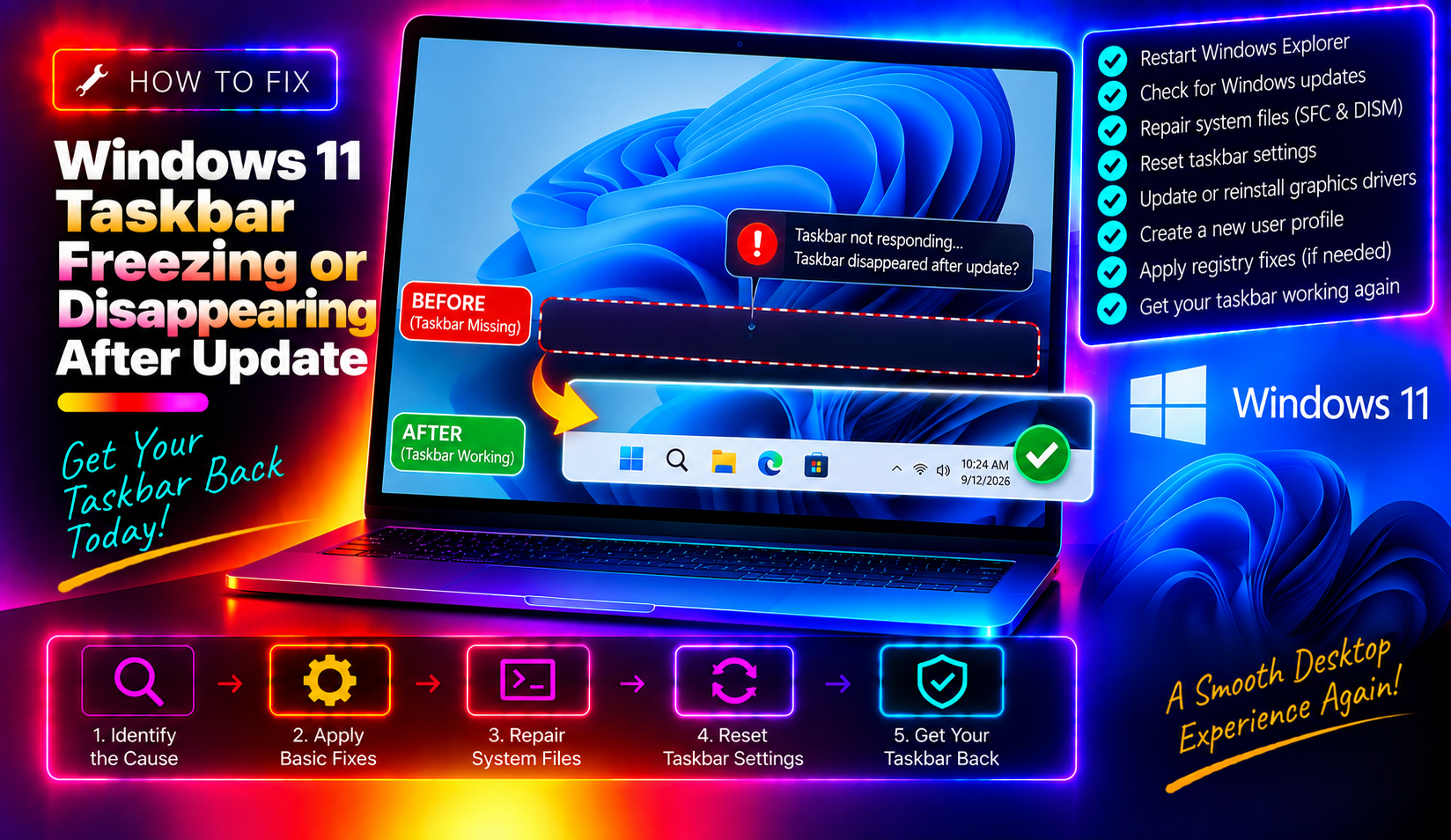
If you signed into Windows 11 after a recent update only to find your taskbar frozen, completely blank, or missing entirely, you are not alone. Microsoft has officially acknowledged two separate waves of this issue — one in January 2026 and another in May 2026 — both tied to instability in explorer.exe, the core process that renders your taskbar, Start menu, system tray, and desktop. This guide walks you through 7 proven fixes, including the exact KB update numbers confirmed by Microsoft and the update rollback path that most guides skip entirely.
What Causes the Windows 11 Taskbar to Freeze or Disappear After an Update
The Windows 11 taskbar is rendered by explorer.exe (Windows Shell). When a cumulative update introduces a race condition or corrupts shell initialization components, explorer.exe can crash or hang immediately after sign-in — taking your taskbar, Start button, Search bar, pinned apps, and notification tray with it.
Two specific updates have been confirmed as triggers in 2026:
- January 2026 cumulative update — introduced a bug that caused
explorer.exeto crash at sign-in, making the taskbar disappear. Microsoft released KB5074105 as an optional fix. - May 2026 cumulative update (KB5089549) — meant to fix the January issue but itself contains a race condition in shell initialization. It also fails to install on some devices with error
0x800f0922due to insufficient space on the System Reserved partition.
The result in both cases: you log in and see a blank desktop with no taskbar, or the taskbar appears but is completely unresponsive — clicking the Start button, search icon, or system tray does nothing.
Quick Check: Is explorer.exe the Culprit?
Before running any repairs, confirm that explorer.exe is the source of the problem. Here is how to check from a running session (even without a taskbar):
- Press Ctrl + Shift + Esc to open Task Manager directly.
- Click More details if you see the compact view.
- Under the Processes tab, look for Windows Explorer.
- If it is missing, not running, or showing high CPU with no activity,
explorer.exehas crashed or stalled.
You can also open a command prompt from Task Manager (File > Run new task > type cmd) and run:
tasklist | findstr explorer.exeIf the process is absent from the output, it has crashed completely and needs to be restarted manually.
Fix 1: Restart Windows Explorer via Task Manager
This is the fastest first step and resolves the issue temporarily in most cases — enough to proceed with permanent fixes.
- Press Ctrl + Shift + Esc to open Task Manager.
- Locate Windows Explorer under Processes.
- Right-click it and select Restart.
If Windows Explorer is not listed at all, use File > Run new task, type explorer.exe, and press Enter. This manually restarts the shell and should bring your taskbar back within a few seconds. Note: this is a temporary fix. If your taskbar disappears again after the next reboot, continue with the steps below.
Fix 2: Install the Latest Cumulative Update (KB5089549 / KB5074105)
Microsoft has released patches specifically targeting these explorer.exe failures. Installing the correct update is the most reliable permanent fix for the majority of affected users.
- KB5074105 — targets the January 2026 crash bug (Windows 11 24H2).
- KB5089549 — the May 2026 cumulative update that further improves
explorer.exereliability and reduces shell sluggishness after boot (Windows 11 24H2 and 25H2).
To install:
- Open Settings > Windows Update.
- Click Check for updates.
- If optional updates are available, click View optional updates and select KB5074105 or KB5089549.
- Install and restart.
If KB5089549 fails with error 0x800f0922, your System Reserved partition may lack space. You can attempt installation via the Microsoft Update Catalog or wait for Microsoft to release a revised package. Do not try to manually resize the System Reserved partition unless you are experienced with disk management tools — data loss is possible.
Fix 3: Run SFC and DISM to Repair Corrupted System Files
A Windows update that fails mid-install or gets interrupted can leave system files in a corrupted state. The System File Checker (SFC) and Deployment Image Servicing and Management (DISM) tools repair these without reinstalling Windows.
Open an elevated Command Prompt (right-click Start > Terminal (Admin)) and run these commands in order:
DISM /Online /Cleanup-Image /RestoreHealthWait for DISM to complete (this may take 10–20 minutes and requires an active internet connection). Then run:
sfc /scannowSFC will scan all protected system files and replace corrupted ones automatically. Restart your PC when both commands finish. If SFC reports "Windows Resource Protection found corrupt files but was unable to fix some of them," run DISM first as shown above, then re-run SFC.
Fix 4: Re-register Shell Components Using PowerShell
If the taskbar is still broken after running SFC and DISM, the Windows Shell Experience Host package may need to be re-registered. This Appx package controls the rendering of the taskbar, Start menu, and Action Center.
Open an elevated PowerShell window (right-click Start > Terminal (Admin) > PowerShell) and run:
Get-AppxPackage -allusers Microsoft.Windows.ShellExperienceHost | Foreach {Add-AppxPackage -DisableDevelopmentMode -Register "\AppXManifest.xml"}Then re-register all built-in apps to cover any other shell dependencies:
Get-AppxPackage -AllUsers | Foreach {Add-AppxPackage -DisableDevelopmentMode -Register "\AppXManifest.xml"}Some errors during the second command are normal — these occur for packages already registered or in use. Restart your PC after both commands complete. Most users see the taskbar fully restored after this step if SFC and DISM did not resolve it.
Fix 5: Perform a Clean Boot to Isolate Third-Party Conflicts
Third-party software — particularly shell extensions, antivirus tools, GPU overlay software (NVIDIA, AMD), and startup managers — can conflict with Windows Explorer and cause the taskbar to freeze independently of Windows Update. A clean boot disables all non-Microsoft services and startup items so you can confirm whether the issue is Windows itself or a third-party conflict.
- Press Win + R, type
msconfig, and press Enter. - Under the Services tab, check Hide all Microsoft services, then click Disable all.
- Under the Startup tab, click Open Task Manager and disable every startup item.
- Click OK, then restart.
If your taskbar works normally after the clean boot, re-enable services and startup items in small groups to identify the conflicting software. Common culprits include GPU overlay apps, shell context-menu extensions, and real-time sync tools like OneDrive or Dropbox running at startup.
Fix 6: Roll Back the Problematic Windows Update
If the taskbar froze immediately after a specific update installed and none of the above fixes have resolved it, rolling back that update may be necessary. Most guides skip this step — but it is a legitimate supported path for confirmed bad patches.
To uninstall a recent update:
- Open Settings > Windows Update > Update history.
- Click Uninstall updates.
- Locate the most recently installed cumulative update (look for the KB number and install date).
- Click Uninstall and follow the prompts.
Alternatively, from an elevated Command Prompt:
wusa /uninstall /kb:KBNUMBER /quiet /norestartReplace KBNUMBER with the KB article number (for example, wusa /uninstall /kb:5089549 /quiet /norestart). Restart your PC when done. After rollback, pause Windows Update temporarily (Settings > Windows Update > Pause updates) until Microsoft releases a revised patch.
When to Get Expert Help If None of These Fixes Work
If you have worked through all six fixes and your taskbar is still freezing or missing, the issue may involve a deeper profile corruption, a hardware-specific driver conflict, or a failed update that left Windows in a partially broken state. Signs that you need professional help include:
- SFC reports errors it cannot fix even after running DISM.
- The taskbar returns after a restart but freezes again within minutes.
- Multiple user profiles on the same machine all have a broken taskbar.
- Error
0x800f0922persists even after attempting the Microsoft workaround. - Windows Update is stuck or failing on multiple consecutive patches.
In these situations, a remote support session is often faster and safer than attempting advanced repairs without guidance. CloudHouse Technologies offers professional desktop support with certified technicians who can diagnose and resolve these issues remotely, usually within the same business day, without requiring you to send your device anywhere.
Frequently Asked Questions
Q: Why does my Windows 11 taskbar keep freezing every time I sign in?
A: The most common cause in 2026 is a known instability in explorer.exe introduced by the January 2026 and May 2026 cumulative updates. Microsoft has confirmed this is a race condition in shell initialization. Installing KB5074105 or KB5089549 (once it installs correctly on your device) is the definitive fix from Microsoft's side.
Q: My taskbar completely disappeared after a Windows update — how do I get it back immediately?
A: Press Ctrl + Shift + Esc to open Task Manager, find Windows Explorer in the Processes tab, right-click it, and select Restart. If it is not listed, go to File > Run new task, type explorer.exe, and press Enter. This restores the taskbar without a full reboot.
Q: What is error 0x800f0922 and why does it stop KB5089549 from installing?
A: Error 0x800f0922 means the System Reserved partition on your hard drive does not have enough free space to stage the update files. Microsoft has acknowledged this as a known installation issue with KB5089549. You can try downloading the update manually from the Microsoft Update Catalog, or wait for a revised package that Microsoft is currently preparing.
Q: Will rolling back a Windows update leave my PC less secure?
A: Rolling back a single cumulative update does temporarily remove any security patches it included. To reduce exposure, enable your firewall, avoid unfamiliar websites, and re-install the update as soon as Microsoft releases a corrected version. You can pause updates in Settings > Windows Update to prevent automatic reinstallation in the meantime.
Q: Can a third-party antivirus cause the Windows 11 taskbar to freeze?
A: Yes. Some antivirus and endpoint security tools install shell extensions that load inside explorer.exe. If these extensions conflict with a recent Windows update, they can cause the taskbar to freeze or crash. Performing a clean boot (Fix 5) will confirm whether a third-party program is the culprit. If the taskbar works normally after a clean boot, re-enable programs one at a time to identify the conflict.