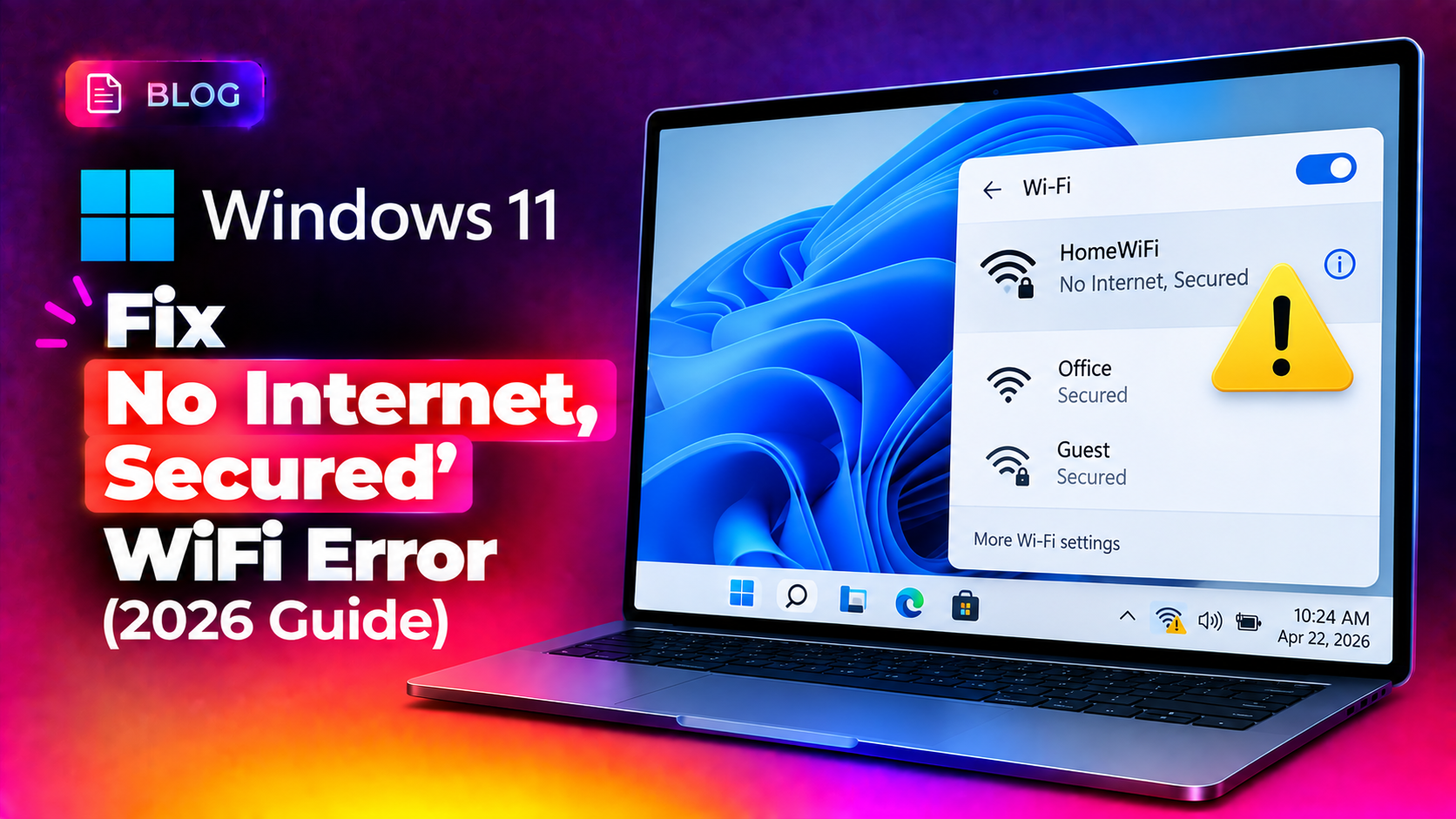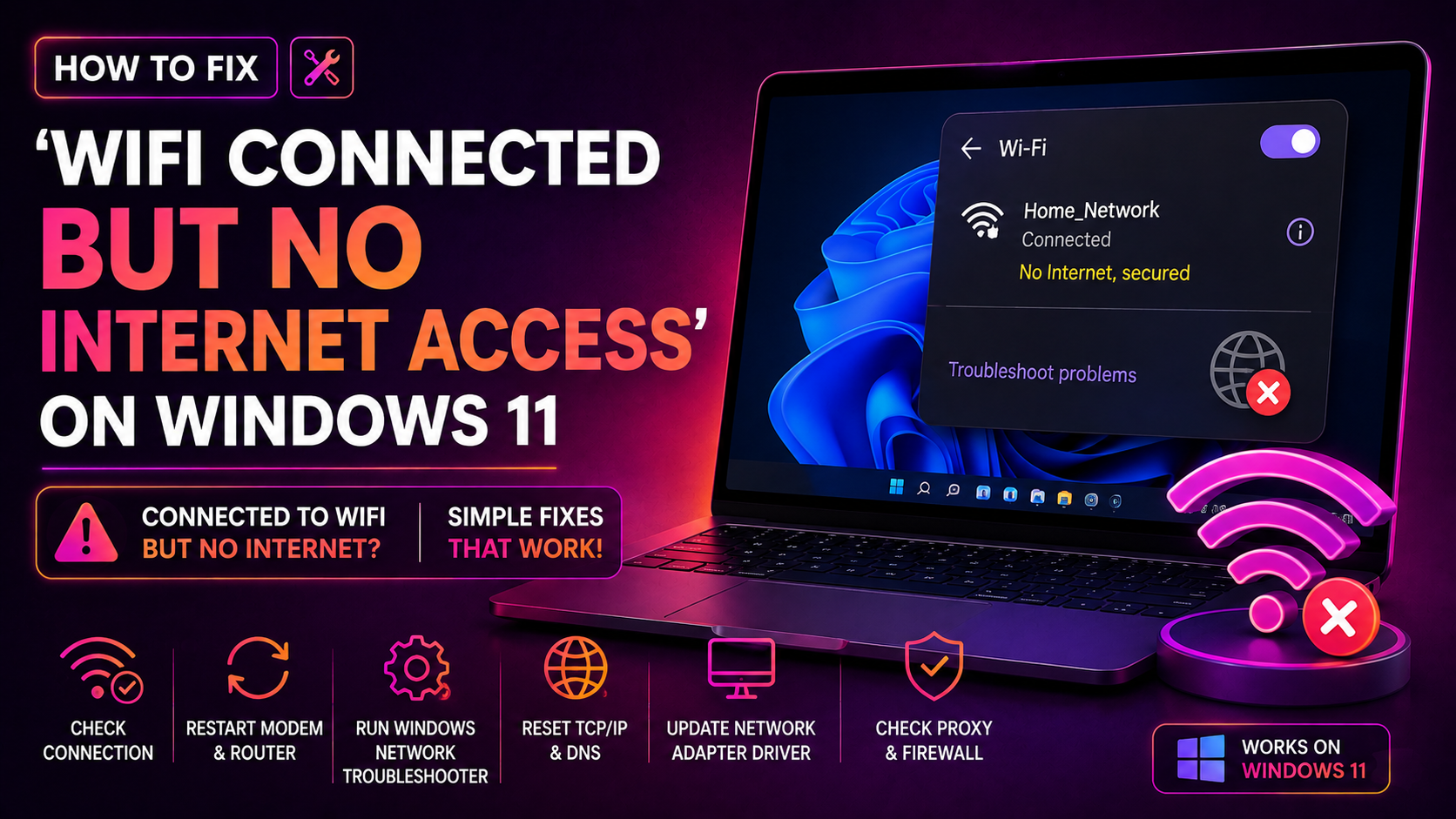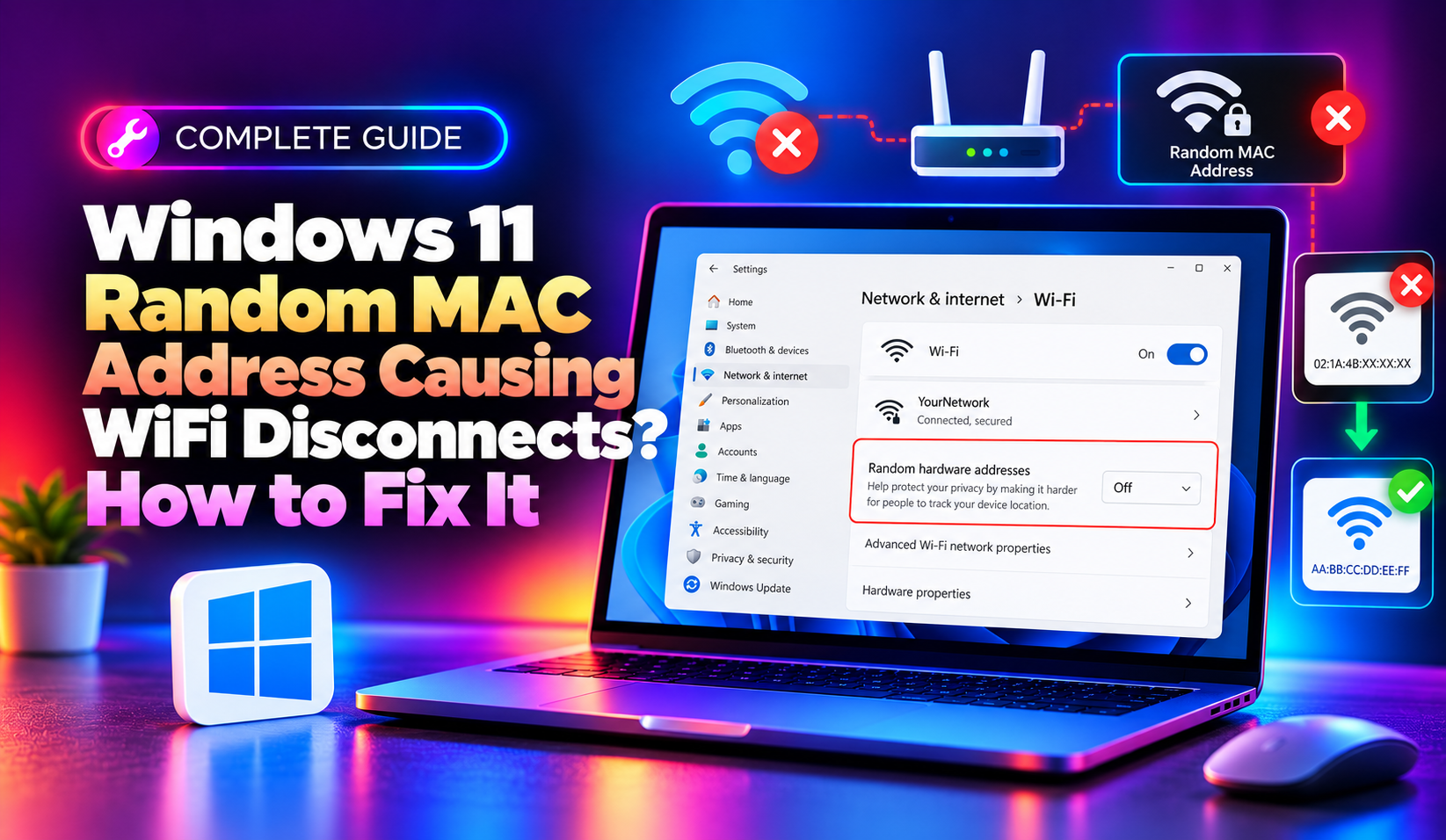
If your Windows 11 laptop keeps dropping WiFi, gets stuck on "Identifying..." or "No Internet, Secured," or your router keeps assigning it a fresh IP address every time it reconnects — the culprit may not be your driver or your router at all. It could be Random Hardware Addresses, the MAC address randomization feature Windows 11 uses for every WiFi network by default. In 2026, with more mesh routers, enterprise WiFi 6E/7 access points, and MAC-based access controls in use, this feature is causing a fresh wave of disconnects, DHCP conflicts, and "device not recognized" issues that weren't as common a few years ago.
Why Random MAC Addresses Break Your WiFi Connection
Random Hardware Addresses is a privacy feature that assigns your WiFi adapter a new, randomized MAC address for each network — and in some configurations, a new one periodically for the same network. It's meant to stop retailers, advertisers, and network operators from tracking your device across locations. The problem is that many routers, especially older ones and mesh systems, treat every new MAC address as a brand-new device. That means:
- Your router issues a new DHCP lease and IP address every time the address rotates, which can look like repeated disconnects
- MAC-based device lists, parental controls, or bandwidth priority rules stop recognizing your PC
- Enterprise or campus WiFi with MAC filtering or 802.1X authentication rejects the connection entirely
- Mesh WiFi systems lose track of the device while roaming between nodes, causing brief but repeated drops
- Some WiFi 6E/7 routers and older Intel/Realtek/MediaTek adapter firmware combinations have known bugs when random MAC rotation happens mid-session, which several 2026 driver changelogs have specifically addressed
This is different from a generic "WiFi keeps disconnecting" driver issue — the telltale sign is that reconnecting fixes it temporarily, your router's connected-devices list shows the same laptop appearing as a "new" device repeatedly, or the problem started right after a Windows 11 update that reset your network adapter settings.
Method 1: Turn Off Random Hardware Address for Your Home Network
The fastest fix is to disable randomization for the specific network causing problems, while keeping it enabled elsewhere for privacy on public WiFi.
- Open Settings > Network & Internet > Wi-Fi > Manage known networks
- Select your home or office network and click Properties
- Under "Random hardware addresses," change the dropdown from On to Off
- Forget the network and reconnect so the adapter picks up its real, permanent MAC address
You can also disable it globally under Settings > Network & Internet > Wi-Fi by toggling off "Random hardware addresses" at the top level, but per-network is usually the safer option since it keeps privacy protection on unfamiliar networks.
Method 2: Fix It via PowerShell / Netsh When Settings Won't Stick
If the toggle keeps reverting after a reboot or update (a known issue on several builds of 24H2/25H2), reset the WLAN configuration and reapply the setting from an elevated PowerShell prompt:
netsh wlan show profiles— confirms your saved network profile namenetsh wlan delete profile name="YourNetworkName"— clears the stored profile so it rebuilds cleanlynetsh winsock resetandnetsh int ip reset— clears corrupted network stack settings that can interfere with MAC handling- Restart the PC, reconnect to the network, then immediately set Random Hardware Address to Off for that connection before doing anything else
If Device Manager shows adapter errors alongside the disconnects, also check Device Manager > Network adapters > your WiFi adapter > Properties > Advanced for a "Network Address" or "Locally Administered Address" entry — some adapters expose a hardware-level override that takes priority over the OS setting and should be set to "Not Present" so Windows' setting takes effect cleanly.
Method 3: Lock the MAC Address via Registry (Persistent Fix)
For a fix that survives updates and won't revert, you can pin your adapter's real MAC address directly at the driver level:
- Press Win + R, type
regedit, and navigate to:
HKEY_LOCAL_MACHINE\SYSTEM\CurrentControlSet\Control\Class\{4D36E972-E325-11CE-BFC1-08002BE10318} - Find the subkey matching your WiFi adapter (check the
DriverDescvalue to confirm) - Create a new String value named NetworkAddress
- Enter your adapter's actual physical MAC address (no dashes or colons) as the value
- Disable and re-enable the adapter, or restart, for the change to apply
Always back up the registry key before editing, and only do this if you're comfortable with manual driver-level changes — this is the kind of fix our engineers apply routinely for clients whose networks depend on stable device identification, such as offices using MAC-based access rules or ticketing systems tied to device inventory.
Method 4: Update Your WiFi Driver and Firmware
Several chipset vendors shipped 2026 driver updates specifically patching random MAC rotation bugs that caused mid-session disconnects on WiFi 6E and WiFi 7 adapters. Check for updates via:
- Settings > Windows Update > Advanced options > Optional updates > Driver updates
- The manufacturer's site directly (Intel, Killer/Rivet Networks, Realtek, MediaTek, Broadcom) rather than relying solely on Windows Update, since OEM drivers often lag behind chipset vendor releases
- Your router or mesh system's firmware — many mesh vendors pushed 2026 firmware updates improving how they handle randomized/rotating MAC addresses during roaming
Preventing This Issue Going Forward
Once fixed, a few habits keep it from coming back:
- Leave random MAC addresses on for public and guest networks, and off only for networks where device recognition matters
- Keep WiFi drivers and router firmware updated on a regular schedule rather than waiting for problems
- If you manage a business network with MAC-based rules, document which staff devices have randomization disabled so IT doesn't waste time diagnosing recurring "new device" alerts
- After any major Windows feature update, re-check your Random Hardware Address setting — feature updates have been known to silently reset it to default
If you've worked through all of this and connections are still unstable, or you're managing this across multiple office machines and don't want to troubleshoot each one individually, our team offers pay-per-ticket remote support to diagnose and fix persistent WiFi and network configuration issues without a monthly contract.
Frequently Asked Questions
Q1: Does turning off random MAC addresses reduce my privacy?
Slightly, on that specific network — your device will use the same identifiable hardware address every time it connects there. This is a reasonable trade-off for your own home or office network, but it's best to leave randomization on for public WiFi like cafes, airports, and hotels.
Q2: Why did this suddenly start after a Windows update?
Feature updates on Windows 11 (including recent 24H2/25H2 cumulative updates) have been reported to reset network adapter settings, including the Random Hardware Address toggle, back to their default "On" state. Always re-check this setting after installing a major update.
Q3: My router shows the same laptop as multiple devices — is this the cause?
Yes, this is the most common symptom. Each time the MAC address rotates, your router's DHCP server treats it as a new client and can assign a new IP address, which shows up as duplicate device entries in your router's admin panel.
Q4: Does this affect Ethernet connections too?
Random MAC addressing primarily targets WiFi adapters, but Windows 11 does include an option to randomize Ethernet adapter addresses as well. If you're seeing similar symptoms on a wired connection, check for and disable the "Turn off random MAC addresses for Ethernet" policy or the equivalent adapter setting.
Q5: Will disabling random MAC addresses fix all WiFi disconnects?
Not necessarily — it fixes disconnects specifically caused by MAC rotation conflicts with your router or access point. If your WiFi still drops after disabling it, the cause is more likely outdated drivers, power management settings turning off the adapter, or signal interference, which need separate troubleshooting.