What Does 'No Internet, Secured' Mean on Windows 11
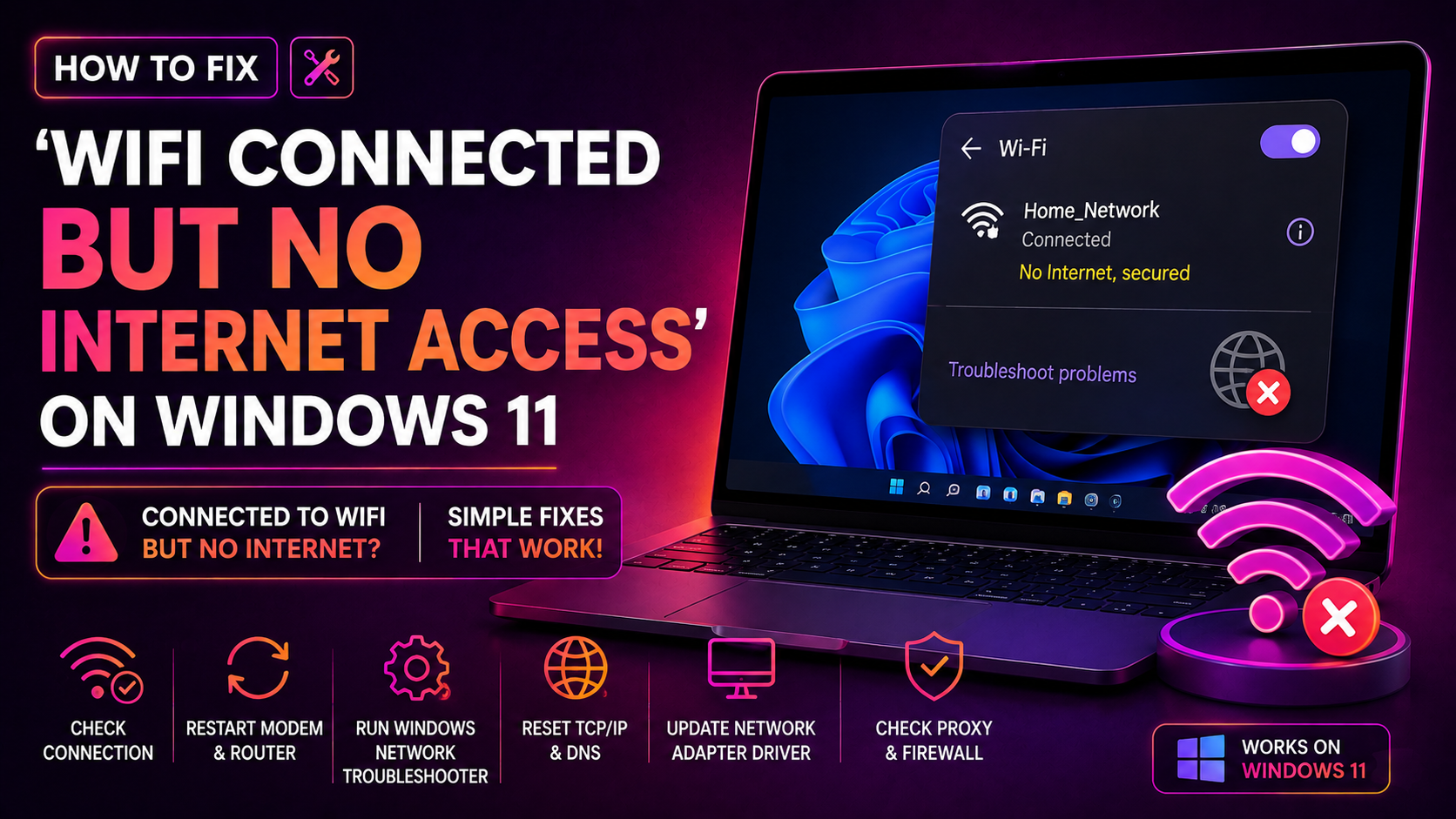
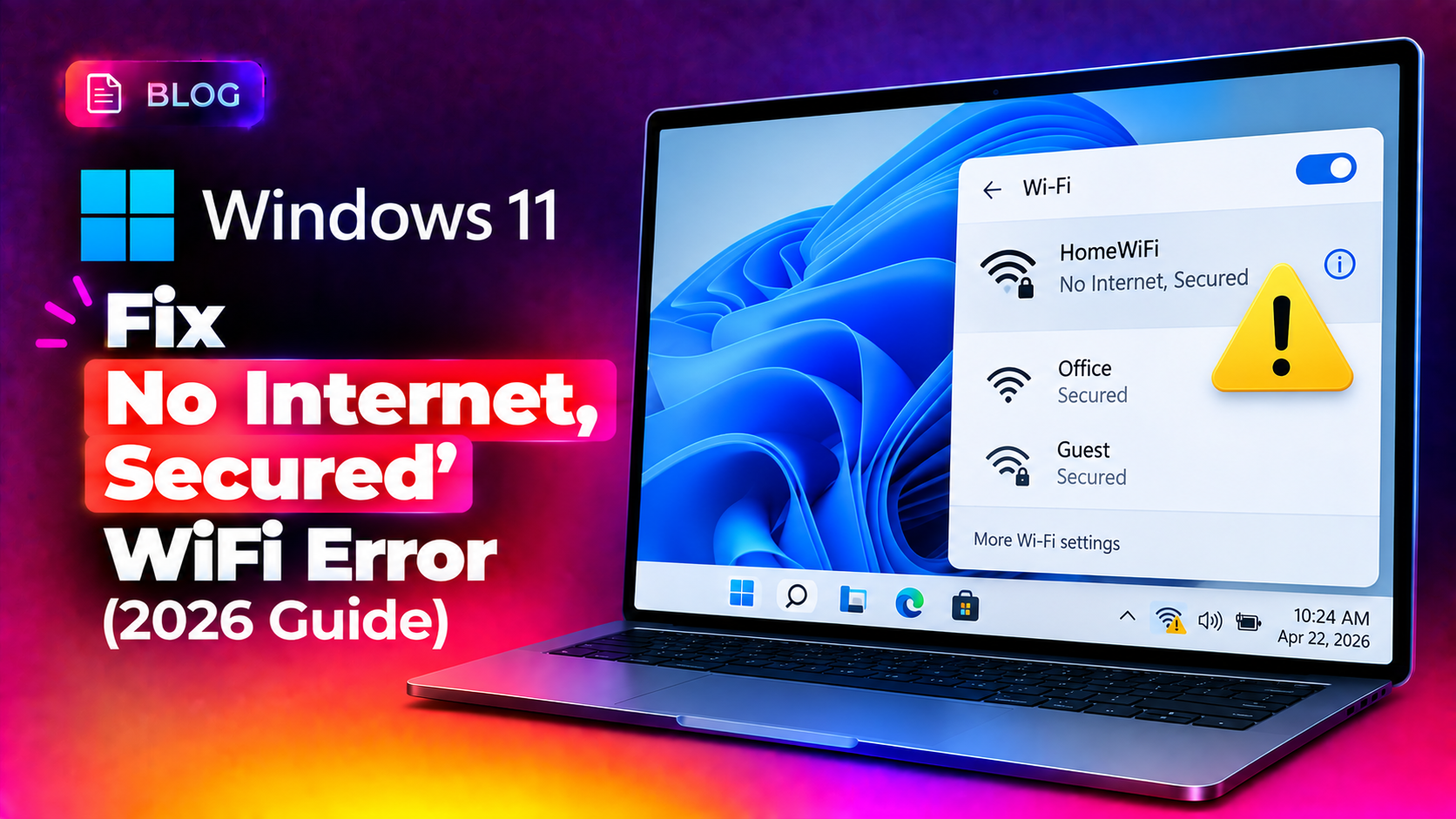
When Windows 11 shows "No Internet, Secured" next to your WiFi network, it means your PC has successfully authenticated to the router (the connection is "secured"), but it cannot reach the internet through that connection. This is different from a failed login - the handshake with your router works, but something downstream is broken: DHCP, DNS, IPv6 compatibility, a driver fault, or interference from security software.
This error is one of the most frequently searched Windows 11 networking problems in 2026, especially after feature updates change network adapter driver behavior. Below is the full troubleshooting sequence we use for CloudHouse clients hitting this exact error.
Quick Fix 1: Restart Router and PC
Before anything else, power-cycle both ends of the connection:
- Turn off the router, wait 30 seconds, turn it back on and let it fully boot (usually 1-2 minutes).
- Restart your Windows 11 PC.
- Reconnect to WiFi and check if the error clears.
If other devices on the same network have internet but only your Windows 11 PC shows this error, skip ahead to Fix 2 - the problem is local to your machine.
Fix 2: Renew Your IP Address
A stale or invalid DHCP lease is the single most common cause of this exact error message. Open Command Prompt as Administrator and run:
ipconfig /release
ipconfig /flushdns
ipconfig /renew
Then check whether you now have a valid IPv4 address:
ipconfig /allLook for an address in your router's normal range (e.g. 192.168.1.x). An address starting with 169.254.x.x means DHCP failed completely and Windows assigned itself a fallback address - this confirms a DHCP or driver issue.
Fix 3: Change Your DNS Servers
Sometimes the ISP's DNS servers are unreachable even though the network itself works. Switch to a public DNS provider:
- Go to Settings > Network & Internet > WiFi > [Your Network] > Edit next to DNS server assignment.
- Change to Manual, enable IPv4, and set Preferred DNS to
8.8.8.8and Alternate DNS to1.1.1.1. - Save and reconnect.
Or via Command Prompt:
netsh interface ip set dns name="Wi-Fi" static 8.8.8.8
netsh interface ip add dns name="Wi-Fi" 1.1.1.1 index=2
Fix 4: Disable IPv6 Temporarily
Many home routers and ISPs only partially support IPv6, which can trigger "No Internet, Secured" even when IPv4 connectivity is fine:
- Go to Settings > Network & Internet > WiFi > [Your Network] > Properties.
- Under IP settings, toggle off Internet Protocol Version 6 (TCP/IPv6).
- Reboot and reconnect.
Fix 5: Reset Winsock and TCP/IP Stack
If the error persists across networks (home, mobile hotspot, office WiFi), the Windows network stack itself is likely corrupted:
netsh winsock reset
netsh int ip reset resetlog.txt
ipconfig /flushdns
netsh int ip reset
Restart your PC after running these commands - they do not take effect until reboot.
Fix 6: Update or Roll Back the WiFi Driver
Driver bugs introduced by a recent Windows Update are a common trigger:
- Open Device Manager > Network adapters.
- Right-click your WiFi adapter and select Update driver > Search automatically.
- If the issue started right after a Windows Update, instead try the Driver tab > Roll Back Driver (available if a previous driver version exists).
- Also check Power Management tab and uncheck "Allow the computer to turn off this device to save power."
Fix 7: Run Network Reset (Nuclear Option)
If nothing else works, a full network reset reinstalls all network adapters and resets networking components to factory defaults:
- Go to Settings > Network & Internet > Advanced network settings > Network reset.
- Click Reset now, confirm, and let the PC restart.
Note: this removes and reinstalls all network adapters, including any VPN adapters, so you may need to reinstall VPN client software afterward.
If you've tried all of the above and are still stuck, our pay-per-ticket remote support technicians can diagnose deeper router or ISP-level issues in a single remote session.
Prevention Tips
- Keep your WiFi adapter driver updated directly from the manufacturer's site, not just Windows Update.
- Avoid letting antivirus software manage its own firewall rules - let Windows Defender Firewall handle it when possible.
- Set a static DNS server (8.8.8.8 or 1.1.1.1) proactively if your ISP's DNS is known to be unreliable.
Frequently Asked Questions
Why does my WiFi say 'No Internet, Secured' but other devices work fine?
This means the problem is local to your Windows 11 PC - most commonly a bad DHCP lease, a driver fault, or a corrupted network stack, not the router or ISP itself.
Does disabling IPv6 fix 'No Internet, Secured' permanently?
It resolves the issue for routers or ISPs with incomplete IPv6 support, and is safe to leave disabled long-term unless you specifically need IPv6 connectivity.
Will a network reset delete my saved WiFi passwords?
Yes, Network Reset removes all network adapters and saved WiFi profiles, so you'll need to re-enter WiFi passwords after the reset completes.
Can antivirus software cause 'No Internet, Secured' errors?
Yes, some antivirus firewalls block network traffic even after successful authentication - check for a "Let Windows manage firewall" or compatibility option in your antivirus settings.
Is this error caused by a Windows Update?
It can be - driver regressions introduced in feature or cumulative updates are a known cause, which is why rolling back the WiFi driver is one of the standard fixes.