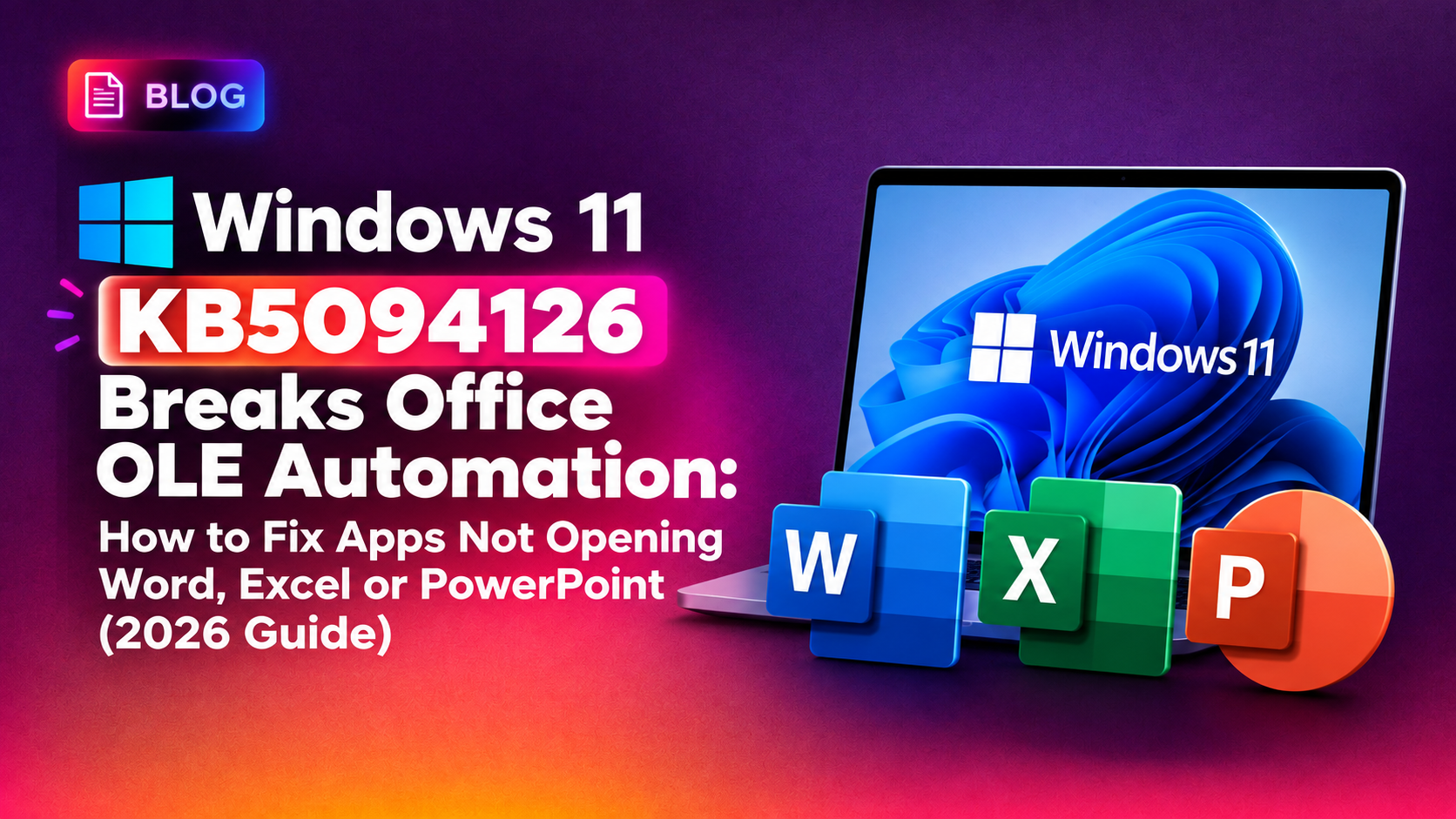
If Microsoft Word, Excel, or PowerPoint suddenly stopped launching from your accounting software, dental practice management tool, legal document assembly app, or any other third-party program after a recent Windows Update, you are not alone. Since mid-June 2026, Microsoft has confirmed that Windows 11 update KB5094126 (along with the related KB5093998 and KB5094127) is breaking OLE Automation, the decades-old Windows technology that lets third-party applications programmatically open and control Office apps.
This guide explains exactly why this is happening, how to confirm it's the same issue affecting your PC, and three real fix methods you can apply today — from a temporary workaround to a full update rollback.
What Is Causing This Error
OLE (Object Linking and Embedding) Automation is a Component Object Model (COM) interface that has existed in Windows for over 25 years. Many enterprise applications — including CCH Engagement, Workpaper Manager, Dentrix, Softdent, Zotero, and countless custom line-of-business tools — rely on it to silently launch Word, Excel, or PowerPoint in the background, populate a document, and hand control back to the user.
Windows updates released on or after June 9, 2026 (KB5094126 for Windows 11 24H2/25H2, plus companion updates KB5093998 and KB5094127 for other supported versions) introduced a regression in how Windows brokers COM activation requests to Office. The result:
- Third-party apps call Word/Excel/PowerPoint via COM/OLE Automation
- Nothing happens — no window opens, and critically, no error message is shown
- Manually opening the Office app first, then opening the document from File Explorer, often works fine
- The Office apps themselves are not corrupted — only the automation bridge is broken
Because there's no visible error dialog, this issue is frequently misdiagnosed as a "frozen app," a licensing problem, or a corrupt Office installation — wasting hours of troubleshooting time before anyone realizes it's tied to a specific KB.
How to Confirm You're Hit By This Issue
Before applying any fix, verify the update is actually installed on the affected machine:
Get-HotFix -Id KB5094126, KB5093998, KB5094127 -ErrorAction SilentlyContinueOr from Settings: Settings > Windows Update > Update history and look for an install date on or after June 9, 2026. You can also check Event Viewer under Windows Logs > Application for COM activation errors (Event ID 10016, DistributedCOM) that spiked after the update was applied.
Fix Method 1: Apply Microsoft's Interim Workaround
Microsoft has not shipped a permanent fix at the time of writing, but recommends a manual workaround for end users who can tolerate an extra click:
- Open the required Office application manually first (Word, Excel, or PowerPoint)
- Leave that instance running in the background
- Return to the third-party application and retry the automation call, or open the target file directly from File Explorer instead of through the third-party tool's "Open in Word" button
This isn't elegant, but it keeps daily operations running for front-desk staff, accountants, and clinicians while a permanent patch is pending.
Fix Method 2: Uninstall the Offending Update (Recommended for Business-Critical Systems)
If the workaround above is not practical — for example, on kiosk machines or fully automated document-generation servers — uninstalling the update restores OLE Automation immediately.
Via Settings:
- Go to Settings > Windows Update > Update history > Uninstall updates
- Locate KB5094126 (or KB5093998/KB5094127 depending on your Windows version)
- Click Uninstall and restart when prompted
Via elevated Command Prompt or PowerShell (useful for remote/scripted removal across multiple endpoints):
wusa /uninstall /kb:5094126 /quiet /norestartTo prevent Windows Update from silently reinstalling it the next night, pause updates for a defined window:
Pause Windows Updates via Settings > Windows Update > Pause updates for 7 daysOr block the specific KB using the official Microsoft "Show or Hide Updates" troubleshooter package, or via Group Policy / WSUS if you manage updates centrally.
Fix Method 3: Run System File and Component Store Repair (If Uninstall Fails)
On some machines, the update cannot be cleanly uninstalled because it has already been superseded, or the uninstall option is greyed out. In that case, repair the COM/DCOM registration and system files instead:
sfc /scannowDISM /Online /Cleanup-Image /RestoreHealthThen re-register the core Office COM components (run from an elevated Command Prompt, adjusting the Office path for your install):
cd "C:\Program Files\Microsoft Office\root\Office16"
winword.exe /regserver
excel.exe /regserver
powerpnt.exe /regserver
Reboot afterward. This won't undo the Windows-side regression, but it clears out any secondary registration corruption that can compound the problem and is a useful diagnostic step if uninstalling the KB doesn't fully resolve the issue.
Prevention: Managing Future Update Rollouts
This incident is a reminder that even routine cumulative updates can silently break line-of-business integrations. For organizations running COM-dependent software (accounting, legal, healthcare, and CRM tools are the most common), a few practices reduce the blast radius:
- Stagger update deployment — test new cumulative updates on a small pilot group before organization-wide rollout
- Subscribe to the Windows release health dashboard for known issues before patching production machines
- Maintain a documented rollback procedure (like Method 2 above) so front-line IT can react within minutes, not hours
- Keep an inventory of which desktops run OLE/COM-dependent line-of-business software so you know exactly which machines to prioritize when an issue like this surfaces
If your team doesn't have the bandwidth to monitor every patch Tuesday for regressions like this, CloudHouse Technologies' pay-per-ticket IT support can handle update triage, rollback, and endpoint troubleshooting on demand without a long-term contract.
Frequently Asked Questions
Is KB5094126 mandatory, or can I skip it?
Cumulative updates like KB5094126 are typically security updates and cannot be permanently skipped without falling behind on patches. You can defer or uninstall it temporarily while Microsoft ships a fix, but plan to reinstall once the corrected update is available.
Does this issue affect Microsoft 365 (Office) apps only, or also older Office versions?
Reports confirm the OLE Automation break affects both Microsoft 365 (Click-to-Run) installations and volume-licensed perpetual Office versions, since the regression is in the Windows COM activation layer, not Office itself.
Will a Windows repair or reinstall fix this without uninstalling the KB?
No. Since the problem originates from the update's COM broker changes, a standard SFC/DISM repair or Office repair alone typically won't resolve it while the update remains installed. Uninstalling the update or waiting for Microsoft's fix is required.
How do I know if my specific third-party app is affected?
Test by manually triggering the automation feature in question (e.g., "Export to Word" or "Print merge letter"). If nothing happens and no error appears, and the app worked fine before mid-June 2026, this KB is the most likely cause.
When will Microsoft release a permanent fix?
As of this writing, Microsoft has acknowledged the issue but has not published a firm release date for the corrected update. Check the Windows release health dashboard regularly, as Microsoft typically ships out-of-band or next Patch Tuesday fixes for high-impact regressions like this.
Who Is Most Likely to Be Affected
Not every Windows 11 user will notice this issue, because it only manifests when a third-party application invokes Office through COM/OLE Automation rather than opening files natively. The organizations most exposed include:
- Accounting and audit firms using tools like CCH Engagement or Workpaper Manager that generate Word/Excel deliverables automatically from templates
- Dental and medical practices running Dentrix, Softdent, or similar practice-management software that merges patient data into Word documents or prints via Office
- Legal offices using document assembly software that populates contracts and letters through Word automation
- Researchers and academics using reference managers such as Zotero that insert citations directly into Word documents
- Custom line-of-business applications built in-house with VBA, VB.NET, or C# that call Office Interop libraries
If your organization doesn't rely on any of these workflows, you may never encounter this bug even with KB5094126 installed. That's part of why the issue went undetected in Microsoft's initial testing before wider rollout.
Deeper Diagnostic Steps
If Methods 1–3 don't fully resolve the problem, or you want to confirm the exact failure point before escalating to Microsoft support, dig into the DCOM activation logs:
- Open Event Viewer and navigate to Windows Logs > Application
- Filter for Event ID 10016 (source: DistributedCOM) — a spike immediately following the update install date is a strong indicator
- Cross-reference the CLSID/APPID referenced in the error against Word, Excel, or PowerPoint's registered Application ID in the registry under
HKEY_CLASSES_ROOT\AppID
You can also test raw automation outside of the third-party app using PowerShell, which isolates whether the problem is Windows-side or application-side:
$word = New-Object -ComObject Word.Application
$word.Visible = $true
$word.Documents.Add()
If this PowerShell snippet also fails to open a visible Word window (or throws a COM exception) after the June 2026 update, that confirms the regression is at the Windows/COM broker level rather than being specific to any one vendor's software — useful evidence when opening a support ticket with either Microsoft or your line-of-business software vendor.
Managing the Rollout Through Group Policy or WSUS
For IT teams managing dozens or hundreds of endpoints, manually uninstalling KB5094126 machine-by-machine isn't practical. If you use WSUS or Microsoft Endpoint Configuration Manager, decline or expire the update centrally:
- In WSUS, right-click KB5094126 in the Updates list and select Decline to stop it from being offered to any client going forward
- For machines that already installed it, deploy the
wusa /uninstall /kb:5094126 /quiet /norestartcommand via a scheduled task or your RMM/PDQ/Intune script deployment - If you manage devices through Microsoft Intune, use a Proactive Remediation script to detect the installed KB and automatically trigger removal across affected device groups
This centralized approach ensures a consistent fix across your fleet rather than relying on individual users or help desk tickets to catch every affected machine.