
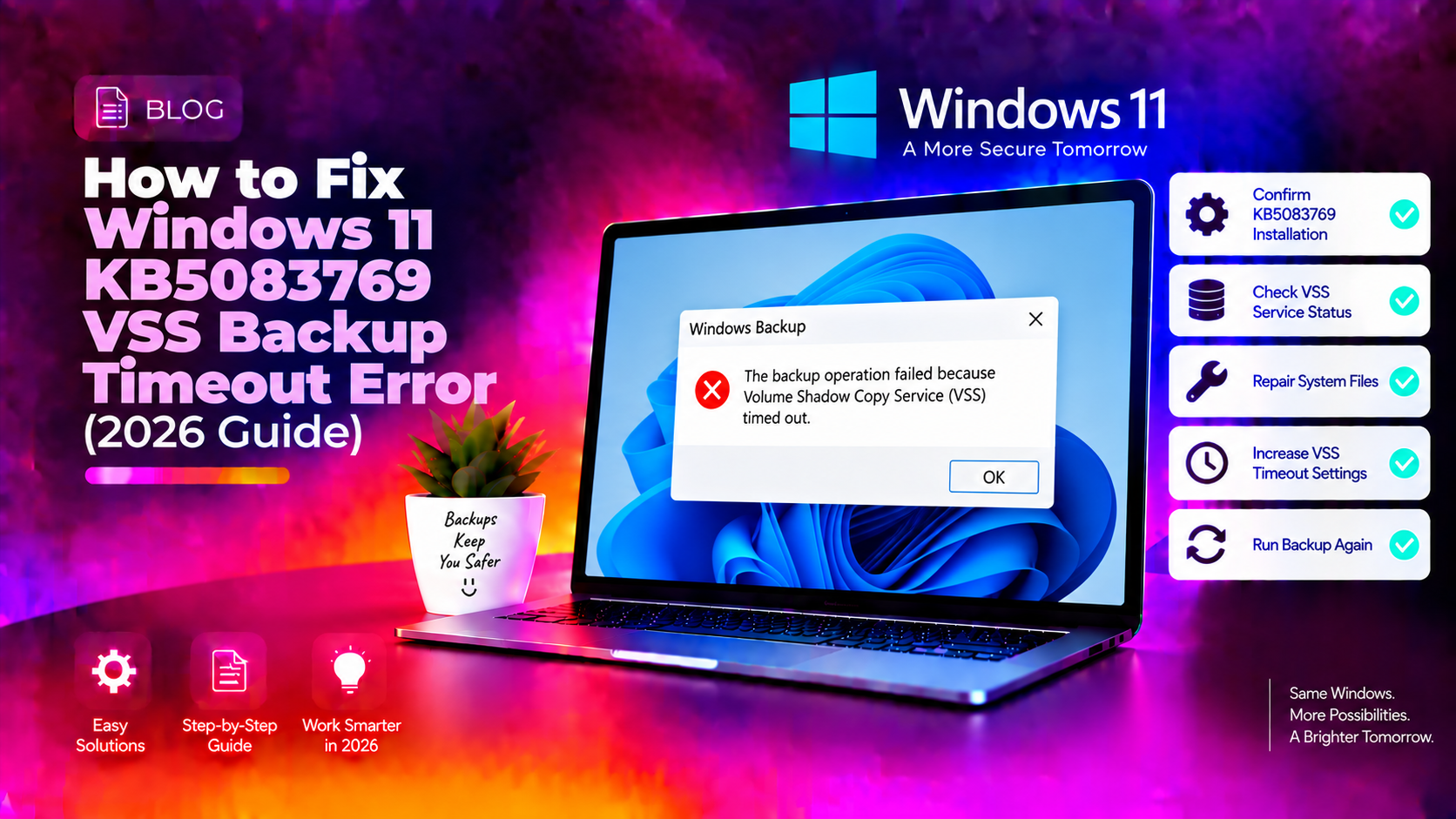
What Is KB5083769 and Why It Breaks Backups
KB5083769 is Microsoft's April 2026 cumulative security update for Windows 11 versions 24H2 and 25H2. While the patch delivers important security fixes, it introduced a significant side effect: it expanded Windows Defender's Vulnerable Driver Blocklist to include psmounterex.sys — a kernel-level driver used by several popular backup applications.
The driver psmounterex.sys versions 8.1.7544 and below are vulnerable to CVE-2023-43896, a privilege escalation flaw. By blocking this driver, Windows 11 prevents backup tools from mounting shadow copy snapshots — and since VSS (Volume Shadow Copy Service) relies on this driver to create consistent point-in-time snapshots, the entire backup pipeline breaks.
The result: backup operations fail mid-process with timeout errors, users cannot create new System Restore points, and File History backups stall silently. Affected software includes Acronis Cyber Protect Cloud, Macrium Reflect, NinjaOne Backup, UrBackup Server, and any other tool that hooks into VSS at the kernel level.
How to Identify VSS Backup Timeout Errors
Before applying any fix, confirm that KB5083769 is the cause. Here is how to diagnose the problem.
Check Windows Update History
- Open Settings → Windows Update → Update history
- Look for KB5083769 in the list with an April 2026 install date
Read the Event Viewer Logs
Open Event Viewer and navigate to Windows Logs → Application. Filter by source VSS or VolSnap and look for these event IDs:
- Event ID 12289 — VSS unexpected error
- Event ID 8193 — Volume Shadow Copy Service error: Unexpected error calling routine
- Event ID 513 — Cryptographic Services failed
Run this command in an elevated PowerShell window to pull VSS errors quickly:
Get-WinEvent -LogName Application | Where-Object { $_.ProviderName -eq "VSS" } | Select-Object -First 20 | Format-List TimeCreated, MessageCommon Error Messages
- The backup has failed because Microsoft VSS has timed out during snapshot creation
- VSS_E_BAD_STATE: The shadow copy provider had an unexpected error while trying to process the specified operation
- Volume Shadow Copy Service error: Unexpected error DeviceIoControl
Method 1: Uninstall KB5083769 Patch Safely
The fastest way to restore backup functionality is to uninstall the problematic update. This is safe to do temporarily while you wait for updated drivers from your backup vendor.
Via Settings (Recommended)
- Go to Settings → Windows Update → Update history
- Click Uninstall updates under Related settings
- Find Security Update for Microsoft Windows (KB5083769)
- Click Uninstall and confirm
- Restart your PC
Via Command Prompt (Faster)
Open Command Prompt as Administrator and run:
wusa /uninstall /kb:5083769 /quiet /norestartThen restart your system:
shutdown /r /t 0Pause Updates After Uninstall
After uninstalling, pause Windows Update to prevent KB5083769 from reinstalling automatically. Go to Settings → Windows Update, click Pause updates and select 5 weeks. This gives you time to update your backup software before re-enabling updates.
Method 2: Restart Volume Shadow Copy Service
If uninstalling the patch is not immediately possible, restarting the VSS service can temporarily restore backup operations, especially after a failed backup attempt that left the service in a bad state.
Via Services Manager
- Press Win + R, type
services.msc, and press Enter - Scroll to Volume Shadow Copy
- Right-click and select Restart (or Start if it shows as Stopped)
- Also restart the Microsoft Software Shadow Copy Provider service
Via PowerShell (Elevated)
Stop-Service -Name VSS -Force
Stop-Service -Name swprv -Force
Start-Service -Name swprv
Start-Service -Name VSS
Get-Service VSS, swprv | Select-Object Name, Status
Verify the services show Running status. Then retry your backup operation.
Re-register VSS Components
If the service restart does not help, re-register the VSS DLL files. Open an elevated Command Prompt and run these commands one at a time:
cd /d %windir%\system32
net stop vss
net stop swprv
regsvr32 /s ole32.dll
regsvr32 /s vss_ps.dll
vssvc /register
regsvr32 /s /i swprv.dll
regsvr32 /s /i eventcls.dll
regsvr32 /s es.dll
regsvr32 /s stdprov.dll
regsvr32 /s vssui.dll
regsvr32 /s msxml.dll
regsvr32 /s msxml3.dll
regsvr32 /s msxml4.dll
net start swprv
net start vss
Method 3: Reset VSS Storage and Recreate Restore Points
If VSS storage has become corrupted by the failed backup attempts, you need to resize and reset shadow storage before creating new restore points.
Step 1: Delete Existing Corrupt Shadow Copies
Open an elevated Command Prompt:
vssadmin delete shadows /all /quietStep 2: Resize Shadow Storage
vssadmin resize shadowstorage /For=C: /On=C: /MaxSize=10%Replace 10% with a higher value such as 15% if your drive is large and you need more restore point history.
Step 3: Verify VSS Writers Are Stable
vssadmin list writersAll writers should show State: [1] Stable and Last error: No error. If any writer shows a failed state, note its name and restart the corresponding Windows service.
Step 4: Create a New Restore Point
powershell -Command "Checkpoint-Computer -Description 'Post KB5083769 Fix' -RestorePointType MODIFY_SETTINGS"If this succeeds without a timeout error, your VSS pipeline is fully restored.
Method 4: Update or Rollback Third-Party Backup Software
Microsoft's official recommended fix is to update your backup application to a version that ships a patched driver. Vendors have been aware of CVE-2023-43896 since October 2023 and most have released patches.
Acronis Cyber Protect Cloud
Update to the latest agent version via the Acronis management console. Versions released after November 2023 include a patched psmounterex.sys. Navigate to Backup Console → Agents → Update Available.
Macrium Reflect
Macrium released a security patch for CVE-2023-43896 in versions 8.0.7690 and 8.1.7675 (October 2023). If you are running an older version, download the latest from macrium.com and run the installer over your existing installation.
UrBackup Server
Update to the latest UrBackup client/server version. The patched driver is included in releases after December 2023.
NinjaOne Backup
Update the NinjaOne agent via the NinjaOne dashboard. Navigate to Administration → Software → Agents and push the latest version to affected endpoints.
Need immediate help? Get Expert Windows 11 Support from CloudHouse Technologies. We can diagnose and fix your VSS backup issue remotely, usually in under 60 minutes.
How to Prevent This Issue After Future Updates
The KB5083769 incident highlights an important risk: Windows security updates can silently break backup tools that depend on third-party kernel drivers. Here is how to protect yourself going forward.
1. Always Keep Backup Software Up to Date
Enable auto-updates in your backup software. Vendors patch known driver vulnerabilities quickly, and staying current ensures compatibility with Microsoft's driver blocklist updates.
2. Test Backups After Every Major Windows Update
Set a reminder to run a test backup within 24 hours of any cumulative update install. A failed test backup is far less painful than discovering your backup is broken when you need to restore.
3. Defer Quality Updates on Business Systems
For small businesses, configure Windows Update for Business to defer quality updates by 7 days. Open Group Policy Editor (gpedit.msc), navigate to Computer Configuration → Administrative Templates → Windows Components → Windows Update, and set Select when Quality Updates are received to 7 days deferral.
4. Maintain Offline Backups with Robocopy
Keep at least one recent backup on an external drive or NAS that does not depend on VSS. Robocopy provides file-level backups without shadow copy infrastructure:
robocopy C:\Users\%USERNAME%\Documents D:\Backup\Documents /E /COPYALL /LOG:backup_log.txt5. Monitor the Windows Health Dashboard
Bookmark Microsoft's Windows 11 release health page. Known issues from cumulative updates are posted there within hours of widespread reports.
FAQ: KB5083769 Backup Failures
Is KB5083769 safe to uninstall?
Yes, uninstalling KB5083769 is safe as a temporary measure. The patch addresses security vulnerabilities in the Windows kernel, so you should plan to reinstall it once your backup software has been updated to use a patched driver. Keep your system behind a firewall and avoid public networks in the interim.
Why does KB5083769 cause VSS timeout errors specifically?
KB5083769 added psmounterex.sys to Windows Defender's Vulnerable Driver Blocklist due to CVE-2023-43896. Backup software that bundles versions 8.1.7544 or older of this driver can no longer load it at the kernel level, causing VSS snapshot creation to time out waiting for a driver that Windows is actively blocking.
Will Windows Update reinstall KB5083769 automatically?
Yes. If you uninstall KB5083769 without pausing Windows Update, it will reinstall automatically on the next update check, usually within 24 to 72 hours. Always pause updates for at least 5 weeks after uninstalling the patch to give yourself time to update your backup software first.
My System Restore points are gone after KB5083769 — can I recover them?
If VSS was broken during the time restore points were being created, those specific restore points may be corrupt or missing. You cannot recover them, but you can create new ones once VSS is working again. If you have a third-party backup from before the KB5083769 install, use that for recovery instead.
Which backup software is NOT affected by KB5083769?
Windows built-in Backup and Restore and OneDrive file sync are not affected because they do not use the psmounterex.sys driver. Third-party tools confirmed unaffected include Veeam Agent for Windows (which uses its own VSS provider) and EaseUS Todo Backup versions released after January 2024. Always check your vendor's release notes after major Windows updates.