
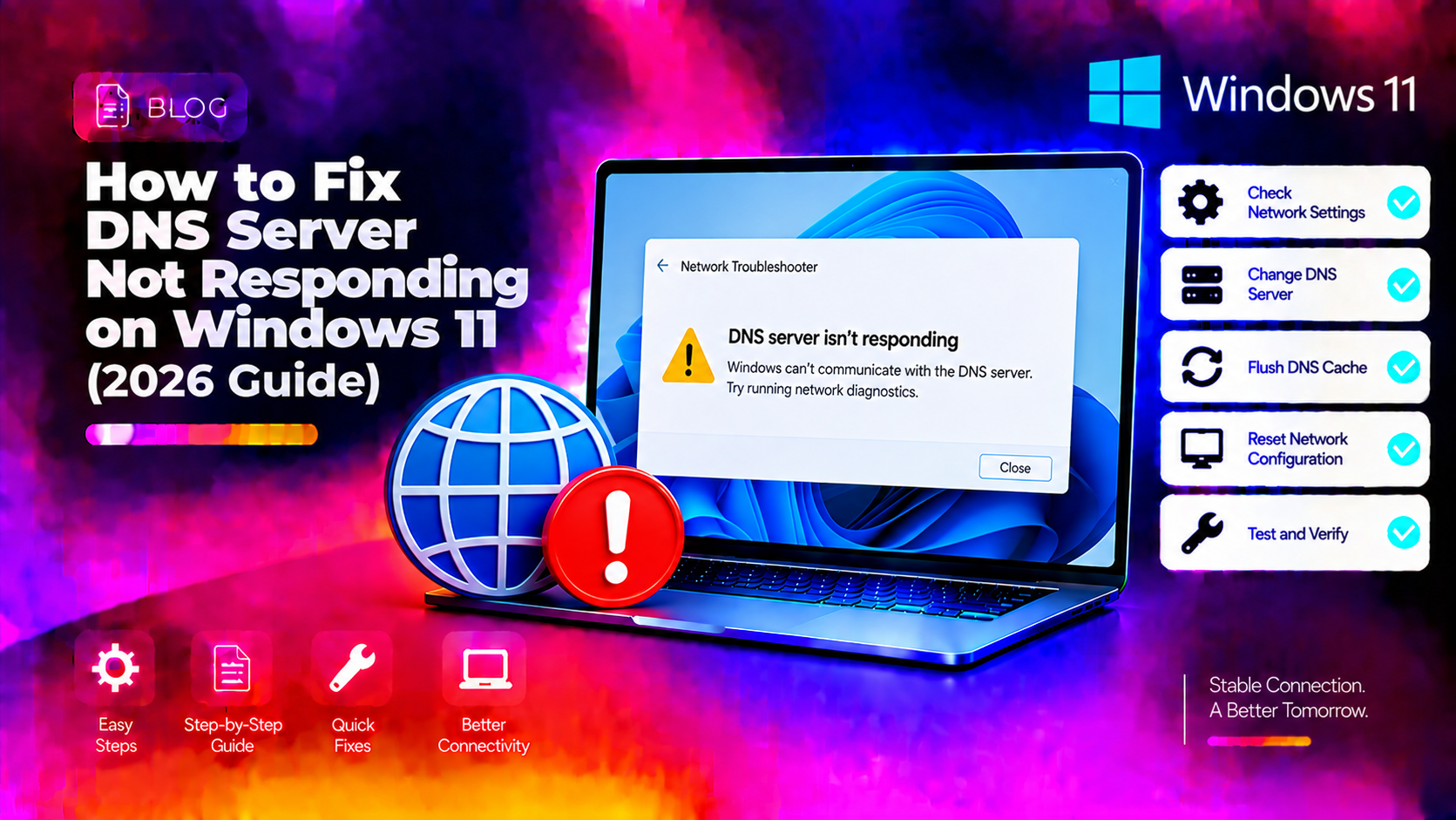
What "DNS Server Not Responding" Actually Means on Windows 11
When Windows 11 says "DNS server isn't responding," it means your PC can't translate a website name (like google.com) into an IP address. The result: web pages refuse to load even though your internet connection looks fine. This error almost always falls into one of four categories — a stale DNS cache, a misconfigured DNS server address, a corrupted TCP/IP stack, or a problem with your router. Each has a fast fix.
Quick Check Before You Start
Open Command Prompt as Administrator and run:
ping 8.8.8.8If this succeeds (you get replies), your internet connection is working but DNS resolution is broken. If this fails, the problem is deeper — your network adapter or router needs attention first. Proceed with the fixes below for the DNS-specific case.
Method 1: Flush the DNS Cache
Windows 11 caches DNS lookups to speed up browsing. A stale or corrupted cache entry can block access to specific sites — or all sites if the cache itself becomes damaged.
- Open Command Prompt as Administrator: search cmd, right-click, Run as administrator.
- Run this sequence of commands one by one:
ipconfig /flushdns
ipconfig /release
ipconfig /renew
netsh winsock reset
netsh int ip reset- Restart your PC after all commands complete.
- Open a browser and test. This resolves the error for the majority of users.
Method 2: Change Your DNS Server to a Public One
Your ISP's DNS servers sometimes go down or respond slowly, causing the "not responding" error. Switching to Google or Cloudflare's DNS is fast, free, and often permanently solves the problem.
- Go to Settings > Network & internet > Wi-Fi (or Ethernet) > click your network > Hardware properties.
- Next to DNS server assignment, click Edit.
- Change from Automatic (DHCP) to Manual.
- Enable IPv4 and enter:
- Google DNS: Preferred:
8.8.8.8/ Alternate:8.8.4.4 - Cloudflare DNS: Preferred:
1.1.1.1/ Alternate:1.0.0.1 - Click Save and test your browser.
Method 3: Restart the DNS Client Service
The Windows DNS Client service sometimes stops responding without a full system crash. Restarting it takes 30 seconds.
- Press Win + R, type
services.msc, press Enter. - Scroll down to DNS Client.
- Right-click and select Restart.
- If Restart is greyed out: open Command Prompt as Administrator and run:
net stop dnscache
net start dnscache
Method 4: Disable IPv6 on Your Network Adapter
Windows 11 prefers IPv6 by default. If your router or ISP has partial IPv6 support, this preference causes DNS lookups to fail even though IPv4 works fine.
- Open Control Panel > Network and Sharing Center > Change adapter settings.
- Right-click your active network adapter and choose Properties.
- Uncheck Internet Protocol Version 6 (TCP/IPv6).
- Click OK and restart your PC.
Method 5: Update or Roll Back Network Adapter Driver
A corrupted or incompatible network driver is a less obvious but common cause of DNS failures on Windows 11, especially after a cumulative update.
- Press Win + X and open Device Manager.
- Expand Network adapters and right-click your Wi-Fi or Ethernet adapter.
- Select Update driver > Search automatically for drivers.
- Alternatively, if the problem started after a Windows Update, choose Properties > Driver > Roll Back Driver.
- Restart and test.
Method 6: Run the Network Troubleshooter
Windows 11's built-in troubleshooter detects and auto-fixes many DNS and network stack issues.
- Go to Settings > System > Troubleshoot > Other troubleshooters.
- Click Run next to Internet Connections.
- Follow the prompts — the troubleshooter often resets the DNS resolver cache and Winsock catalog automatically.
Method 7: Reset Windows 11 Network Settings
If all else fails, a full network reset reinstalls all network adapters and returns every network setting to factory defaults. This is the nuclear option — it also removes saved Wi-Fi passwords.
- Go to Settings > Network & internet > Advanced network settings.
- Scroll down and click Network reset.
- Click Reset now > Yes.
- Your PC will restart. Reconnect to your Wi-Fi network and test.
When DNS Issues Are Actually Router Problems
If every device on your network has the DNS error (phone, tablet, another PC), the problem is almost certainly your router, not Windows 11. Try: unplugging your router for 60 seconds, checking for a firmware update in the router admin panel, and contacting your ISP if the issue started suddenly.
If only your Windows 11 PC is affected, the issue is local. Work through Methods 1–7.
Persistent networking issues that don't respond to standard fixes often need deeper diagnosis. The team at CloudHouse Technologies Pay-Per-Ticket Support provides remote Windows 11 network troubleshooting with no ongoing subscription.
FAQ
Why does Windows 11 say DNS server not responding even though I have internet?
Because "having internet" and "DNS working" are two separate things. Your router can assign you an IP and route traffic, but if the DNS server it points you to is down or misconfigured, name resolution fails. Ping 8.8.8.8 — if that works, DNS is the problem. Change your DNS to Google (8.8.8.8) or Cloudflare (1.1.1.1) as described in Method 2.
Does flushing the DNS cache fix the "server not responding" error?
Often yes, especially if the error appeared suddenly without any network changes. Run ipconfig /flushdns followed by netsh winsock reset, then restart. That clears both the DNS cache and the socket layer in one pass.
Is it safe to change my DNS to Google or Cloudflare on Windows 11?
Yes. Google (8.8.8.8) and Cloudflare (1.1.1.1) are among the most reliable public DNS servers in the world, with better uptime and often faster response times than most ISP DNS servers. There is no security risk from using them on a home or office network.
How do I check which DNS server Windows 11 is currently using?
Open Command Prompt and run: ipconfig /all. Look for the "DNS Servers" line under your active network adapter. If it shows your router's IP (e.g., 192.168.1.1), your router is acting as a DNS proxy — the actual upstream DNS depends on your router settings.
Can antivirus software cause "DNS server not responding" on Windows 11?
Yes. Security software with network filtering (Kaspersky, ESET, Bitdefender, Norton) sometimes intercepts DNS queries and blocks them incorrectly after a definitions update. Temporarily disable the firewall component of your antivirus to test — if DNS works without it, add an exception for your browser or reset the antivirus network settings.