
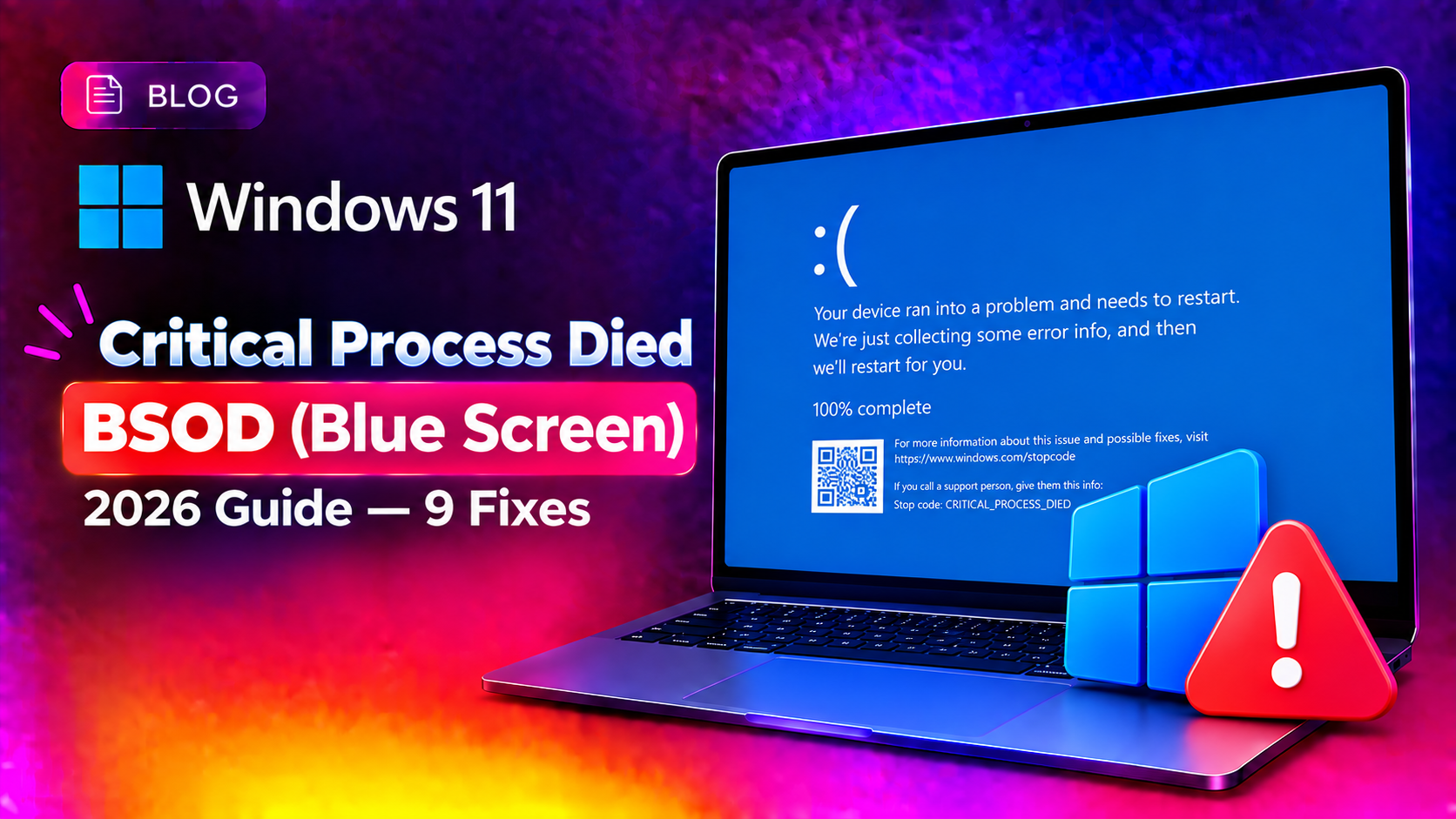
What Is the "Critical Process Died" BSOD?
The CRITICAL_PROCESS_DIED Blue Screen of Death (stop code 0x000000EF) appears when Windows 11 detects that a critical system process has crashed unexpectedly. It is most commonly caused by corrupted system files, failing hardware, or faulty drivers. In 2026 it has been frequently reported after the KB5055523 and KB5058379 cumulative updates. Here are 9 fixes.
Fix 1: Run SFC and DISM to Repair Corrupted System Files
CRITICAL_PROCESS_DIED is most commonly caused by corrupted Windows system files. SFC and DISM repair them without reinstalling Windows.
1. Open Command Prompt as Administrator.
2. Run: sfc /scannow — wait for the scan to complete (10-20 minutes).
3. Then run: DISM /Online /Cleanup-Image /RestoreHealth
4. Reboot and test.
If SFC cannot fix all files, boot into Windows Recovery Environment (WinRE) and run SFC from there: hold Shift + click Restart -> Troubleshoot -> Advanced Options -> Command Prompt -> run sfc /scannow.
Fix 2: Update or Roll Back Problematic Drivers
A driver crashing a critical Windows process is the number one cause of CRITICAL_PROCESS_DIED. Check your minidump file to identify the culprit driver.
Read the minidump:
1. Download WinDbg Preview from the Microsoft Store.
2. Open WinDbg -> File -> Open Crash Dump -> navigate to C:\Windows\Minidump -> open the latest .dmp file.
3. In the command window, type: !analyze -v and look for FAULTING_MODULE or MODULE_NAME to identify the failing driver.
Update or roll back: Device Manager -> right-click the device -> Properties -> Driver -> Roll Back Driver or Update Driver.
Fix 3: Check and Repair Your Hard Drive
Failing SSDs and HDDs cause CRITICAL_PROCESS_DIED when Windows cannot read critical system files fast enough.
1. Open Command Prompt as Administrator.
2. Run: chkdsk C: /f /r /x
3. Type Y to schedule it for next boot and reboot. chkdsk runs before Windows loads (30-90 minutes on HDDs).
Also download CrystalDiskInfo (free) to check SSD S.M.A.R.T. data. Warning or Bad indicators mean the drive is failing and needs replacement.
Fix 4: Run Windows Memory Diagnostic
Faulty RAM causes CRITICAL_PROCESS_DIED when a critical process tries to access a bad memory address.
1. Press Windows + R -> type mdsched.exe -> Enter.
2. Click Restart now and check for problems.
3. Windows restarts and runs the memory test (20-40 minutes).
For a more thorough test, run MemTest86 (free bootable USB) for 2-4 passes overnight.
Fix 5: Uninstall the Problematic Windows Update
If CRITICAL_PROCESS_DIED started after a specific update (KB5055523 in May 2026 and KB5058379 in June 2026 have been widely reported as culprits):
1. Press Windows + I -> Windows Update -> Update history -> Uninstall updates.
2. Find the most recently installed cumulative update -> Uninstall.
3. Reboot and test.
To prevent reinstallation, use the Show or Hide Updates troubleshooter (wushowhide.diagcab) to hide the specific KB number.
Fix 6: Boot Into Safe Mode to Isolate the Cause
If Windows 11 keeps crashing before you can run fixes, boot into Safe Mode to work without third-party drivers.
1. If Windows boots: hold Shift -> Start -> Restart -> Troubleshoot -> Advanced Options -> Startup Settings -> press 4 for Safe Mode.
2. If Windows does not boot: interrupt the boot 3 times (power off during Windows logo) to trigger automatic repair mode.
3. In Safe Mode: if the BSOD does not occur, a third-party driver or service is the cause. Use msconfig -> Services tab to find the culprit.
Fix 7: Reset Windows 11 While Keeping Your Files
If system file corruption is too extensive for SFC/DISM to repair, a Reset that keeps your personal files is the next step.
1. Press Windows + I -> System -> Recovery.
2. Click Reset PC -> Keep my files -> Cloud download (recommended) or Local reinstall.
3. Follow the prompts (30-90 minutes). This reinstalls Windows while preserving your documents, photos, and user profile.
Note: all installed applications will be removed and must be reinstalled.
Fix 8: Check for Overheating and Power Issues
CRITICAL_PROCESS_DIED can occur when the CPU or RAM throttles due to overheating, causing critical processes to time out.
1. Download HWiNFO64 (free) and monitor CPU and RAM temperatures while using the PC.
2. CPU temperatures above 95C consistently indicate thermal throttling. Clean the CPU cooler and reapply thermal paste.
3. On a laptop, try running on AC power only to eliminate battery/power delivery issues.
Fix 9: Enable Driver Verifier to Find the Culprit Driver
If you cannot identify the failing driver from the minidump, use Driver Verifier to force a crash with detailed diagnostic data.
Warning: only do this if you can always boot into Safe Mode to disable it afterward.
1. Open Command Prompt as Administrator: type verifier and press Enter.
2. Select Create standard settings -> Automatically select all drivers installed -> Finish.
3. Reboot. The next BSOD will include a specific driver name in the crash details.
4. To disable: boot into Safe Mode -> Command Prompt as Admin -> run verifier /reset -> reboot normally.
Frequently Asked Questions
What causes Critical Process Died on Windows 11 after an update?
KB5055523 (May 2026) and KB5058379 (June 2026) have been reported to trigger this BSOD on systems with older Realtek audio drivers, certain NVIDIA driver versions, and some NVMe SSD firmware versions. The fix is to update those drivers or temporarily uninstall the problematic KB update.
Can I recover data from a PC stuck in a Critical Process Died loop?
Yes. Boot from a Windows installation USB, go to Recovery -> Troubleshoot -> Command Prompt. Use xcopy or robocopy to copy files to an external drive before proceeding with repairs or reinstallation.
Is Critical Process Died a sign of hardware failure?
Not always. It is more often software-related (corrupted system files, bad drivers, faulty update). However, if SFC, DISM, and driver updates do not fix it, and if chkdsk or MemTest86 report errors, then failing storage or RAM is likely the root cause and will need replacement.
Will resetting Windows fix Critical Process Died permanently?
If the cause is software corruption, yes. If the cause is hardware failure (bad SSD, RAM, overheating), the BSOD will return even after a reset. Always run hardware diagnostics before resetting to avoid wasting time.
How do I read the BSOD minidump file to find the cause?
Download WinDbg Preview from the Microsoft Store. Go to File -> Open Crash Dump -> open the latest file in C:\Windows\Minidump. In the command window type !analyze -v and look for MODULE_NAME or FAULTING_MODULE in the output. This identifies the driver or process that caused the crash.
Still getting CRITICAL_PROCESS_DIED despite trying all fixes? CloudHouse Technologies Windows support can remotely analyze your minidump files, diagnose hardware failures, and repair or restore Windows 11 without data loss.