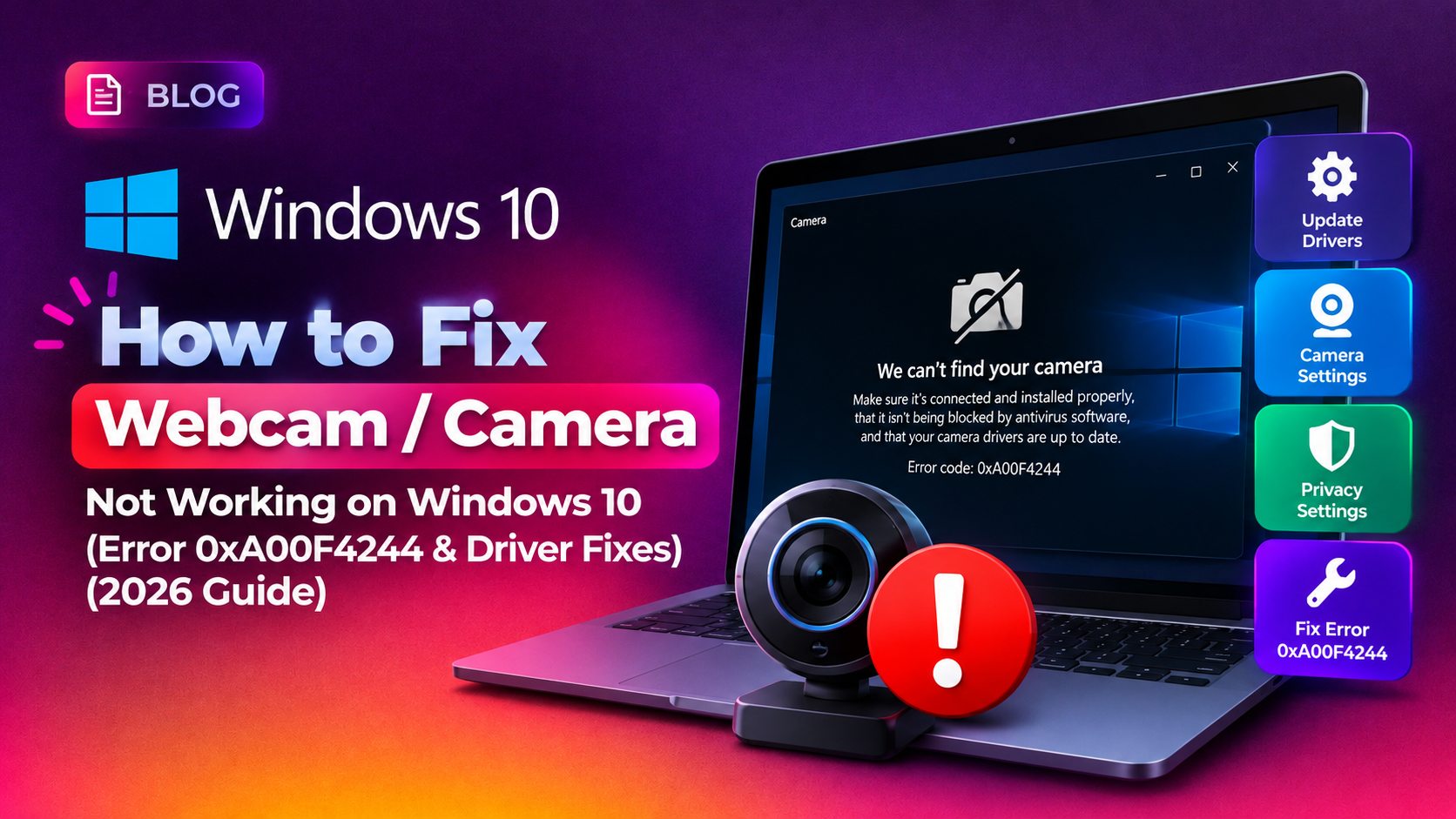
If your webcam suddenly stopped working on Windows 10 — showing a black screen, freezing on launch, or throwing 0xA00F4244 (NoCamerasAreAttached) — you're dealing with one of the most common driver-and-permissions conflicts on the OS. This guide walks through every real fix for 2026, from privacy toggles to full driver reinstalls and system file repairs, whether the issue hit after a Windows Update, a laptop restart, or out of nowhere during a video call.
Why Your Webcam Stops Working on Windows 10
Camera failures on Windows 10 usually come from one of four sources:
- Privacy settings blocking app-level or system-level camera access after an update reset them.
- Corrupted or mismatched camera drivers, often triggered by a Windows Update that silently replaced a working driver.
- A conflicting background app (Teams, Zoom, Skype, OBS) holding an exclusive lock on the camera feed.
- Corrupted system files affecting the Windows Camera Frame Server service, which routes video from the driver to apps.
Error 0xA00F4244 specifically means the Frame Server can't detect any attached camera — even if Device Manager shows the hardware present.
Step 1: Check Camera Privacy Settings First
This is the fastest fix and solves the issue more often than people expect, especially after feature updates reset permission defaults.
- Open Settings > Privacy & security > Camera.
- Ensure Camera access is toggled On.
- Scroll down and confirm "Let apps access your camera" is enabled.
- If you use desktop apps (Chrome, Zoom, Teams desktop client), also enable "Let desktop apps access your camera."
- Restart the app you were using and test the camera again.
Step 2: Fix Error 0xA00F4244 in the Camera App
If the built-in Camera app itself shows 0xA00F4244:
- Close every app that might be using the camera (Teams, Zoom, Discord, browser tabs with active video calls).
- Open Task Manager and end any lingering
Camera.exeor conferencing app processes. - Run the built-in troubleshooter: Settings > System > Troubleshoot > Other troubleshooters > Camera > Run.
- Restart the Windows Camera Frame Server service: press
Win + R, typeservices.msc, find Windows Camera Frame Server, right-click, and select Restart. - Reboot the PC and reopen the Camera app.
Step 3: Reinstall or Roll Back the Camera Driver in Device Manager
Most persistent webcam failures trace back to the driver, especially after a Windows Update pushes a generic replacement over the manufacturer's driver.
- Right-click Start and open Device Manager.
- Expand the Cameras (or Imaging devices) category.
- Right-click your webcam entry and choose Uninstall device. Check "Delete the driver software for this device" if offered, then confirm.
- Go to the Action menu and click Scan for hardware changes — Windows will reinstall a default driver automatically.
- If the camera still misbehaves, right-click it again, choose Properties > Driver tab, and check if Roll Back Driver is available. Use it if the camera worked before a recent update.
- Alternatively, choose Update driver > Browse my computer for drivers > Let me pick from a list > USB Video Device to force the generic UVC driver, which resolves many compatibility conflicts on laptops.
For OEM laptops (Dell, HP, Lenovo), download the manufacturer-specific webcam driver from their support site rather than relying solely on Windows Update — generic drivers often lack IR/Windows Hello support.
Step 4: Repair System Files with DISM and SFC
If the driver reinstall doesn't help, corrupted system files affecting the Frame Server or WMI camera stack could be the cause. Run these from an elevated Command Prompt (right-click Start > Terminal (Admin)):
- Run the DISM health scan first:
DISM /Online /Cleanup-Image /RestoreHealth— this can take 10-20 minutes; let it finish uninterrupted. - Follow with the System File Checker:
sfc /scannow - Restart the computer once both commands complete, even if no errors were reported.
- Reopen the Camera app or your conferencing software and test again.
Running DISM before SFC matters — DISM repairs the underlying Windows image that SFC pulls clean file copies from, so running them in this order avoids SFC failing due to a corrupted local repository.
Step 5: Rule Out Hardware and USB Conflicts
If software fixes don't resolve it:
- For external webcams, try a different USB port — ideally a USB 2.0 port directly on the motherboard/chassis, not through a hub.
- Test the webcam on another PC if possible to confirm it isn't a hardware failure.
- Check Device Manager > Universal Serial Bus controllers for a yellow warning icon next to any USB Root Hub, which can starve the camera of power.
- For laptops with a physical privacy shutter or a function-key camera toggle (common on Lenovo/HP), confirm it isn't accidentally disabled — check
Fn + F-keycombos. - If your webcam has an LED indicator light, check whether it turns on when an app requests access — if the LED stays off, the issue is almost certainly driver-level or hardware-level rather than software permissions.
- For docking-station or hub-connected webcams, plug directly into the laptop instead of through the dock to rule out a power-delivery or bandwidth bottleneck on the hub.
Step 6: Reset the Camera App and Check Windows Update History
Sometimes the Camera app itself becomes corrupted independently of the driver stack. This is worth trying before you spend time reinstalling drivers, especially if the webcam works fine in a browser-based video call tool but fails only in the built-in Camera app.
- Go to Settings > Apps > Installed apps, search for Camera.
- Click the three-dot menu next to Camera and select Advanced options.
- Click Reset, then confirm. This clears the app's cache and local settings without removing it.
- If Reset doesn't help, click Repair first, then try Reset as a follow-up.
- Separately, check Settings > Windows Update > Update history for any driver updates installed around the time the webcam stopped working. If you spot one, you can uninstall it via Update history > Uninstall updates and test whether the camera returns to normal.
This step matters because Windows sometimes pushes a "Camera" or "Imaging Devices" driver update silently through Windows Update, separate from any manual driver work you do in Device Manager. If a bad driver keeps reinstalling itself after you remove it, you can hide that specific update using the Show or Hide Updates troubleshooter from Microsoft before reinstalling your preferred driver version.
Step 7: Test With a Clean Boot to Rule Out Software Conflicts
If the webcam works right after a fresh restart but fails again once you're logged in and running your normal apps, a background process — often an antivirus suite, VPN client, or another conferencing tool set to auto-launch — may be locking the camera.
- Press
Win + R, typemsconfig, and press Enter. - Under the Services tab, check Hide all Microsoft services, then click Disable all.
- Open Task Manager > Startup apps and disable non-essential startup programs, particularly antivirus companion apps, VPN clients, and any conferencing software.
- Restart the PC and test the camera again before re-enabling services one at a time to identify the culprit.
If the webcam behaves normally during the clean boot, you've confirmed a software conflict rather than a driver or hardware fault — re-enable services in batches to narrow down which one is responsible.
When to Call In Professional Support
If you've worked through privacy settings, driver reinstalls, and DISM/SFC repairs and the webcam still won't initialize, the issue may involve a deeper Windows Update conflict, a firmware-level camera controller fault, or malware interfering with the video stack. At that point, trying random registry edits risks making things worse. CloudHouse Technologies' remote technicians can diagnose and fix stubborn Windows 10 driver issues — including webcam, audio, and USB failures — without you needing to touch the registry yourself. Get pay-per-ticket remote support for a one-time fix instead of a subscription.
Frequently Asked Questions
Why did my webcam stop working after a Windows 10 update?
Windows Update sometimes overwrites a manufacturer's camera driver with a generic version, or resets privacy toggles to their default (often "off" for desktop apps). Check Settings > Privacy & security > Camera first, then reinstall the driver from Device Manager if permissions are already correct.
What does error 0xA00F4244 mean on Windows 10?
It means the Windows Camera Frame Server cannot detect any camera attached to the system, even if one is physically connected and shows up in Device Manager. It's usually fixed by restarting the Frame Server service, running the Camera troubleshooter, or reinstalling the driver.
How do I know if it's a driver problem or a privacy setting problem?
If the camera fails in every single app including the built-in Camera app, and Device Manager shows no errors, check privacy settings first. If Device Manager shows a yellow warning icon or the device is missing entirely, it's a driver issue.
Should I use the generic USB Video Device driver or the manufacturer's driver?
Try the manufacturer's driver first for full feature support (Windows Hello IR, autofocus controls). If that's unstable or unavailable, the generic USB Video Device driver in Windows almost always restores basic video functionality.
Can antivirus or third-party software block my webcam on Windows 10?
Yes. Security suites like Norton, McAfee, and even some VPN clients include webcam-blocking privacy features that can silently deny camera access to specific apps. Check your antivirus's privacy/webcam protection settings if the camera works in Device Manager tests but not in specific apps.