
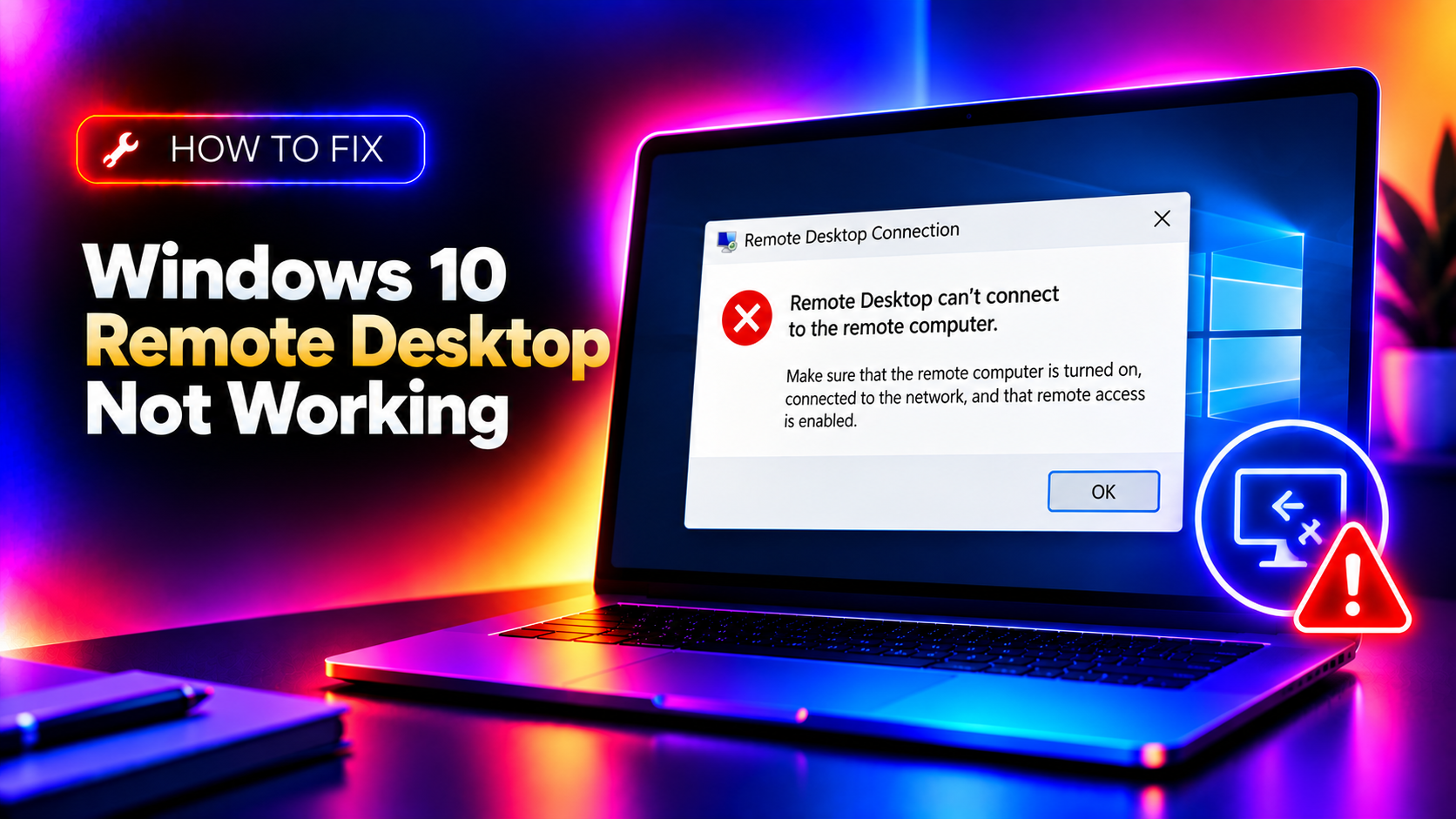
Why Windows 10 Remote Desktop Stops Working
Remote Desktop Protocol (RDP) is one of the most useful built-in Windows features — and one of the most frustrating when it silently breaks. Whether you get "Remote Desktop can't connect to the remote computer," a blank screen after login, or a timeout before the connection even begins, the root cause is almost always one of four things: RDP is disabled on the target PC, port 3389 is blocked by a firewall or router, a Windows Update regression has corrupted a service, or your credentials no longer match.
This guide covers every scenario with exact commands and registry paths, based on the most common failures reported in 2026 — including regressions introduced by the March 2026 KB5079391 rollback and the May 2026 cumulative update (KB5058411).
Fix 1: Enable Remote Desktop on the Target PC
Remote Desktop is disabled by default on Windows 10 Home and may have been toggled off by a Group Policy push or Windows Update.
Step 1. Press Win + I → System → Remote Desktop.
Step 2. Toggle Enable Remote Desktop to On.
Step 3. Click Advanced settings and confirm Network Level Authentication is set to your preference (enable for security; disable only if connecting from older Windows 7 clients).
Step 4. Note the PC name shown under How to connect to this PC — use the exact name or IP when connecting.
Via Registry (for headless/remote fix):
reg add "HKLM\SYSTEM\CurrentControlSet\Control\Terminal Server" /v fDenyTSConnections /t REG_DWORD /d 0 /fRestart the Remote Desktop Services service after the registry change:
net stop TermService && net start TermServiceFix 2: Allow RDP Through Windows Firewall
A Windows Update or third-party AV can silently reset firewall rules, blocking port 3389.
Step 1. Open Control Panel → Windows Defender Firewall → Allow an app or feature through Windows Defender Firewall.
Step 2. Find Remote Desktop in the list and ensure both Private and Public checkboxes are ticked.
Step 3. If the rule is missing entirely, re-add it via PowerShell (run as Administrator):
Enable-NetFirewallRule -DisplayGroup "Remote Desktop"Step 4. Confirm port 3389 is listening:
netstat -an | findstr 3389You should see 0.0.0.0:3389 LISTENING. If you do not, the service is not running (see Fix 4).
Fix 3: Check and Fix RDP Services
Three Windows services must be running for Remote Desktop to work: Remote Desktop Services (TermService), Remote Desktop Services UserMode Port Redirector (UmRdpService), and Remote Procedure Call (RpcSs).
Step 1. Press Win + R, type services.msc, press Enter.
Step 2. Find Remote Desktop Services. It should be Running with startup type Manual.
Step 3. If stopped, right-click → Start. If it fails to start, run a repair:
sfc /scannow
DISM /Online /Cleanup-Image /RestoreHealth
Step 4. After DISM completes (10–20 minutes), restart and try again.
Fix 4: Fix the March/May 2026 Update Regression
Microsoft's KB5079391 (March 2026 Preview) and KB5058411 (May 2026 Cumulative) introduced a bug where TermService fails to start after a clean boot. The official fix is KB5086672 (released March 31, 2026).
Step 1. Check which KB is installed:
wmic qfe list brief | findstr "KB5079391"Step 2. If KB5079391 is present without KB5086672, go to Settings → Windows Update → Check for updates and install KB5086672.
Step 3. Alternatively, download KB5086672 directly from the Microsoft Update Catalog and run the .msu file manually.
Fix 5: Resolve Credential and NLA Errors
"Your credentials did not work" or "The user account is not authorised" errors are common after a Windows Update changes security policy or after a password change on a Microsoft Account.
Step 1. On the target PC, open Computer Management → Local Users and Groups → Groups → Remote Desktop Users.
Step 2. Add the user account that needs RDP access. Local admin accounts are allowed by default; standard accounts must be explicitly added here.
Step 3. If you use a Microsoft Account (email login), try signing in with .\username (dot-backslash prefix) or the local username shown under Settings → Accounts → Your info.
Step 4. Clear saved credentials on the connecting PC: open Credential Manager → Windows Credentials, remove any old RDP entries for the target hostname, and reconnect.
Fix 6: Disable WDDM Graphics Driver for RDP Sessions
On some 2026 Nvidia and AMD driver versions, the WDDM display adapter causes a black screen immediately after RDP login. Disabling WDDM for Remote Desktop sessions forces the legacy mirror driver.
Step 1. Press Win + R, type gpedit.msc (Windows 10 Pro/Enterprise only).
Step 2. Navigate to: Computer Configuration → Administrative Templates → Windows Components → Remote Desktop Services → Remote Desktop Session Host → Remote Session Environment.
Step 3. Double-click Use WDDM graphics display driver for Remote Desktop Connections → set to Disabled → OK.
Registry equivalent (works on all editions):
reg add "HKLM\SOFTWARE\Policies\Microsoft\Windows NT\Terminal Services" /v fEnableWddmDriver /t REG_DWORD /d 0 /fFix 7: Check Port Forwarding on Your Router
If you are connecting from outside your local network, port 3389 must be forwarded from your router to the target PC's local IP. Dynamic IPs are a common cause of RDP failures after a router restart.
Step 1. Assign a static local IP to the target PC via your network adapter's IPv4 settings.
Step 2. Log in to your router admin panel (typically 192.168.1.1 or 192.168.0.1).
Step 3. Add a port forwarding rule: external port 3389 → internal IP, port 3389, TCP protocol.
Security note: Exposing RDP directly to the internet is a major attack vector. Use a VPN or Windows RD Gateway instead of raw port forwarding for production environments.
Fix 8: Run Network Reset and Flush DNS
A corrupted DNS cache or Winsock catalog can cause RDP connection timeouts even when everything else is correctly configured.
Open Command Prompt as Administrator and run:
ipconfig /flushdns
netsh winsock reset
netsh int ip reset resetlog.txt
Restart your PC after running these commands. Winsock and TCP/IP stack resets only take effect after a reboot.
Fix 9: Change the RDP Listening Port
Some ISPs and corporate networks block port 3389 outbound. Changing the RDP port on the target PC bypasses this restriction.
Step 1. Open Registry Editor and navigate to:
HKLM\SYSTEM\CurrentControlSet\Control\Terminal Server\WinStations\RDP-TcpStep 2. Find the PortNumber DWORD value. Double-click it, select Decimal, and change it to 3390.
Step 3. Add a new Windows Firewall rule to allow the new port:
netsh advfirewall firewall add rule name="RDP Custom Port" dir=in action=allow protocol=TCP localport=3390Step 4. On the connecting PC, append the port to the hostname: 192.168.1.100:3390.
If Windows 10 Remote Desktop is still not connecting after these fixes, book a CloudHouse Pay-Per-Ticket Support session — our technicians diagnose RDP failures within 15 minutes.