What Is Error Code 43 in Windows 10 Device Manager?
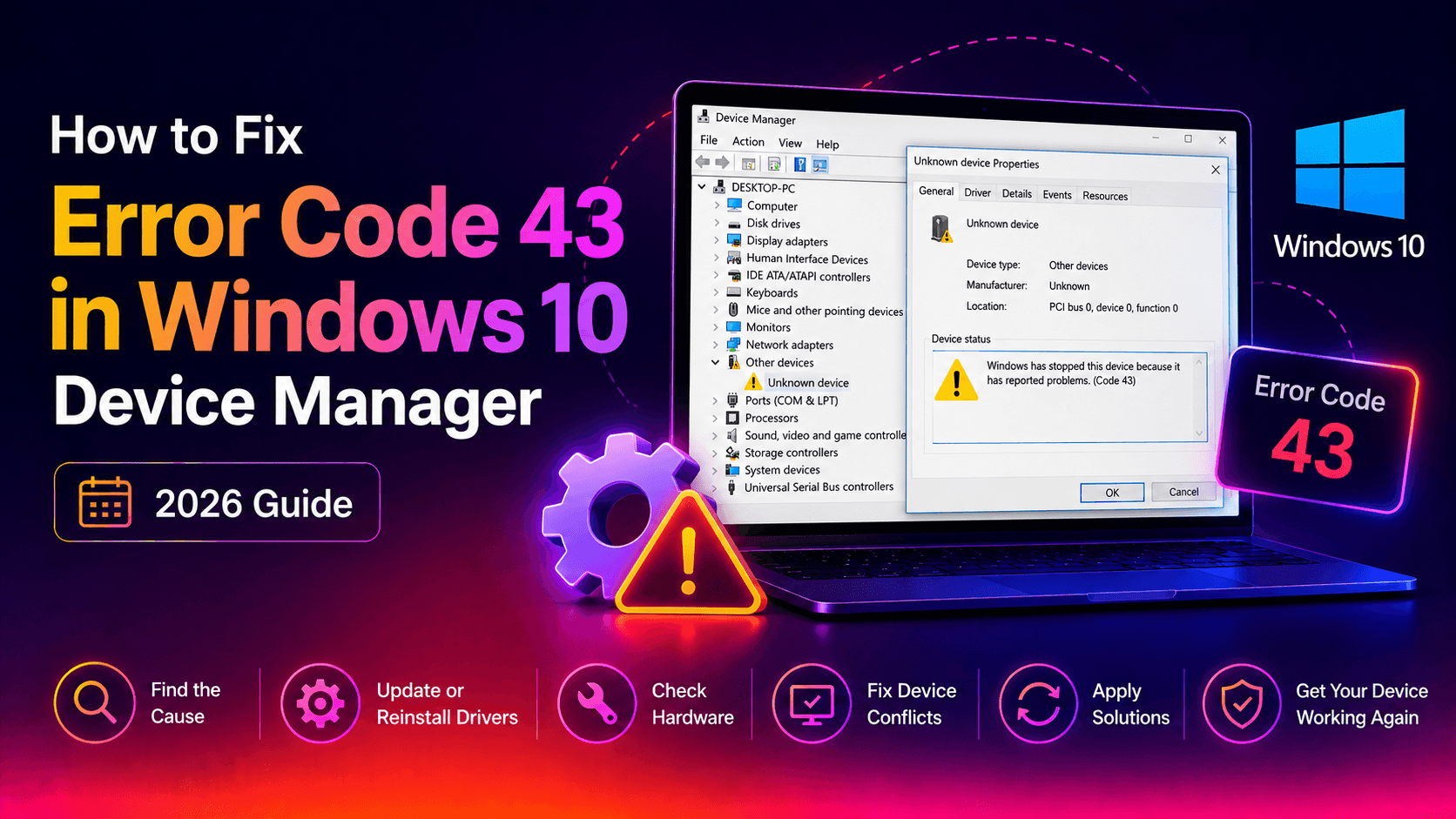
If you open Device Manager and spot a yellow warning triangle next to your GPU, USB device, or Bluetooth adapter — with the message "Windows has stopped this device because it has reported problems (Code 43)" — you are dealing with one of the most common hardware errors in Windows 10.
Error Code 43 is Windows' way of saying: the device driver reported an unrecoverable problem, so Windows shut the device down to prevent further issues. The error can appear after a Windows Update, a driver update, a hardware swap, or seemingly out of nowhere.
The good news: in most cases, Code 43 is a software problem — not a dead piece of hardware. This guide walks you through every fix, from a simple restart to advanced registry edits, covering GPUs, USB devices, and Bluetooth adapters.
Common Causes of Error Code 43 (GPU, USB, Bluetooth)
Before jumping to fixes, it helps to know what triggers Code 43. The usual suspects are:
- Corrupted or outdated driver — the most common cause across all device types.
- Incompatible driver pushed by Windows Update — a new update installs a driver that conflicts with your hardware.
- Windows power management aggressively cutting power — especially for USB hubs and Bluetooth adapters.
- Loose physical connection — a GPU not fully seated in the PCIe slot, a cable not clicked in, or a USB device plugged into a faulty port.
- Overheating or power delivery issues — underpowered GPUs can throw Code 43 under load.
- Registry corruption — rare, but a damaged device entry in the Windows registry can trigger the error.
- Actual hardware failure — the last resort explanation, only after software fixes are exhausted.
Quick Fixes: Restart, Reconnect, and Power Cycle
Always start with the basics — they fix the problem more often than you'd expect.
Step 1 — Restart Windows
A full restart (not Sleep or Hibernate) clears the driver state and lets Windows re-initialise the device from scratch. Go to Start > Power > Restart (not Shut Down, which can leave the power state intact on modern hardware).
Step 2 — Reconnect the device
- USB / Bluetooth: Unplug the device, wait 30 seconds, plug it back in — ideally on a different USB port directly on the motherboard, bypassing any hub.
- GPU: Power off the PC completely, unplug from the wall, reseat the GPU in the PCIe slot, reconnect the power cables, and boot back up.
Step 3 — Power cycle with a hard reset
Shut down the PC, unplug the power cable from the wall (or switch off the PSU), hold the power button for 10 seconds to drain residual charge, then reconnect and boot. This resets USB controller state on the motherboard.
Step 4 — Run the Windows Hardware Troubleshooter
Open Settings > Update & Security > Troubleshoot > Additional troubleshooters, then run Hardware and Devices. On Windows 10 22H2 and later you can also launch it via:
msdt.exe -id DeviceDiagnosticHow to Update or Reinstall the Faulty Device Driver
Driver reinstallation resolves Code 43 in the majority of cases. Here is the correct procedure for each device type.
For any device — clean uninstall via Device Manager
- Press Win + X and select Device Manager.
- Expand the relevant category (Display adapters, Universal Serial Bus controllers, Bluetooth).
- Right-click the affected device and choose Uninstall device.
- Check "Delete the driver software for this device" and click Uninstall.
- Restart the PC. Windows will attempt to reinstall a generic driver automatically.
- For best results, download the latest driver from the manufacturer's website and install it manually.
For NVIDIA or AMD GPUs — use DDU in Safe Mode
A partial driver uninstall often leaves behind registry entries that cause Code 43 to reappear. Use Display Driver Uninstaller (DDU) for a completely clean removal:
- Boot into Safe Mode: Settings > Update & Security > Recovery > Advanced startup > Restart now > Troubleshoot > Advanced options > Startup Settings > Restart > Press 4.
- Run DDU, select your GPU type (NVIDIA / AMD / Intel), and click Clean and restart.
- After rebooting into normal mode, install the latest driver from NVIDIA.com or AMD.com.
For USB devices — scan for hardware changes
After uninstalling the device driver, in Device Manager go to Action > Scan for hardware changes. Windows will rediscover the device and install a fresh driver without a full reboot cycle.
Disable USB Selective Suspend (USB-specific)
Windows sometimes cuts power to USB ports to save energy, causing Code 43 when the port wakes up and the driver cannot recover. Disable it:
- Open Control Panel > Hardware and Sound > Power Options.
- Click Change plan settings next to your active plan, then Change advanced power settings.
- Expand USB settings > USB selective suspend setting.
- Set both On battery and Plugged in to Disabled.
- Click OK and restart.
Also, in Device Manager expand Universal Serial Bus controllers, right-click each USB Root Hub, go to Properties > Power Management, and uncheck "Allow the computer to turn off this device to save power."
Roll Back the Driver to a Previous Version
If Code 43 appeared after a Windows Update or an automatic driver update, rolling back to the previous driver is often the fastest fix.
- Open Device Manager, right-click the affected device, and select Properties.
- Go to the Driver tab.
- Click Roll Back Driver. (If this button is greyed out, no previous driver is stored — skip to the next section.)
- Select the reason and click Yes.
- Restart the PC.
To prevent Windows from automatically reinstalling the problematic driver, use the Show or hide updates troubleshooter (downloadable from Microsoft) to hide that specific driver update.
Advanced Fixes: Registry Edits, BIOS Reset, and Hardware Checks
If the basic and intermediate steps have not resolved Code 43, the following advanced methods cover the remaining scenarios.
Fix 1 — Disable Enhanced Power Management in the Registry (USB)
This registry tweak specifically targets USB devices that Windows keeps power-cycling:
- Open Device Manager, right-click the affected USB device, and select Properties > Details.
- In the Property drop-down, select Device instance path. Note the value.
- Open Registry Editor (Win + R, type
regedit). - Navigate to:
HKEY_LOCAL_MACHINE\SYSTEM\CurrentControlSet\Enum\USB\[your device path]\Device Parameters- Right-click in the right pane > New > DWORD (32-bit) Value. Name it
EnhancedPowerManagementEnabled. - Double-click it and set the value to 0.
- Restart the PC.
Fix 2 — Reset BIOS/UEFI to defaults
BIOS settings such as PCIe power management, Above 4G Decoding, or Resizable BAR can conflict with GPU drivers and produce Code 43. Resetting the BIOS to factory defaults eliminates this variable:
- Restart and enter BIOS (usually Del, F2, or F10 at POST).
- Find Load Optimised Defaults or Reset to Default and confirm.
- Save and exit.
Fix 3 — Check hardware seating and power connectors (GPU)
- With the PC fully powered off and unplugged, remove the GPU and reseat it firmly in the PCIe x16 slot until the retention clip clicks.
- Ensure both 6-pin or 8-pin power connectors (or 16-pin on newer cards) are fully inserted.
- Test the GPU in a different PCIe slot if your motherboard has one.
- If possible, test the GPU in another PC to rule out a PSU or slot defect.
Fix 4 — Run SFC and DISM to repair system files
Corrupted Windows system files can indirectly cause driver failures. Open an elevated Command Prompt and run:
sfc /scannowIf SFC reports errors it cannot fix, run DISM:
DISM /Online /Cleanup-Image /RestoreHealthRestart after completion and check Device Manager again.
Fix 5 — Perform a System Restore
If Code 43 appeared after a specific change, a System Restore point from before that date can revert all driver and registry changes at once. Search for Create a restore point in Start, click System Restore, and choose a point prior to when the error first appeared.
Still Getting Code 43? When to Get Professional Help
If you have worked through every step in this guide — clean driver reinstall via DDU, driver rollback, BIOS reset, registry edit, SFC/DISM repair — and the error persists, there are two remaining possibilities:
- The hardware is failing. For GPUs, symptoms like visual artefacts, crashes under load, or the card not being detected at all point to a hardware fault. For USB, a bent pin or damaged controller can cause persistent Code 43. Professional diagnosis will confirm this.
- A deeper system corruption exists that a clean Windows reinstall would resolve. Before going that route, it is worth having a technician review the system.
Rather than spending more hours troubleshooting, consider getting expert help. CloudHouse Pay-Per-Ticket Support connects you with Windows hardware specialists who can remotely diagnose your exact Device Manager error — no subscription, no contract, just a single flat-rate fix. Our technicians handle GPU Code 43 errors, USB controller faults, and Bluetooth driver conflicts every day.
If the hardware turns out to be physically damaged, we can also advise on cost-effective repair or replacement options so you are not left guessing.
Frequently Asked Questions
What does Error Code 43 mean in Windows 10?
Error Code 43 means "Windows has stopped this device because it has reported problems." It occurs when the device driver encounters an error it cannot recover from, causing Windows to disable the device. It affects GPUs, USB devices, Bluetooth adapters, and other hardware.
How do I fix Error Code 43 on a GPU in Windows 10?
Uninstall the GPU driver using DDU (Display Driver Uninstaller) in Safe Mode, then reinstall the latest driver from NVIDIA.com or AMD.com. Also check the GPU is seated properly in the PCIe slot and that the power connectors are attached firmly.
How do I fix USB Error Code 43 on Windows 10?
Right-click the device in Device Manager, choose Uninstall device (check "Delete driver software"), unplug and reconnect the device. Windows will reinstall the driver. Also try the device on a different USB port and disable USB selective suspend in Power Options.
Can Error Code 43 be caused by a bad update?
Yes. Windows updates sometimes install driver versions incompatible with your hardware. Right-click the device in Device Manager, go to Properties, Driver tab, and click Roll Back Driver to revert to the previously working driver version.
Does Error Code 43 mean hardware failure?
Not always. Most Code 43 errors are driver-related and fixable without replacing hardware. However, if reinstalling drivers, rolling back, and resetting the BIOS do not resolve it — especially for a GPU — physical hardware damage such as overheating, a bad PCIe slot, or power delivery issues may be the cause.