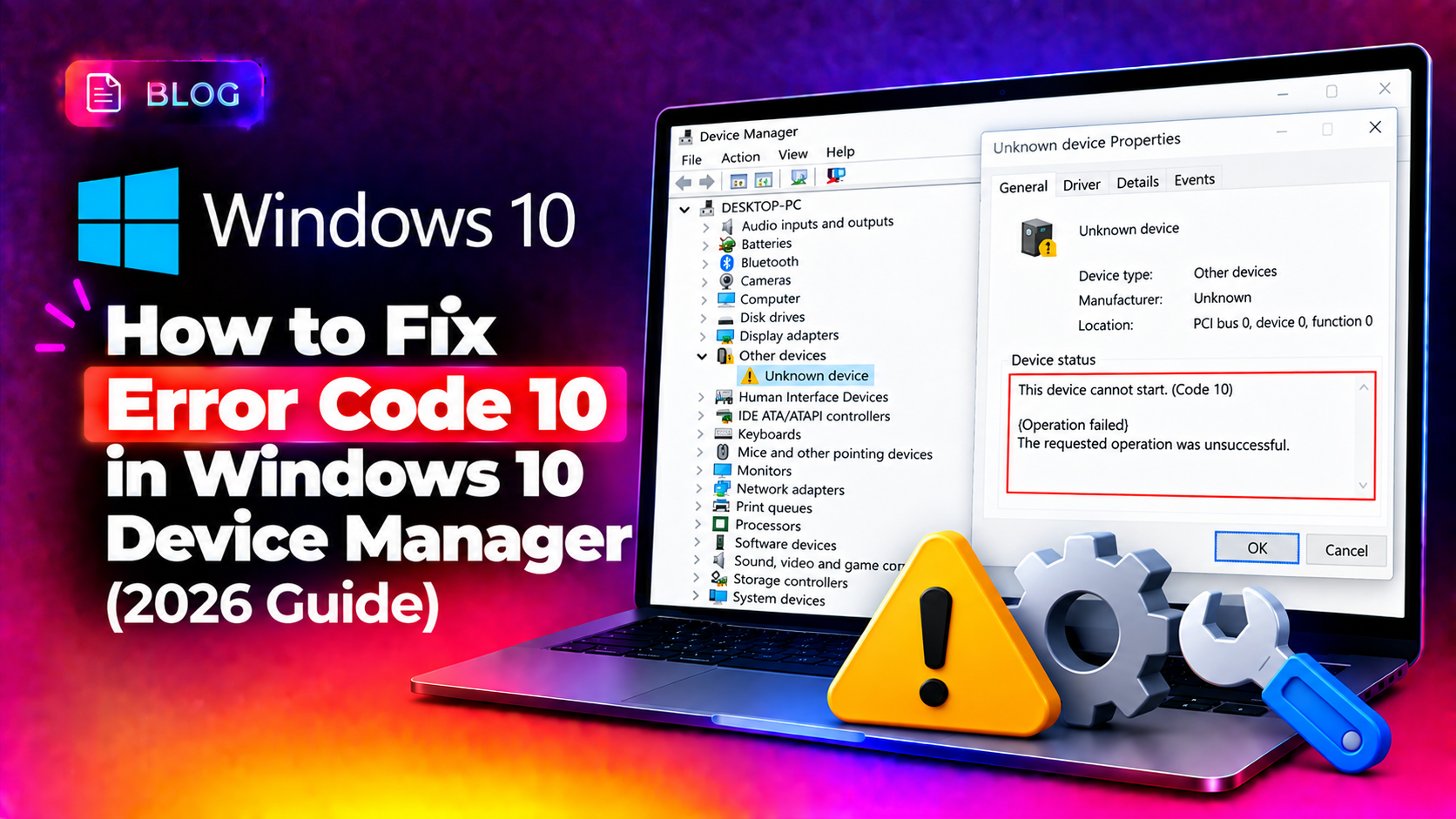
Seeing "This device cannot start. (Code 10)" next to a yellow warning icon in Device Manager is one of the most frustrating hardware errors on Windows 10. It usually strikes USB controllers, network adapters, audio devices, or Bluetooth hardware without warning — often right after a Windows Update or a driver install. The good news: Error Code 10 is almost always fixable without replacing hardware, and this guide walks through every proven fix, from the quickest one-click options to registry-level repairs.
What Is Error Code 10 in Windows 10?
Error Code 10 is a generic Device Manager error meaning Windows attempted to start a device but the request failed. Unlike Code 43 (device reported a hardware failure) or Code 28 (driver not installed), Code 10 typically points to a driver-level communication breakdown — the operating system can see the device but cannot properly initialize it.
Common triggers include:
- Outdated, corrupted, or mismatched device drivers
- A recent Windows Update that replaced a working driver with an incompatible one
- Conflicting
UpperFilters/LowerFiltersregistry entries - USB power management settings suspending a controller incorrectly
- BIOS/UEFI settings disabling onboard hardware (common with integrated audio, Bluetooth, or NICs)
- Physical connection issues on external devices
💡 None of these worked? Skip the guesswork.
Get Expert Help →Quick Checks Before You Start
Before diving into driver reinstalls or registry edits, rule out the simple causes:
A surprising number of Code 10 errors are cleared by a full restart (not sleep/hibernate), since it forces Windows to re-enumerate every device on the bus.
For USB and external peripherals, try a different port (preferably directly on the motherboard, not a hub) and a different cable.
Open Device Manager (Win + X > Device Manager) and look for other devices with warning icons — Code 10 on a USB controller can cascade to every device connected through it.
Right-click the problem device > Update driver > Search automatically for drivers. If Windows finds nothing, download the latest driver directly from the manufacturer's website (Intel, Realtek, NVIDIA, AMD, etc.) rather than relying on Windows Update alone.
Right-click the device > Uninstall device > check Attempt to remove the driver for this device if available > restart. Windows will automatically reinstall a clean driver on boot.
If the error appeared right after a driver update, go to the device's Driver tab and click Roll Back Driver to restore the previous working version.
Fix 3: Remove Corrupted UpperFilters / LowerFilters Registry Keys
When multiple driver installs stack conflicting filter entries, Device Manager throws Code 10 even though the driver files themselves are fine. This is an advanced fix — back up the registry first.
- Press
Win + R, typeregedit, and press Enter - Navigate to
HKEY_LOCAL_MACHINE\SYSTEM\CurrentControlSet\Control\Class - Find the subkey matching your device category (e.g. USB, Net, MEDIA)
- Look for
UpperFiltersandLowerFiltersvalues — right-click and select Delete if present - Restart your PC and check Device Manager
Always export the registry key before deleting anything, in case a rollback is needed.
Fix 4: Reset USB Controllers (For USB Device Errors)
If Code 10 is hitting a USB peripheral specifically, resetting every USB controller often clears stuck power states.
- In Device Manager, expand Universal Serial Bus controllers
- Right-click each entry and select Uninstall device
- Restart your PC — Windows reinstalls all USB controllers automatically
Also check Power Management on each USB Root Hub (right-click > Properties > Power Management tab) and uncheck "Allow the computer to turn off this device to save power", which frequently causes USB devices to fail on wake.
Fix 5: Check BIOS/UEFI Settings
Integrated hardware like onboard audio, Bluetooth, or network adapters can throw Code 10 if disabled or misconfigured at the firmware level. Reboot into BIOS/UEFI setup (commonly Del, F2, or F10 during boot) and confirm the relevant device is enabled under Integrated Peripherals or Onboard Devices.
Fix 6: Run System File Checker and DISM
Corrupted system files can also interfere with driver loading. Open an elevated Command Prompt and run:
sfc /scannow
DISM /Online /Cleanup-Image /RestoreHealth
Restart once both commands complete and re-check Device Manager.
When Nothing Works: Consider Hardware Failure
If you've updated drivers, cleaned the registry, checked BIOS settings, and the error persists on a single physical device, it may indicate genuine hardware failure — especially for older internal components. Test the device (where possible) in another machine to confirm before replacing it.
Still Seeing Code 10 After Trying Everything?
Driver conflicts and registry corruption can be tricky to isolate without remote hands-on diagnostics, especially on business machines where downtime is costly. CloudHouse Technologies' pay-per-ticket IT support connects you with a technician who can remotely diagnose and resolve Device Manager errors like Code 10 — no subscription required, just fix-and-done support when you need it.
Frequently Asked Questions
What does "This device cannot start (Code 10)" mean in Windows 10?
It means Windows recognizes the device but its driver failed to initialize it properly. The cause is usually a corrupted, outdated, or mismatched driver, though registry conflicts and BIOS settings can also trigger it.
Is Error Code 10 caused by a virus?
Rarely. Code 10 is almost always a driver or configuration issue rather than malware, though a virus that corrupts system files could indirectly contribute. Running sfc /scannow helps rule this out.
How do I fix Code 10 on a USB device specifically?
Uninstall all USB Root Hub and USB controller entries in Device Manager, restart to force reinstallation, and disable USB selective suspend in Power Options, which commonly causes this exact error on USB peripherals.
Can updating Windows cause Error Code 10?
Yes. Windows Update sometimes installs a generic or incompatible driver over a manufacturer-specific one. Rolling back the driver or manually installing the vendor's latest version usually resolves it.
Should I delete UpperFilters and LowerFilters registry keys for every device?
No — only delete them for the specific device category showing Code 10, and only after backing up the registry. These keys are legitimate for many devices and removing them elsewhere can cause new problems.