Why Bluetooth Disappears from Device Manager in Windows 10
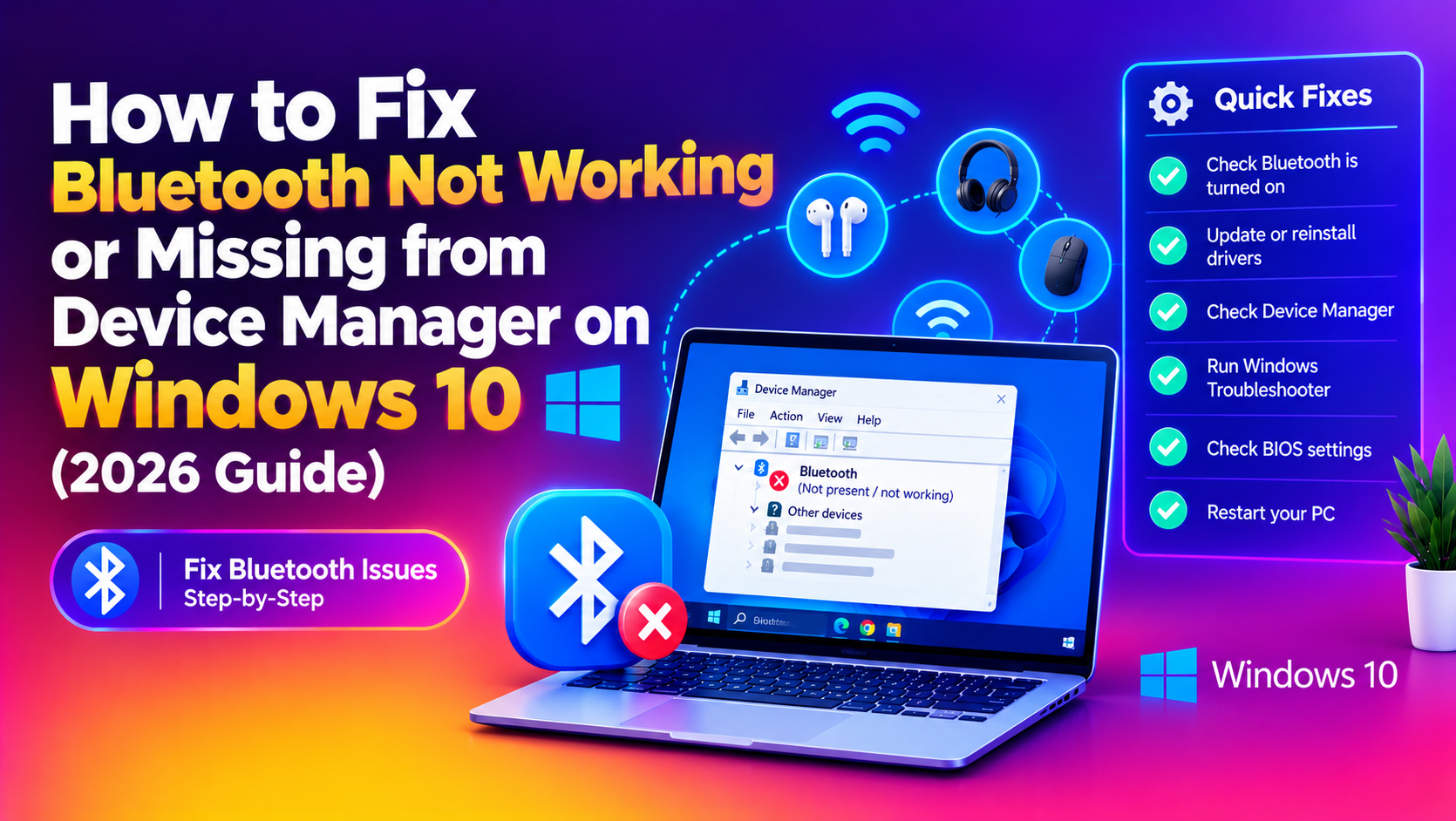
Bluetooth vanishing from Device Manager is one of the most disruptive hardware problems on Windows 10 — it blocks wireless keyboards, mice, headphones, controllers, and phones from connecting. In 2026, it remains a widespread issue with several distinct root causes:
- Windows Update driver regression — cumulative updates in late 2025 and early 2026 removed or corrupted Intel Bluetooth and Qualcomm Bluetooth drivers on affected machines.
- Corrupted driver registry entries — an incomplete uninstall or crash leaves orphaned registry keys that prevent the driver from re-initialising.
- Disabled Bluetooth Support Service — the service that manages Bluetooth was stopped or disabled, causing the device node to vanish.
- Hidden device mode — the adapter is physically present but Device Manager is hiding it.
- BIOS/UEFI Bluetooth disabled — especially common after a BIOS update that resets defaults.
Fix 1: Show Hidden Devices in Device Manager
Before assuming the Bluetooth adapter is broken, check if Device Manager is hiding it:
- Press Win + X → Device Manager.
- Click the View menu → Show hidden devices.
- Look for a "Bluetooth" section or a greyed-out Bluetooth device anywhere in the list.
- If you see a greyed-out Bluetooth entry, right-click it → Enable device.
Fix 2: Restart the Bluetooth Support Service
The Windows Bluetooth stack depends on the Bluetooth Support Service (bthserv). If it's stopped, the Bluetooth section disappears from Device Manager entirely:
- Press Win + R → type
services.msc→ Enter. - Scroll to Bluetooth Support Service.
- Check its status. If it shows "Stopped", right-click → Start.
- Right-click → Properties → set Startup type to Automatic.
- Click Apply → OK.
After starting the service, open Device Manager (refresh with F5) and check if Bluetooth has returned.
Fix 3: Scan for Hardware Changes
When the Bluetooth adapter is present but Windows isn't enumerating it:
- In Device Manager, click the Action menu → Scan for hardware changes.
- Windows will re-detect all hardware and attempt to reinstall missing drivers.
- If a new "Bluetooth" section appears or a device with a yellow warning triangle appears, proceed to Fix 4 to install the correct driver.
Fix 4: Uninstall and Reinstall the Bluetooth Driver
A corrupted driver is the most common cause. Uninstalling it forces Windows to reinstall clean:
- In Device Manager, expand the Bluetooth section (if visible) or look in Other devices or Universal Serial Bus Controllers.
- Right-click the Bluetooth adapter → Uninstall device.
- Check "Delete the driver software for this device" → Uninstall.
- Restart your PC.
- After rebooting, Windows will attempt to reinstall the driver automatically via Windows Update.
If Windows doesn't reinstall automatically: Action → Scan for hardware changes.
For Intel Bluetooth (most Dell, HP, Lenovo laptops):
# Download and install from Intel's website
# https://www.intel.com/content/www/us/en/support/articles/000005489/wireless.html
# Install the package — it replaces the Windows Update version
For Qualcomm Bluetooth (common in AMD-based laptops): Download the Qualcomm Bluetooth driver directly from your laptop manufacturer's support page (Dell Support, HP Support, Lenovo Support), not from Windows Update.
Fix 5: Reinstall USB Root Hub Drivers (Bluetooth Uses USB Internally)
Most laptop Bluetooth adapters connect to the system via an internal USB bus. If the USB Root Hub driver is broken, the Bluetooth device won't appear:
- Device Manager → expand Universal Serial Bus controllers.
- Right-click each USB Root Hub entry → Uninstall device (do NOT delete driver software).
- After uninstalling all USB Root Hubs, click Action → Scan for hardware changes.
- Windows reinstalls the USB Root Hub drivers automatically.
- Reboot and check Device Manager.
Fix 6: Fix via PowerShell (Re-register the Bluetooth Driver)
If Device Manager shows no Bluetooth section at all and the above fixes haven't helped, re-register the Bluetooth driver stack via PowerShell (run as Administrator):
# Stop Bluetooth services
Stop-Service bthserv -Force
Stop-Service BluetoothUserService* -Force

# Re-register the Bluetooth driver
pnputil /scan-devices

# Start services
Start-Service bthserv

# Check if device is back
Get-PnpDevice | Where-Object {$_.FriendlyName -like "*Bluetooth*"}
Fix 7: Check BIOS/UEFI Settings
Some laptop BIOS updates reset Bluetooth to "disabled" in the firmware, which makes the adapter invisible to Windows regardless of what drivers you install.
- Restart your PC and enter BIOS/UEFI (usually F2, F10, Del, or Esc at boot — check your manufacturer).
- Look for a Wireless, Network, or Integrated Peripherals section.
- Find a Bluetooth or Wireless Bluetooth setting and set it to Enabled.
- Save and exit (usually F10).
Fix 8: Run SFC and DISM to Repair System Files
Corrupted system files can prevent the Bluetooth driver from loading even when installed correctly:
sfc /scannow
DISM /Online /Cleanup-Image /RestoreHealth
Run in an elevated Command Prompt. Reboot after completion.
Fix 9: Roll Back a Problem Windows Update
If Bluetooth disappeared immediately after a Windows Update, roll back the update:
# Find recently installed updates
Get-HotFix | Sort-Object InstalledOn -Descending | Select-Object -First 10- Settings → Update & Security → Windows Update → View update history.
- Click Uninstall updates.
- Uninstall the most recent cumulative update.
- Reboot and test Bluetooth.
To prevent the update from reinstalling and breaking Bluetooth again: use Group Policy (gpedit.msc → Computer Configuration → Administrative Templates → Windows Components → Windows Update → "Do not include drivers with Windows Updates" → Enabled) or use Microsoft's Show/Hide Updates troubleshooter.
Fix 10: Use the Windows 10 Bluetooth Troubleshooter
Windows 10's built-in troubleshooter catches service misconfigurations that manual fixes sometimes miss:
- Settings → Update & Security → Troubleshoot.
- Click Additional troubleshooters.
- Select Bluetooth → Run the troubleshooter.
- Apply any fixes it suggests.
Verification: Confirm Bluetooth Is Working
# Check Bluetooth service status
Get-Service bthserv | Select-Object Status, StartType

# Check that Bluetooth devices are present
Get-PnpDevice | Where-Object {$_.FriendlyName -like "*Bluetooth*"} | Select-Object FriendlyName, Status

# Check Bluetooth in the system tray
# Settings → Devices → Bluetooth & other devices — toggle should be visible
If Bluetooth still doesn't appear after all ten steps, the adapter may be physically dead (common after motherboard flex or moisture damage in laptops). At that point, a USB Bluetooth 5.3 dongle (under $10) is a practical hardware workaround. Our professional desktop support team can remotely diagnose whether the issue is software or hardware and get you back on Bluetooth in a single session.
Frequently Asked Questions
Why did Bluetooth disappear from Windows 10 after a Windows Update?
Some cumulative updates (especially those containing Intel or Qualcomm Bluetooth driver packages) can overwrite or corrupt the existing Bluetooth driver. If Bluetooth disappeared right after an update, roll back the update via Settings → Update History → Uninstall updates, then install the correct driver from your laptop manufacturer's support page.
My Device Manager has no Bluetooth section at all. Does that mean the adapter is broken?
Not necessarily. The most common non-hardware causes are: the Bluetooth Support Service is stopped (Fix 2), the device is hidden in Device Manager (Fix 1), BIOS/UEFI has Bluetooth disabled (Fix 7), or the USB Root Hub driver is broken (Fix 5). Work through all fixes before concluding hardware failure.
How do I know if my Bluetooth adapter is Intel, Qualcomm, or Realtek?
In Device Manager, if the Bluetooth section is visible, right-click the adapter → Properties → Details → Hardware IDs. The VEN_ value identifies the manufacturer: VEN_8087 = Intel, VEN_0CF3 or VEN_168C = Qualcomm/Atheros, VEN_0BDA = Realtek. Download drivers from the corresponding manufacturer's support site or your laptop maker's support page.
Is it safe to delete the Bluetooth driver software during uninstall?
Yes. Checking "Delete the driver software for this device" removes the installed driver package, which forces a completely clean reinstall. Windows will redownload a replacement driver automatically, or you can install one manually from your device manufacturer's support site.
Can I add Bluetooth to a desktop PC that doesn't have it built in?
Yes. A USB Bluetooth 5.3 adapter plugs into any USB port and Windows 10 installs the driver automatically. No configuration required in most cases — just plug it in, wait for "Device ready" in the system tray, and it appears in Settings → Devices → Bluetooth & other devices.