
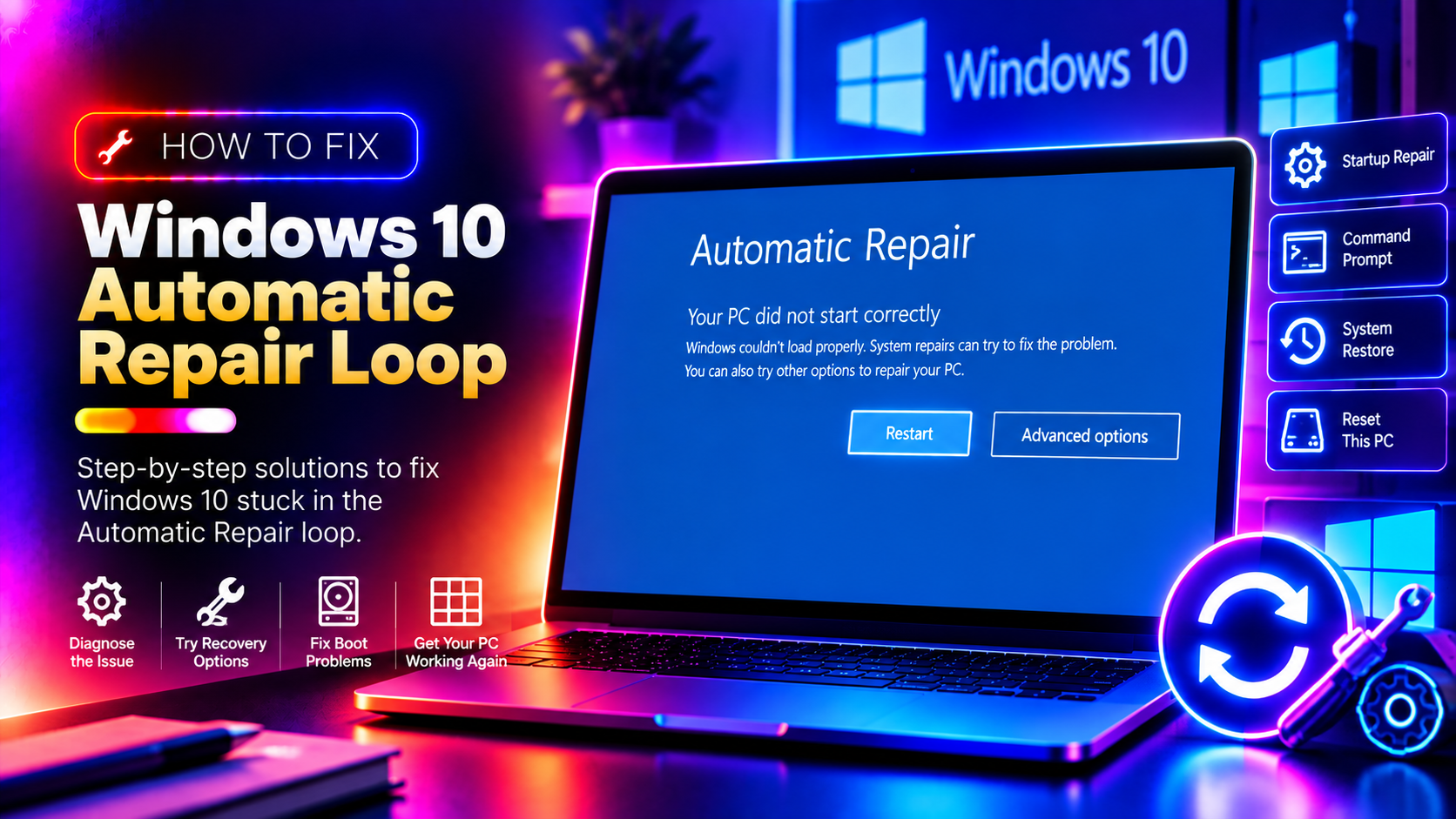
What Is the Windows 10 Automatic Repair Loop?
The Windows 10 Automatic Repair loop is one of the most frustrating boot failures a user can encounter. Your PC starts, shows the Windows logo, then enters "Preparing Automatic Repair" — only to restart and repeat the cycle endlessly, never reaching the desktop. This guide covers every fix, from the simple to the advanced, all confirmed to work in 2026.
What Causes the Automatic Repair Loop?
Common causes include:
- Corrupted Boot Configuration Data (BCD)
- Failed Windows Update (particularly Secure Boot certificate updates in June 2026)
- Damaged system files or registry entries
- Hard drive errors or bad sectors
- Recently installed drivers or software that conflicts with startup
- Improper shutdown during an update
Step 1: Force Access to Advanced Startup Options
If Windows keeps looping, force it into the recovery environment:
Method A — Interrupt the boot three times: Power on your PC. As soon as you see the Windows logo, hold the power button for 5 seconds to force a shutdown. Do this three times in a row. On the fourth attempt, Windows will automatically open Advanced Startup Options.
Method B — Use a Windows 10 bootable USB: If Method A doesn't work, create a Windows 10 installation USB on another computer (from Microsoft's Media Creation Tool), boot from it, select your language, then click Repair your computer instead of Install.
Step 2: Try Startup Repair First
In Advanced Startup Options, go to: Troubleshoot → Advanced Options → Startup Repair. Let Windows attempt automatic repair. This fixes around 30–40% of repair loop cases. If it completes successfully, your PC will restart normally. If it fails with "Startup Repair couldn't repair your PC," move to Step 3.
Step 3: Rebuild the BCD (Boot Configuration Data)
Go to: Troubleshoot → Advanced Options → Command Prompt. Run these commands in order:
bootrec /fixmbr
bootrec /fixboot
bootrec /scanos
bootrec /rebuildbcd
When bootrec /rebuildbcd asks to add the installation to the boot list, type Y and press Enter. Close the command prompt and restart. This resolves the majority of BCD-related repair loops.
If bootrec /fixboot returns "Access is denied", run these first:
diskpart
list disk
select disk 0
list partition
select partition 1
active
exit
Then re-run bootrec /fixboot.
Step 4: Run CHKDSK to Fix Drive Errors
From the Command Prompt in recovery:
chkdsk C: /f /r /xThis scans for and repairs bad sectors and file system errors. It may take 30–60 minutes on a large drive. After completion, type exit and restart.
Step 5: Repair System Files with SFC and DISM
sfc /scannowIf SFC reports it cannot repair files, use DISM to restore the Windows image first:
DISM /Online /Cleanup-Image /RestoreHealthThen run SFC again. Note: DISM requires an internet connection or a mounted Windows ISO when run from the repair environment — use the ISO method if no network is available.
Step 6: Delete the Problematic Registry Key
A corrupted registry value is a common cause of persistent repair loops. From Command Prompt:
reg delete "HKLM\SYSTEM\CurrentControlSet\Control\Session Manager" /v BootExecute /f
reg add "HKLM\SYSTEM\CurrentControlSet\Control\Session Manager" /v BootExecute /t REG_MULTI_SZ /d "autocheck autochk *" /f
This restores the default boot execute sequence that Automatic Repair sometimes corrupts.
Step 7: Roll Back a Problematic Windows Update
If the loop started after a Windows Update (particularly KB5094127 or Secure Boot updates in June 2026), uninstall it from recovery:
Go to: Troubleshoot → Advanced Options → Uninstall Updates → Uninstall latest quality update. This removes the most recent cumulative update and often resolves post-update repair loops immediately.
Step 8: System Restore
If you had System Restore enabled before the issue started:
Troubleshoot → Advanced Options → System Restore. Choose a restore point dated before the problem started. This rolls back system files and registry settings without affecting personal files.
Step 9: Reset This PC (Last Resort)
Troubleshoot → Reset This PC. Choose Keep my files to preserve personal data, or Remove everything for a clean slate. The "Keep my files" option reinstalls Windows while preserving Documents, Downloads, Desktop files — but removes installed applications.
When Nothing Works: Hardware Check
If all software fixes fail, the issue may be hardware — a failing hard drive or RAM. Test your RAM:
mdsched.exeRun from Windows (if you can reach the login screen) or boot into Windows Memory Diagnostic from the recovery USB. For drive health, boot from a Linux USB and run:
sudo smartctl -a /dev/sdaA drive showing reallocated sectors, pending sectors, or a high raw read error rate needs immediate replacement.
Need Professional Help?
If your Windows 10 PC is still stuck in the Automatic Repair loop after trying all these fixes, CloudHouse Technologies' Pay-Per-Ticket Support will diagnose and resolve it remotely — no subscription, pay only for what you need.