Why Does My Mac Slow Down After a macOS Update?
If your Mac suddenly feels sluggish right after a macOS update in 2026, you are not alone. Apple's macOS updates — including Sequoia and later releases — trigger several background processes that can consume CPU, RAM, and disk resources for hours or even days after installation. The good news: most slowdowns are temporary and completely fixable.
This guide walks you through every proven fix, from one-click quick wins to deeper system-level resets, so you can get your Mac back to full speed.
Step 1: Wait for Background Indexing to Finish
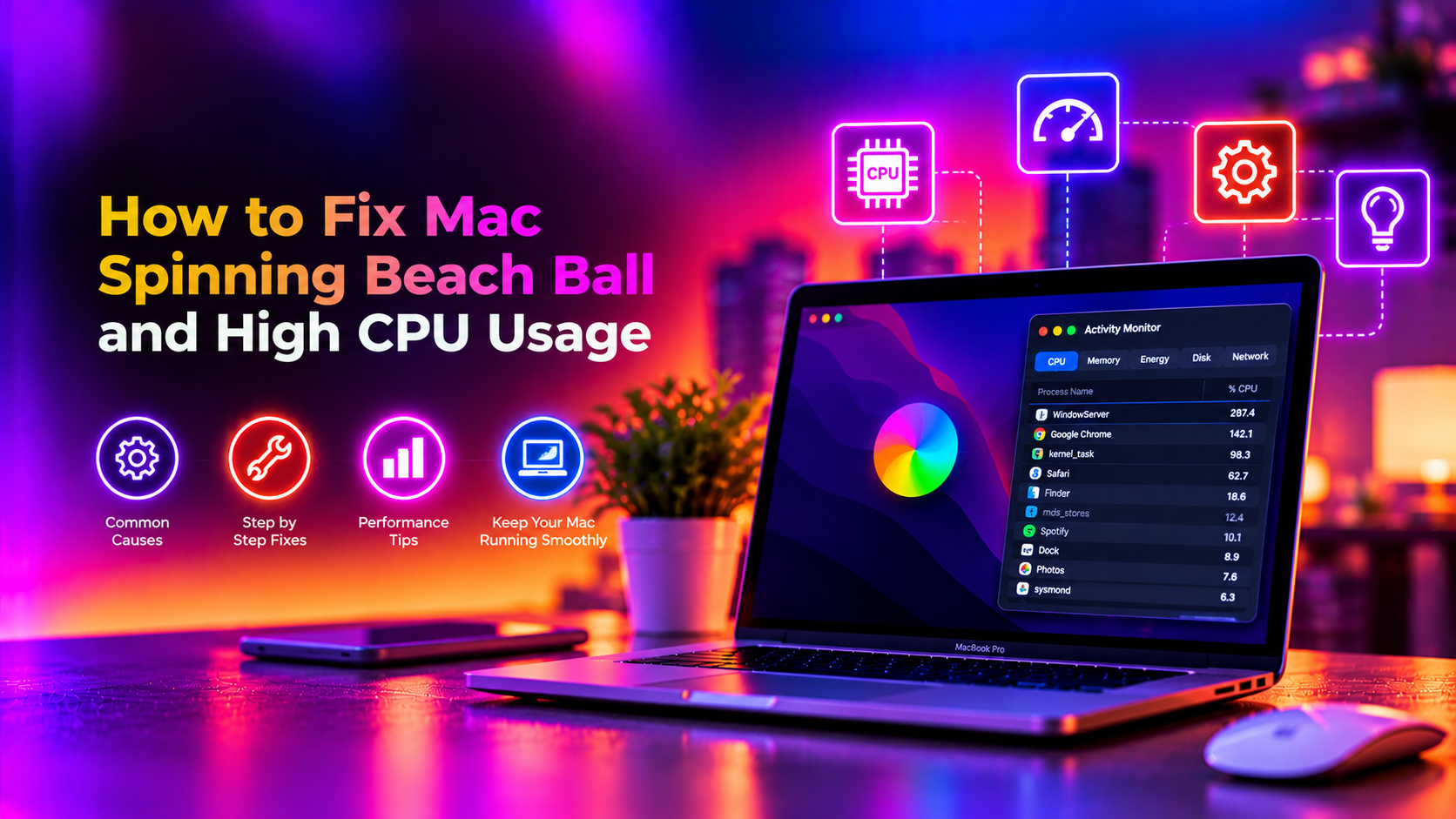
Right after a macOS update, Spotlight re-indexes your entire drive. This process — called mds_stores — can peg your CPU at 80–100% for 2–6 hours on a large drive.
1. Open Activity Monitor (Spotlight → Activity Monitor)
2. Click the CPU tab and sort by % CPU descending
3. If mds_stores or mds is at the top, Spotlight indexing is the cause — give it 2–4 hours and performance will restore automatically
If you can't wait, you can temporarily pause indexing: go to System Settings → Siri & Spotlight → Spotlight Privacy and add your startup disk. Remove it later to resume indexing.
Step 2: Check Which Apps Are Eating Resources
After a major update, some apps run compatibility checks or re-compile internal caches in the background.
1. Open Activity Monitor → CPU tab
2. Identify high-CPU processes — note the name
3. Check the Memory tab — look for processes consuming more than 1 GB RAM
4. Force-quit the offending app by selecting it and clicking the X button, then reopen it — this usually resets the process
Common post-update culprits include: bird (iCloud sync), com.apple.WebKit.GPU, WindowServer, and trustd.
Step 3: Reset NVRAM and SMC
The NVRAM (non-volatile RAM) stores system settings like startup disk and display configuration. The SMC (System Management Controller) governs power, fans, and thermal management. A macOS update can occasionally corrupt these, causing chronic slowness, fan noise, or unexpected shutdowns.
Reset NVRAM (Intel Macs)
1. Shut down your Mac completely
2. Press the power button, then immediately hold Option + Command + P + R
3. Hold for 20 seconds (you'll hear the startup chime twice on older Macs)
4. Release and let macOS boot normally
Reset NVRAM (Apple Silicon Macs — M1/M2/M3/M4)
Apple Silicon Macs do not have a traditional NVRAM reset shortcut. Instead, shut down fully, wait 30 seconds, and power on. The system firmware resets automatically.
Reset SMC (Intel Macs)
1. Shut down the Mac
2. On MacBook with T2 chip: hold right Shift + left Option + left Control for 7 seconds, then hold Power too for another 7 seconds
3. Release all keys, wait 5 seconds, press Power to boot
On Apple Silicon Macs, shutting down fully for 30+ seconds resets the SMC equivalent.
Step 4: Remove Login Items and Startup Agents
macOS updates sometimes re-enable login items that you previously disabled, or newly installed update helpers add themselves as startup agents.
1. Go to System Settings → General → Login Items & Extensions
2. Review the "Open at Login" list — remove anything you don't recognise or don't need at startup
3. Check "Allow in Background" — disable items like update helpers, cloud sync agents, or third-party utilities you rarely use
4. Restart your Mac and measure the improvement
Step 5: Clear System Caches
After a major update, stale caches from the old macOS version can conflict with new system files, causing slowness in Finder, Safari, and Mail.
1. Open Finder → Go → Go to Folder (Shift + Command + G)
2. Type ~/Library/Caches and press Enter
3. Select all folders (Command + A) and move them to Trash — macOS will rebuild these automatically
4. Repeat for /Library/Caches (system-level; requires admin password)
5. Empty Trash and restart
Note: Some caches will be rebuilt on first launch of each app — first launch may feel slightly slow, then speed recovers.
Step 6: Free Up Disk Space
macOS needs at least 10–15% of your startup disk free to run efficiently. After an update, installer files and old system backups can consume several gigabytes.
1. Go to System Settings → General → Storage
2. Review the storage categories — look for "System Data" larger than 20 GB (often accumulated update caches)
3. Use "Optimise Storage" to move iCloud-backed items off the local disk
4. Manually delete old downloads, duplicate files, and large video projects you no longer need
Terminal shortcut to find large files: find ~ -size +500M -type f 2>/dev/null | sort -rh | head -20
Step 7: Disable Unnecessary Visual Effects
macOS renders transparency, animations, and shadows through the GPU. On older Macs or systems with shared GPU memory, these effects become a bottleneck after an update that increases rendering complexity.
1. Go to System Settings → Accessibility → Display
2. Enable "Reduce Motion" — stops parallax and window animations
3. Enable "Reduce Transparency" — replaces frosted-glass effects with solid colours (major GPU relief)
4. Optionally increase contrast — reduces rendering layers further
Step 8: Run Apple Diagnostics
If your Mac is still slow after all the above steps, a hardware issue (failing SSD, degraded battery causing power throttling, or RAM failure) may be the root cause — unrelated to the update itself but surfaced by it.
1. Shut down your Mac completely
2. Intel Mac: hold D while pressing Power. Apple Silicon: hold Power until startup options appear, then hold D
3. Let Apple Diagnostics run — it will report error codes if hardware is failing
4. Common codes: NDX001 (SSD issue), PPT001-PPT007 (power/battery), NDR001 (RAM)
If Diagnostics returns an error code, contact CloudHouse Technologies for a professional Mac hardware assessment — self-repair attempts on Apple Silicon logic boards can void your warranty.
Step 9: Reinstall macOS (Without Data Loss)
If performance is still poor, a clean reinstall of macOS over the top of the existing installation refreshes all system files without deleting your data or apps.
1. Boot to macOS Recovery: Intel = Command + R at startup; Apple Silicon = hold Power until options appear → Options → Continue
2. Select "Reinstall macOS" from the Recovery menu
3. Follow the prompts — the installer reinstalls macOS on your existing volume without erasing user data
4. After reinstall: run all available software updates, then check performance again
Pre-Update Checklist for Future macOS Updates
Prevent post-update slowdowns before they happen:
- Free up at least 20 GB before updating
- Disable login items before rebooting into the update
- Back up via Time Machine first
- Update all third-party apps before the OS update (incompatible apps cause high CPU post-update)
- Avoid using the Mac for 2–3 hours after update to let background indexing complete without interference
When to Call a Professional
If your Mac is still slow after all nine steps, the issue is likely hardware-level (SSD wear, thermal throttling, or logic board degradation). CloudHouse Technologies offers remote Mac diagnostics and IT support — our engineers can identify whether your performance issue is software or hardware-driven, and guide you through the most cost-effective next step without an Apple Store visit.