
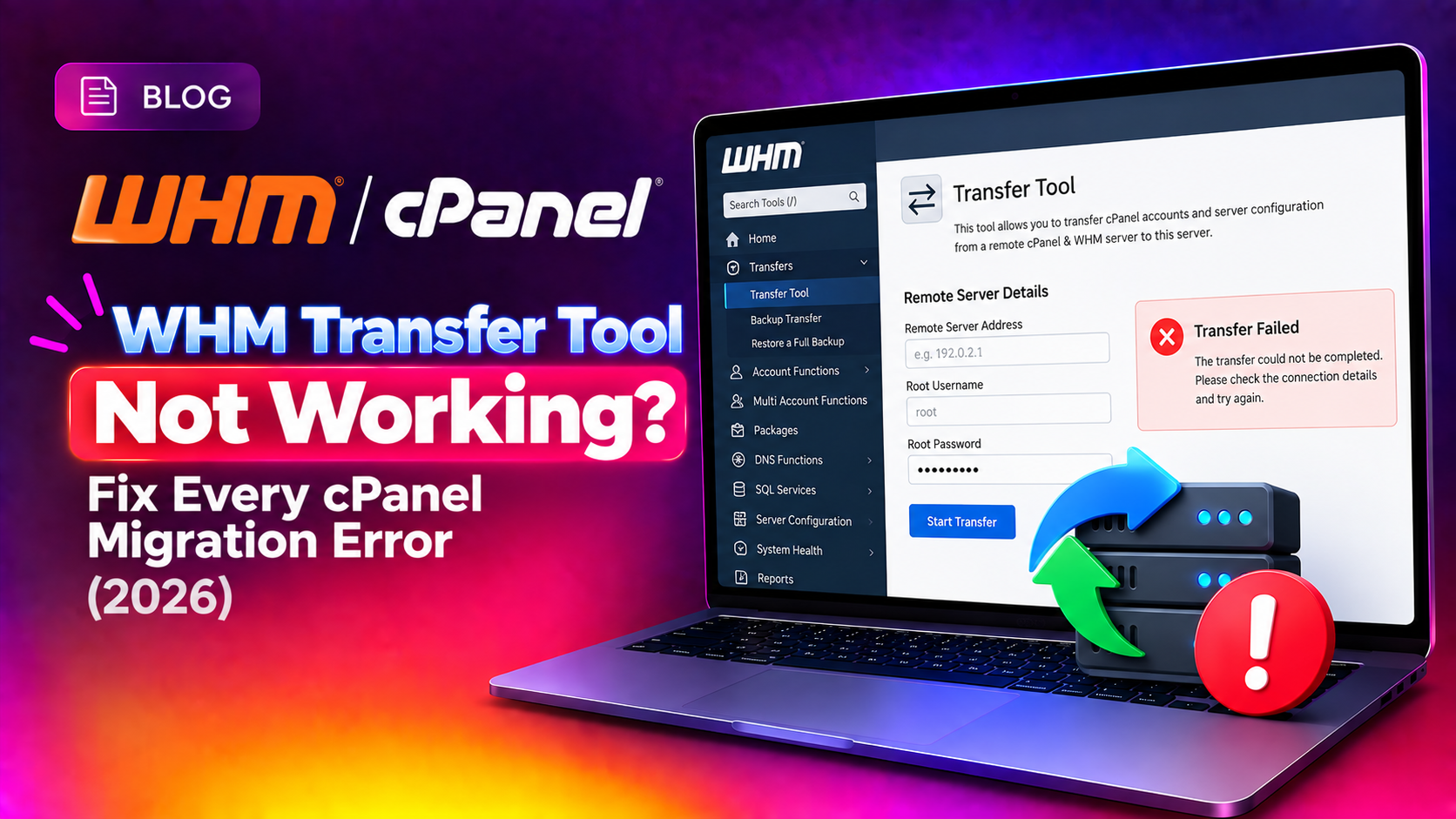
You're in the middle of migrating a cPanel server and the WHM Transfer Tool stops with a cryptic error. The client's sites are half-moved. You can't roll back cleanly. This is one of the most stressful situations in server administration — and it's more common than it should be.
This guide covers every WHM Transfer Tool error you're likely to encounter, with specific fixes for each one.
Before You Start: Pre-Migration Checklist
Most WHM Transfer Tool failures are preventable with proper preparation. Run through these checks on both the source and destination servers before initiating any transfer.
On the source server:
- cPanel/WHM is up to date (run
/scripts/upcp) - SSH is accessible from the destination server's IP
- All account packages exist and are named consistently
- Sufficient disk space exists for creating pkgacct archives
- MySQL/MariaDB is running cleanly (
service mysql status)
On the destination server:
- Fresh cPanel/WHM installation, same or newer version than source
- Firewall allows SSH (port 22) from source server IP
- Sufficient disk space: at least 2x the size of accounts being transferred
- Same (or compatible) PHP versions installed
- WHM has a valid cPanel license
# Check disk space on destination
df -h /home /

# Check cPanel version
cat /usr/local/cpanel/version
💡 None of these worked? Skip the guesswork.
Get Expert Help →How to Start a Transfer Using WHM Transfer Tool
1. Log in to WHM on the destination server as root.
2. Navigate to Transfer Tool: go to Home > Transfers > Transfer Tool.
3. Enter source server details: hostname or IP, SSH port (default 22), root password or SSH key.
4. Click Fetch Account List to connect and retrieve the list of cPanel accounts.
5. Select accounts to transfer and optionally select packages to transfer.
6. Configure options: enable "Overwrite existing" if re-migrating, and set whether to copy DNS zones.
7. Click Copy to start the transfer.
Fix: "Failed to Load Package" Error
This error appears in cPanel 92 and later. The Transfer Tool now requires that destination packages exist before accounts are created.
Cause: The account on the source server is assigned a package that doesn't exist on the destination server.
Fix 1 — Transfer packages first: In the Transfer Tool, switch to the Packages tab and transfer all packages before transferring accounts. This creates the package definitions on the destination server.
Fix 2 — Manually create the package: In WHM on the destination server, go to Packages > Add a Package and create a package with the exact same name as the one on the source server. Limits can be set to "unlimited" if you don't know the exact values.
Fix 3 — Change the account's package before migrating: On the source server, reassign the account to a package that already exists on the destination, or to the "default" package.
Fix: SSH Connection Refused or Timeout
The Transfer Tool connects via SSH. If the connection fails, check these in order.
1. Verify SSH is running on the source server:
ssh root@SOURCE_SERVER_IP -p 22
# If using a non-standard port:
ssh root@SOURCE_SERVER_IP -p 22222. Check the source server's firewall: Ensure the destination server's IP is not blocked by CSF/iptables:
# On source server - whitelist destination IP temporarily
csf -a DESTINATION_IP "WHM migration temp"3. Use SSH key authentication instead of password: In the Transfer Tool, select "Use SSH Key" and paste the destination server's root public key (/root/.ssh/id_rsa.pub) into the source server's /root/.ssh/authorized_keys.
4. Enter the correct SSH port in Transfer Tool. Many hardened servers run SSH on port 2222 or 2200.
Fix: "Domain Already Exists in Userdata" Error
This happens when you're re-migrating an account that was partially transferred, or if the domain exists as an addon domain on another account.
1. Find which account owns the domain on the destination:
grep -r "DOMAIN.COM" /etc/userdata/
grep "DOMAIN.COM" /etc/trueuserdomains2. If the domain is stuck from a failed previous transfer: terminate the partial account in WHM (Account Functions > Terminate Accounts), then retry the transfer.
3. If the domain exists as an addon on another account: remove it from that account first, then re-run the transfer.
4. Enable "Overwrite Existing Accounts" in Transfer Tool options if you want to replace a previously created account.
Fix: Corrupt Archive — "Does Not Contain a Valid cpanel User File"
This error means the pkgacct archive on the source server was corrupted during creation or transfer.
1. Manually create a fresh pkgacct archive on the source server:
/scripts/pkgacct USERNAME /backup/
ls -lh /backup/cpmove-USERNAME.tar.gz2. Transfer the archive manually via rsync or scp:
rsync -avz --progress /backup/cpmove-USERNAME.tar.gz root@DEST_SERVER:/home/
3. Restore on the destination server:
/scripts/restorepkg /home/cpmove-USERNAME.tar.gz4. If extraction still fails, try the ignore-zeros flag:
tar --ignore-zeros -xzf /home/cpmove-USERNAME.tar.gz -C /tmp/restore_test/
ls /tmp/restore_test/
Fix: MySQL Database Not Migrating Correctly
Database migration failures are common, especially when source and destination MySQL/MariaDB versions differ.
1. Check MySQL version compatibility:
# On source
mysql --version
# On destination
mysql --version2. Manually export databases from source if Transfer Tool misses them:
mysqldump --single-transaction --all-databases > /backup/all_databases.sql
scp /backup/all_databases.sql root@DEST_SERVER:/tmp/3. Import on destination:
mysql -u root < /tmp/all_databases.sql4. Fix database user mappings: After migration, database users may not be mapped correctly to cPanel accounts. Run:
/scripts/update_db_cache
/scripts/mysqlversioncheck
Fix: Transfer Hangs or Times Out Mid-Way
Large accounts (10GB+) can cause Transfer Tool to time out or appear stuck.
1. Use rsync for large accounts instead of Transfer Tool:
/scripts/pkgacct USERNAME /backup/
rsync -avz --progress --bwlimit=50000 /backup/cpmove-USERNAME.tar.gz root@DEST:/home/
/scripts/restorepkg /home/cpmove-USERNAME.tar.gz2. Run transfers in a screen session so disconnection doesn't abort the process:
screen -S migration
# Start transfer inside screen
# Detach with Ctrl+A then D
# Reattach later: screen -r migration3. Monitor transfer progress:
tail -f /usr/local/cpanel/logs/transfer_session/Post-Migration Verification Checklist
After all accounts transfer, verify everything before cutting over DNS.
# Check all services are running
/usr/local/cpanel/scripts/restartsrv_httpd
service mysql status
service exim status

# Verify all SSL certificates
/usr/local/cpanel/bin/checkallsslcerts --verbose

# Fix quota database
/scripts/fixquotas --force

# Check for missing RPM packages
/scripts/check_cpanel_rpms --fix

# Test each migrated site using /etc/hosts override
echo "DESTINATION_IP DOMAIN.COM" >> /etc/hosts
curl -I http://DOMAIN.COM
DNS should only be pointed to the new server once every account has been verified to load correctly on the destination. If you need help planning or executing a zero-downtime cPanel server migration, CloudHouse's server migration service covers the entire process — from pre-migration audit to DNS cutover and post-migration monitoring.