
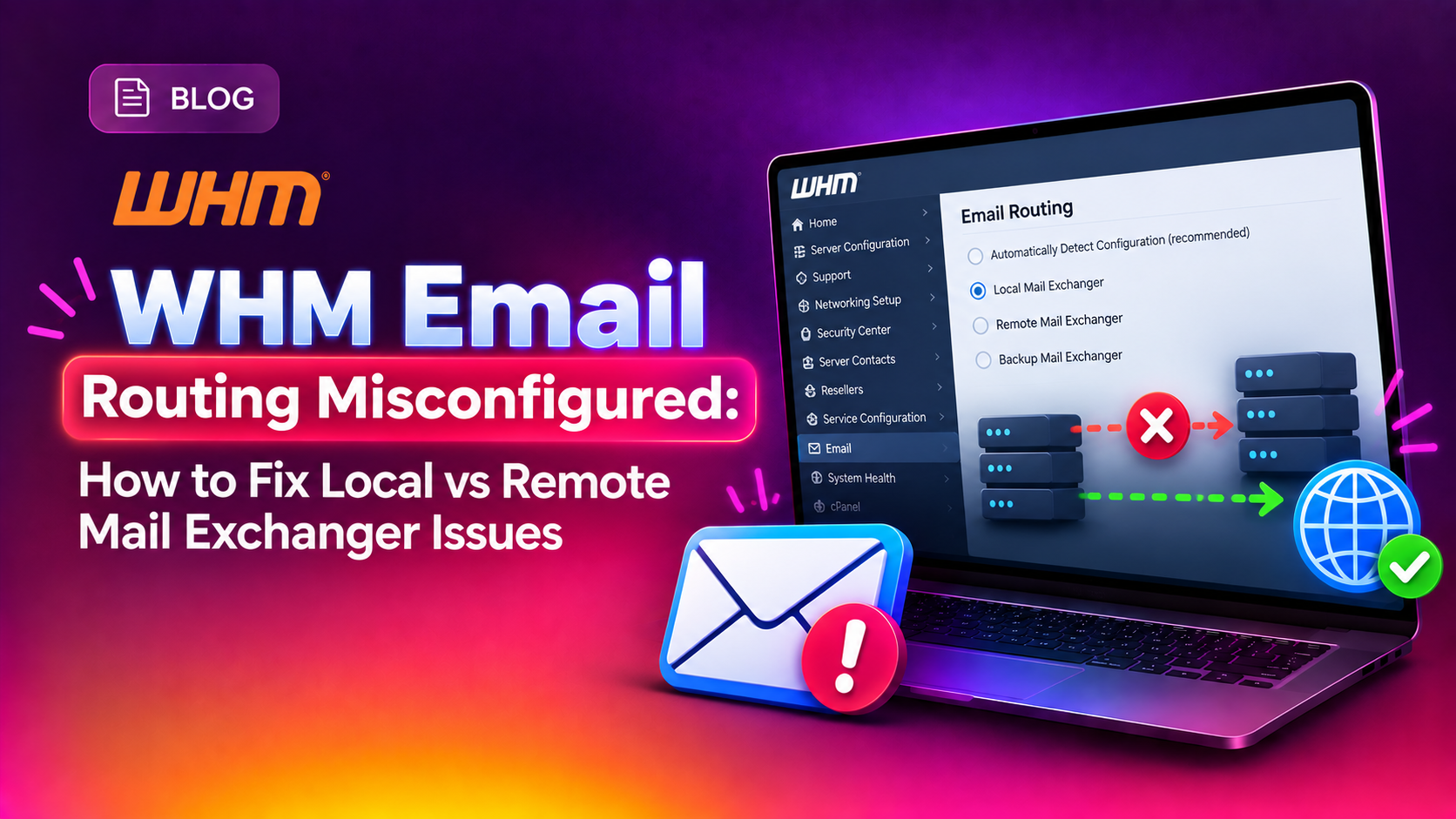
A WHM email routing misconfigured fix is one of the most time-sensitive tasks a sysadmin can face. When WHM's Email Routing is set to Remote Mail Exchanger for a domain that should be delivering mail locally, emails vanish silently or bounce — and your clients start calling. This guide goes beyond the basic GUI click-path to give you SSH-level diagnostics, exact file edits, Exim log verification, and a post-migration checklist.
What Is WHM Email Routing and Why It Breaks
WHM's Email Routing setting tells Exim — the mail transfer agent bundled with cPanel — whether a domain's mail should be delivered locally on the server or routed outbound to a remote mail server (such as Google Workspace or Microsoft 365). The three options are:
- Local Mail Exchanger — The server accepts and stores mail for this domain in local mailboxes. Use this when the domain's MX record points to the server's IP.
- Remote Mail Exchanger — Exim does not accept mail locally; it forwards all inbound attempts to whichever MX record has the lowest priority value. Use this when mail is hosted externally.
- Backup Mail Exchanger — The server queues mail and holds it until a lower-priority exchanger becomes available. Use this in redundancy setups.
- Automatically Detect Configuration — WHM inspects the domain's MX record and decides. This is convenient but can produce wrong results when DNS has recently changed or after a server migration.
Why Misconfiguration Happens So Often
The most common trigger is a server migration. When you migrate a cPanel account from one server to another, WHM restores the account but doesn't always update /etc/localdomains and /etc/remotedomains correctly. A domain that was remote on the old server may end up classified as remote on the new one — even though its MX records now point locally. The same problem occurs when a customer switches from Google Workspace back to cPanel mail: the routing setting in WHM may still say Remote.
Other triggers include:
- DNS propagation lag causing the Auto Detect logic to read stale MX data
- Manual MX record changes made directly in the DNS zone without updating WHM's Email Routing interface
- Bulk account restorations via
restorepkgthat don't trigger routing recalculation - Third-party migrations using tools that skip the
/scripts/checkalldomainsmxsstep
Symptoms: How to Tell Your Mail Routing Is Misconfigured
Before diving into fixes, confirm that email routing is actually the culprit. These are the tell-tale signs:
- Bounce-back messages containing phrases like "no such user here", "user unknown", or "550 Unrouteable address"
- Silent mail loss — Outbound SMTP from the sender succeeds (no bounce), but the recipient never receives the message.
- Exim log errors at
/var/log/exim_mainlogshowingR=lookuphostfor a domain that should be delivered viaR=virtual_user. - webmail works but new mail stops arriving in the mailbox even though old messages are visible.
- The cPanel Email Routing page shows "Automatically Detect Configuration" without the parenthetical (Local) label.
💡 None of these worked? Skip the guesswork.
Get Expert Help →Step 1 — Check and Fix Email Routing in WHM (GUI Method)
Navigate to https://yourserver.com:2087 and log in with your root credentials.
In the left sidebar, expand DNS Functions and click Email Routing.
The interface lists all domains hosted on the server. Find the domain experiencing mail issues and check its current routing value.
Select the radio button for Local Mail Exchanger and click Change. If the domain's MX record genuinely points to this server's IP, Local is always the correct choice.
Refresh the Email Routing page and confirm the domain now shows Local Mail Exchanger. WHM will have automatically updated /etc/localdomains and removed the domain from /etc/remotedomains.
Step 2 — Manually Fix /etc/localdomains and /etc/remotedomains via SSH
SSH-level access lets you fix routing for every domain on the server in one command and inspect the raw file state.
Understanding the Two Files
/etc/localdomains — A plain-text list, one domain per line, of every domain whose mail Exim should accept and deliver locally. If your domain is missing from this file, Exim will try to route it remotely regardless of what the WHM GUI shows.
/etc/remotedomains — A plain-text list of every domain whose mail Exim should forward outbound.
Check Current File State
# Check if your domain is in localdomains
grep "example.com" /etc/localdomains

# Check if your domain is incorrectly in remotedomains
grep "example.com" /etc/remotedomains
Manual Fix for a Single Domain
# Remove from remotedomains
sed -i '/^example\.com$/d' /etc/remotedomains

# Add to localdomains (only if not already present)
grep -qxF 'example.com' /etc/localdomains || echo 'example.com' >> /etc/localdomains
Rebuild All Routing Files Automatically (Recommended After Migrations)
/scripts/checkalldomainsmxs --yesThis script scans every hosted domain, checks MX records, and rewrites both files from scratch. Run /scripts/updateuserdomains afterward, then restart Exim:
systemctl restart eximStep 3 — Verify Exim Is Delivering Locally After the Fix
Test Address Routing with Exim Debug Mode
exim -d -bt user@example.comLook for the line showing which router and transport Exim selected. A correctly configured local domain should show:
router = virtual_user, transport = local_deliveryIf you see router = lookuphost or transport = remote_smtp, the domain is still being treated as remote.
Check Exim Main Log
grep "example.com" /var/log/exim_mainlog | tail -50Look for lines containing => user@example.com with a local path. This confirms local delivery is working.
Send a Test Message and Watch the Queue
echo "Test body" | mail -s "Routing test" user@example.com
exim -bp | head -30
A healthy local delivery should not queue at all — the message should arrive instantly.
Preventing Future Misconfigurations: Automation and Monitoring Tips
On a managed hosting server with frequent migrations, the same issue will recur unless you put guardrails in place. Our team at managed cPanel server support recommends the following approach.
Post-Migration Checklist
- Run
/scripts/checkalldomainsmxs --yesimmediately after every migration - Follow with
/scripts/updateuserdomains - Restart Exim:
systemctl restart exim - Spot-check five random domains with
exim -bt user@domain.com - Verify each domain's MX record resolves to the server's IP using
dig MX example.com +short
Automate Daily Routing Consistency Checks
# /etc/cron.d/check-mail-routing
0 3 * * * root /scripts/checkalldomainsmxs --yes >> /var/log/mxcheck.log 2>&1
Set Up Exim Log Alerting
#!/bin/bash
COUNT=$(grep -c "Unrouteable address" /var/log/exim_mainlog)
if [ "$COUNT" -gt 20 ]; then
  echo "$COUNT Unrouteable address errors" | mail -s "ALERT: Exim routing errors" admin@yourcompany.com
fi
FAQs
Why does WHM's Auto Detect keep choosing Remote instead of Local?
Auto Detect resolves the domain's MX record at the moment you load the Email Routing page. If the MX record is pointing to an external provider due to a DNS misconfiguration or propagation delay, WHM classifies it as Remote. Fix the MX record first, wait for propagation, then manually set Local Mail Exchanger.
What happens if a domain appears in both /etc/localdomains and /etc/remotedomains?
Exim reads /etc/localdomains first. If the domain is found there, it delivers locally and ignores /etc/remotedomains. Having a domain in both files is harmless routing-wise but indicates a stale entry. Clean it up by running /scripts/checkalldomainsmxs --yes.
Can I fix email routing for a reseller's account without asking them?
Yes. As root in WHM, you have full access to all accounts' email routing settings via WHM > DNS Functions > Email Routing. You can also directly edit /etc/localdomains and /etc/remotedomains as root via SSH.
How do I fix email routing after moving a domain to Google Workspace or Microsoft 365?
Update the domain's MX records to point to the external provider's servers, wait for DNS propagation, then set the domain to Remote Mail Exchanger in WHM. Run /scripts/checkalldomainsmxs --yes to sync /etc/remotedomains.
Will restarting Exim drop emails currently in the queue?
No. The mail queue is persisted to disk at /var/spool/exim. When Exim restarts, it picks up and continues processing all queued messages. There is only a brief window of a few seconds where incoming SMTP connections are refused.
Conclusion
WHM email routing misconfiguration is a silent killer of mail delivery — and it disproportionately strikes right after migrations, MX record changes, and bulk account restorations. The fix is straightforward: the WHM Email Routing GUI for single domains, /scripts/checkalldomainsmxs --yes for server-wide remediation, and exim -d -bt for iron-clad verification. If you need hands-on help, our team at managed cPanel server support is ready to step in and resolve it fast.