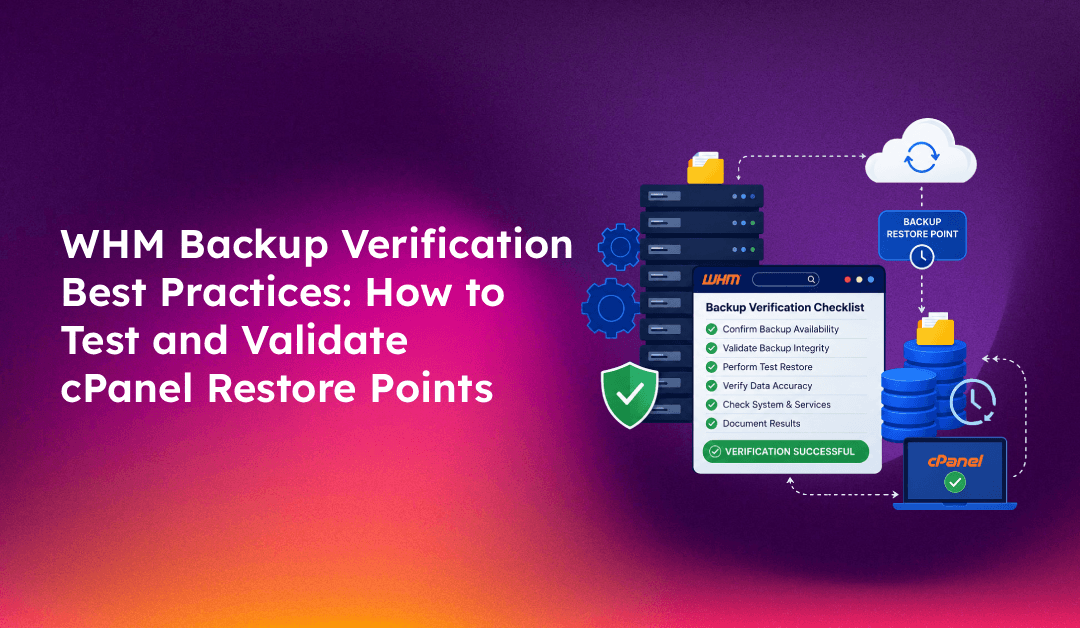
A backup that has never been tested is not a backup — it is a false sense of security. Countless hosting providers have discovered, at the worst possible moment, that their WHM backup files were corrupt, incomplete, or restored to a broken state. Testing and validating your cPanel restore points regularly is the only way to know your disaster recovery plan will actually work when you need it.
This guide covers how to verify WHM backups at every level: checking backup completion status, testing account restores in an isolated environment, validating database integrity, and automating verification so nothing slips through the cracks.
Why Backup Verification Is Non-Negotiable in WHM Environments
WHM's built-in backup system writes full, incremental, and partial backups — but it does not automatically confirm that those backups are restorable. Common failure modes include:
- Disk write errors during backup that produce truncated archive files
- Database dumps that fail silently mid-export (particularly with large InnoDB tables)
- Remote destination failures (S3, FTP) where the transfer appears successful but files are missing
- Account restore failures caused by incompatible cPanel/WHM versions between source and destination
- Corrupted tar archives that verify correctly during creation but fail during extraction
Regular restore testing catches these problems before a real emergency forces your hand. If you need help building a reliable backup architecture from scratch, managed server support can set up and validate your entire backup stack.
Step 1: Confirm Backup Jobs Are Completing Successfully
Before testing restore integrity, verify that backups are actually completing. In WHM, navigate to Backup > Backup Configuration > Backup Status to see the last backup run status.
For command-line verification, check the WHM backup log:
tail -100 /usr/local/cpanel/logs/cpbackup/daily.logLook for lines containing Backup Complete and the absence of ERROR entries. For remote backups, verify the destination received files:
# For FTP remote backup verification
ftp -n your-backup-server << 'FTP_END'
user backupuser backuppass
ls /backups/
FTP_END

# For S3 remote backup — list the most recent backup files
aws s3 ls s3://your-backup-bucket/cpanel/ --recursive | sort | tail -20
Step 2: Check Backup Archive Integrity
WHM backups are stored as .tar.gz archives. A corrupt archive can appear intact but fail on extraction. Test archive integrity without extracting:
# Test a specific cPanel account backup archive
tar -tzf /backup/cpbackup/daily/username.tar.gz > /dev/null 2>&1
echo "Exit code: $?"  # 0 = good, non-zero = corrupt
Automate integrity checking across all backup archives:
#!/bin/bash
BACKUP_DIR="/backup/cpbackup/daily"
ERRORS=0

for archive in "$BACKUP_DIR"/*.tar.gz; do
    if ! tar -tzf "$archive" > /dev/null 2>&1; then
        echo "CORRUPT: $archive"
        ERRORS=$((ERRORS + 1))
    else
        echo "OK: $(basename $archive)"
    fi
done

echo "---"
echo "Total archives checked: $(ls $BACKUP_DIR/*.tar.gz | wc -l)"
echo "Corrupt archives: $ERRORS"
Run this script weekly or after each backup cycle to catch corruption immediately.
Step 3: Verify Database Backup Integrity
MySQL/MariaDB dumps are the most failure-prone component of cPanel backups. A partial dump that cuts off mid-statement will cause restore failures with cryptic SQL errors.
Check that database dumps have proper EOF markers:
# Extract and verify a database dump from a backup archive
cd /tmp/verify_test
tar -xzf /backup/cpbackup/daily/username.tar.gz ./mysql/dbname.sql.gz
gunzip -c mysql/dbname.sql.gz | tail -5
A valid MySQL dump ends with:
-- Dump completed on 2025-05-24 3:00:07If the dump ends abruptly mid-table or without the completion comment, the dump is incomplete and the restore will fail.
For large databases, also check row counts against production:
# Count rows in backup dump
gunzip -c mysql/dbname.sql.gz | grep -c "INSERT INTO"

# Compare against production row count
mysql -u root -p -e "SELECT COUNT(*) FROM dbname.tablename;"
Step 4: Perform a Test Account Restore
The definitive backup verification is a complete account restore. Never test on a production server — use a staging VPS or a spare cPanel account slot.
Method A: WHM GUI Restore
- In WHM, navigate to Backup > Restore a Full Backup/cpmove File
- Select the backup archive for the test account
- Choose "Restore as a New Account" with a modified username (e.g.,
testuser_verify) to avoid overwriting the live account - Click Restore and monitor the progress log
Method B: SSH Restore via /scripts/restorepkg
# Restore to a different username for testing
/scripts/restorepkg --allow_reseller_passwdless_logins     /backup/cpbackup/daily/username.tar.gz     testuser_verify
After restore, verify all components are functional:
# Check web files restored correctly
ls -la /home/testuser_verify/public_html/

# Verify databases were created
mysql -u root -p -e "SHOW DATABASES;" | grep testuser_verify

# Test email accounts
cat /etc/valiases/testdomain.com

# Confirm DNS zone was created
cat /var/named/testdomain.com.db | head -20
Step 5: Validate Application Functionality After Restore
A technically successful restore (all files present, databases created) does not guarantee the application works correctly. After restoring a test account, check:
- Web application loads — visit the restored site in a browser (add a hosts entry if DNS is not live)
- Database connectivity — check wp-config.php or application config for correct DB credentials post-restore
- File permissions — verify public_html files are owned by the cPanel user:
ls -la /home/testuser_verify/public_html/ - Cron jobs restored — check
crontab -u testuser_verify -l - SSL certificates — confirm certificates are in place (they are excluded from standard backups and need separate restoration)
Step 6: Verify Remote Backup Destinations
If using WHM's remote backup destinations (SFTP, FTP, Amazon S3, Rackspace, Backblaze), verify the remote files are actually accessible and intact:
# For S3 — verify file sizes aren't suspiciously small
aws s3 ls s3://your-backup-bucket/cpanel/ --human-readable | awk '$3 < "1M" {print "SMALL FILE (possible empty backup):", $0}'

# For SFTP — connect and verify
sftp backup-user@backup-server
ls -la /remote/backup/path/daily/
Test a full restore from the remote destination — not just from local storage — at least monthly. Remote connectivity issues can cause silent backup failures that only appear when you try to restore during an actual outage.
Step 7: Document Backup Verification Results
Keep a simple backup verification log. Create a script that records test results automatically:
#!/bin/bash
LOG="/var/log/backup_verification.log"
DATE=$(date '+%Y-%m-%d %H:%M:%S')
BACKUP_DIR="/backup/cpbackup/daily"
ERRORS=0
TOTAL=0

echo "[$DATE] Starting backup verification" >> "$LOG"

for archive in "$BACKUP_DIR"/*.tar.gz; do
    TOTAL=$((TOTAL + 1))
    if tar -tzf "$archive" > /dev/null 2>&1; then
        echo "[$DATE] OK: $(basename $archive)" >> "$LOG"
    else
        echo "[$DATE] FAILED: $(basename $archive)" >> "$LOG"
        ERRORS=$((ERRORS + 1))
    fi
done

echo "[$DATE] Verification complete. $TOTAL checked, $ERRORS failed." >> "$LOG"

# Alert if errors found
if [ "$ERRORS" -gt 0 ]; then
    echo "WHM backup verification FAILED: $ERRORS corrupt archives" |         mail -s "BACKUP ALERT: $ERRORS failures on $(hostname)" admin@yourdomain.com
fi
Schedule this as a daily cron job that runs after backups complete:
0 6 * * * /root/scripts/verify_backups.shWHM Backup Verification Schedule: Recommended Cadence
- Daily: Automated archive integrity checks via cron (tar -tzf)
- Weekly: Manual review of backup completion logs in WHM GUI
- Monthly: Full test restore of at least one account on a staging server
- Quarterly: Full disaster recovery drill — restore entire server from backup to confirm RTO/RPO targets
- After major changes: Run a manual backup and verify before and after server updates, migrations, or configuration changes
Conclusion
Backup verification is not a one-time task — it is an ongoing operational discipline. Automated integrity checks catch corrupt archives early, regular restore tests confirm your disaster recovery process works end-to-end, and documented verification logs give you confidence (and audit trail) when it matters most. Treat your first failed test restore as a success: you found the problem before a real outage did.