
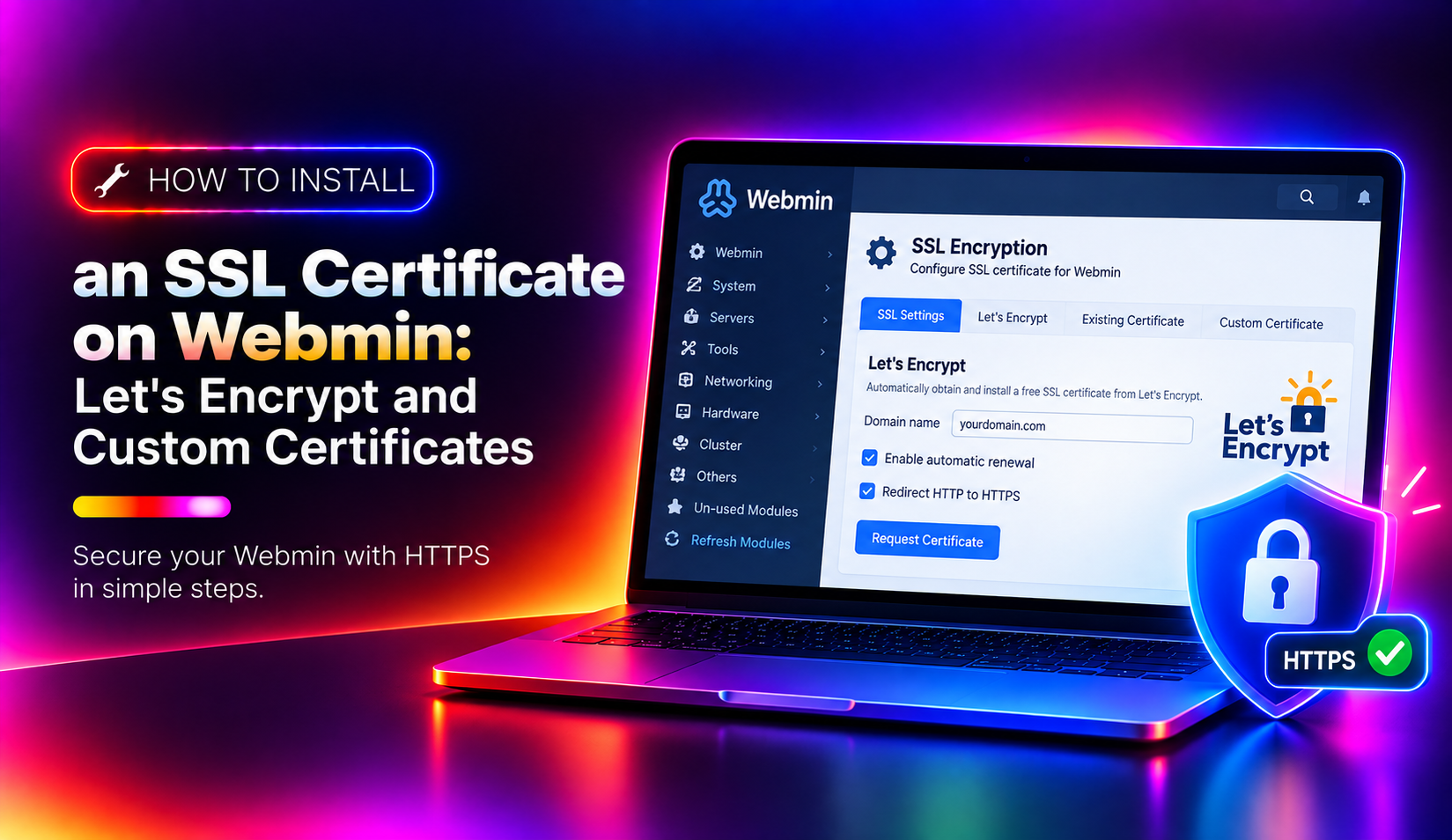
By default, Webmin generates a self-signed SSL certificate during installation. Every browser flags self-signed certificates as insecure, and if your Webmin hostname is accessible on the internet, this is a real security risk — not just a cosmetic warning. Replacing the self-signed certificate with either a free Let's Encrypt certificate or a commercially issued certificate eliminates the browser warnings, encrypts admin traffic with a trusted chain, and is required for many compliance frameworks. This guide covers both methods with exact steps for Webmin 2.x running on Ubuntu, Debian, CentOS, AlmaLinux, and Rocky Linux.
Why the Default Webmin SSL Certificate Is a Problem
Webmin's self-signed certificate causes three concrete problems:
- Browser security warnings on every login — staff and clients see ERR_CERT_AUTHORITY_INVALID, which erodes trust and causes confusion
- No certificate pinning or chain validation — a man-in-the-middle attacker can intercept your Webmin admin credentials if the certificate cannot be verified
- Compliance failures — PCI DSS, SOC 2, and ISO 27001 requirements for trusted TLS on admin interfaces are not met with self-signed certificates
Webmin runs on port 10000 by default. Whether your Webmin is exposed to the internet or only to a VPN, replacing the self-signed certificate is best practice.
Option A: Install a Let's Encrypt Certificate on Webmin (Recommended)
Let's Encrypt certificates are free, trusted by all major browsers, and can be set to auto-renew. This is the recommended method if your Webmin server has a publicly resolvable hostname and port 80 is accessible for Let's Encrypt's HTTP-01 challenge.
Prerequisites for Let's Encrypt on Webmin
- Your Webmin server has a fully qualified domain name (FQDN) — e.g.,
admin.yourdomain.com - The FQDN resolves to the server's public IP address (verify:
dig +short admin.yourdomain.com) - Port 80 (HTTP) is open in your firewall — Let's Encrypt needs it for domain validation
Note: Port 10000 (Webmin's SSL port) does not need to be open to the internet for Let's Encrypt to work. The challenge is served on port 80.
Step 1: Open Webmin SSL Certificate Settings
Log in to Webmin at https://your-server-ip:10000. Navigate to:
Webmin > Webmin Configuration > SSL Encryption
You will see your current certificate details (likely a self-signed cert with the server's hostname as both issuer and subject).
Step 2: Request a Let's Encrypt Certificate
Click the Let's Encrypt tab (or SSL Certificate > Let's Encrypt depending on your Webmin version).
Fill in the fields:
- Hostnames for certificate: Enter your Webmin FQDN — e.g.,
admin.yourdomain.com - Email address: Enter your admin email for expiry notifications
- Website root for validation: Leave blank unless you have a web server on port 80. Webmin will use its built-in mini-server for the ACME challenge
- Months between automatic renewal: Set to 2 (Let's Encrypt certificates expire in 90 days)
Click Request Certificate.
Webmin will contact Let's Encrypt's ACME servers, complete the HTTP-01 domain validation challenge on port 80, download the signed certificate, and automatically configure itself to use it. This takes 30–60 seconds.
If the request succeeds, you will see: Certificate successfully obtained and installed.
Common Let's Encrypt Errors in Webmin and How to Fix Them
- Connection refused on port 80 — open port 80 in your firewall:
ufw allow 80/tcp(Ubuntu) orfirewall-cmd --add-port=80/tcp --permanent && firewall-cmd --reload(CentOS/RHEL) - DNS resolution failed — your FQDN does not resolve to this server's IP. Check your DNS A record with
dig +short admin.yourdomain.com - Rate limit exceeded — Let's Encrypt allows 5 failed attempts per hour per hostname. Wait 1 hour and try again, or use the Let's Encrypt staging environment to test
- Certbot not installed — Webmin's Let's Encrypt integration requires either
certbotor theacme.shclient. Install certbot:apt install certbot(Debian/Ubuntu) oryum install certbot(CentOS/RHEL)
Option B: Install a Commercial SSL Certificate on Webmin
If your Webmin server does not have a public-facing hostname (e.g., it is behind a VPN or NAT), or if your organisation requires an Extended Validation (EV) or Organisation Validated (OV) certificate, use a commercially issued certificate instead.
Step 1: Generate a CSR from Webmin
Go to Webmin > Webmin Configuration > SSL Encryption > Create Certificate.
Fill in your organisation details and click Create Now. This generates a private key and a Certificate Signing Request (CSR) stored in Webmin's config directory (/etc/webmin/).
Copy the CSR text (begins with -----BEGIN CERTIFICATE REQUEST-----) and submit it to your certificate authority (DigiCert, Sectigo, GlobalSign, etc.) to obtain your signed certificate.
Step 2: Upload the Signed Certificate to Webmin
Once your CA issues the certificate, you will receive:
- Your signed certificate (
yourdomain.crt) - An intermediate/chain certificate (
intermediate.crtorca-bundle.crt)
In Webmin, go to Webmin Configuration > SSL Encryption > New Key and Certificate. In the Signed SSL certificate field, paste the contents of your signed certificate. In the Intermediate certificate field, paste the intermediate/CA bundle. Leave the Private key field blank (Webmin already has the key from when it generated the CSR).
Click Save and Apply. Webmin will update its configuration files and restart its SSL listener.
Step 3: Install the Certificate Files Manually (Alternative Method)
If you generated the CSR and key outside of Webmin (e.g., with OpenSSL), upload the certificate files directly to /etc/webmin/:
# Copy your certificate and key files to Webmin's config directory
cp yourdomain.crt /etc/webmin/miniserv.cert
cp yourdomain.key /etc/webmin/miniserv.key

# If you have an intermediate CA, append it to the certificate
cat intermediate.crt >> /etc/webmin/miniserv.cert

# Restart Webmin to load the new certificate
systemctl restart webmin
Webmin reads its SSL configuration from /etc/webmin/miniserv.conf. The relevant lines are:
ssl=1
keyfile=/etc/webmin/miniserv.pem   # or miniserv.key
certfile=/etc/webmin/miniserv.cert
Verify these paths match your actual certificate file locations after copying.
Step 4: Set Up Automatic SSL Certificate Renewal for Webmin
Let's Encrypt certificates expire every 90 days. To avoid manual renewal, set up automatic renewal via cron.
If you used Webmin's built-in Let's Encrypt integration (Option A), renewal is configured automatically through Webmin's scheduled tasks. Verify it is active:
Go to Webmin > Webmin Configuration > SSL Encryption > Let's Encrypt and confirm Months between automatic renewal is set to 2.
If you used certbot directly, add a renewal cron job:
echo "0 3 * * * root certbot renew --quiet --post-hook 'systemctl restart webmin'" > /etc/cron.d/certbot-webminThe --post-hook restarts Webmin after a successful renewal so it picks up the new certificate automatically.
Step 5: Verify the SSL Certificate Is Installed Correctly
After installing the certificate, test it from the command line before logging out of your current session:
openssl s_client -connect your-server-ip:10000 -servername admin.yourdomain.com 2>/dev/null | openssl x509 -noout -issuer -subject -datesYou should see:
- issuer: Let's Encrypt or your commercial CA (not the server hostname)
- subject: Your Webmin FQDN
- notAfter: 90 days in the future (Let's Encrypt) or 1–2 years (commercial)
Open your browser and navigate to https://admin.yourdomain.com:10000. The padlock icon should appear without any security warning. If you still see a warning, clear your browser cache and try again — browsers aggressively cache certificate errors.
For a full chain verification and cipher grade assessment, test your Webmin URL at SSL Labs Server Test (ssllabs.com/ssltest) — note that you must temporarily open port 10000 to the internet for SSL Labs to reach it, then close it again.
Optional: Change Webmin's Default Port and Restrict Access
After installing a valid SSL certificate, consider hardening Webmin further:
- Change the port from 10000 to a non-standard port (e.g., 17000) to reduce automated scanning: edit
/etc/webmin/miniserv.confand changeport=10000to your chosen port, then restart Webmin - Restrict access by IP: in Webmin > Webmin Configuration > IP Access Control, whitelist only your office and VPN IP ranges
- Enable two-factor authentication: Webmin supports TOTP-based 2FA under Webmin > Webmin Configuration > Two-Factor Authentication
If you need help securing your Webmin installation — including SSL setup, IP restrictions, and 2FA configuration — CloudHouse's server hardening service covers all of this as part of a comprehensive Linux server security audit.