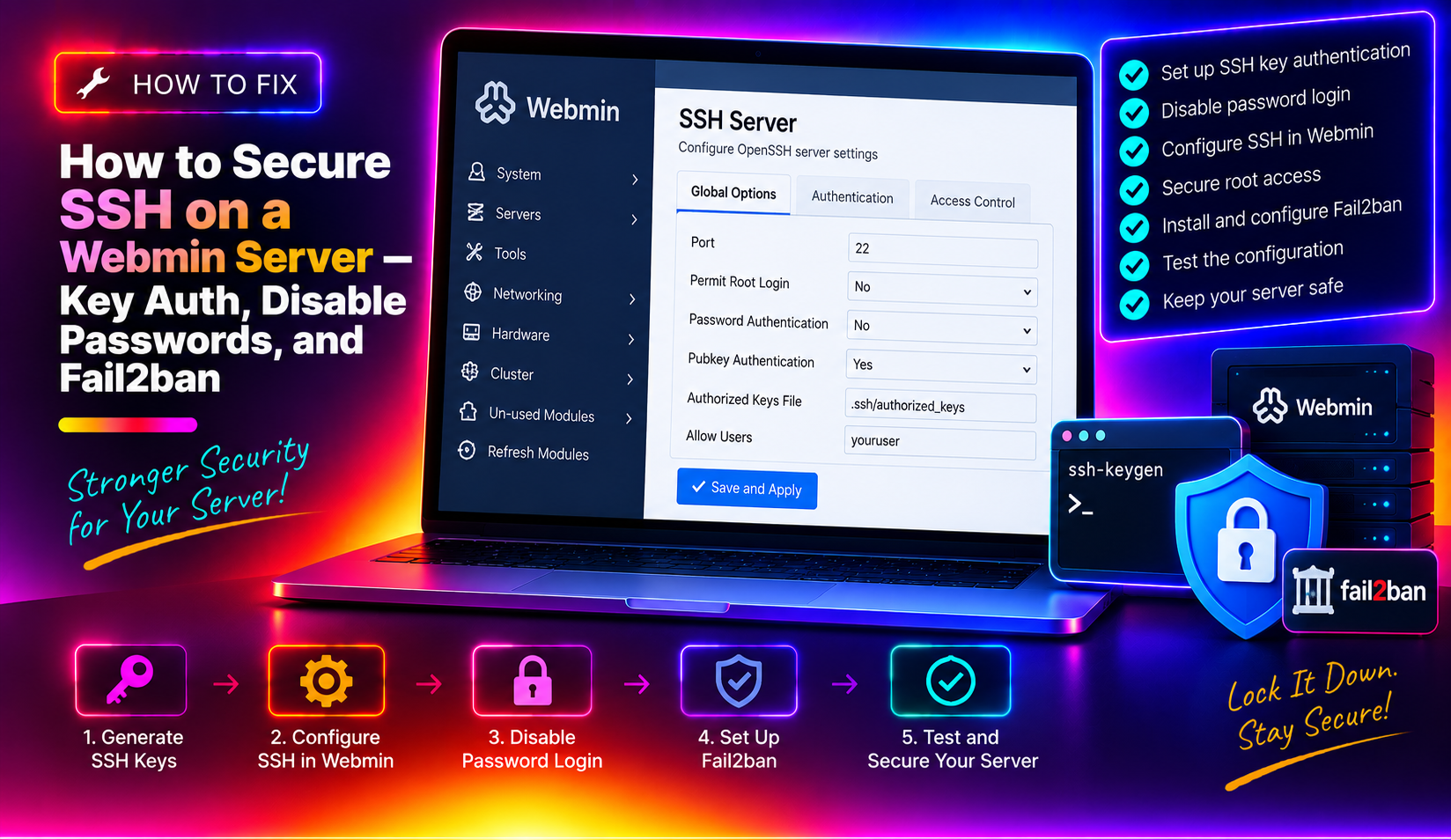
If your Webmin server is connected to the internet, its SSH port is being scanned and attacked right now. Automated bots run 24/7 trying common username and password combinations against every reachable SSH port. The default configuration — password authentication enabled, port 22 open — is an open invitation. This guide covers the complete process of securing SSH on a Webmin server: switching to key-based authentication, disabling password logins, and installing Fail2ban to automatically block brute-force attackers.
Why SSH Password Authentication Is Dangerous
Password authentication allows anyone who knows (or guesses) your username and password to log in. Brute-force tools like Hydra and Medusa can test thousands of passwords per minute. Even with a strong password, persistent attacks wear down server resources and fill auth logs with noise that hides real intrusions.
Key-based authentication solves this by requiring a cryptographic private key file — no key, no access, regardless of what password is tried. Combined with Fail2ban (which bans IPs after failed attempts) and a non-standard SSH port, the attack surface shrinks to near zero.
Before making any changes, verify you have console access to your server (via your hosting provider's web console, KVM, or IPMI). If you misconfigure SSH and lock yourself out, console access is the recovery path.
Step 1 — Generate an SSH Key Pair on Your Local Machine
Run this on your local workstation (not the server). This creates a 4096-bit RSA key pair:
# On Linux/macOS
ssh-keygen -t rsa -b 4096 -C "your-email@example.com"

# On Windows (PowerShell or WSL)
ssh-keygen -t rsa -b 4096
Accept the default path (~/.ssh/id_rsa) or specify a custom name. Set a strong passphrase — this passphrase protects your private key file locally. Even if someone steals the key file, they can't use it without the passphrase.
This creates two files:
~/.ssh/id_rsa— your private key (never share this)~/.ssh/id_rsa.pub— your public key (this goes on the server)
For Ed25519 (faster and more secure than RSA):
ssh-keygen -t ed25519 -C "your-email@example.com"Step 2 — Install the Public Key on the Webmin Server
Copy the public key to the server using ssh-copy-id (still using password auth at this point):
ssh-copy-id -i ~/.ssh/id_rsa.pub root@your-server-ipThis appends the public key to /root/.ssh/authorized_keys on the server. Verify it was added:
cat /root/.ssh/authorized_keysIf ssh-copy-id is not available (Windows without WSL), copy manually:
# On the server (via password login):
mkdir -p /root/.ssh
chmod 700 /root/.ssh
echo "PASTE_YOUR_PUBLIC_KEY_HERE" >> /root/.ssh/authorized_keys
chmod 600 /root/.ssh/authorized_keys
Test key-based login before proceeding. Open a new terminal and try logging in with your key:
ssh -i ~/.ssh/id_rsa root@your-server-ipIf this succeeds, your key is installed correctly. Do not disable password authentication until this test passes.
Step 3 — Disable SSH Password Authentication
Edit the SSH daemon configuration file on the server:
nano /etc/ssh/sshd_configFind and set (or add) these lines:
PasswordAuthentication no
PubkeyAuthentication yes
AuthorizedKeysFile .ssh/authorized_keys
PermitRootLogin prohibit-password
ChallengeResponseAuthentication no
UsePAM yes
Key settings explained:
PasswordAuthentication no— disables all password-based logins; key requiredPermitRootLogin prohibit-password— allows root to log in but only with a key (more secure thanwithout-passwordwhich is identical; both block passwords)ChallengeResponseAuthentication no— disables keyboard-interactive auth, which can bypass PasswordAuthentication on some configurations
Save the file and restart SSH — carefully:
# Validate the config before restarting
sshd -t

# Restart SSH (keep your current session open during this step)
systemctl restart sshd
Do not close your existing SSH session. Open a new terminal and confirm you can log in with your key. Only close the old session once you've verified the new connection works.
💡 None of these worked? Skip the guesswork.
Get Expert Help →Step 4 — Manage SSH Keys via Webmin
Webmin provides a GUI for managing SSH authorized keys, which is useful for adding team member keys or rotating keys when a team member leaves.
1. Log in to Webmin (port 10000)
2. Go to System → SSH Server (or search for "SSH")
3. Click Authentication tab — verify Password authentication is set to No and Pubkey authentication is Yes
4. To add authorized keys per user: System → Users and Groups → click user → Authorized SSH Keys
Webmin's SSH module also shows current SSH configuration, active sessions, and allows port changes — all without editing files manually.
Step 5 — Install and Configure Fail2ban
Even with key-based auth, bots still hammer port 22 and generate log noise. Fail2ban monitors authentication logs and automatically bans IPs that exceed a failure threshold using iptables or nftables rules.
# Debian/Ubuntu
apt install fail2ban -y

# CentOS/RHEL/AlmaLinux
dnf install fail2ban -y
Create a local override configuration (never edit jail.conf directly — it gets overwritten on updates):
cp /etc/fail2ban/jail.conf /etc/fail2ban/jail.local
nano /etc/fail2ban/jail.local
In the [DEFAULT] section, set global defaults:
[DEFAULT]
bantime  = 3600        ; ban for 1 hour
findtime = 600         ; within 10 minutes
maxretry = 3           ; after 3 failures
banaction = iptables-multiport
Find the [sshd] section and configure it:
[sshd]
enabled  = true
port     = ssh
filter   = sshd
logpath  = /var/log/auth.log    ; Debian/Ubuntu
# logpath = /var/log/secure     ; CentOS/RHEL
maxretry = 3
bantime  = 3600
Add a Webmin login protection jail (Webmin logs are separate from SSH):
[webmin-auth]
enabled  = true
port     = 10000
filter   = webmin-auth
logpath  = /var/log/auth.log
maxretry = 3
bantime  = 3600
Enable and start Fail2ban:
systemctl enable fail2ban
systemctl start fail2ban

# Verify it's running
fail2ban-client status
fail2ban-client status sshd
Step 6 — Change the SSH Port (Optional but Effective)
Moving SSH off port 22 doesn't improve security against targeted attacks, but it eliminates the vast majority of automated scanner traffic — which dramatically reduces log noise and server load from failed attempts.
nano /etc/ssh/sshd_configChange:
Port 22to a random high port (e.g., 22847):
Port 22847Open the new port in the firewall before restarting SSH:
# iptables
iptables -A INPUT -p tcp --dport 22847 -j ACCEPT
iptables-save > /etc/iptables/rules.v4

# firewalld (CentOS/AlmaLinux)
firewall-cmd --permanent --add-port=22847/tcp
firewall-cmd --reload

# UFW (Ubuntu)
ufw allow 22847/tcp
Also update Webmin's SSH port awareness and update Fail2ban's port = setting to the new port number. In Webmin: Tools & Settings → Webmin Configuration → Ports and Addresses.
Test the new port with a new terminal before closing your current session:
ssh -p 22847 -i ~/.ssh/id_rsa root@your-server-ipStep 7 — Verify and Monitor
After completing all changes, verify the security configuration is working:
# Check SSH daemon is running with correct config
systemctl status sshd
sshd -T | grep -E "passwordauth|pubkeyauth|permitrootlogin|port"

# Check Fail2ban is banning attackers
fail2ban-client status sshd
grep "Ban " /var/log/fail2ban.log | tail -20

# Check for active banned IPs
iptables -L fail2ban-sshd -n --line-numbers | head -20

# Monitor auth log for failed attempts
grep "Failed password\|Invalid user" /var/log/auth.log | tail -20
Within minutes of completing setup, you should see Fail2ban banning IPs. The auth log failed attempt rate should drop dramatically after changing the SSH port.
SSH Security Quick Reference
- ☑ SSH key pair generated locally (4096-bit RSA or Ed25519)
- ☑ Public key added to
/root/.ssh/authorized_keyson server - ☑ Key-based login tested and working before disabling passwords
- ☑
PasswordAuthentication noin/etc/ssh/sshd_config - ☑
ChallengeResponseAuthentication noset - ☑
sshd -tpassed beforesystemctl restart sshd - ☑ Fail2ban installed,
[sshd]jail enabled - ☑
[webmin-auth]jail configured - ☑ SSH port changed to non-standard (optional)
- ☑ New port opened in firewall before SSH restart
- ☑ Console/KVM access verified as fallback before starting
Hardening SSH is one part of a comprehensive server security posture. For Webmin-managed servers, this should be combined with OS-level firewall rules, regular security audits, and proactive monitoring. CloudHouse Technologies' server hardening service covers SSH hardening, Fail2ban, firewall configuration, and ongoing security monitoring for Linux servers running Webmin, DirectAdmin, or any other control panel.