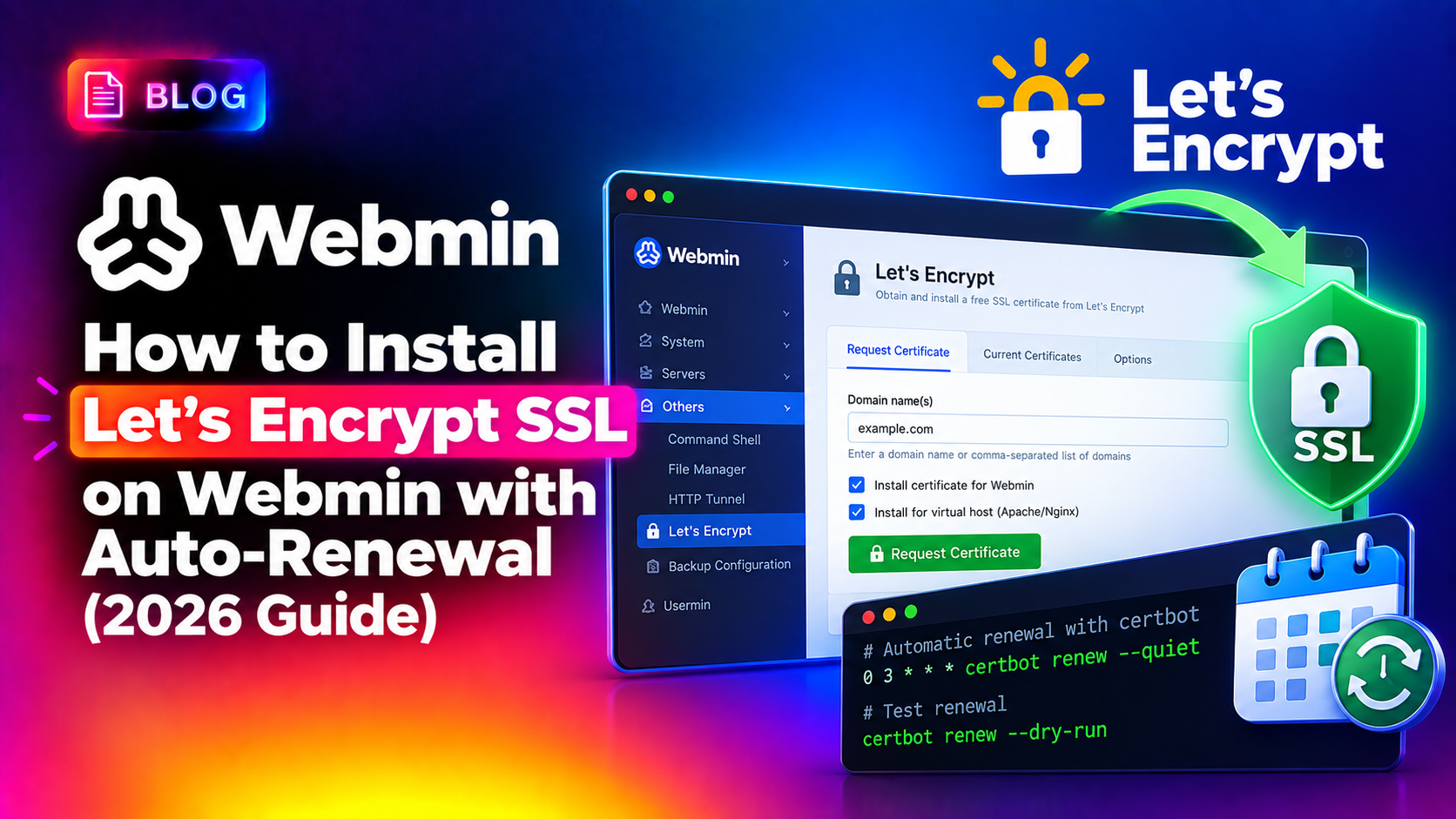
If you manage your Linux server through Webmin and want to secure it with a trusted SSL certificate, Webmin SSL certificate setup using Let's Encrypt is the most reliable and cost-free approach available in 2026. Let's Encrypt provides free, browser-trusted certificates that auto-renew every 90 days — eliminating the risk of expired certificates and browser security warnings. This step-by-step guide walks you through installing Let's Encrypt SSL on Webmin, wiring it to the Webmin panel itself, enabling auto-renewal, and fixing the most common errors like the miniserv.pem permission problem.
Prerequisites: Before Installing SSL on Webmin
Before running a single command, verify all of the following are in place. Skipping these checks is the number one reason Let's Encrypt validation fails.
System Requirements
- OS: Ubuntu 20.04/22.04/24.04, Debian 11/12, or CentOS 7/8/Stream — all supported
- Webmin version: 1.984 or later (older versions lack the built-in Let's Encrypt module)
- Root or sudo access to the server
- A fully qualified domain name (FQDN) pointing to your server's public IP address
- Port 80 open on your firewall — Let's Encrypt HTTP-01 challenge requires inbound HTTP access during validation
- Port 443 open for HTTPS traffic after certificate installation
- Certbot installed (or use Webmin's built-in ACME client — both methods covered below)
Verify DNS Propagation
Run the following command to confirm your domain resolves to your server's IP before proceeding:
dig +short yourdomain.com A
curl -I http://yourdomain.com
If the IP does not match your server, Let's Encrypt validation will fail with a DNS problem: NXDOMAIN looking up A for error. Wait for DNS to propagate (typically 5–30 minutes) before continuing.
Install Certbot
If certbot is not already installed, install it now:
# Ubuntu/Debian
sudo apt update
sudo apt install certbot -y

# CentOS/RHEL (via EPEL)
sudo yum install epel-release -y
sudo yum install certbot -y
Open Required Firewall Ports
On UFW (Ubuntu):
sudo ufw allow 80/tcp
sudo ufw allow 443/tcp
sudo ufw allow 10000/tcp   # Webmin default port
sudo ufw reload
On firewalld (CentOS/RHEL):
sudo firewall-cmd --permanent --add-port=80/tcp
sudo firewall-cmd --permanent --add-port=443/tcp
sudo firewall-cmd --permanent --add-port=10000/tcp
sudo firewall-cmd --reload
💡 None of these worked? Skip the guesswork.
Get Expert Help →Install Let's Encrypt SSL via Webmin UI
Webmin includes a built-in Let's Encrypt module that handles certificate issuance without requiring manual certbot commands. This is the easiest path for most administrators.
Navigate to https://your-server-ip:10000 and log in with your root credentials. If you see a browser SSL warning, click "Advanced" and "Accept the Risk" — this is expected before we install the certificate.
Go to Webmin → Webmin Configuration → SSL Encryption. Click the "Let's Encrypt" tab. If this tab is missing, your Webmin version is outdated — run apt upgrade webmin or download the latest .deb from webmin.com.
In the "Hostnames for certificate" field, enter your domain and optionally the www subdomain:
yourdomain.com
www.yourdomain.com
Set "Website root directory for validation file" to /var/www/html (or wherever your web server's document root is). This is where the HTTP-01 challenge file is temporarily placed during validation.
Click "Request Certificate". Webmin will:
- Contact Let's Encrypt's ACME server
- Create a temporary challenge file in
/.well-known/acme-challenge/ - Let's Encrypt verifies the file over HTTP (port 80)
- Issue the certificate on success
On success you'll see: Certificate and key have been saved.
The issued certificates are stored at:
/etc/letsencrypt/live/yourdomain.com/fullchain.pem   # Certificate + chain
/etc/letsencrypt/live/yourdomain.com/privkey.pem      # Private key
/etc/letsencrypt/live/yourdomain.com/cert.pem         # Certificate only
/etc/letsencrypt/live/yourdomain.com/chain.pem        # Chain only
Install via Certbot CLI (Alternative Method)
If you prefer the command line, or the Webmin UI method fails, use certbot directly:
# Standalone mode (temporarily binds port 80)
sudo certbot certonly --standalone -d yourdomain.com -d www.yourdomain.com

# Webroot mode (if Apache/Nginx is already running)
sudo certbot certonly --webroot -w /var/www/html -d yourdomain.com -d www.yourdomain.com
Use standalone mode if no web server is running on port 80. Use webroot mode if Apache or Nginx is active and serving your domain.
Always perform a dry run before trusting the renewal hook:
sudo certbot renew --dry-runA successful dry run outputs: Congratulations, all simulated renewals succeeded. If you see errors, fix them before relying on automated renewal.
On Ubuntu/Debian, certbot installs a systemd timer automatically:
sudo systemctl status certbot.timer
sudo systemctl list-timers | grep certbot
You should see certbot.timer listed as active. It typically runs twice daily. If the timer is missing or inactive:
sudo systemctl enable certbot.timer
sudo systemctl start certbot.timerAfter certificate renewal, Webmin must be restarted to pick up the new certificate. Create a renewal hook:
sudo nano /etc/letsencrypt/renewal-hooks/deploy/restart-webmin.shAdd the following content:
#!/bin/bash
# Restart Webmin after Let's Encrypt certificate renewal
/etc/init.d/webmin restart
# Or use systemctl if Webmin runs as a systemd service:
# systemctl restart webmin
Make the hook executable:
sudo chmod +x /etc/letsencrypt/renewal-hooks/deploy/restart-webmin.shThis script runs automatically after every successful renewal. Without it, Webmin continues serving the old (expired) certificate even after certbot renews it.
If your server uses cron instead of systemd timers:
sudo crontab -eAdd this line:
0 3 * * * /usr/bin/certbot renew --quiet && /etc/init.d/webmin restartThis runs daily at 3 AM, renews the certificate if it expires within 30 days, and restarts Webmin.
Webmin also has its own renewal scheduler: go to Webmin → Webmin Configuration → SSL Encryption → Let's Encrypt and enable "Automatically renew this certificate?". Set months before expiry to 1 (renew 30 days before expiry).
The core Webmin server config is at:
/etc/webmin/miniserv.confsudo nano /etc/webmin/miniserv.confFind and update (or add) the following lines:
ssl=1
keyfile=/etc/letsencrypt/live/yourdomain.com/privkey.pem
certfile=/etc/letsencrypt/live/yourdomain.com/fullchain.pem
extracas=/etc/letsencrypt/live/yourdomain.com/chain.pem
The certfile should point to fullchain.pem (not just cert.pem) — this includes the intermediate certificate chain that browsers require for trust validation.
sudo /etc/init.d/webmin restart
# or
sudo systemctl restart webminTest that Webmin is now serving the Let's Encrypt certificate:
openssl s_client -connect yourdomain.com:10000 -servername yourdomain.com 2>/dev/null | openssl x509 -noout -issuer -subject -datesThe issuer should show Let's Encrypt. If it still shows Webmin Webserver on, the restart did not complete or miniserv.conf was not saved correctly.
Alternatively, go to Webmin → Webmin Configuration → SSL Encryption → Current Certificate. Click "Copy to Webmin" — this automatically updates miniserv.conf and restarts miniserv.
Troubleshooting: Fix Common Webmin SSL Errors
Error: miniserv.pem Permission Denied
Webmin's older configurations used a combined miniserv.pem file. If you see permission errors related to this file:
ls -la /etc/webmin/miniserv.pem
sudo chown root:root /etc/webmin/miniserv.pem
sudo chmod 600 /etc/webmin/miniserv.pem
If you've switched to separate keyfile/certfile paths in miniserv.conf, the miniserv.pem directive can be removed entirely. Ensure the pem= line is absent or commented out when using the separate keyfile= and certfile= directives.
Error: "Too many certificates already issued"
Let's Encrypt enforces a rate limit of 5 duplicate certificates per 7-day rolling window per domain. If you hit this:
# Check existing certificates
sudo certbot certificates

# Use --staging flag for testing (no rate limits)
sudo certbot certonly --standalone --staging -d yourdomain.com
Wait 7 days, or use a slightly different domain list (e.g., add a subdomain) to issue a new certificate sooner.
Error: Connection Refused on Port 80
The HTTP-01 challenge requires port 80 to be accessible. Verify:
# Check if something is listening on port 80
sudo ss -tlnp | grep :80

# Test external access
curl -I http://yourdomain.com/.well-known/acme-challenge/test
If Apache or Nginx is blocking port 80, stop it temporarily during certificate issuance with --standalone mode, or configure it to serve the challenge directory via the webroot plugin.
Error: Certificate Not Trusted in Browser After Install
This occurs when miniserv.conf points to cert.pem instead of fullchain.pem. The browser receives the leaf certificate without the intermediate chain. Fix:
sudo sed -i 's|certfile=.*cert.pem|certfile=/etc/letsencrypt/live/yourdomain.com/fullchain.pem|' /etc/webmin/miniserv.conf
sudo systemctl restart webmin
Error: Webmin Shows Old Certificate After Renewal
The deploy hook is missing or not executable. Verify:
ls -la /etc/letsencrypt/renewal-hooks/deploy/
sudo certbot renew --dry-run --deploy-hook "/etc/init.d/webmin restart"
Error: ACME Challenge File Not Accessible
If Let's Encrypt cannot fetch the challenge file, check your web server's document root:
sudo mkdir -p /var/www/html/.well-known/acme-challenge
sudo chown -R www-data:www-data /var/www/html/.well-known
Ensure your web server is not redirecting /.well-known/acme-challenge/ to HTTPS before the certificate is issued (chicken-and-egg problem). Temporarily allow HTTP-only access to that path.
Verify Full SSL Config After Fixing Errors
# Check certificate expiry
sudo certbot certificates

# Check miniserv config is correct
grep -E "ssl|keyfile|certfile|extracas|pem" /etc/webmin/miniserv.conf

# End-to-end SSL test
openssl s_client -connect yourdomain.com:10000 2>/dev/null | openssl x509 -noout -dates
If you find Webmin SSL configuration consistently difficult to maintain, managed server management from CloudHouse handles certificate issuance, renewal hooks, miniserv configuration, and ongoing SSL health monitoring for you.