
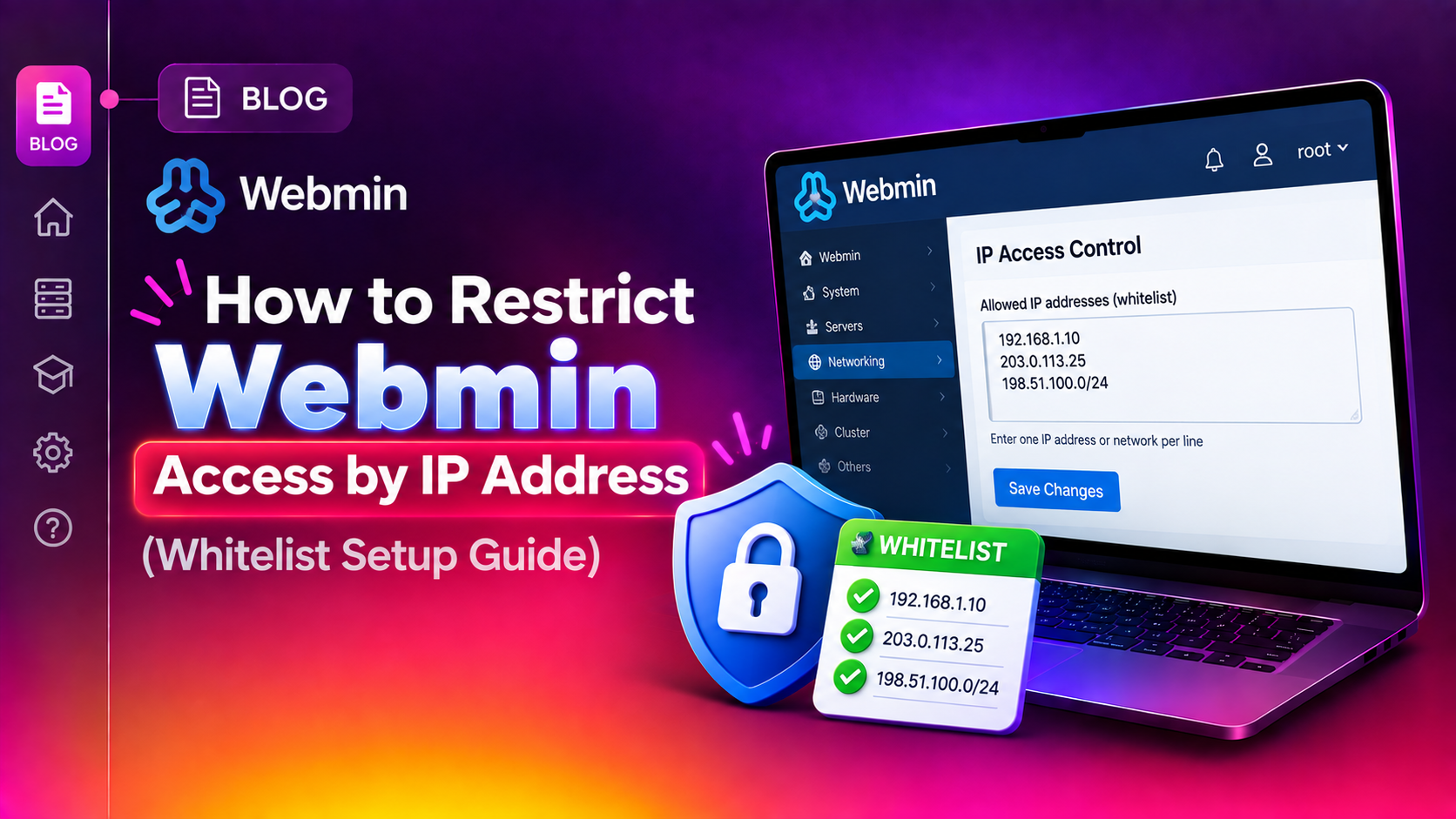
Webmin is one of the most powerful Linux server control panels available — and that power makes it a high-value target. By default, Webmin listens on port 10000 and accepts connections from any IP address on the internet. If your server's firewall has that port open, attackers worldwide can attempt to brute-force your admin credentials around the clock.
Restricting Webmin access by IP address adds a network-layer gate: only requests arriving from your whitelisted IP addresses are allowed to reach the login screen. Every other connection is silently rejected before a single authentication attempt is made. A compromised Webmin account gives an attacker root-level control over your entire server — IP whitelisting is a non-negotiable hardening step.
Why You Must Restrict Webmin Access by IP Address
Webmin exposed on port 10000 to the open internet attracts continuous automated scanning and brute-force login attempts. Beyond security, IP access control also satisfies common compliance requirements (PCI-DSS, ISO 27001, SOC 2) that mandate restricting administrative interfaces to known, trusted networks.
Defence-in-depth means combining:
- Firewall rules — block port 10000 at the network level except from trusted IPs
- Webmin's own IP access control — application-layer whitelist in
miniserv.conf - Strong passwords or certificate auth — final line of defence if both above are misconfigured
This guide covers all three. For expert-level hardening of your Webmin panel, visit our Server Management Service page.
Before You Start: Find Your Current IP Address
Before writing any configuration, record the IP address you will be connecting from. If you whitelist the wrong IP, you lock yourself out of Webmin and recovery requires SSH or physical console access.
Find your public IP address
# On Linux / macOS terminal
curl -4 ifconfig.me

# Alternative
curl https://api.ipify.org

# On Windows PowerShell
(Invoke-WebRequest -Uri "https://api.ipify.org").Content
Or simply search "what is my IP" in any browser.
Static vs dynamic IP considerations
If your ISP assigns you a dynamic IP address, use one of these approaches:
- VPN with a static exit IP — connect via VPN before accessing Webmin, whitelist the VPN's static IP. Recommended for remote teams.
- Whitelist a CIDR range — if your ISP allocates from a known block, whitelist the entire subnet.
Verify SSH access before you begin
Open a second terminal and confirm you can SSH into the server. Keep this session open throughout — it is your recovery route if something goes wrong:
ssh root@your-server-ip💡 None of these worked? Skip the guesswork.
Get Expert Help →How to Whitelist IP Addresses in Webmin Configuration
There are two ways to configure IP access control: via the web interface, and by directly editing the configuration file. The file approach works even when Webmin is unreachable.
Method 1 — Edit miniserv.conf directly (recommended)
Webmin's core configuration is stored in /etc/webmin/miniserv.conf. This file controls the Webmin mini-server, including which IP addresses are permitted to connect.
sudo nano /etc/webmin/miniserv.confSearch for a line starting with allow=. If it doesn't exist, add it. The syntax is:
allow=IP1 IP2 IP3# Single IP whitelist example
allow=203.0.113.45sudo systemctl restart webmin
# Alternative using Webmin's own scripts:
sudo /etc/webmin/stop
sudo /etc/webmin/startOpen a browser and navigate to https://your-server-ip:10000. You should reach the login page. Test from a different IP or mobile data — the connection should be refused.
Method 2 — Use the Webmin GUI
- Log in to Webmin.
- Navigate to Webmin → Webmin Configuration.
- Click IP Access Control.
- Select "Only allow from listed addresses".
- Enter your allowed IPs, one per line or space-separated.
- Click Save. Webmin restarts automatically.
The GUI writes to the same miniserv.conf file — both methods produce identical results.
ssh root@your-server-ip3. Edit miniserv.conf
sudo nano /etc/webmin/miniserv.confUpdate the allow= line to include your correct current IP.
sudo systemctl restart webminTemporarily remove IP restriction (emergency only)
Comment out the allow line to permit connections from all IPs temporarily:
# allow=203.0.113.45Restart Webmin, fix the issue, then re-enable the restriction immediately. Never leave Webmin open to all IPs on a production server.
Prevention — maintain emergency access IPs
Always include a reliable fallback IP in your whitelist:
- Your cloud provider's bastion host or jump server IP
- Your VPN provider's static exit IP
- A dedicated management IP used only for server administration
Document whitelisted IPs in a secure password manager or internal wiki so any team member can reference them during an incident.
Recovery via cloud provider console
If SSH is also inaccessible, most cloud providers (AWS, DigitalOcean, Hetzner, Linode) offer a browser-based emergency console. Use it to edit /etc/webmin/miniserv.conf and restart Webmin as described above.
FAQs
Where is the Webmin IP access control configuration file?
Webmin's IP access control is configured in /etc/webmin/miniserv.conf. You can edit it directly via SSH as root, or configure it through the Webmin GUI under Webmin → Webmin Configuration → IP Access Control. Both methods write to the same file.
What is the correct syntax to whitelist multiple IPs in Webmin?
Add an allow= line to /etc/webmin/miniserv.conf with IPs separated by spaces: allow=203.0.113.45 198.51.100.22 10.10.5.0/255.255.255.0. Note that Webmin uses dotted-decimal netmask notation (e.g. /255.255.255.0) rather than CIDR slash notation (e.g. /24) for subnets.
Does restricting Webmin access by IP affect SSH login?
No. Webmin's IP access control only applies to connections on Webmin's port (default 10000). SSH runs on port 22 and is governed by the SSH daemon configuration and your firewall rules independently. Webmin IP restrictions have no effect on SSH access.
I locked myself out of Webmin — how do I recover?
SSH into the server and edit /etc/webmin/miniserv.conf directly. Find the allow= line, update it to include your correct current IP address, save the file, and restart Webmin: sudo systemctl restart webmin. If SSH is also unavailable, use your cloud provider's emergency browser console.
Should I also restrict Webmin port 10000 in the firewall?
Yes — defence in depth is strongly recommended. Restricting the IP in miniserv.conf blocks at the application layer, but the port is still reachable by any IP. Adding a UFW or iptables rule to allow port 10000 only from whitelisted IPs means disallowed connections are dropped before they even reach Webmin.
Conclusion
Restricting Webmin access by IP address is one of the fastest, highest-impact security controls you can implement on a Linux server. The configuration takes under five minutes, requires no external tools, and eliminates automated brute-force attacks against your admin panel entirely. Combine miniserv.conf IP restrictions with matching firewall rules for a two-layer defence. Keep your whitelisted IPs documented and maintain an emergency fallback IP to avoid lockouts. For comprehensive Webmin hardening and ongoing managed server security, CloudHouse Technologies provides expert configuration and 24/7 monitoring.