
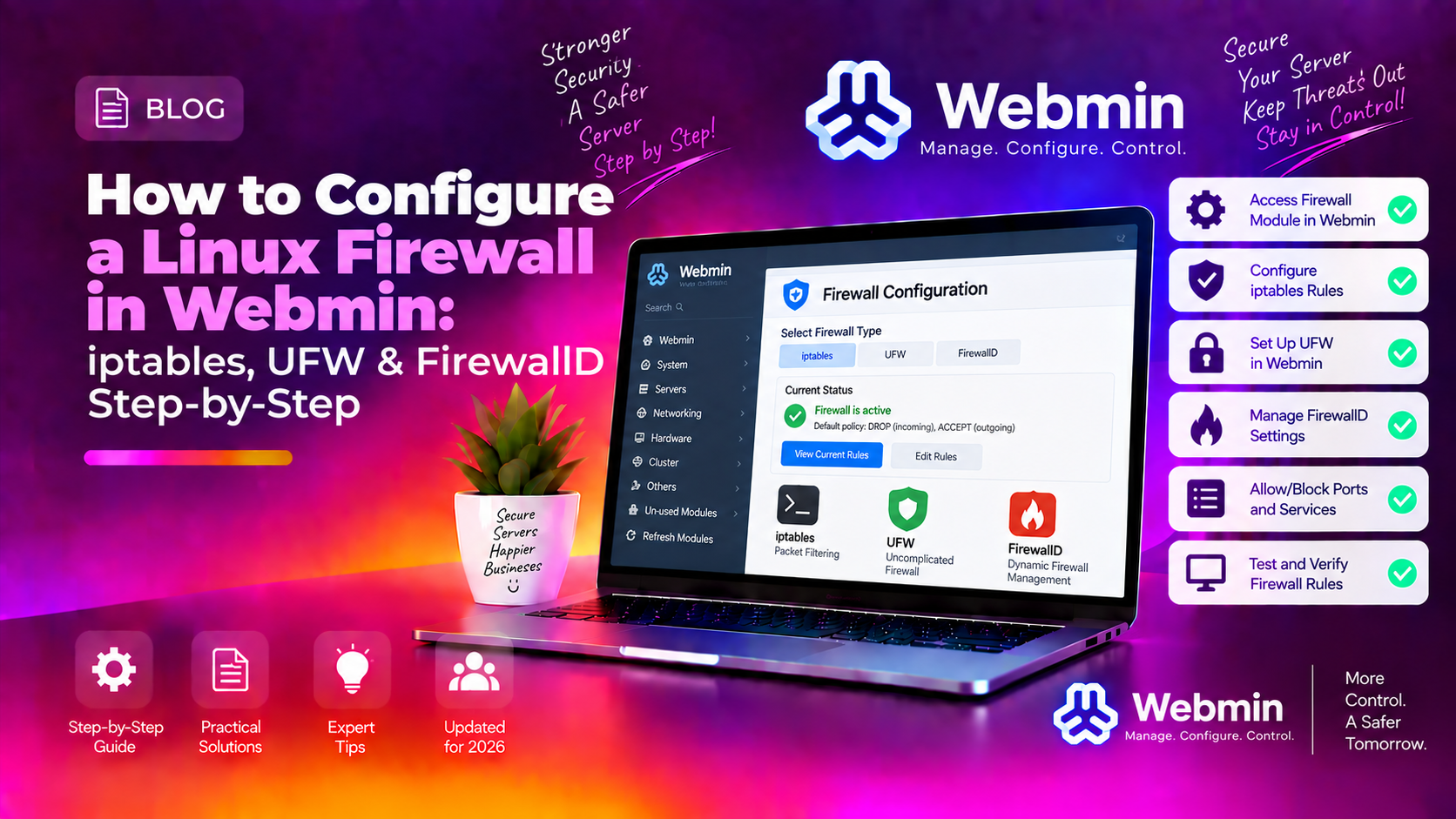
If your Linux server is sitting exposed with no firewall rules, every open port is a potential entry point for attackers. Webmin firewall configuration gives sysadmins a safe, GUI-driven way to lock down inbound and outbound traffic using iptables, UFW, or FirewallD — without touching the command line and without the risk of misconfiguring rules that lock you out of your own server. This guide walks you through all three firewall tools inside Webmin, side by side, so you can choose the right one for your Linux distribution and apply rules confidently.
Why Every Linux Server Needs a Firewall (and Why Most Are Misconfigured)
A freshly provisioned Linux server typically has every port accessible by default. Unless your cloud provider applies inbound security group rules at the network edge, services like SSH (22), MySQL (3306), Redis (6379), and custom application ports are reachable from the entire internet the moment the server boots.
The consequences of an unprotected server are severe:
- Brute-force attacks on SSH, Webmin (port 10000), and any exposed admin panel
- Database exposure — MySQL, PostgreSQL, or MongoDB listening on public interfaces
- Cryptominer injection via vulnerable services on unfiltered ports
- SMTP relay abuse if port 25 is wide open
Despite the risk, misconfigured firewalls are the norm, not the exception. Common mistakes include:
- Applying rules without a persistent save — rebooting wipes everything
- Blocking port 22 before confirming a working SSH session
- Using a DROP default policy on INPUT without first allowing established connections
- Forgetting to allow loopback (
lo) traffic, breaking local services
Webmin's firewall modules reduce these errors dramatically by surfacing rules in a structured UI, validating input, and providing a save mechanism — but only if you use them correctly. Read this guide fully before applying any changes to a production server.
Choosing the Right Firewall Tool: iptables vs UFW vs FirewallD in Webmin
Webmin ships with three separate firewall modules. Choosing the wrong one for your distribution can create rule conflicts or result in one tool silently overriding another.
iptables — Linux Firewall Module
iptables is the foundational packet-filtering framework built into the Linux kernel. Webmin's Linux Firewall module (found under Networking → Linux Firewall) gives direct access to iptables chains (INPUT, OUTPUT, FORWARD) and tables (filter, nat, mangle). It is the lowest-level and most powerful option, suitable for all distributions. Use this when you need fine-grained control: custom chains, conntrack rules, port forwarding, or NAT.
Best for: Debian, Ubuntu (older), any distro where UFW/FirewallD is not installed.
UFW — Uncomplicated Firewall
UFW is a front-end for iptables designed to simplify common rule sets. On Ubuntu 20.04+ and Debian 11+, UFW is the recommended firewall manager. The Webmin UFW module (available as a separate module install) lets you enable/disable UFW and add allow/deny rules by port, protocol, or application profile.
Best for: Ubuntu, Debian — sysadmins who want simple allow/deny rules without writing iptables syntax.
FirewallD — Zone-Based Firewall
FirewallD uses the concept of zones (public, internal, trusted, drop, etc.) to group network interfaces and apply policy sets. It is the default firewall manager on RHEL, CentOS, AlmaLinux, Rocky Linux, Fedora, and openSUSE. Webmin's FirewallD module (under Networking → FirewallD) is included natively and imports your current FirewallD configuration automatically.
Best for: RHEL-family distributions (AlmaLinux, Rocky Linux, CentOS Stream, Fedora).
Critical warning: Never run UFW and FirewallD simultaneously, and never mix iptables manual rules with either. Pick one tool and use it exclusively. Running multiple firewall managers causes unpredictable rule conflicts.
💡 None of these worked? Skip the guesswork.
Get Expert Help →Step-by-Step: Configuring iptables Rules Using Webmin's Linux Firewall Module
This section applies to Debian, Ubuntu, and any system using raw iptables. Before starting, ensure you have an active SSH session you will not close until the rules are tested.
Log in to Webmin, navigate to Networking in the left sidebar, and click Linux Firewall. If this is a fresh server, you will see empty INPUT, OUTPUT, and FORWARD chains under the filter table.
Before adding any DROP rules, add a rule to accept already-established connections. Click Add Rule under the INPUT chain. Set:
- Action: ACCEPT
- Connection state: Established, Related
This ensures ongoing sessions (including your current SSH session) are never interrupted by subsequent rules.
Add another INPUT rule:
- Action: ACCEPT
- Incoming interface: lo
Without this, local services (databases, Redis, internal APIs) cannot communicate with each other.
Add an INPUT rule:
- Action: ACCEPT
- Protocol: TCP
- Destination port: 22
If you have changed your SSH port, enter that port number instead. Optionally restrict the Source address to your office IP for maximum security.
Add an INPUT rule for TCP port 10000. Consider restricting source IP to your admin IP range:
- Action: ACCEPT
- Protocol: TCP
- Destination port: 10000
- Source address: your.office.ip.address/32 (recommended)
For any web server, add two INPUT rules for ports 80 and 443 (TCP), both with ACCEPT action and no source restriction.
At the top of the Linux Firewall module, find Default firewall policy for the INPUT chain and change it to DROP. Do this only after confirming rules 2–6 are in place and in the correct order. DROP as default means any traffic not explicitly allowed is silently blocked.
Click Apply Configuration. Then click Save as Bootup Firewall (or equivalent) so rules survive a reboot. Webmin uses iptables-save / iptables-restore for persistence — without this step, a reboot wipes your rules.
If UFW is not installed, open Webmin's Tools → Terminal or your SSH session and run:
sudo apt install ufw -yGo to Webmin → Webmin Configuration → Webmin Modules. In the From file on server field or via the module search, install the UFW module. Once installed, it will appear under Networking → UFW Firewall.
In the UFW module, before enabling the firewall, set:
- Default incoming policy: deny
- Default outgoing policy: allow
- Default routed policy: disabled (unless this server routes traffic)
This is the UFW equivalent of iptables DROP on INPUT.
Click Add Rule and add the following rules one at a time:
- Port 22/tcp — ALLOW IN (SSH)
- Port 80/tcp — ALLOW IN (HTTP)
- Port 443/tcp — ALLOW IN (HTTPS)
- Port 10000/tcp — ALLOW IN (Webmin)
For each rule you can optionally specify a From IP to restrict access to a specific source address.
Click the Enable Firewall button. UFW will apply the deny-incoming default policy immediately — this is why setting allow rules first is critical. Your SSH session (port 22) must be in the allow list before you click Enable.
The UFW module displays the current rule table. Verify all required services are listed as ALLOW. UFW rules persist across reboots automatically — no separate save step is required.
In Webmin, go to Networking → FirewallD. If FirewallD is installed and running (systemctl status firewalld), the module will display your current zone configuration. The default active zone is usually public.
FirewallD zones define trust levels:
- public — untrusted public network; only explicitly allowed services pass
- internal — trusted internal network; more permissive
- trusted — all connections accepted (use only for loopback or VPN interfaces)
- drop — all incoming connections dropped, no response
Most internet-facing servers should use the public zone as the default.
FirewallD uses pre-defined services (named port groups) rather than raw ports. In the Webmin FirewallD module:
- Select the public zone
- Click Add Allowed Service
- Add: ssh, http, https
For Webmin on port 10000, there is no predefined service. Click Add Allowed Port and enter 10000/tcp.
In FirewallD, changes can be runtime (active immediately, lost on reload) or permanent (written to disk, survive reboot). In the Webmin module, check the Permanent option before applying any rule. After making permanent changes, click Reload FirewallD to activate them.
For restricting Webmin access to specific IPs, use a rich rule. In the FirewallD module, click Add Rich Rule and enter:
rule family="ipv4" source address="your.office.ip/32" port protocol="tcp" port="10000" acceptThen remove the general port 10000 allow rule added in step 3.
The Webmin FirewallD module displays all active zones, their interfaces, and permitted services/ports. Confirm the public zone shows only: ssh, http, https, and port 10000 (or your equivalent). No other ports should be listed.
Testing Your Firewall Without Locking Yourself Out
The single biggest risk when configuring a firewall remotely is blocking your own SSH access and losing control of the server. Follow this testing sequence every time — whether you use iptables, UFW, or FirewallD.
Before Applying Any Rules
- Open a second SSH terminal and keep it connected throughout — if the first session drops, you have a fallback
- Note your current public IP:
curl ifconfig.me - Confirm SSH port:
grep Port /etc/ssh/sshd_config - Lower the Webmin session timeout: Webmin → Webmin Configuration → Authentication → set session timeout to 30 minutes so you don't get auto-logged-out during testing
Applying Rules Incrementally
Never apply a full ruleset in one click on a live server. Add rules one at a time. After each ACCEPT rule, verify connectivity from your workstation before proceeding to the next rule. Add the default DROP/DENY policy last, after all ACCEPT rules are confirmed.
Using a Timed iptables Test (Advanced)
For iptables users, a safety technique is to schedule an automatic flush before applying new rules:
at now + 5 minutes
> iptables -F
> Ctrl+D
This schedules iptables to flush all rules in 5 minutes. Apply your new ruleset in Webmin. If SSH drops, wait — in 5 minutes all rules clear and SSH is restored. If everything works, cancel the scheduled job: atrm 1. This technique is not directly available in Webmin but is the gold standard for CLI firewall work.
Post-Apply Checks
- Test SSH from a separate terminal (outside your existing session)
- Test HTTP/HTTPS from a browser
- Run a port scan from an external tool (e.g.,
nmap -sT yourserver.comfrom your workstation) — only allowed ports should appear open - Test Webmin login from a browser at
https://yourserver:10000 - If using FirewallD:
firewall-cmd --list-allto confirm active rules match expectations
Emergency Recovery via Console
If you do lock yourself out, most cloud providers offer an out-of-band VNC/IPMI console accessible from the control panel. Log in there and run:
# iptables
iptables -F && iptables -P INPUT ACCEPT

# UFW
ufw disable

# FirewallD
systemctl stop firewalld
This restores full access. Re-enter Webmin and start the configuration process again.
For organisations that need ongoing firewall audits, hardening scripts, and 24/7 monitoring of server security posture, the CloudHouse server hardening service provides managed firewall policy management, intrusion detection integration, and emergency access recovery as part of a complete server security package.
FAQs
See the FAQ section below for common questions about Webmin firewall configuration.
Configuring a Linux firewall through Webmin eliminates the guesswork of raw iptables syntax and reduces the risk of a lockout caused by a mistyped rule. Whether you choose the Linux Firewall module for iptables control, the UFW module for simplicity on Debian/Ubuntu, or the FirewallD module for zone-based policy on RHEL-family systems, the key discipline is the same: allow established connections first, add explicit ACCEPT rules for every service you need, test before setting a default DROP policy, and always save rules for persistence across reboots. A properly configured firewall is the first line of defence for any internet-facing server.