
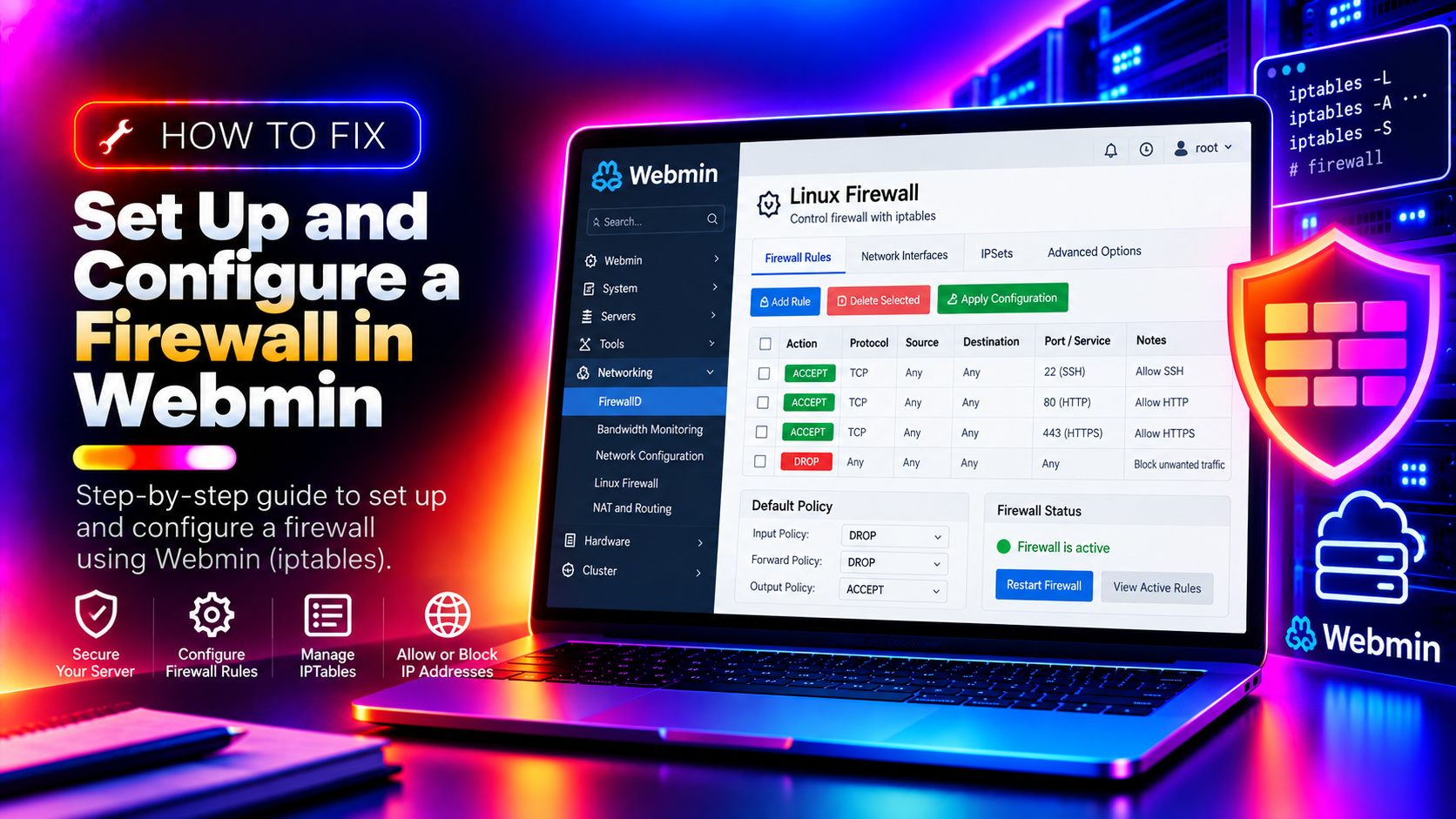
Webmin gives you a powerful graphical interface for managing a Linux server — but that same web interface is exposed on port 10000 by default, reachable by anyone on the internet. Without a firewall, your server accepts connections on every port, and bots are constantly scanning for open SSH, database, and control panel ports. This guide walks you through setting up a complete firewall using Webmin's built-in Linux Firewall module, blocking unwanted traffic while keeping your services accessible.
Understanding Webmin's Firewall Options
Webmin offers two built-in firewall management modules:
- Linux Firewall (iptables): Directly manages iptables rules — the underlying Linux firewall. Works on all distributions. More granular control.
- FirewallD: A higher-level firewall manager available on CentOS/RHEL/AlmaLinux. Uses zones and services. Easier to manage but less granular than raw iptables.
This guide covers the Linux Firewall (iptables) module, which works on all Webmin-supported Linux distributions including Debian, Ubuntu, CentOS, AlmaLinux, and Rocky Linux. If you're on AlmaLinux/Rocky and FirewallD is active, disable it first or use the FirewallD module instead to avoid conflicts.
💡 None of these worked? Skip the guesswork.
Get Expert Help →Step 1: Access the Linux Firewall Module
https://your-server-ip:10000 as root.
2. Navigate to the Linux Firewall module: In the left sidebar, go to Networking > Linux Firewall. If you don't see it, go to Webmin > Webmin Configuration > Webmin Modules and install it.
3. If no rules exist yet, click "Setup Firewall" to initialize the module with a basic ruleset. Choose the option to "Block all except SSH, IDENT, ping and high ports" as your starting template — this gives you a safe default while you build your custom rules.
Step 2: Understand the Default Chains
The Linux Firewall module displays three main chains:
- INPUT: Rules for traffic coming into your server. This is where you block or allow inbound connections.
- OUTPUT: Rules for traffic going out of your server. Usually left open by default.
- FORWARD: Rules for traffic being routed through your server. Only relevant if your server acts as a router.
For securing a standard web server, you'll focus almost entirely on the INPUT chain.
Step 3: Set a Safe Default Policy
The default policy is what happens to traffic that doesn't match any rule. For INPUT, you want to DROP all traffic that isn't explicitly allowed.
4. In the Linux Firewall module, find the "Default action for packets not matched below" setting for the INPUT chain and set it to DROP. This means any connection that doesn't match an allow rule will be silently rejected — the most secure default.
5. Before saving, make absolutely sure you've added a rule to allow your current SSH connection (port 22). If you drop all traffic without an SSH allow rule, you will be locked out of the server.
Step 4: Create Allow Rules for Essential Services
Add rules in this order — they are processed top to bottom and the first match wins:
6. Allow established/related connections (critical — ensures existing sessions aren't broken):
- Action: ACCEPT
- Connection state: ESTABLISHED, RELATED
- This allows responses to connections your server initiates (e.g., yum/apt updates, outbound mail)
7. Allow loopback interface (localhost traffic):
- Action: ACCEPT
- Input interface: lo
8. Allow ICMP (ping):
- Action: ACCEPT
- Protocol: ICMP
- Action: ACCEPT
- Protocol: TCP
- Destination TCP or UDP port: 22
- Action: ACCEPT
- Protocol: TCP
- Destination port: 80, 443
- Action: ACCEPT
- Protocol: TCP
- Destination port: 10000
Optional — add your IP only: If you want to restrict Webmin access to your IP address only, also set Source address to your static IP. This prevents anyone else from even reaching the Webmin login page.
- Action: DROP
- Protocol: TCP
- Destination port: 3306
MySQL should never be exposed to the internet unless you have a specific reason. Applications connect to it on localhost.
- DROP ports: 25, 465, 587, 110, 143, 993, 995
- DROP port: 21
16. Verify you can still connect via SSH by opening a new terminal session before closing your current one. Do NOT close your current SSH session until you've confirmed the new session works — if a rule mistake locked you out, you'll need your existing session to fix it.
17. Make rules persistent across reboots. Webmin's Linux Firewall module can save rules automatically on boot if you enable the option "Activate at boot time?" — check this checkbox in the module. Alternatively, use the iptables-save mechanism:
iptables-save > /etc/iptables/rules.v4
# On RHEL/CentOS:
service iptables save
Step 7: Restrict Webmin to Your IP Only (Recommended)
The most effective Webmin security hardening is restricting port 10000 access to only your IP address or VPN exit IP. This means that even if your Webmin password were compromised, attackers cannot reach the login page at all.
18. In the Linux Firewall module, modify the Webmin allow rule (Step 11 above) to also set:
- Source IP or network:
your.static.ip.address/32
If your IP is dynamic, consider using a VPN and restricting to the VPN subnet instead.
19. Also restrict Webmin access in Webmin itself: Go to Webmin > Webmin Configuration > IP Access Control and add your IP to the allow list. This provides a second layer of protection if the firewall rule is accidentally removed.
Step 8: Verify the Active Firewall Rules
Always verify rules are active after applying them.
20. Via SSH, list all INPUT rules:
iptables -L INPUT -n --line-numbers -vThis shows each rule, the packet/byte count (useful for seeing which rules are actually being matched), and the protocol/port/address criteria.
21. Test that blocked ports are actually blocked from an external machine:
nmap -Pn -p 3306,21,25 your-server-ipBlocked ports should show as filtered, not open.
For ongoing server security management including firewall audits, intrusion monitoring, and hardening reviews, CloudHouse's server hardening service provides comprehensive protection for Webmin-managed Linux servers.
Conclusion
A properly configured iptables firewall via Webmin's Linux Firewall module is one of the most effective security controls you can put on a Linux server. The key principles are: default DROP policy for INPUT, allow only the services you explicitly need, restrict Webmin access to trusted IPs, and verify rules both in the Webmin GUI and via SSH after every change. A firewall configured this way blocks the vast majority of automated attack traffic before it ever reaches your applications.