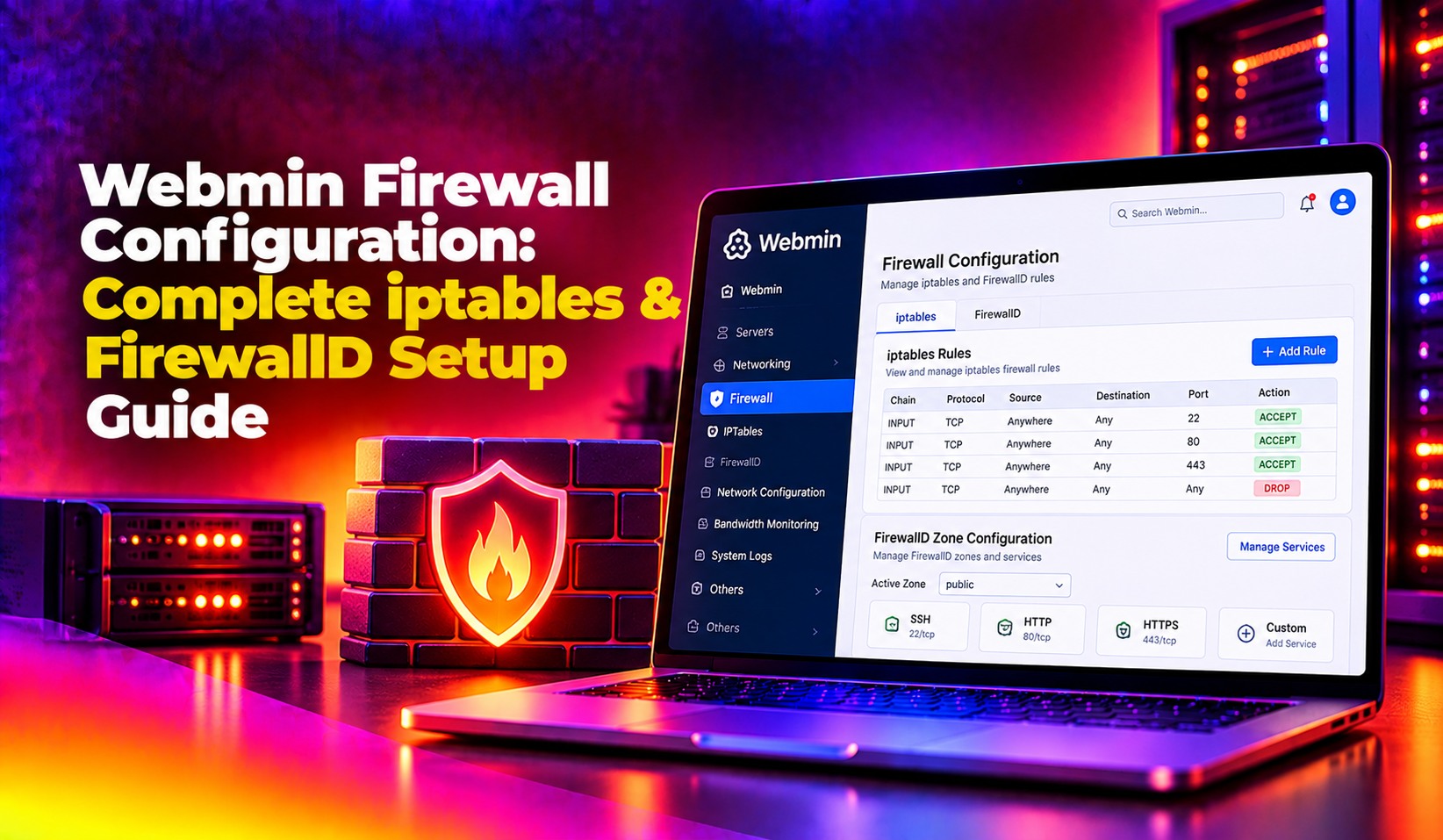
Securing a freshly provisioned Linux server is one of the first tasks any sysadmin faces, and Webmin firewall configuration is often the fastest path from a wide-open VPS to a properly locked-down host. Yet most guides either show raw CLI commands or cover only one firewall back-end — leaving you to figure out the iptables vs FirewallD split on your own. This guide covers both modules end-to-end: how to create rules, persist them across reboots, and critically, how to avoid locking yourself out of Webmin's own port 10000.
💡 None of these worked? Skip the guesswork.
Get Expert Help →iptables vs FirewallD in Webmin — Which Module Should You Use?
Webmin ships with two separate firewall modules, and choosing the wrong one for your distro will cause confusion:
- Linux Firewall (iptables) — available on all distros; works directly with the
iptableskernel netfilter interface. Best choice on Debian, Ubuntu, and older CentOS 6 systems where FirewallD is not installed. - FirewallD — the default on RHEL 7+, CentOS 7+, Fedora, AlmaLinux, and Rocky Linux. Manages zones and services as an abstraction layer over nftables/iptables.
Quick decision rule: run systemctl is-active firewalld. If the output is active, use the FirewallD module. If the command is not found or returns inactive, use the Linux Firewall (iptables) module. Never run both simultaneously — they will conflict and produce unpredictable results.
Checking Which Back-End Is Active Before You Start
Navigate to Others → Command Shell in Webmin, or SSH directly.
systemctl is-active firewalld
systemctl is-active iptablesIn Webmin, go to Networking in the left menu. You will see either Linux Firewall or FirewallD (or both). Use only the one that matches the active back-end.
Go to Networking → Linux Firewall. You will see three tables: Packet filtering (filter), Network address translation (nat), and Packet mangling (mangle). For most hosting servers you only need the filter table.
Click Show next to the INPUT chain. Existing rules are listed top-to-bottom — iptables evaluates them in order and stops at the first match. Write down the current rules before touching anything; a screenshot works fine.
Adding an Inbound Allow Rule
A rule editor form opens. The key fields are:
- Action:
ACCEPT - Protocol:
TCP - Destination port: enter the port number (e.g.
22for SSH)
Click Save rule. Repeat for every port you need to open. Rules added via the GUI take effect immediately in the running kernel — but they are not yet persistent. See the persistence section below.
Setting a Default DROP Policy
At the top of the INPUT chain section, find the Default policy dropdown and change it from ACCEPT to DROP. Do this only after you have added rules allowing SSH (port 22) and Webmin (port 10000). Setting DROP first will immediately cut your own access.
Before the DROP policy takes effect you need to allow return traffic. Add a rule at the top of INPUT with:
- Action:
ACCEPT - Connection state:
ESTABLISHED,RELATED
This ensures existing connections (including your current SSH session) are not killed when DROP kicks in.
The module opens on the Active Configuration tab. You will see the list of zones and the interface currently assigned to each zone.
Click on public. The zone detail page shows tabs for Services, Ports, Sources, and Rich Rules.
Adding a Service
FirewallD has predefined service definitions (ssh, http, https, webmin, etc.). Select a service from the dropdown and click Add to zone. This is easier and less error-prone than entering port numbers manually.
Click the Ports tab, enter the port number and protocol (e.g. 10000/tcp for Webmin), then click Add port.
Switching Between Runtime and Permanent Configuration
FirewallD has two layers: runtime (active now, lost on reload) and permanent (written to disk, survives reboots). The Webmin FirewallD module has a toggle at the top of each zone page. Always apply changes to both layers:
This workflow prevents permanent lockouts — if a rule breaks access, a simple firewall-cmd --reload (or server reboot) reverts to the last good permanent config.
At the top of the module, Webmin shows a yellow banner: "Changes made to the firewall have not been saved to the startup script." Click Save Firewall. This writes the rules to /etc/iptables/rules.v4 (Debian/Ubuntu via iptables-persistent) or /etc/sysconfig/iptables (RHEL/CentOS).
On Debian/Ubuntu, the iptables-persistent package must be installed:
apt install iptables-persistent -yOn RHEL/CentOS/AlmaLinux/Rocky:
yum install iptables-services -y
systemctl enable iptablesiptables -L INPUT -n --line-numbersIf your ACCEPT rules for SSH, HTTP, HTTPS, and Webmin appear here after a reboot, persistence is working correctly.
Persisting FirewallD Rules
FirewallD persistence is simpler because the permanent layer is baked into the design. In Webmin's FirewallD module, every change that is applied via the "Make permanent" button is written to /etc/firewalld/zones/ XML files and will survive reboots automatically. As a sanity check, run:
firewall-cmd --list-all --permanentThe output should list all your intended services and ports under the public zone.
Migrating From iptables to FirewallD Without Downtime
If you are switching a running server from iptables to FirewallD, follow this sequence to avoid downtime:
In the Webmin FirewallD module, add all required services and ports and click Make permanent. Do not apply to runtime yet.
systemctl stop iptables && systemctl disable iptables && systemctl enable firewalld && systemctl start firewalldThe gap between iptables stopping and FirewallD starting is milliseconds — acceptable for most environments. If zero-gap is required, use a maintenance window.
For complex multi-server environments or compliance-driven firewall audits, our team at CloudHouse server management handles iptables-to-FirewallD migrations with full pre/post rule-set verification and zero-downtime changeover procedures.
FAQs
Does Webmin's Linux Firewall module save rules automatically?
No. Rules added via the Webmin Linux Firewall GUI take effect immediately in the running kernel, but they are only temporary. You must click Save Firewall in the module (which calls iptables-save internally) to write them to disk and ensure they survive a reboot. On Debian/Ubuntu you also need the iptables-persistent package installed; on RHEL-family systems you need iptables-services and the iptables systemd unit enabled.
How do I avoid locking myself out of Webmin on port 10000 when setting up a firewall?
Always add an ACCEPT rule for TCP port 10000 (and port 22 for SSH) before you change the INPUT chain default policy to DROP. Work from the top of the rule list downward: first ESTABLISHED/RELATED, then your explicit ACCEPT rules, then the DROP default. If you lose access, most cloud providers offer a web-based console (e.g. AWS EC2 Session Manager, DigitalOcean console) that bypasses the firewall so you can recover.
Can I run iptables and FirewallD at the same time on the same server?
No — running both simultaneously will cause rule conflicts and unpredictable packet behaviour. FirewallD manages iptables (or nftables) chains internally; if raw iptables rules are also active they can override or undercut FirewallD's zone policies. Pick one back-end, disable the other (systemctl disable iptables or systemctl disable firewalld), and manage everything through the single active system.
What is the difference between FirewallD runtime and permanent configuration?
FirewallD's runtime configuration is the currently active state in memory — changes here take effect instantly but are lost on the next firewall-cmd --reload or reboot. The permanent configuration is written to XML files in /etc/firewalld/zones/ and is loaded on each startup or reload. In Webmin's FirewallD module, always apply changes to both layers: add the rule, verify it works, then click Make permanent.
How do I open a port in Webmin FirewallD for a custom application?
Navigate to Networking → FirewallD → public zone → Ports tab. Enter the port number and protocol (e.g. 8080/tcp) and click Add port. Apply to runtime first to test, then click Make permanent. Alternatively, if your application has a service definition file in /usr/lib/firewalld/services/, you can add it as a named service from the Services tab instead — this is cleaner and self-documenting.
Configuring a Linux server firewall through Webmin does not have to be a guessing game. By matching the right module to your distro's active back-end, building your allow-list before switching to a DROP default, and using the correct persistence mechanism for iptables or FirewallD, you can lock down a server in under 30 minutes without cutting off your own access. If you manage multiple servers or need audit-ready firewall documentation, the team at CloudHouse server management can take the operational burden off your plate.