
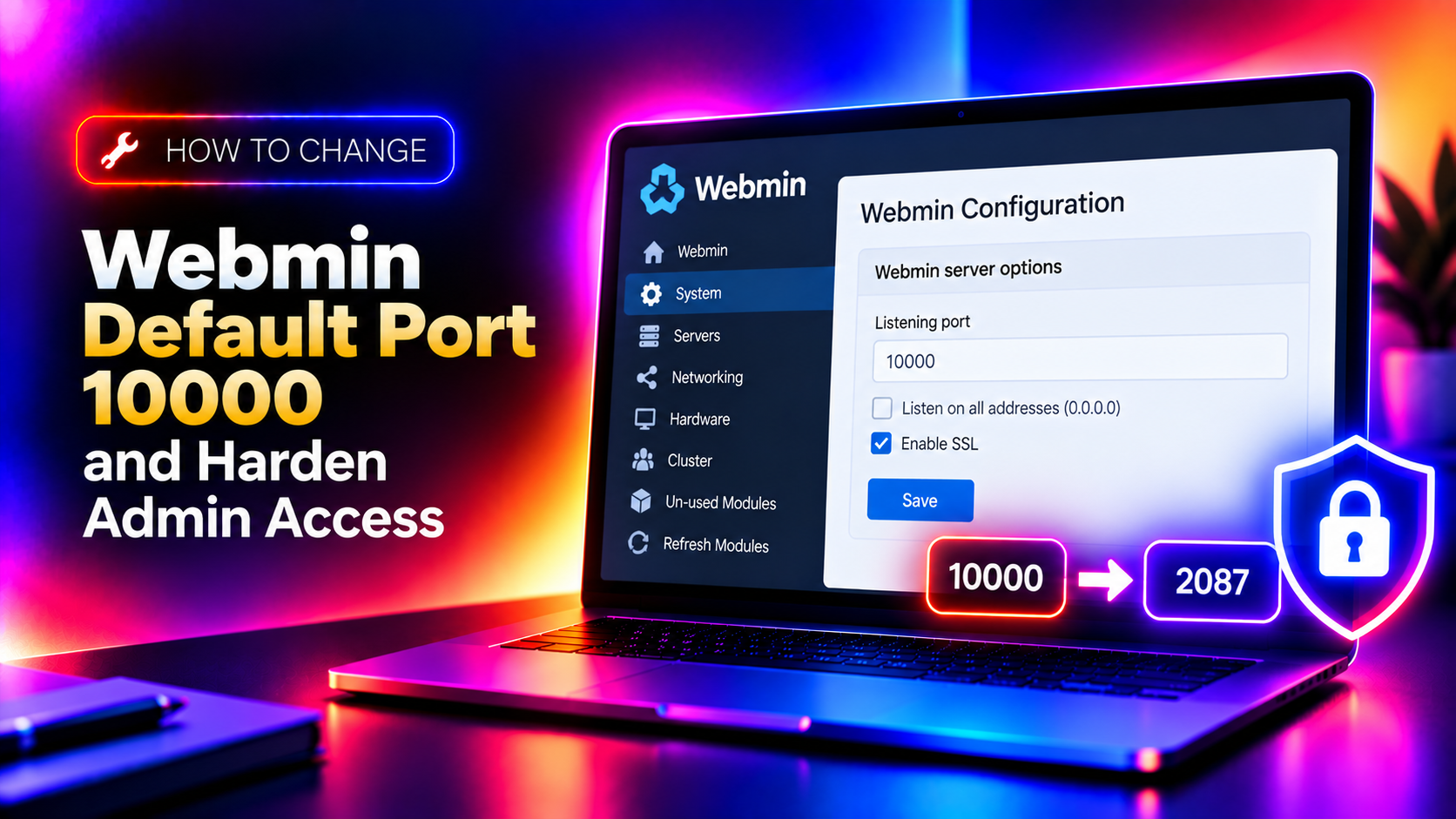
Webmin's default port is 10000. Within hours of installing Webmin on a public-facing server, automated bots start hammering that port with brute-force login attempts. Port 10000 is one of the most frequently scanned ports on the internet — it's listed in every attacker's playbook as "check for Webmin admin panel."
Changing the default port to a non-standard one, combined with IP access restrictions and rate limiting, eliminates the vast majority of automated attacks before they even reach your login form. This guide covers the complete process — port change, firewall update, IP restriction, and 2FA.
Why the Default Port 10000 Is a Security Risk
Webmin listens on port 10000 by default on every installation. This means:
- Every internet-facing server running Webmin is immediately identifiable via Shodan, Censys, or any port scanner
- Automated botnet attacks target port 10000 continuously, attempting common credential combinations
- If your Webmin version is outdated, known exploit modules exist for the default port — Metasploit includes modules specifically targeting Webmin on 10000
- Webmin's admin panel grants root-level control of the entire server — a compromised login is a total server compromise
Security by obscurity (changing the port) is not a silver bullet, but combined with IP restrictions and 2FA, it dramatically reduces your attack surface and eliminates low-effort automated attacks entirely.
💡 None of these worked? Skip the guesswork.
Get Expert Help →Step 1: Change the Webmin Port via the Admin UI
The easiest way to change the port is through Webmin's own configuration interface.
https://your-server-ip:10000
2. Go to Webmin → Webmin Configuration → Ports and Addresses
10000 to an unused high port
Choose a port between 49152 and 65535 (the private/dynamic port range). Avoid well-known ports. Examples:
52741— non-sequential, unlikely to be scanned47923— use any 5-digit number that isn't predictable
Avoid ports like 8080, 8443, 8888 — these are commonly scanned as alternatives to 80/443.
4. Click Save — Webmin will restart on the new port immediately
⚠️ Important: Before saving, make sure your firewall allows the new port (see Step 2 below). If you change the port without updating the firewall, you will lock yourself out.
Step 2: Change the Webmin Port via the Command Line
If the Webmin UI is unavailable, you can change the port directly in the configuration file:
# Edit the Webmin configuration file
nano /etc/webmin/miniserv.conf

# Find the line:
port=10000

# Change it to your chosen port, e.g.:
port=52741
Also update the SSL listener port if present:
# Find and update:
ssl=1
port=52741
Restart Webmin to apply the change:
systemctl restart webmin
# or:
/etc/init.d/webmin restart
Verify Webmin is listening on the new port:
ss -tlnp | grep 52741
# Expected: LISTEN 0 128 *:52741
Step 3: Update Your Firewall to Allow the New Port
This step must be done before restarting Webmin if you changed the port via the config file, or immediately after if you changed it via the UI.
If using UFW (Ubuntu/Debian):
# Allow the new port
ufw allow 52741/tcp comment "Webmin admin"

# Remove the old port rule
ufw delete allow 10000/tcp

# Reload UFW
ufw reload

# Verify
ufw status | grep 52741
If using firewalld (AlmaLinux/RHEL/CentOS):
# Add new port
firewall-cmd --permanent --add-port=52741/tcp
firewall-cmd --permanent --remove-port=10000/tcp
firewall-cmd --reload

# Verify
firewall-cmd --list-ports | grep 52741
If using iptables directly:
# Add new port rule
iptables -A INPUT -p tcp --dport 52741 -j ACCEPT

# Remove old port rule
iptables -D INPUT -p tcp --dport 10000 -j ACCEPT

# Save rules
iptables-save > /etc/iptables/rules.v4
Step 4: Restrict Webmin Access by IP Address
Changing the port stops bots; IP restriction ensures that even if someone discovers the new port, they can't reach the login form from an unauthorized IP.
Via Webmin UI:
Go to Webmin → Webmin Configuration → IP Access Control
Select "Only allow from listed addresses" and add:
- Your office static IP (e.g.,
203.0.113.45) - Your VPN subnet (e.g.,
10.8.0.0/24) - Your home IP (e.g.,
198.51.100.22)
Click Save. Now any IP not in the list gets a connection refused response — no login page is shown at all.
Via config file (miniserv.conf):
# Edit /etc/webmin/miniserv.conf
# Add allowed IPs (space-separated):
allow=203.0.113.45 198.51.100.22 10.8.0.0/24
Restart Webmin after editing: systemctl restart webmin
Step 5: Restrict the Old Port 10000 at the Firewall Level
Even after changing Webmin's port, explicitly block port 10000 to prevent any other service from accidentally starting on it:
# UFW
ufw deny 10000/tcp

# firewalld
firewall-cmd --permanent --add-rich-rule='rule port port="10000" protocol="tcp" reject'
firewall-cmd --reload
Step 6: Enable Two-Factor Authentication (2FA)
Even with a changed port and IP restrictions, enable 2FA as a defense-in-depth layer. If your allowed IP gets compromised (VPN credential theft, shared network), 2FA is the last line of defense.
Go to Webmin → Webmin Configuration → Two-Factor Authentication
Select Google Authenticator and click Save. Users will be prompted to scan a QR code on next login. For the root account:
# Set up 2FA for root
google-authenticator
Follow the prompts to generate the TOTP secret and save the emergency recovery codes.
Step 7: Enable Login Rate Limiting with Fail2Ban
For any IP that does reach the login page (e.g., an allowed VPN IP being abused), Fail2Ban can block repeated failed login attempts:
# Create a Webmin jail in Fail2Ban
cat > /etc/fail2ban/jail.d/webmin.conf << 'EOF'
[webmin-auth]
enabled  = true
port     = 52741
filter   = webmin-auth
logpath  = /var/webmin/miniserv.log
maxretry = 5
bantime  = 3600
findtime = 600
EOF

# Restart Fail2Ban
systemctl restart fail2ban

# Verify jail is active
fail2ban-client status webmin-auth
The filter webmin-auth is included in modern Fail2Ban installations and matches Webmin's authentication failure log entries.
Verify Your Webmin Is Accessible on the New Port
After all changes, verify access from your allowed IP:
# Test connectivity to the new port
curl -k https://your-server-ip:52741/ -I
# Expected: HTTP/1.1 200 OK (or redirect to login)

# Verify port 10000 is blocked
curl -k https://your-server-ip:10000/ --connect-timeout 5
# Expected: curl: (7) Failed to connect — port is closed
Try accessing from a non-allowed IP to confirm IP restriction is working — you should get "connection refused" rather than a login page.
Security Hardening Summary Checklist
- ✅ Changed Webmin port from 10000 to a non-standard high port
- ✅ Updated firewall to allow new port and block port 10000
- ✅ Configured IP access control to restrict to trusted IPs only
- ✅ Enabled Two-Factor Authentication for all admin accounts
- ✅ Configured Fail2Ban to rate-limit login attempts
- ✅ Verified access from allowed IP and confirmed blocked access from others
Managing Webmin security correctly requires ongoing attention — keeping Webmin updated, rotating allowed IPs when team members change, and monitoring the Fail2Ban log for trends. If you're running multiple Webmin servers or want proactive security monitoring included with your server management, CloudHouse Technologies covers Webmin hardening, firewall configuration, and intrusion monitoring as part of our managed server plans.