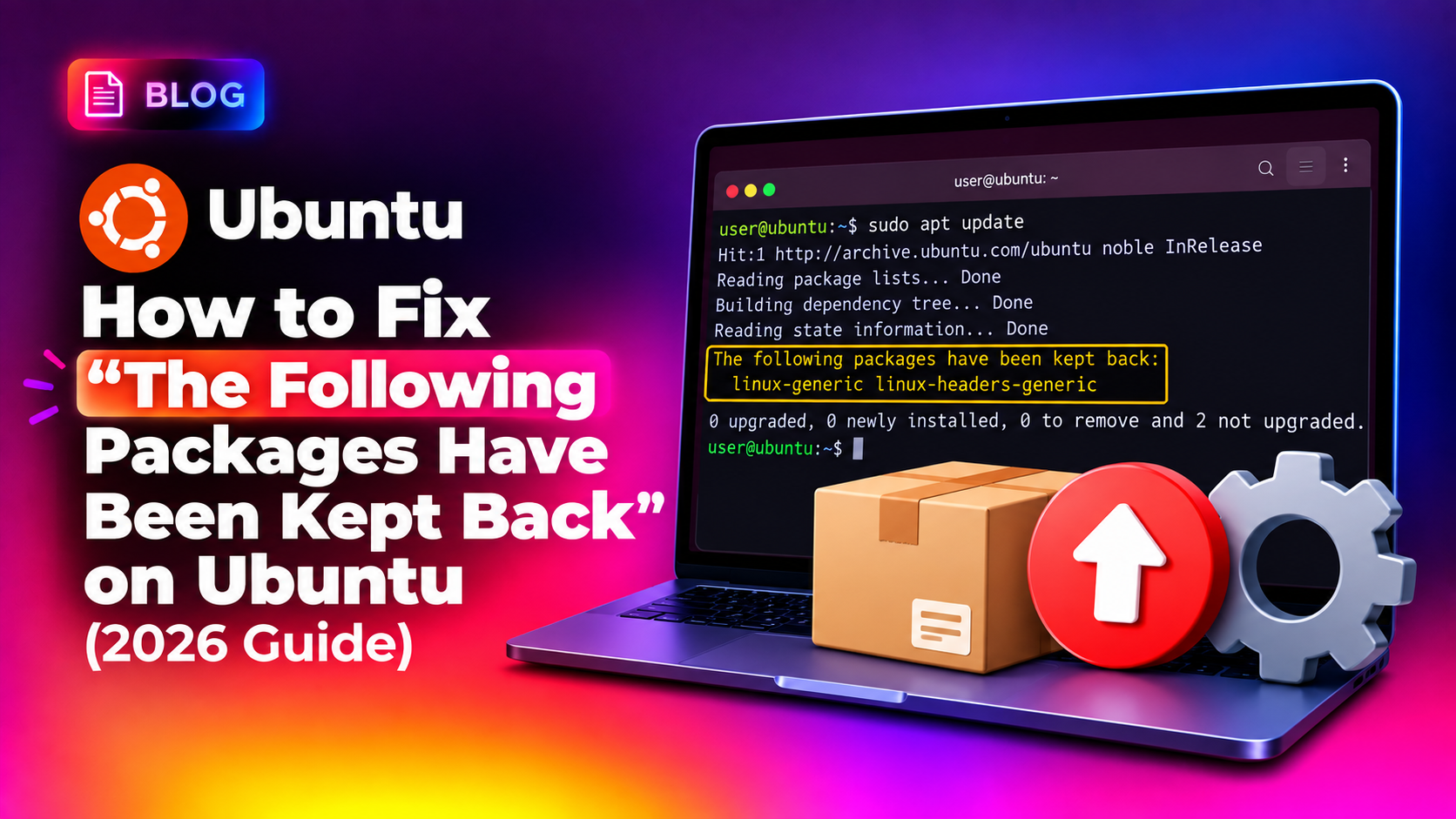
If you run sudo apt update & sudo apt upgrade on Ubuntu Desktop and see a message like "The following packages have been kept back" followed by a list of package names, your system isn't broken — it's a deliberate safety mechanism called phased updates. This guide explains exactly why it happens on Ubuntu 24.04 and 26.04, and gives you four real ways to fix or work around it depending on whether you want the update now or you're happy to wait.
What Does "Packages Have Been Kept Back" Actually Mean?
Since Ubuntu 20.04, Canonical rolls out most package updates gradually across the entire user base instead of pushing them to every machine at once. This is called update phasing. Each update is assigned a percentage rollout — say 10% on day one, rising to 100% over a few days — and apt calculates, using your machine's unique but anonymous phasing hash, whether your system falls inside the currently released percentage. If it doesn't, apt deliberately excludes ("keeps back") that package from the upgrade until your turn comes up.
You'll typically see output like this after sudo apt upgrade:
Reading package lists... Done
Building dependency tree... Done
Reading state information... Done
Calculating upgrade... Done
The following packages have been kept back:
  firefox libreoffice-core linux-generic snapd
0 upgraded, 0 newly installed, 4 to remove and 0 not upgraded.
This is not an error. It means Canonical is still validating the update for stability before releasing it to 100% of machines. Phasing exists because a bad kernel or GNOME Shell update pushed to millions of desktops at once can cause mass breakage — phasing lets Canonical pull a broken update after it only affects a small percentage of users.
Why Packages Get Held Back Even After Multiple "apt upgrade" Runs
A common source of confusion is running apt upgrade several times a day and seeing the same packages held back every time. This happens because:
- The phasing percentage for that specific package hasn't reached your machine's hash bucket yet — it can take anywhere from a few hours to several days.
- Your machine ID (stored in
/etc/machine-id) determines a fixed, pseudo-random position in the rollout, so you can't "get lucky" by refreshing repeatedly. - Some packages, especially
snapd, the kernel metapackage, and desktop environment components, tend to have longer phased rollouts than smaller utility packages. - Ubuntu Pro / ESM machines and machines with
Update-Manager::Never-Include-Phased-Updatesalready set behave differently from stock desktop installs.
If you genuinely need the update — for example a security patch or a specific bug fix mentioned in a changelog — you don't have to wait for phasing to catch up. Below are the real fix methods, from safest to most aggressive.
💡 None of these worked? Skip the guesswork.
Get Expert Help →Method 1: Wait for the Phase (Safest, Recommended for Most Users)
The safest and officially recommended option is to simply wait. Run sudo apt update && sudo apt list --upgradable again in 24-48 hours. Canonical typically completes a full rollout within a week, and most desktop packages clear phasing within 2-3 days of the initial release.
You can inspect exactly why a package is being held using apt-get in verbose mode:
sudo apt-get upgrade -V
apt-cache policy <package-name>
This shows the candidate version, the installed version, and which repository the pending update is coming from — useful for confirming it's a normal phased rollout and not a broken dependency chain.
sudo apt full-upgrade -sThis shows you everything that would be installed, upgraded, or removed without actually changing anything. Review the output carefully — full-upgrade (previously dist-upgrade) will resolve version conflicts even if it means removing a package, which is more aggressive than a regular upgrade.
sudo apt full-upgradeNote that full-upgrade still respects phasing for most packages unless you've disabled it — it mainly helps when packages are held back due to changed dependencies rather than phasing, so check the dry-run output to know which case you're in.
Method 4: Permanently Disable Phased Updates (Advanced Users, Servers, Fleets)
If you manage multiple machines through a support contract and need predictable, immediate patching — for example enterprise desktops on a change-management schedule — you can disable phasing system-wide. Create a new apt configuration file:
sudo nano /etc/apt/apt.conf.d/99-no-phased-updatesAdd this line and save:
APT::Get::Never-Include-Phased-Updates "true";From now on, apt upgrade and apt full-upgrade will install every available update immediately, regardless of rollout percentage. This is appropriate for staging/test machines or environments where you have your own QA process before pushing updates to production desktops — but on a personal daily-driver laptop it removes a real safety net, so weigh the trade-off. If you only want this behaviour once rather than permanently, you can pass the same flag inline instead of creating a file:
sudo apt-get upgrade -o APT::Get::Never-Include-Phased-Updates=trueHow to Tell the Difference Between Phasing and a Real Broken-Dependency Problem
Phasing and genuinely broken packages produce similar-looking messages, so here's how to distinguish them:
- Phasing — the message says "kept back" with a clean "0 upgraded, 0 newly installed, 0 to remove" summary and no errors. Nothing is actually broken; apt is choosing not to touch those packages yet.
- Broken dependencies — you'll see messages like
unmet dependencies,held broken packages, or a request to runapt --fix-broken install. This indicates a real conflict, often from a third-party PPA, and needs different troubleshooting.
If you're unsure which situation you're in, or an update leaves your desktop unstable after forcing it through, that's exactly the kind of one-off issue where getting a second pair of eyes is faster than trial-and-error — CloudHouse Technologies' pay-per-ticket IT support lets you get a Linux specialist to remotely diagnose and fix a stuck update without committing to a monthly support plan.
Prevention: Keeping Your Ubuntu Update Cycle Predictable
- Run
sudo apt update && sudo apt upgradeat least twice a week rather than once a month, so held-back packages have less time to accumulate into a large batch. - Avoid disabling phasing on a personal laptop unless you genuinely understand the risk — phasing exists specifically to protect you from bad kernel and driver releases.
- Before force-installing a held-back package, check its changelog with
apt changelog <package-name>to see what actually changed. - Keep a Timeshift or equivalent system snapshot before forcing any full-upgrade, especially on machines with NVIDIA drivers or custom kernels.
- If you're managing several Ubuntu desktops for a small business, standardise on either "always wait for phasing" or "always force critical security patches" so behaviour is consistent across the fleet.
In most cases, "packages have been kept back" is simply Ubuntu working as designed — protecting your desktop from an update that hasn't finished its staged rollout. Wait a day or two for routine updates, or name the package explicitly with apt install <package> when you need it immediately, and reserve the permanent phasing override for machines where you control your own testing process.