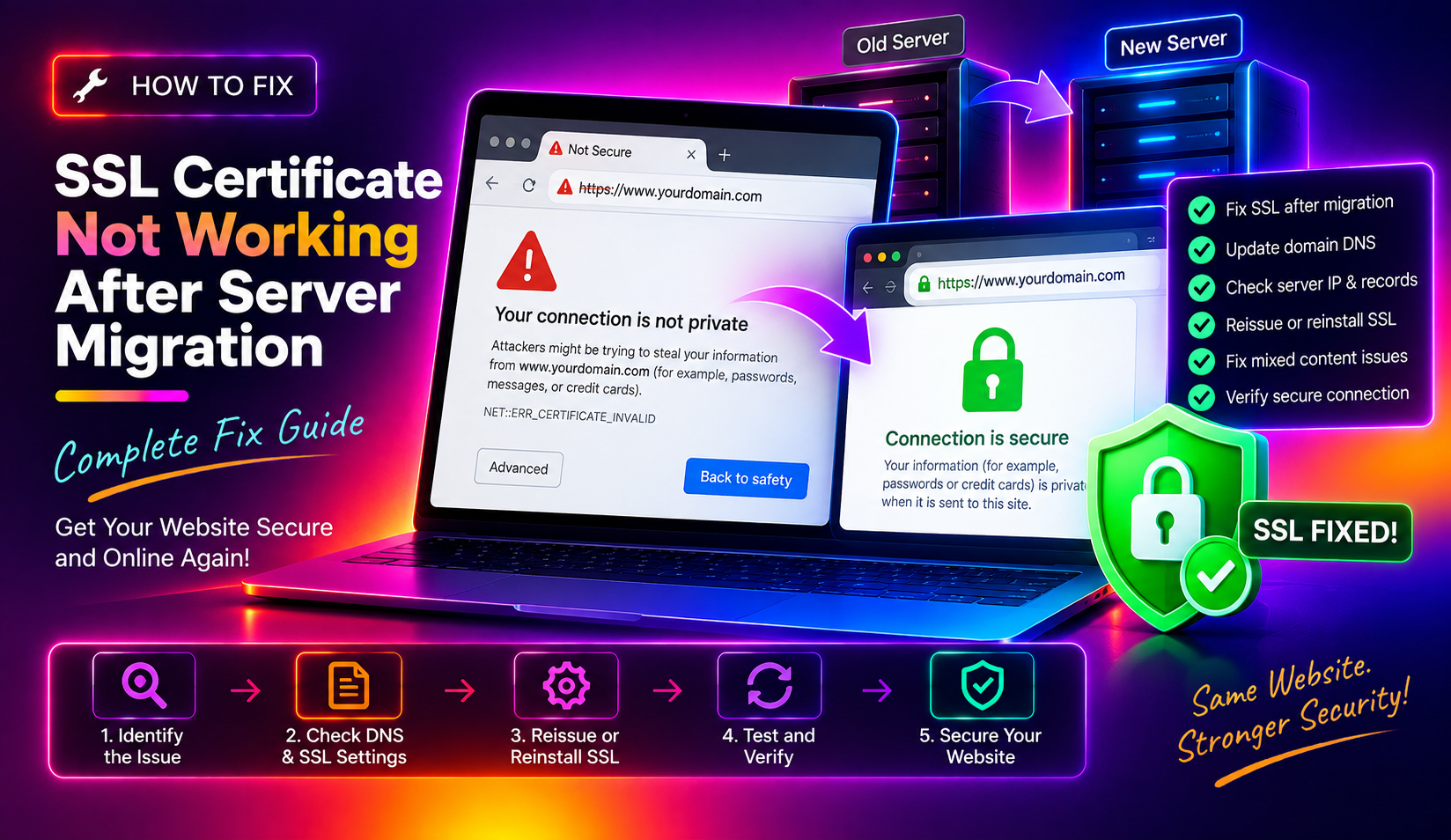
Moving a website to a new server should be straightforward — until you discover that HTTPS stops working the moment DNS flips. Browsers throw ERR_CERT_COMMON_NAME_INVALID, NET::ERR_CERT_AUTHORITY_INVALID, or the dreaded padlock turns red. This guide covers every root cause behind SSL certificates not working after server migration and gives you the exact commands to diagnose and fix each one.
💡 None of these worked? Skip the guesswork.
Get Expert Help →1. Diagnose the Exact SSL Error First
Before touching any configuration, identify which specific SSL error you are dealing with. The error code tells you exactly what is broken.
openssl s_client -connect yourdomain.com:443 -servername yourdomain.com 2>&1 | head -50Look for these key lines in the output:
verify error:num=20:unable to get local issuer certificate— missing intermediate certificate in the chainverify error:num=21:unable to verify the first certificate— incomplete certificate chainSSL_ERROR_RX_RECORD_TOO_LONG— web server is serving HTTP on port 443 (SSL not configured)certificate has expired— the cert on the new server is outdated
openssl s_client -showcerts -connect yourdomain.com:443 -servername yourdomain.com 2>/dev/null | openssl x509 -noout -text | grep -E "Subject:|Issuer:|Not After"Confirm the Subject matches your domain, the Issuer is your CA, and the expiry date is in the future.
ss -tlnp | grep 443
# or:
netstat -tlnp | grep 443
If nothing is listening on 443, your web server's SSL VirtualHost is not configured or the service has not been restarted after migration.
For cPanel-managed certificates:
ls /etc/ssl/certs/
ls /var/cpanel/ssl/installed/certs/
ls /etc/letsencrypt/live/yourdomain.com/
For Apache:
grep -r "SSLCertificateFile\|SSLCertificateKeyFile\|SSLCACertificateFile" /etc/apache2/ /etc/httpd/ 2>/dev/nullFor Nginx:
grep -r "ssl_certificate\|ssl_certificate_key" /etc/nginx/ 2>/dev/nullscp -r /etc/letsencrypt/live/yourdomain.com/ root@NEW_SERVER_IP:/etc/letsencrypt/live/
scp /etc/letsencrypt/renewal/yourdomain.com.conf root@NEW_SERVER_IP:/etc/letsencrypt/renewal/You need four files: the certificate (cert.pem), the private key (privkey.pem), the full chain (fullchain.pem), and the certificate chain (chain.pem).
chmod 644 /etc/letsencrypt/live/yourdomain.com/cert.pem
chmod 644 /etc/letsencrypt/live/yourdomain.com/fullchain.pem
chmod 600 /etc/letsencrypt/live/yourdomain.com/privkey.pem
chown -R root:root /etc/letsencrypt/live/yourdomain.com/# Get the modulus of the certificate
openssl x509 -noout -modulus -in /path/to/cert.pem | md5sum
# Get the modulus of the private key
openssl rsa -noout -modulus -in /path/to/privkey.pem | md5sumBoth MD5 hashes must match exactly. If they differ, you have the wrong private key for this certificate.
Private keys generated on the old server cannot be regenerated — they are unique. If you did not transfer the private key, you must reissue a new certificate after DNS has propagated to the new server:
certbot certonly --webroot -w /var/www/html -d yourdomain.com -d www.yourdomain.comGo to WHM > SSL/TLS > Install an SSL Certificate on a Domain. Paste the certificate content and private key content separately, then click Install.
openssl verify -CAfile /etc/ssl/certs/ca-certificates.crt -untrusted /path/to/chain.pem /path/to/cert.pemA successful result shows cert.pem: OK. Any other output indicates a broken chain.
The fullchain file must contain the certificate first, then the intermediate certificates in order:
cat /path/to/cert.pem /path/to/chain.pem > /path/to/fullchain.pemAlways use fullchain.pem, never cert.pem alone:
ssl_certificate /etc/letsencrypt/live/yourdomain.com/fullchain.pem;
ssl_certificate_key /etc/letsencrypt/live/yourdomain.com/privkey.pem;SSLCertificateFile /etc/letsencrypt/live/yourdomain.com/cert.pem
SSLCertificateKeyFile /etc/letsencrypt/live/yourdomain.com/privkey.pem
SSLCertificateChainFile /etc/letsencrypt/live/yourdomain.com/chain.pemFor Apache 2.4.8+, you can use fullchain.pem in SSLCertificateFile and omit SSLCertificateChainFile.
# Nginx
nginx -t

# Apache
apache2ctl configtest
# or:
apachectl configtest
Never restart without testing first — a configuration error will take your site offline.
# Nginx
systemctl restart nginx

# Apache
systemctl restart apache2
# or:
systemctl restart httpdRun a final check using OpenSSL to confirm the complete chain is presented correctly:
openssl s_client -connect yourdomain.com:443 -servername yourdomain.com 2>&1 | grep -E "Verify return code|depth|subject"A clean output should show Verify return code: 0 (ok).
Log in to Cloudflare > your domain > SSL/TLS > Overview. The recommended setting after migration is Full (Strict) — this verifies the certificate on your origin server is valid.
If setting to Flexible resolves the HTTPS error, the problem is with the origin certificate, not Cloudflare configuration. Go back and fix the origin certificate using the steps above, then switch back to Full (Strict).
Test your origin server's SSL directly by temporarily setting DNS to grey-cloud (DNS-only) mode, which bypasses Cloudflare entirely during debugging.
For managed server migrations where SSL, DNS, and CDN settings all need to be coordinated, CloudHouse's server migration team handles the full transition — including SSL re-installation and validation — so HTTPS never drops during your move.
dig +short yourdomain.com A
# Should return the new server's IP addresscertbot certonly --standalone -d yourdomain.com -d www.yourdomain.comOr if your web server is running:
certbot --nginx -d yourdomain.com -d www.yourdomain.com
# or for Apache:
certbot --apache -d yourdomain.com -d www.yourdomain.comcertbot renew --dry-runConfirm the renewal cron job is installed:
crontab -l | grep certbot
systemctl status certbot.timer