
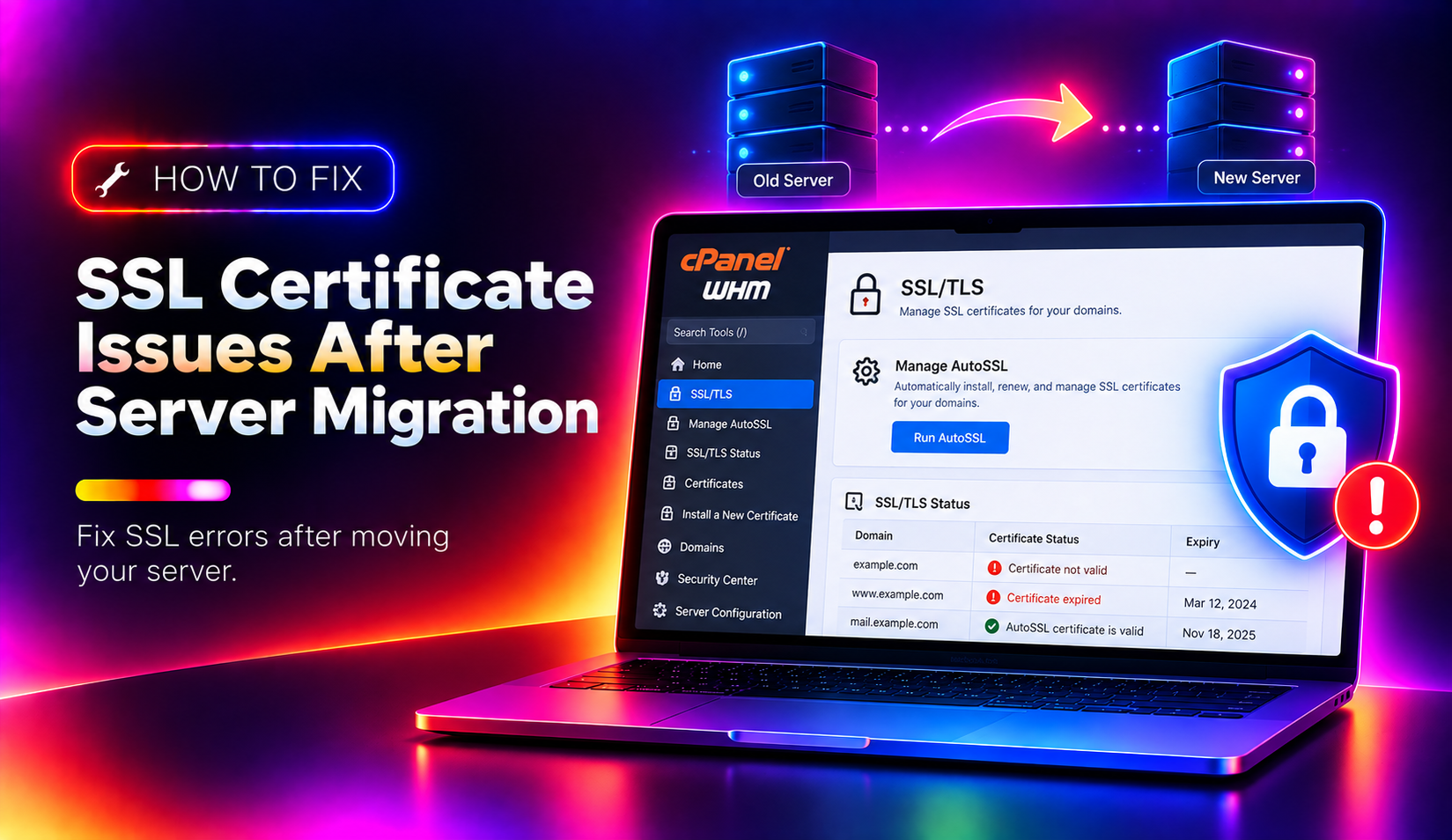
Moving a website to a new server is straightforward until SSL breaks. Visitors suddenly see "Your connection is not private" warnings, browsers flag the site as insecure, and clients start calling. SSL certificate problems are the most common post-migration issue — and they are almost always fixable in under an hour once you know the root cause. This guide covers every SSL failure mode sysadmins encounter during and after server migrations, with exact diagnostic steps and fixes for each.
Why SSL Certificates Break During Server Migrations
SSL certificates are bound to a server, a domain, and an IP address. A migration disrupts all three. The five most common root causes are:
- Certificate not transferred. The private key, certificate file, and certificate chain were not copied to the new server, or were copied to the wrong path.
- DNS still pointing to the old server. The certificate is correctly installed on the new server, but DNS hasn't propagated yet. Browsers are still talking to the old server, which either has an expired certificate or no certificate at all.
- Mismatched domain name. If the server hostname or domain changed during migration, Let's Encrypt certificates issued for the old domain are invalid on the new one.
- Incomplete certificate chain. The intermediate CA bundle was not installed, leaving the certificate chain broken. Browsers that don't cache the intermediate CA will show an error.
- CDN or proxy not updated. Cloudflare, Sucuri, or another reverse proxy still has the old server's IP or certificate cached.
Diagnosing SSL Certificate Problems Post-Migration
Before applying any fix, identify exactly which failure you are dealing with. These commands give you the full picture without needing a browser.
Check the certificate the server is actually serving
# Replace example.com with the domain
openssl s_client -connect example.com:443 -servername example.com 2>/dev/null | openssl x509 -noout -text | grep -E "Subject:|Issuer:|Not After"
This shows you which certificate is being returned, who issued it, and when it expires. If the subject doesn't match the domain, you have a wrong-certificate-installed problem.
Check whether DNS has propagated
# Check current DNS resolution
dig +short example.com A

# Check against an external resolver to bypass local cache
dig @8.8.8.8 +short example.com A

# Compare to your new server's IP
curl -s ifconfig.me
If dig @8.8.8.8 returns the old server's IP, DNS hasn't propagated. Wait — or force the check by adding the new server's IP to your local /etc/hosts file temporarily.
Check the certificate chain
openssl s_client -connect example.com:443 -servername example.com 2>/dev/null | grep -E "verify|Verify"A clean chain shows Verify return code: 0 (ok). Any other return code indicates a chain issue — typically a missing intermediate certificate.
Use online SSL checkers for a full chain view
SSL Labs (ssllabs.com/ssltest) and Why No Padlock (whynopadlock.com) show the full certificate chain, identify missing intermediates, and flag mixed content issues that CLI tools miss.
💡 None of these worked? Skip the guesswork.
Get Expert Help →Fix 1: Verify Certificate Installation on the New Server
The most common cause of SSL failures after migration is simply that the certificate files weren't transferred correctly.
# cPanel servers — certificates are stored per-domain
ls /etc/apache2/conf.d/ssl.conf
# or check cPanel certificate storage
ls /etc/httpd/conf/ssl.crt/
ls /etc/httpd/conf/ssl.key/

# For Let's Encrypt
ls /etc/letsencrypt/live/example.com/In cPanel/WHM on the new server, navigate to WHM > SSL/TLS > Manage SSL Hosts. Confirm the domain is listed and the certificate is current.
In Plesk: Domains > example.com > SSL/TLS Certificates.
In DirectAdmin: Admin Panel > SSL Certificates.
If the certificate wasn't transferred or the private key is missing, the fastest resolution is to reissue directly from the new server. Both Let's Encrypt and your control panel need DNS to resolve to the new server first.
# Certbot (Nginx)
certbot --nginx -d example.com -d www.example.com

# Certbot (Apache)
certbot --apache -d example.com -d www.example.com

# WHM AutoSSL — force run for a specific domain
/usr/local/cpanel/bin/autossl_check --user=cpanelusername2. Lower the TTL before the next migration to 60–300 seconds. This is a future-proofing step — lower TTL means faster propagation when you cut over.
3. Force a local DNS test without waiting for full propagation by adding an entry to /etc/hosts:
echo "NEW_SERVER_IP example.com www.example.com" >> /etc/hostsTest the site locally using this override. Remove the entry when propagation is complete.
4. Check propagation globally using dnschecker.org. DNS typically propagates within 1–4 hours for most resolvers after you update the A record.
Fix 3: Repair a Broken Certificate Chain
A broken intermediate certificate chain is the most confusing SSL error because the certificate itself is valid — just the chain is incomplete. Chrome and Firefox may not show an error (they cache intermediate CAs), but other browsers, API clients, and monitoring tools will.
1. Download the correct intermediate CA bundle from your certificate authority's website. For Let's Encrypt, the chain is included in fullchain.pem. For commercial CAs, look for the CA Bundle file in your certificate issuance email.
2. Install the bundle in Apache.
In your Apache SSL virtual host:
SSLCertificateChainFile /path/to/ca_bundle.crtThen restart Apache:
systemctl restart httpd    # CentOS/RHEL
systemctl restart apache2 # Ubuntu/Debiancat your_domain.crt your_ca_bundle.crt > combined.crtThen update ssl_certificate in your Nginx config to point to combined.crt.
Fix 4: Clear CDN and Proxy Cache After Migration
If your domain uses Cloudflare, Sucuri, or a similar reverse proxy, the CDN may be caching SSL settings from the old server.
For Cloudflare:
- Log in to the Cloudflare dashboard and navigate to SSL/TLS > Edge Certificates.
- Confirm the SSL/TLS mode is set correctly — Full (Strict) requires a valid certificate on the origin server. If your new server doesn't have a valid certificate yet, temporarily switch to Full until the certificate is in place.
- Clear the Cloudflare cache: Caching > Configuration > Purge Everything.
- If you changed the origin IP, update it under DNS > A Record.
For other CDNs:
- Locate the origin server setting and update it to the new server's IP.
- Purge the edge cache from the CDN dashboard.
- Verify the CDN's SSL mode — most CDNs require a valid origin certificate when running in SSL pass-through mode.
Fix 5: Handle Mixed Content Warnings After Migration
After migration, your SSL padlock may be broken not because the certificate is wrong but because the page contains HTTP resources — images, scripts, or stylesheets referenced with http:// instead of https://.
Identify mixed content using browser developer tools: Open the browser console (F12) and look for "Mixed Content" warnings. Each warning includes the exact URL of the non-HTTPS resource.
For WordPress sites: Install the Better Search Replace plugin and run a search-replace from your old domain's HTTP URL to HTTPS. Also update siteurl and home in wp-config.php or via WP-CLI:
wp search-replace 'http://example.com' 'https://example.com' --skip-columns=guid
wp option update siteurl 'https://example.com'
wp option update home 'https://example.com'
For non-WordPress sites: Run a database search for http://yourdomain.com and update all references to https://. Check your application's config files for hardcoded HTTP URLs.
Testing SSL Validation Before Cutting Over Clients
Always validate SSL on the new server before changing DNS for client traffic. This pre-cutover checklist prevents downtime:
- Add the new server's IP to your local
/etc/hostsand test HTTPS in a browser. - Run
openssl s_client -connect newserver_ip:443 -servername example.comand verify the chain. - Check the SSL Labs grade via the API:
curl "https://api.ssllabs.com/api/v3/analyze?host=example.com" - Test HTTP-to-HTTPS redirect:
curl -I http://example.comshould return 301 pointing tohttps://. - Confirm the certificate covers all required subdomains (www, mail, etc.).
SSL certificate failures after server migration are fixable in almost every case. The key is diagnosing the specific failure mode before applying a fix — applying the wrong fix (such as reissuing a certificate when the real problem is DNS propagation) wastes time. If your migration involves dozens of domains or a complex CDN setup, the team at CloudHouse Technologies provides managed server migration services with SSL validation included at every stage.