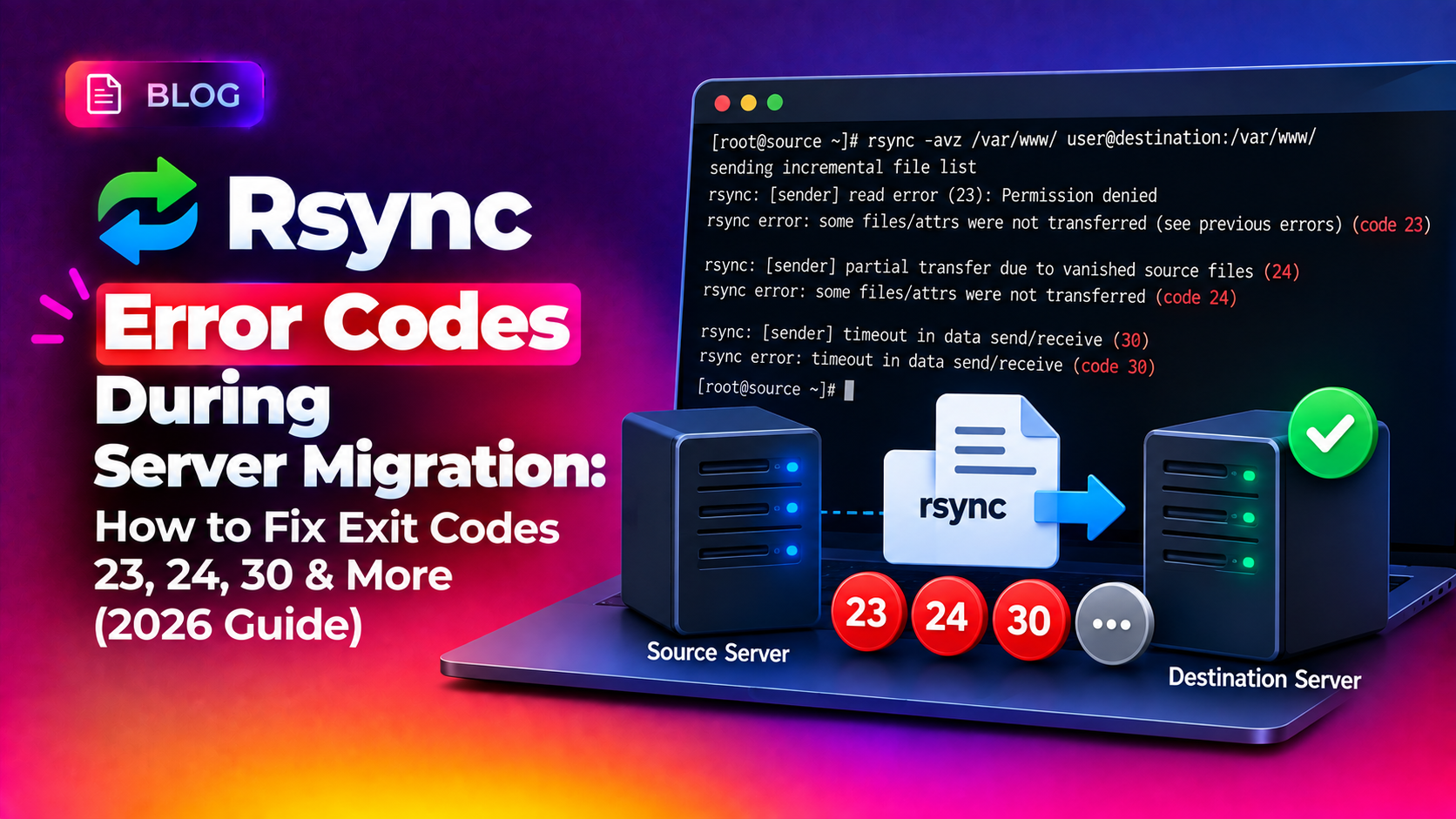
Server migrations rarely fail all at once. More often, they fail one file at a time — buried in a wall of rsync output that most admins scroll past until the transfer stops dead or, worse, completes "successfully" while quietly leaving files behind. If you have ever watched a migration job exit with a message like rsync error: some files/attrs were not transferred (code 23) or rsync error: timeout in data send/receive (code 30), you already know how much anxiety a three-digit number can cause when your production site is the one hanging in the balance.
This guide breaks down the rsync exit codes you are most likely to hit during a real server-to-server migration, explains what each one actually means (not just the generic man-page description), and walks through the exact diagnostic commands and fixes our team uses when a client migration stalls. We will also cover how to tell the difference between a code that means "ignore it, some ephemeral files vanished" and a code that means "stop right now, you are about to go live with a broken dataset."
Why Rsync Errors During Migration Are So Common
Rsync is the backbone of most manual and semi-automated server migrations — it powers cPanel's transfer tools, Plesk Migrator, and countless custom migration scripts because it is efficient at moving large volumes of data incrementally. But that efficiency comes with a tradeoff: rsync is extremely sensitive to the environment it runs in. Unlike a simple cp or scp, rsync performs checksums, preserves permissions and extended attributes, negotiates a protocol version between source and destination, and keeps a persistent connection open for the entire duration of the transfer.
Any of the following can interrupt that process:
- SSH connections that drop due to firewall idle-timeouts or unstable network links between data centers
- Insufficient disk space on the destination server mid-transfer
- Mismatched rsync versions between source and destination triggering protocol errors
- File permission or ownership conflicts, especially when migrating between different control panels
- Files that are actively being written to (log files, active database files, session data) during the sync window
- Resource limits — low RAM or CPU throttling on the source server causing rsync to hang on large files
Understanding which category your error falls into is the difference between a five-minute fix and hours of re-running a multi-terabyte transfer from scratch.
Decoding the Rsync Exit Codes You'll Actually See
Rsync has more than 20 defined exit codes, but in a typical hosting-to-hosting or datacenter migration, the vast majority of failures cluster around six of them. Here is what they mean in plain language, not the abbreviated man-page text.
Exit Code 23 — Partial Transfer Due to Error
This is the single most common code you will see in a migration log, and it is also the most misunderstood. Code 23 does not tell you what went wrong — it is a summary code meaning "at least one file or attribute could not be transferred." The real cause is usually a few lines above it in the log: permission denied, a broken symlink, an ACL mismatch, or a file that vanished mid-scan.
rsync: [sender] link_stat "/home/user/public_html/wp-content/cache/tmp.lock" failed: Permission denied (13)
rsync error: some files/attrs were not transferred (code 23) at main.c(1338) [sender=3.2.7]
Fix: Re-run with -v --progress to identify the exact file, then check ownership and permissions on the source:
rsync -avz --progress -e ssh /home/user/public_html/ root@destination:/home/user/public_html/
chmod -R u+rX /home/user/public_html
chown -R user:user /home/user/public_html
If the offending files are genuinely disposable (cache directories, temp lock files, session data), it is often faster and safer to exclude them entirely:
rsync -avz --exclude='wp-content/cache/*' --exclude='*.lock' -e ssh /home/user/public_html/ root@destination:/home/user/public_html/Exit Code 24 — Partial Transfer Due to Vanished Source Files
Code 24 is almost always benign on a live server migration. It means rsync built its file list, then found that one or more files disappeared before it could copy them — typically temporary files, PHP session files, or log rotation artifacts that were deleted by the OS during the scan window.
file has vanished: "/home/user/tmp/sess_8f3a2b91c7"
rsync error: some files vanished before they could be transferred (code 24)
Fix: In most cases you can safely ignore code 24 and re-run rsync once more to confirm nothing critical is missing — critical files (databases, code, static assets) are rarely mid-write during a scheduled migration window. To suppress the noise on subsequent runs, add the flag:
rsync -avz --ignore-missing-args -e ssh /source/path/ root@destination:/dest/path/Exit Code 30 — Timeout in Data Send/Receive
This is the code that causes the most panic because it usually appears hours into a large transfer. It means the sender or receiver went silent for longer than the configured timeout — often because of network congestion, an unstable VPN tunnel between the old and new data center, or the source server becoming unresponsive under load.
rsync error: timeout in data send/receive (code 30) at io.c(195) [sender=3.1.2]Fix: Disable the timeout entirely for long-running migrations and add resilience flags so an interrupted transfer can resume instead of restarting:
rsync -avz --partial --partial-dir=.rsync-partial --timeout=0 -e "ssh -o ServerAliveInterval=30" /source/path/ root@destination:/dest/path/The --partial flag is critical here — without it, an interrupted transfer discards the partially-copied file and you start that file from zero on retry, which is brutal on a 50 GB database dump.
Exit Code 12 — Error in Rsync Protocol Data Stream
Code 12 typically means the SSH connection closed unexpectedly, or you are running mismatched rsync versions between source and destination (common when migrating from an older CentOS 6/7 box to a modern AlmaLinux or Ubuntu server).
rsync: connection unexpectedly closed (1546854 bytes received so far) [receiver]
rsync error: error in rsync protocol data stream (code 12) at io.c(228) [receiver=3.2.3]
Fix: Confirm both ends are running compatible rsync versions:
rsync --versionIf versions differ significantly, force protocol compatibility mode or upgrade the older server's rsync package. Also check for SSH keepalive settings and any intermediate proxy or load balancer that might be silently dropping long-lived connections after a fixed idle period.
Exit Code 11 and Code 10 — File I/O and Socket Errors
Code 11 ("error in file IO") is most often disk-space exhaustion on the destination or a missing parent directory that rsync cannot create because of a permissions restriction. Code 10 ("error in socket IO") points to a network-level failure — a firewall rule blocking the transfer mid-stream, or the destination server's SSH daemon restarting.
df -h                     # check destination disk space
mkdir -p /home/user/public_html   # ensure destination path exists
ss -tn state established '( dport = :22 )'  # check for dropped SSH sessions
Fix: Free up disk space, pre-create destination directory structures before the transfer starts, and check both servers' firewall/security group rules to ensure nothing is closing idle connections during large file transfers.
💡 None of these worked? Skip the guesswork.
Get Expert Help →A Migration Checklist That Prevents Most of These Errors Before They Happen
Instead of firefighting error codes after the fact, most of these issues can be avoided with a short pre-migration checklist:
1. Match rsync versions on both ends. Run rsync --version on source and destination before scheduling the migration window, and upgrade the older one if there is more than one major version gap.
2. Confirm free disk space with headroom. Destination disk space should exceed the source dataset size by at least 20% to account for temporary files, database dump overhead, and filesystem journaling.
3. Use resilient flags from the start. Always include --partial --partial-dir --timeout=0 and a keepalive SSH option on any transfer expected to run longer than 10-15 minutes.
4. Exclude volatile paths. Cache directories, session storage, and log files change constantly and are safe to exclude from the initial bulk sync, then caught in a final delta pass right before cutover.
5. Run a dry-run first. Adding -n (dry-run) alongside -av lets you see exactly what rsync intends to transfer, catching permission and path issues before they interrupt a multi-hour live transfer.
When to Stop and Call In a Migration Specialist
Most rsync error codes are recoverable with the fixes above. But if you are migrating a production database-backed application under time pressure — especially with a hard DNS cutover deadline — repeated rsync failures are a signal that the underlying infrastructure mismatch (OS version, storage type, network path) needs a proper migration plan rather than trial-and-error command tweaking. A botched migration that goes live with missing files or a corrupted database dump costs far more in downtime and reputation than the migration itself.
If your team is planning a full server migration and wants it handled without the guesswork, CloudHouse Technologies' server migration service plans the transfer, validates every file and database table post-copy, and handles the DNS cutover so nothing goes live until it has been verified end-to-end.
Conclusion
Rsync exit codes look cryptic, but almost every one you will encounter during a real migration falls into a handful of well-understood categories: permission issues (23), vanished ephemeral files (24), timeouts (30), protocol mismatches (12), and disk or network I/O failures (11, 10). Read the lines above the exit code, not just the code itself — that is where the real cause lives. With the right flags, a pre-migration checklist, and a willingness to treat a stalled transfer as a diagnostic exercise rather than a crisis, you can move terabytes of production data between servers without losing a single file. And if the migration is business-critical, it is often worth having a team that has done it hundreds of times handle the transfer, verification, and cutover for you.