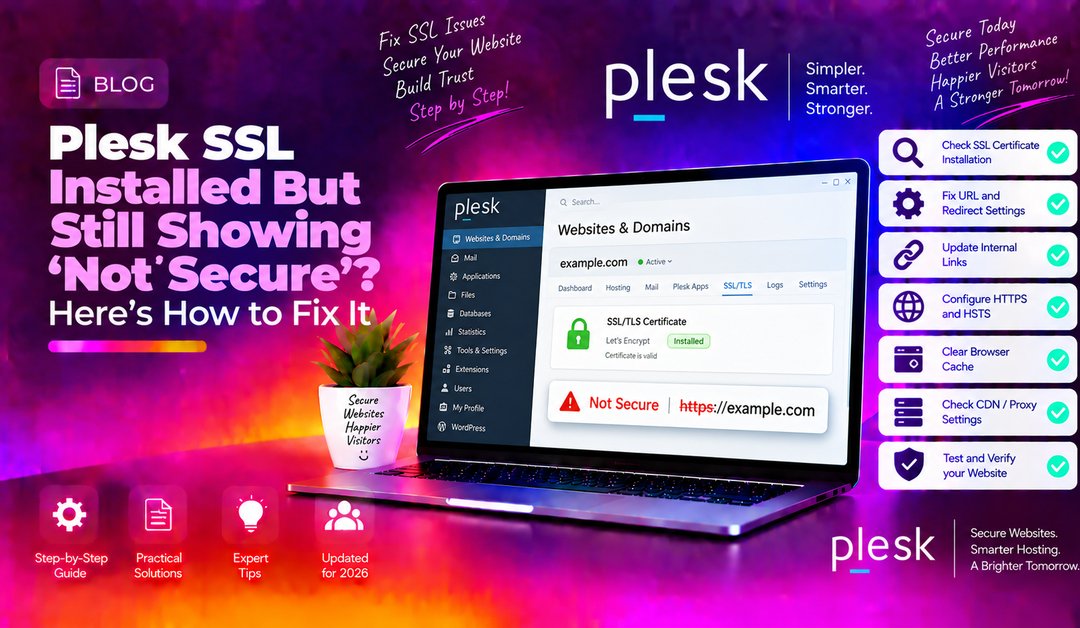
You've installed an SSL certificate through Plesk, the control panel confirms it's active — yet your browser still flashes that dreaded "Not Secure" warning. If you're troubleshooting Plesk SSL not secure after install, you're not alone. This is one of the most common post-installation headaches for sysadmins and hosting managers, and the fix usually lives in one of a handful of well-known places. This guide walks you through the complete diagnostic chain so you can resolve it systematically.
Why Plesk Shows SSL as Installed But the Browser Still Says 'Not Secure'
The SSL certificate being "installed" in Plesk and the browser trusting an HTTPS connection are two different things. Plesk can report a valid certificate while the browser flags the site for any of these reasons:
- Mixed content: the page loads over HTTPS but embedded resources (images, scripts, stylesheets, iframes) are still referenced with
http://URLs. - HTTP-to-HTTPS redirect not enabled: the certificate is on the server, but visitors navigating to
http://yourdomain.comare never redirected to the secure version. - SSL/TLS support disabled for the domain: the certificate is installed but the Hosting Settings option to serve HTTPS is toggled off.
- Certificate does not cover the www variant: the cert was issued for
example.comonly, sowww.example.comremains untrusted. - Web server vhost config out of sync: Nginx or Apache is still serving the old HTTP-only config and needs to be rebuilt.
Work through the steps below in order — most sites are fixed by Step 1 or Step 2.
💡 None of these worked? Skip the guesswork.
Get Expert Help →Step 1: Diagnose Mixed Content — The Most Common Culprit
Visit your site over HTTPS, press F12 (Chrome/Edge/Firefox), and open the Console tab. Look for warnings such as:
Mixed Content: The page at 'https://example.com' was loaded over HTTPS,
but requested an insecure resource 'http://example.com/wp-content/uploads/image.jpg'.
The Console will list every offending URL. Note which resource types are affected — images, scripts, and stylesheets are the usual suspects.
Tools like WhyNoPadlock or JitBit SSL Check crawl your page and list every mixed-content URL in seconds — useful for a quick audit before diving into code.
A grey padlock with a warning triangle means mixed content (partial HTTPS). A red "Not Secure" label with no padlock at all usually means the page is loading entirely over HTTP — indicating the redirect is missing (see Step 2).
Log in to the Plesk panel. Go to Domains > yourdomain.com > Hosting Settings. Confirm that:
- SSL/TLS support is checked.
- The correct certificate is selected from the Certificate dropdown.
- Permanent SEO-safe 301 redirect from HTTP to HTTPS is enabled.
Click OK to save. Plesk will regenerate the web server configuration automatically.
curl -I http://yourdomain.comYou should see HTTP/1.1 301 Moved Permanently with a Location: https://yourdomain.com/ header. If you see 200 OK, the redirect is not firing.
A custom .htaccess redirect loop can prevent Plesk's redirect from working. Open the public web root:
cat /var/www/vhosts/yourdomain.com/httpdocs/.htaccessLook for any RewriteRule lines that redirect to http:// — these must be removed or updated to point to https://.
grep -n "listen 443" /var/www/vhosts/system/yourdomain.com/conf/nginx_ssl.confIf this returns nothing, the SSL vhost has not been written — this usually means the cert was never properly bound to the domain. Re-check Hosting Settings in Plesk and save again to trigger a rebuild.
grep -E "ssl_certificate|SSLCertificateFile" /var/www/vhosts/system/yourdomain.com/conf/nginx_ssl.conf /var/www/vhosts/system/yourdomain.com/conf/httpd_ssl.confThe paths should point to existing files. Verify they exist:
ls -la /etc/nginx/plesk.conf.d/
ls -la /opt/psa/var/certificates/# Nginx
nginx -t
# Apache
apachectl configtestFix any syntax errors reported before proceeding.
In the WordPress admin go to Settings > General and change both WordPress Address (URL) and Site Address (URL) from http:// to https://. Alternatively, run via WP-CLI:
wp option update siteurl 'https://yourdomain.com'
wp option update home 'https://yourdomain.com'wp search-replace 'http://yourdomain.com' 'https://yourdomain.com' --all-tablesAlways take a database backup before running search-replace.
The Really Simple SSL plugin automates the URL migration and adds the appropriate HTTP headers. It is especially useful when editors have embedded http:// media URLs across hundreds of posts.
Static Sites and Non-WordPress Apps
For static HTML sites, perform a grep to find every hardcoded http:// reference:
grep -rn "http://yourdomain.com" /var/www/vhosts/yourdomain.com/httpdocs/Replace occurrences using sed:
find /var/www/vhosts/yourdomain.com/httpdocs/ -type f -name "*.html" -exec sed -i 's|http://yourdomain.com|https://yourdomain.com|g' {} \;For apps loading external CDN resources over HTTP, update the URLs in your asset manifests or configuration files directly.
Adding a Content-Security-Policy Upgrade Header (Quick Stopgap)
While you work through a full URL audit, you can instruct browsers to upgrade all insecure requests automatically. Add the following to the custom Nginx vhost file at /var/www/vhosts/system/yourdomain.com/conf/vhost_nginx.conf:
add_header Content-Security-Policy "upgrade-insecure-requests;";For Apache, add to vhost_ssl.conf:
Header always set Content-Security-Policy "upgrade-insecure-requests;"Then rebuild the web server config (see Step 5).
After making any changes to certificate bindings or custom vhost files, force Plesk to regenerate the Apache/Nginx config:
/usr/local/psa/admin/sbin/httpdmng --reconfigure-domain yourdomain.com# Restart Nginx
systemctl restart nginx
# Restart Apache (service name varies by distro)
systemctl restart httpd # CentOS/RHEL
systemctl restart apache2 # Debian/Ubuntuplesk repair web yourdomain.com -yThis command re-checks the domain's hosting configuration, repairs mismatches, and reconfigures the web server.
If your server uses Redis or Varnish, flush them to ensure stale HTTP responses are not being served:
redis-cli FLUSHALLRun a full SSL audit at SSL Labs Server Test. A healthy configuration will score A or A+ and show no mixed-content issues. Also recheck the browser console — the warning should be gone.
If you've worked through all five steps and the site is still showing "Not Secure," the issue may be deeper — a misconfigured reverse proxy, a CDN stripping SSL headers, or a wildcard certificate not matching the subdomain. Our team provides managed server support and can diagnose and resolve persistent SSL issues remotely, usually within the hour.
FAQs
Why does Plesk say the SSL certificate is valid but Chrome still shows Not Secure?
Plesk validates that a certificate file is installed and bound to the domain — it does not scan your page content. Chrome shows "Not Secure" when any resource on the page (image, script, font, iframe) is still loaded over http://, even if the page itself is served over HTTPS. Open the browser console to identify the offending URLs.
How do I know if my site has a mixed content problem?
Press F12 in Chrome or Firefox, switch to the Console tab, and load your page. Mixed-content warnings appear in yellow or red. You can also use the free WhyNoPadlock tool for a full page audit without opening dev tools.
Will enabling the 301 redirect in Plesk break my site?
No — if your SSL certificate is correctly installed and covering all domain variants (www and non-www), enabling the 301 redirect is safe and is actually required for Google to credit your site with HTTPS. The only risk is if you have existing .htaccess redirect rules that conflict; audit those first.
My SSL certificate was issued for example.com but not www.example.com — is that the problem?
Yes. If your certificate covers only the apex domain (example.com), visitors going to www.example.com will receive a certificate mismatch error. Reissue the certificate via Plesk's Let's Encrypt extension and make sure both example.com and www.example.com are included as Subject Alternative Names (SANs).
How do I rebuild the Plesk web server configuration after making changes?
Run /usr/local/psa/admin/sbin/httpdmng --reconfigure-domain yourdomain.com via SSH, then restart Nginx and Apache with systemctl restart nginx and systemctl restart apache2 (or httpd on RHEL-based systems). You can also use plesk repair web yourdomain.com -y for a combined repair-and-reconfigure action.