
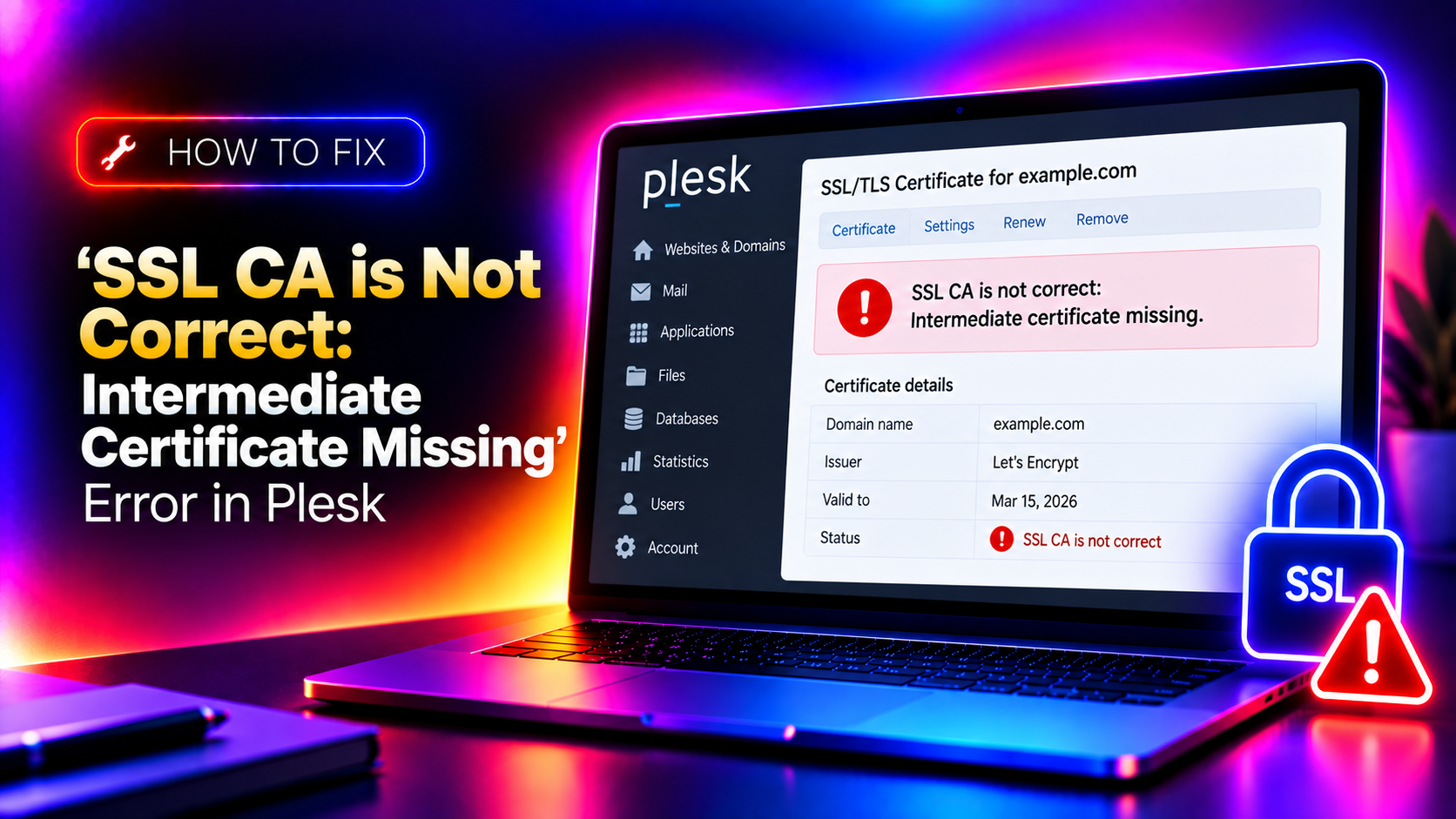
You install a paid SSL certificate in Plesk, reload the site — and Chrome still shows the padlock with a warning. The Plesk SSL repository shows the certificate status as "SSL CA is not correct. Intermediate certificate missing." Browsers can't verify the certificate chain back to a trusted root, so they flag it as untrusted.
This is one of the most common post-installation SSL issues on Plesk servers. The certificate itself is valid — the problem is that the CA (Certificate Authority) bundle, which links your certificate to a trusted root, was either not uploaded or uploaded incorrectly. This guide shows every method to fix it.
What Is an Intermediate Certificate and Why Does It Matter?
SSL certificates form a chain of trust:
- Root certificate — stored in browsers/operating systems as a trusted anchor (e.g., DigiCert Root CA, Sectigo Root CA)
- Intermediate certificate — issued by the root CA and used to sign your domain certificate; bridges the gap between root and end-entity
- End-entity certificate — the certificate for your specific domain
Browsers don't trust your domain certificate on its own — they need to trace the chain up to a trusted root. If the intermediate certificate is missing, the chain breaks, and browsers display "NET::ERR_CERT_AUTHORITY_INVALID" or similar warnings even though your domain certificate is technically valid.
Plesk reports this condition as: "SSL CA is not correct. Intermediate certificate missing."
💡 None of these worked? Skip the guesswork.
Get Expert Help →Method 1: Add the CA Bundle via the Plesk UI (Recommended)
This is the quickest fix if you have the CA bundle file from your certificate issuer.
Your certificate issuer (Sectigo, DigiCert, GlobalSign, etc.) provides a CA bundle file, typically named ca_bundle.crt, intermediate.crt, or similar. Download it from your issuer's portal or from the confirmation email. If you have lost it, use whatsmychaincert.com — paste your domain certificate and it will generate the correct chain.
4. Paste the CA bundle content into the "CA Certificate (-CA)" field
The CA bundle is a concatenated list of PEM-encoded certificates. Open the ca_bundle.crt file in a text editor and paste all contents (including -----BEGIN CERTIFICATE----- and -----END CERTIFICATE----- headers) into the CA Certificate field.
5. Click Upload Certificate (or Save) — the certificate status in Plesk should immediately change from "Intermediate certificate missing" to valid.
6. Restart web server services via Tools & Settings → Services Management → restart Apache and Nginx, or run:
plesk repair web domain.com -n
systemctl restart nginx
systemctl restart apache2   # or: httpd on RHEL/AlmaLinux
Method 2: Re-Upload the Certificate with the Correct Bundle
If you cannot edit an existing certificate in Plesk, remove it and re-upload the full certificate package.
1. In Plesk, go to Websites & Domains → SSL/TLS Certificates
2. Click Add SSL/TLS Certificate
3. Fill in all three fields:
- Certificate (-CRT): your domain certificate (the one for
yourdomain.com) - Private key (-KEY): the private key generated when you created the CSR
- CA Certificate (-CA): the full CA bundle from your issuer
4. Click Upload Certificate, then go to Hosting Settings for the domain and select this new certificate in the SSL/TLS dropdown.
# For Nginx/Apache virtual hosts managed by Plesk
grep -r "ssl_certificate" /etc/nginx/conf.d/ | head -10
grep -r "SSLCertificateFile" /etc/apache2/conf.d/ | head -10
Certificate files are typically at paths like /usr/local/psa/var/certificates/ or under /etc/nginx/plesk.conf.d/vhosts/.
Nginx requires a chained certificate file that contains both your domain cert and the intermediate cert in the correct order:
# Create the chained certificate file
cat yourdomain.crt ca_bundle.crt > yourdomain_chained.crt

# Verify the chain
openssl verify -CAfile ca_bundle.crt yourdomain.crtssl_certificate /path/to/yourdomain_chained.crt;
ssl_certificate_key /path/to/yourdomain.key;nginx -t && systemctl reload nginxSSLCertificateChainFile (Apache 2.4.7 and earlier) or concatenate into SSLCertificateFile (Apache 2.4.8+):
# Apache 2.4.8+ — concatenate into the cert file
cat yourdomain.crt ca_bundle.crt > yourdomain_with_chain.crt
# SSLCertificateFile /path/to/yourdomain_with_chain.crt
Method 4: Use the Plesk Repair Tool
Plesk includes a built-in repair utility that can detect and fix certificate configuration issues for a domain:
# Repair web configuration for a specific domain
plesk repair web domain.com

# Repair all domains
plesk repair web

# Diagnose without fixing
plesk repair web domain.com --diagnose
This can resolve cases where the certificate is correctly stored in Plesk's database but the Nginx/Apache vhost configuration wasn't updated to point to the new chained file.
Verify the Chain Is Complete After the Fix
Always verify the fix from outside the server — don't rely only on the Plesk status indicator.
From the command line:
# Check the full certificate chain presented by the server
openssl s_client -connect yourdomain.com:443 -showcerts 2>/dev/null | openssl x509 -noout -text | grep -A2 "Issuer\|Subject"

# Quick chain verification
openssl s_client -connect yourdomain.com:443 2>/dev/null | grep -E "depth|verify"
A valid chain shows depth=0 (your cert), depth=1 (intermediate), and depth=2 (root), all verified successfully.
Online tools:
- SSL Labs (ssllabs.com/ssltest) — gives a letter grade and shows chain completeness
- SSL Checker (sslshopper.com/ssl-checker.html) — shows each certificate in the chain
- What's My Chain Cert (whatsmychaincert.com) — generates the correct chain from your domain cert
You should see "Chain issues: None" in SSL Labs once the fix is applied correctly.
Why This Happens (Common Root Causes)
- Certificate purchased from a reseller: The CA bundle is sometimes sent separately from the domain certificate and gets missed during installation.
- Manual upload without the CA field: When uploading certificates in Plesk, the CA Certificate field is easy to overlook — most people upload the cert and key but skip the bundle.
- Issuer CA bundle changed: Some CAs (notably Sectigo after their 2020 root change) updated their intermediate certificates — old bundles no longer complete the chain.
- Nginx + Plesk combination: Enabling Nginx as a reverse proxy in Plesk can break the chain if the chained certificate file was configured for Apache but not regenerated for Nginx.
Quick Reference: SSL Intermediate Certificate Fix in Plesk
- Error message: "SSL CA is not correct. Intermediate certificate missing."
- Plesk path: Websites & Domains → SSL/TLS Certificates → [certificate name] → CA Certificate field
- CA bundle source: Your certificate issuer's portal, or whatsmychaincert.com
- CLI repair tool:
plesk repair web domain.com - Verification command:
openssl s_client -connect domain.com:443 -showcerts
Intermediate certificate issues are fixable in minutes once you have the correct CA bundle. If you're managing SSL certificates across dozens of Plesk domains or need to automate certificate deployment and validation, CloudHouse's managed server service handles SSL lifecycle management — installation, chain verification, and renewal — so you never see this error again.