
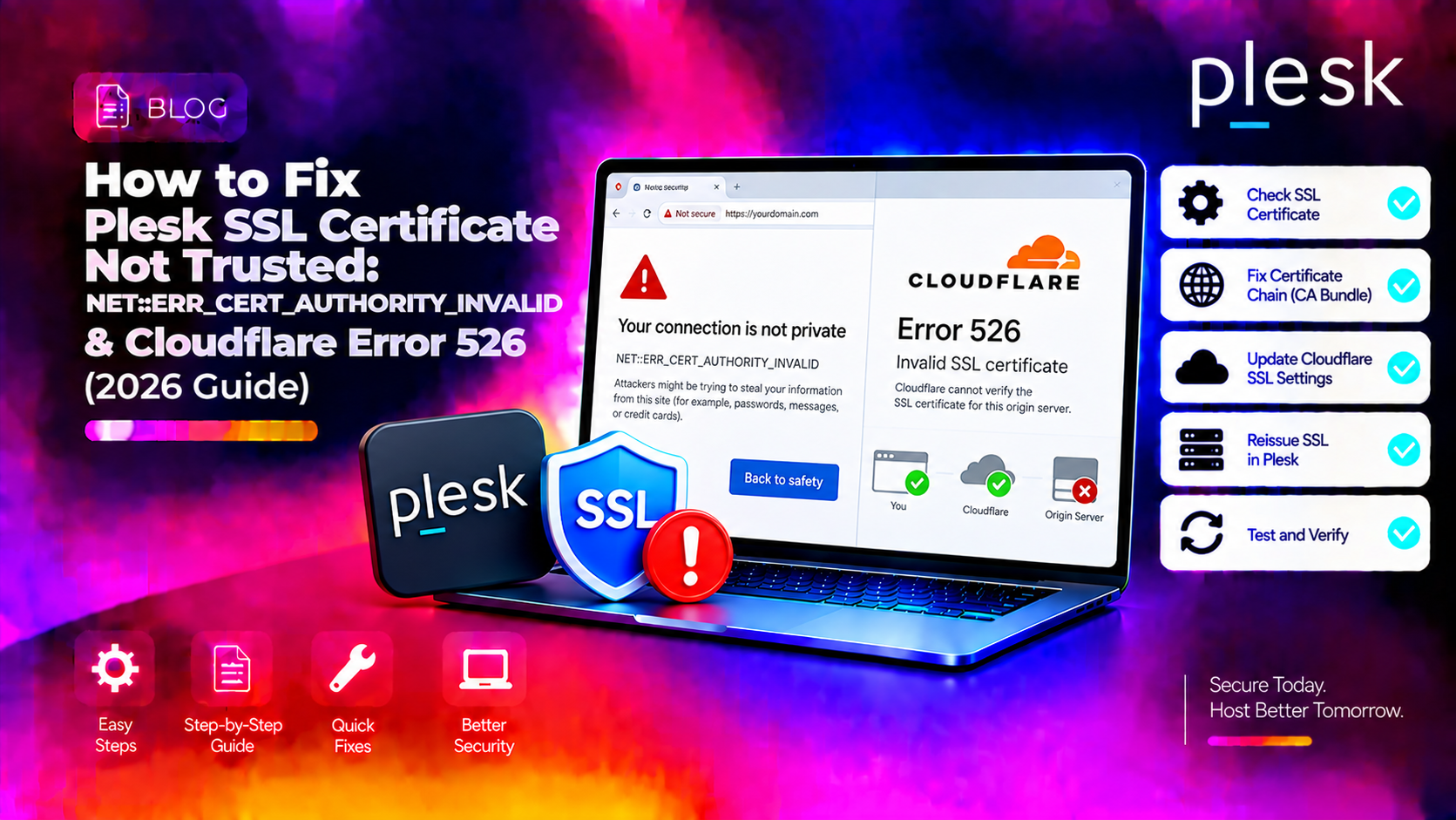
If visitors to your Plesk-hosted site are seeing a "Your connection is not private" warning with a NET::ERR_CERT_AUTHORITY_INVALID error, or if Cloudflare is showing a Error 526: Invalid SSL Certificate page, the problem comes down to one thing: the SSL certificate on your origin server is either missing, expired, self-signed, or misconfigured. This guide covers every common cause and how to fix it, including the Cloudflare-specific scenario that trips up most sysadmins.
Understanding the Error: What NET::ERR_CERT_AUTHORITY_INVALID Actually Means
When a browser visits an HTTPS site, it checks the certificate against a list of trusted Certificate Authorities (CAs). The NET::ERR_CERT_AUTHORITY_INVALID error means the browser could not verify that the certificate was signed by a trusted authority. Common causes include:
- A self-signed certificate (Plesk installs one by default)
- A certificate that has expired
- A missing intermediate (chain) certificate
- A certificate issued for a different domain
- A certificate with an expired root CA (the DST Root CA X3 issue from September 2021)
Cloudflare Error 526 is the same problem viewed from a different angle: Cloudflare is proxying your domain in Full (Strict) mode and cannot validate the certificate on your Plesk server.
💡 None of these worked? Skip the guesswork.
Get Expert Help →Step 1: Check What Certificate Is Currently Installed
Before fixing anything, confirm what Plesk is actually using:
2. Look at the Certificate dropdown. If it says "Plesk (self-signed)" or "None", that's your problem.
3. To check from the command line:
echo | openssl s_client -connect yourdomain.com:443 -servername yourdomain.com 2>/dev/null | openssl x509 -noout -issuer -datesThis shows who issued the certificate and when it expires. A self-signed cert will show the issuer and subject as the same value.
3. Enter your email address for renewal notifications, check "Include a 'www' subdomain" if needed, and click Get it free.
4. Wait for issuance (usually 30–60 seconds). Plesk will automatically install the certificate and configure the domain.
Important: Let's Encrypt requires port 80 to be accessible on the server for the ACME HTTP-01 challenge. If your firewall blocks port 80, issuance will fail. Temporarily allow port 80, issue the certificate, then re-restrict if needed (the renewal process also needs port 80 accessible).
Step 3: Fix the Plesk Admin Panel SSL (For the Plesk Interface Itself)
If the error occurs when accessing your Plesk admin panel (e.g., https://server.yourdomain.com:8443) rather than your hosted websites, the fix is different — you need to replace the certificate used by Plesk's own admin interface.
1. Go to Tools & Settings → SSL/TLS Certificates.
3. Enter your admin email and click Install. Plesk will issue and apply a certificate for the server's hostname.
Note: The Plesk panel is accessed via hostname, not IP address. Let's Encrypt cannot issue certificates for bare IP addresses — always access the panel via the fully qualified domain name (FQDN) like server.yourdomain.com.
Step 4: Fix Missing Intermediate Certificate
If you installed a commercial SSL certificate but are still seeing trust errors, a missing intermediate (chain) certificate is the likely culprit. The browser received your domain certificate but couldn't build a chain back to a trusted root.
1. Download the certificate bundle from your CA — usually a file named something like yourdomain_bundle.crt or ca-bundle.crt. This file contains the intermediate certificates.
2. In Plesk, go to Domains → yourdomain.com → SSL/TLS Certificates.
4. Find the "CA Certificate" or "Intermediate Certificate" field and paste the contents of the bundle file there.
5. Click Save and then reapply the certificate to the domain.
Verify the chain is complete using:
openssl verify -CAfile /path/to/ca-bundle.crt /path/to/yourdomain.crtOr use the SSL Labs server test at ssllabs.com/ssltest for a detailed chain analysis.
Step 5: Fix Cloudflare Error 526 (Invalid SSL Certificate)
If your domain is proxied through Cloudflare and you're seeing Error 526, Cloudflare cannot validate the SSL certificate on your Plesk origin server. There are three approaches:
Option A — Ensure a valid trusted certificate is installed on Plesk (Recommended)
If your SSL/TLS mode in Cloudflare is set to Full (Strict), Cloudflare requires a valid, publicly trusted certificate on the origin server. Follow Steps 2–4 above to install a valid Let's Encrypt certificate on your Plesk server. Once installed, Cloudflare Error 526 will resolve automatically.
Option B — Switch Cloudflare SSL/TLS mode from Full (Strict) to Full
If you cannot immediately get a valid certificate on the origin, temporarily change the SSL/TLS mode in your Cloudflare dashboard:
1. Log in to Cloudflare → select your domain → SSL/TLS → Overview.
2. Change the mode from Full (Strict) to Full.
Full mode does not validate the certificate chain — it just requires an SSL connection to exist. This stops Error 526 but is less secure. Treat it as a temporary fix only.
Option C — Use a Cloudflare Origin Certificate
Cloudflare offers free Origin Certificates that are trusted specifically by Cloudflare (not by browsers directly). They work perfectly with Full (Strict) mode and have validity up to 15 years.
2. Download the certificate and private key.
3. In Plesk, go to Domains → yourdomain.com → SSL/TLS Certificates → Add SSL/TLS Certificate.
4. Paste the certificate, private key, and the Cloudflare CA certificate (download from https://developers.cloudflare.com/ssl/static/origin_ca_rsa_root.pem) into the appropriate fields.
5. Assign this certificate to your domain via Hosting Settings.
Step 6: Handle the Expired DST Root CA X3 Issue (Older Systems)
After September 30, 2021, Let's Encrypt certificates that used the DST Root CA X3 cross-signed chain began triggering trust errors on older systems — particularly Android 7 and below. If you are hosting sites that need to support older devices:
1. In Plesk, go to Extensions → Let's Encrypt → Settings.
2. Enable "Short chain (omit cross-signed)" to use the newer ISRG Root X1 chain only.
3. Renew the affected certificates to regenerate them with the updated chain.
For end users on older Android devices, the fix is to update their device's trusted root store (by updating the system), or instruct them to use an up-to-date browser like Chrome, which has its own trust store independent of the OS.
Step 7: Verify the Fix
After making changes, verify the certificate is working correctly:
- Browser test: Open an incognito window and visit
https://yourdomain.com. The padlock should show as valid. - SSL Labs test: Visit ssllabs.com/ssltest for a detailed grade and chain analysis — aim for A or A+.
- CLI verification:
curl -Iv https://yourdomain.com 2>&1 | grep -E "SSL|certificate|expire" - Certificate expiry check:
echo | openssl s_client -connect yourdomain.com:443 2>/dev/null | openssl x509 -noout -enddate
Preventing Future SSL Issues in Plesk
Let's Encrypt certificates expire every 90 days. Plesk handles automatic renewal, but only if:
- Port 80 is open on the server
- The Plesk Scheduled Tasks service is running
- The domain still points to the same server
Check renewal task status in Tools & Settings → Scheduled Tasks and confirm the panel_letsencrypt task is active. Set up external monitoring (Uptime Robot, Better Uptime, or similar) with SSL expiry alerts so you catch renewal failures before visitors do.
For hosting companies managing dozens of domains with SSL across a Plesk fleet, CloudHouse's managed server support monitors SSL expiry and renewal health across all your domains — never deal with an expired certificate complaint again.