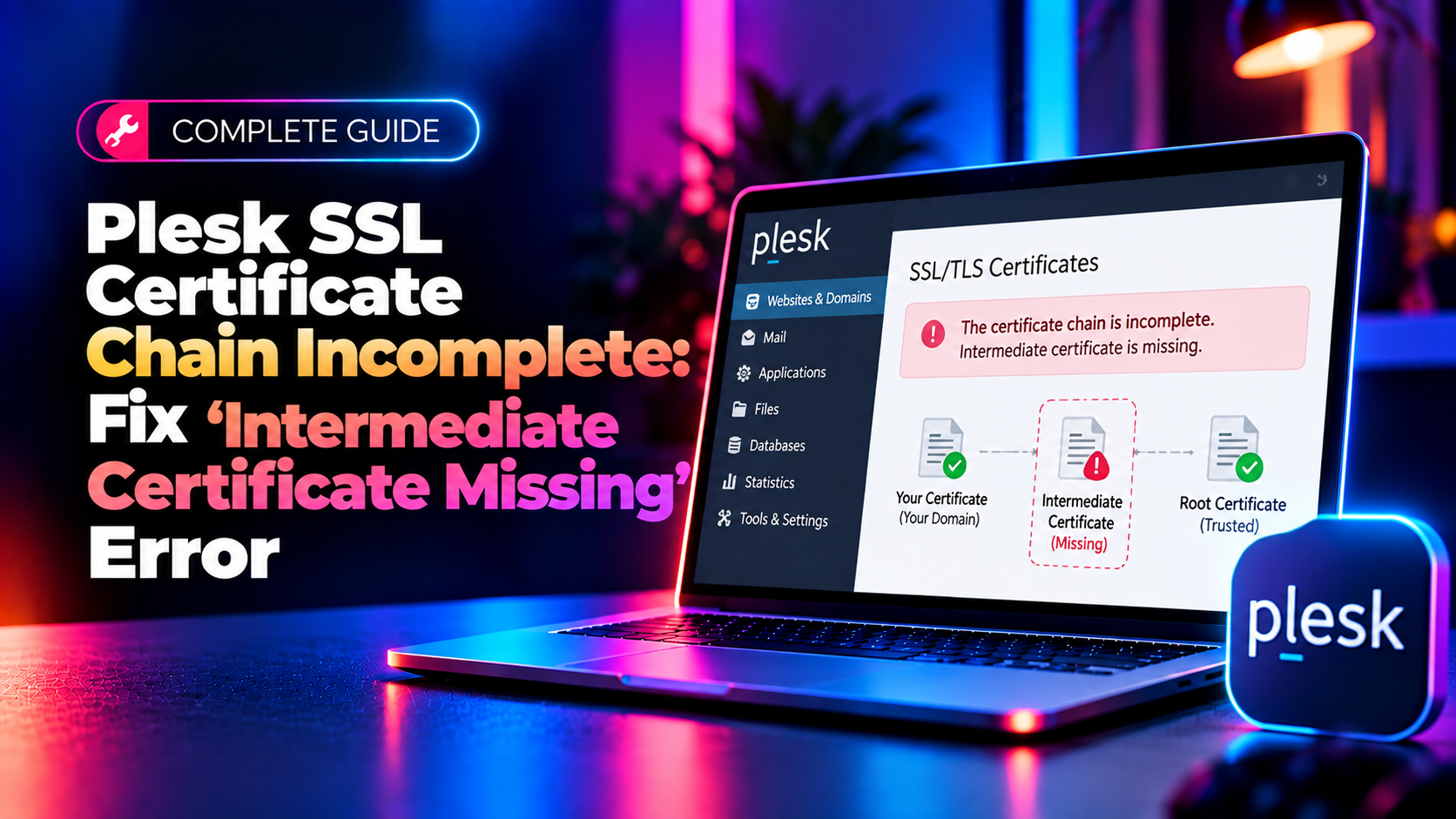
You installed an SSL certificate in Plesk, the padlock shows up fine in your own browser, and then a client, an API integration, or an SSL checker tool reports a scary warning: "SSL CA is not correct. Intermediate certificate missing" or SSL Labs caps your grade at a B with "This server's certificate chain is incomplete." This is one of the most common — and most misunderstood — SSL problems on Plesk servers, and it happens even when the certificate itself is perfectly valid.
In this guide we'll explain exactly why this happens, how to diagnose it in under two minutes, and how to permanently fix it in Plesk whether you're using a manually purchased certificate, a Comodo/Sectigo/DigiCert cert, or occasionally even Let's Encrypt after a bad reissue.
What "Incomplete Certificate Chain" Actually Means
Every publicly trusted SSL certificate is not verified alone — it's verified as a chain of trust: your domain's leaf certificate is signed by an intermediate Certificate Authority (CA) certificate, which is in turn signed by a root CA that's already trusted by browsers and operating systems out of the box.
When you install only the leaf certificate (the "domain.crt") without the intermediate CA bundle ("ca-bundle.crt" / "domain.ca-bundle" / "chain.pem"), most modern browsers can still connect because they cache intermediates or fetch them via AIA (Authority Information Access) fetching. But:
- Older browsers, mobile OS versions, and many non-browser HTTP clients (curl without
-L, PHP cURL, Java keytool, mail clients, API integrations, payment gateways) will reject the connection outright. - SSL Labs, Qualys, and most external SSL scanners will flag "Chain issues: Incomplete" and cap your grade at B, even if everything else is configured perfectly.
- Some webhook providers (Stripe, PayPal IPN, Slack, etc.) will silently fail delivery to your endpoint because their servers don't trust the incomplete chain.
openssl s_client -connect yourdomain.com:443 -servername yourdomain.com 2>/dev/null | openssl x509 -noout -text | grep -A2 "Issuer"

echo | openssl s_client -connect yourdomain.com:443 -servername yourdomain.com -showcerts 2>/dev/null | grep "Verify return code"
If you see
Verify return code: 21 (unable to verify the first certificate) or Verify return code: 2 (unable to get issuer certificate), your intermediate chain is missing or incomplete.
Why This Happens on Plesk Specifically
Plesk's SSL/TLS Certificates interface has a field labeled "CA Certificate" that is often skipped by admins who only paste the "Certificate" (leaf) and "Private Key" fields when installing a manually issued cert. A few specific scenarios we see repeatedly on client servers:
- Manual upload with only 2 of 3 files pasted. The CA issued three files (domain.crt, ca-bundle.crt, domain.key) but only two were pasted into Plesk's "Upload certificate" or "Add SSL/TLS Certificate" form.
- Wrong CA bundle order. The ca-bundle.crt file must list intermediates from the one that signed your certificate up to (but not including) the root, in the correct top-down order. A reversed or incomplete bundle causes the same failure.
- Certificate reissued but old chain cached. After a CA reissues a certificate (common with Sectigo/Comodo chain updates), the old intermediate is no longer valid and must be replaced, not appended.
- Nginx reverse proxy in front of Apache. Plesk's "Apache & nginx Settings" can end up serving the chain from the wrong vhost config after a manual Apache edit, especially post-migration.
- Wildcard certificate chain mismatch after CA transition. If your issuer migrated intermediate CAs (Sectigo did this in past migrations), your bundle may reference a decommissioned intermediate.
Step-by-Step Fix in Plesk
Step 1 — Get the Correct Full Chain from Your CA
Log into your certificate provider's account (Sectigo, DigiCert, GoDaddy, etc.) and re-download the certificate package. Look specifically for a file named ca-bundle.crt, chain.pem, or "Intermediate(s) + Root Certificate." If you can't find it, use a chain-builder tool:
curl --data-urlencode "PublicKey@domain.crt" https://whatsmychaincert.com/generate -o full-chain.pem
Step 2 — Open the SSL/TLS Certificates Page in Plesk
Go to Domains > yourdomain.com > SSL/TLS Certificates. Click on the certificate currently in use (or "Add SSL/TLS Certificate" if reinstalling).
Step 3 — Fill All Three Fields, Not Just Two
Plesk's upload form has three separate boxes:
- Certificate — your leaf/domain certificate (domain.crt)
- Private key — the key generated with your CSR (domain.key)
- CA certificate — this is the field almost everyone skips. Paste the full ca-bundle content here.
If you're uploading via the Plesk CLI instead of the UI, use:
plesk bin certificate --create "yourdomain-cert" -domain yourdomain.com -cert /path/domain.crt -key /path/domain.key -ca /path/ca-bundle.crt
Step 4 — Reassign the Certificate to the Domain
Go to Domains > yourdomain.com > Hosting Settings and confirm the certificate dropdown points to the certificate you just updated (Plesk sometimes keeps a stale reference to an older certificate object of the same name — rename the old one first if needed).
Step 5 — Apply and Restart Web Server
Click OK/Apply, then force a config regeneration:
plesk repair web yourdomain.com -y
systemctl restart nginx
systemctl restart httpd    # or apache2 on Debian/Ubuntu
Step 6 — Verify the Fix Externally
Never trust your own browser for this — it likely already cached the correct intermediate. Verify from a clean external tool:
echo | openssl s_client -connect yourdomain.com:443 -servername yourdomain.com -showcerts 2>/dev/null | grep "Verify return code"
# Expect: Verify return code: 0 (ok)
Or run an SSL Labs test and confirm "Chain issues: None" with no more grade cap.
Fixing It for Let's Encrypt Certificates
Let's Encrypt certificates issued through Plesk's own "Let's Encrypt" extension almost always include the correct chain automatically. If you're still seeing a broken chain on a Let's Encrypt cert, it's usually because:
- A manual certificate was previously installed with a matching Common Name and Plesk is still referencing the old certificate object
- Plesk's Let's Encrypt extension needs updating — run
plesk installer --select-release-current --upgrade-installed-components - Reissue the certificate cleanly: Domains > SSL/TLS Certificates > Let's Encrypt > Reissue, and make sure "Include www subdomain" and any relevant SAN entries match what's actually served.
Common Mistakes That Make the Problem Come Back
- Pasting certificates in the wrong order inside one field. Some CAs expect leaf + intermediates concatenated into a single "fullchain.pem" pasted into the Certificate field, others expect them separated into Certificate and CA Certificate fields — check your CA's specific instructions.
- Forgetting mail services use the same certificate. Postfix/Dovecot and the Plesk panel itself reuse the same cert pool; an incomplete chain here causes mail client TLS warnings even if the website looks fine.
- Not clearing browser/OS certificate caches when testing. Always test from a separate device or use
openssl s_client, never rely on the browser that issued the original request. - Ignoring subdomains. Each subdomain's Hosting Settings has its own certificate dropdown — updating the main domain doesn't automatically propagate to subdomains using a SAN or wildcard cert.
Why This Matters Beyond the Padlock Icon
An incomplete chain isn't cosmetic. It silently breaks server-to-server HTTPS calls: payment gateway webhooks, REST API integrations, cron jobs using cURL, mobile apps with certificate pinning, and even Google's own crawlers under certain conditions. If you manage client infrastructure, this is exactly the kind of issue that looks fine in a browser test but causes real production outages elsewhere — which is why we always validate the full chain externally after every certificate change, not just visually in a browser.
If your server hosts multiple domains behind Plesk with a mix of manually purchased and Let's Encrypt certificates, a periodic chain audit across all vhosts is worth automating rather than discovering broken chains one angry client email at a time. CloudHouse's server management service includes proactive SSL chain monitoring across your entire Plesk fleet, so these issues get caught and fixed before a client, a payment processor, or an SEO crawler ever notices.
Troubleshooting Checklist When the Fix Doesn't Stick
Sometimes admins upload the correct CA bundle, restart the web server, and the chain error still shows up in scans. Here's the checklist we run through with clients before escalating further:
- Confirm you edited the certificate actually bound to the domain. Plesk allows multiple certificate objects with similar names. Check Domains > yourdomain.com > Hosting Settings > Certificate and confirm the dropdown points to the certificate object you just updated, not an old duplicate.
- Check for a reverse proxy or CDN in front of Plesk. If Cloudflare, a load balancer, or another reverse proxy sits in front of your Plesk server, the chain served to the public internet may come from that layer, not from Plesk/Apache/nginx directly. Test with
openssl s_client -connect <origin_server_ip>:443against the origin IP to isolate where the incomplete chain is actually being served from. - Verify nginx and Apache aren't serving different vhosts. On servers where Plesk runs nginx as a reverse proxy in front of Apache, only one of the two config files may have been regenerated. Run
plesk repair web yourdomain.com -yto force both to regenerate consistently. - Clear any HSTS preload or OCSP stapling cache oddities. If OCSP stapling is enabled and the server cached a stapled response tied to the old (broken) chain, restart the web server fully rather than reloading, and clear the OCSP cache directory if your version of nginx/Apache maintains one.
- Rule out DNS pointing to the wrong server. If you manage multiple servers (e.g., during a migration), confirm the domain's A/AAAA record actually resolves to the Plesk server you just fixed — testing against a stale DNS cache will show you the old, still-broken certificate.
Automating Chain Validation Across Multiple Domains
If you're responsible for more than a handful of domains on a Plesk box, manually running openssl checks after every renewal doesn't scale. A simple approach we recommend to clients is a scheduled cron job that loops through every domain and reports any certificate with a non-zero verify return code:
#!/bin/bash
# ssl-chain-check.sh — run daily via cron
for domain in $(plesk bin domain --list | tail -n +2); do
  result=$(echo | openssl s_client -connect "$domain:443" -servername "$domain" 2>/dev/null | grep "Verify return code")
  if [[ "$result" != *"(ok)"* ]]; then
    echo "CHAIN ISSUE on $domain: $result"
  fi
done
Wire the output into an email alert or Slack webhook so a broken chain gets caught the same day a certificate is reissued or renewed — not weeks later when a client's payment webhook silently starts failing. Pairing this script with Plesk's built-in "Notifications" for certificate expiry gives you a fairly complete early-warning system without needing third-party monitoring tools.
Key Takeaways
- An incomplete chain is caused by a missing or incorrect intermediate CA bundle, not a bad certificate — the leaf cert itself is usually fine.
- Browsers often mask the problem through caching and AIA fetching, which is exactly why it goes unnoticed until a non-browser client (payment gateway, API, mail server) fails to connect.
- In Plesk, always fill the dedicated "CA certificate" field with the full intermediate bundle — never assume pasting only the leaf certificate is enough.
- Always verify externally with
openssl s_clientor SSL Labs after any certificate change; your own browser is not a reliable test. - For servers hosting many domains, automate the check rather than relying on manual spot-checks after each renewal cycle.