
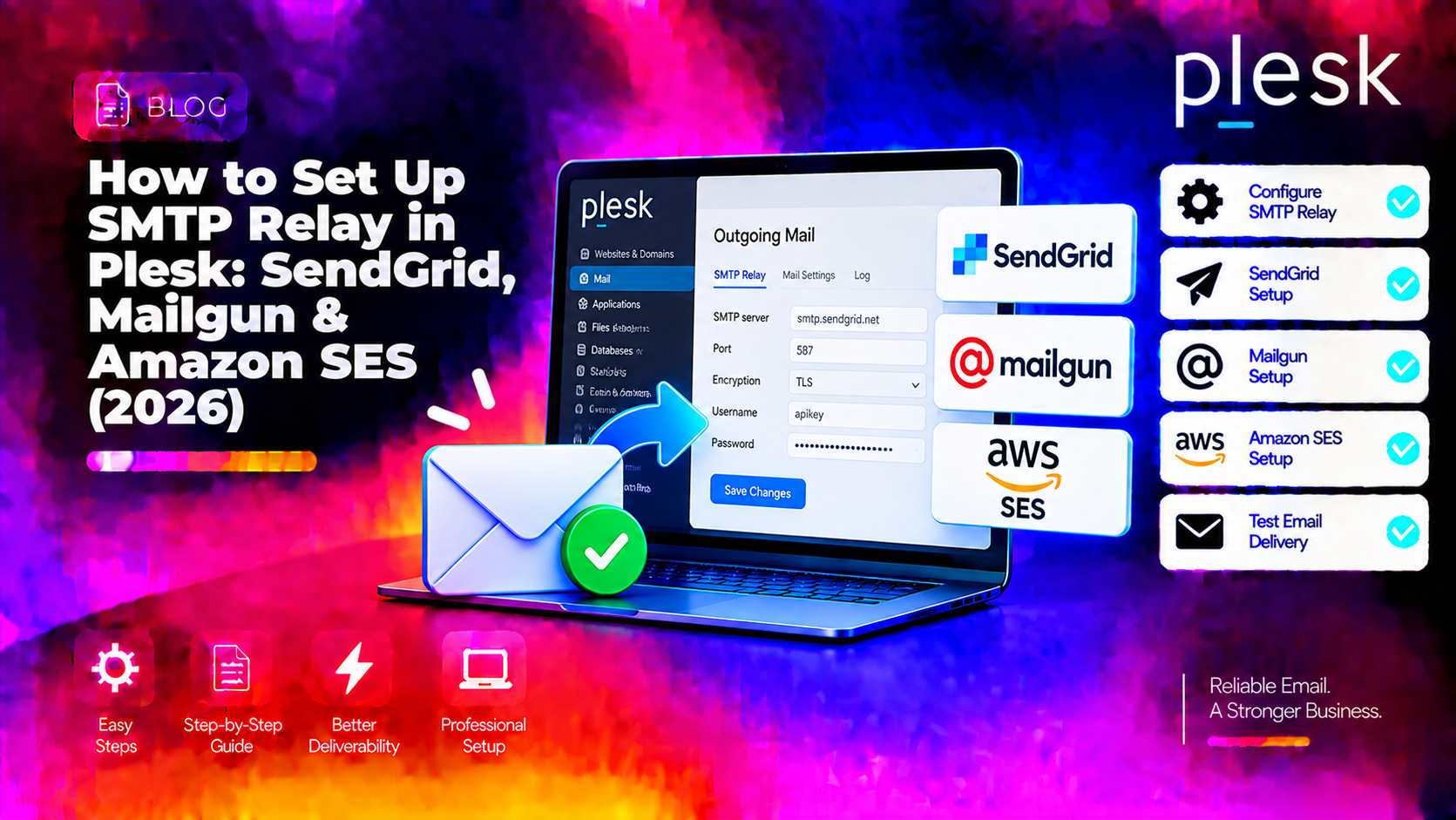
By default, Plesk sends outbound email directly from your server's IP address. If that IP has ever appeared on a blacklist, or if your server doesn't have a strong sending reputation, emails land in spam or get rejected outright. The fix is to route all outbound mail through a trusted SMTP relay service — SendGrid, Mailgun, or Amazon SES — which handles deliverability, bounce management, and reputation for you. This guide walks through every step: why relay is better than direct delivery, how to configure it server-wide in Plesk, how to set per-domain relay overrides, and how to fix the most common authentication errors.
Why Route Plesk Outbound Mail Through an SMTP Relay
Sending email directly from your server IP works — until it doesn't. Common problems with direct delivery:
- Shared IP blacklisting. On a shared or VPS server, your IP may have been used by a previous customer for spam. You inherit that reputation.
- Missing reverse DNS. Many mail servers reject email from IPs without a matching PTR record. Relay services send from their own verified IPs.
- Port 25 blocked. Many cloud providers (AWS, Google Cloud, Azure) block outbound port 25 by default, making direct SMTP delivery impossible.
- No delivery analytics. You can't see open rates, bounce rates, or spam complaints with direct delivery. Relay services provide dashboards and webhook events.
- Rate limiting. Gmail and Microsoft 365 rate-limit connections from unknown IPs. Relay services have pre-negotiated high-volume delivery agreements.
What You'll Need Before Configuring the Relay
- A Plesk server with admin access
- An account on SendGrid, Mailgun, or Amazon SES
- Your relay provider's SMTP credentials (hostname, port, username, API key or password)
- Domain verification completed in the relay provider's dashboard (SPF, DKIM records added)
Complete domain verification in your relay provider's dashboard before configuring Plesk. Most providers require you to add TXT records for SPF and CNAME records for DKIM before they'll relay mail for your domain.
SMTP Relay Credentials by Provider
Here are the connection details for the three most common relay providers:
SendGrid:
- SMTP host:
smtp.sendgrid.net - Port:
587(TLS/STARTTLS) or465(SSL) - Username:
apikey(literally the string "apikey") - Password: Your SendGrid API key (starts with
SG.)
Mailgun:
- SMTP host:
smtp.mailgun.org - Port:
587(TLS/STARTTLS) - Username: Your Mailgun SMTP username (shown in domain settings)
- Password: Your Mailgun SMTP password or API key
Amazon SES:
- SMTP host: Region-specific, e.g.
email-smtp.us-east-1.amazonaws.com - Port:
587(TLS/STARTTLS) or465(SSL) - Username: Your SES SMTP username (from IAM SMTP credentials — different from AWS access key)
- Password: Your SES SMTP password (generated in AWS console under SES → SMTP Settings)
Important for Amazon SES: the SMTP credentials are separate from IAM access keys. Generate them specifically from SES → SMTP Settings → Create SMTP Credentials in the AWS console.
💡 None of these worked? Skip the guesswork.
Get Expert Help →Step 1 — Configure Server-Wide SMTP Relay in Plesk
A server-wide relay routes all outbound mail from all domains through the relay provider. This is the most common setup.
In Plesk, go to Tools & Settings → Mail Server Settings (under the Mail section).
Find the Outgoing Mail section. Check the box "Use the following relay host" (or "Smart host" depending on your Plesk version).
- Relay host / Smart host: The SMTP hostname from your provider (e.g.
smtp.sendgrid.net) - Port:
587(recommended — STARTTLS) - Require authentication: Check this box
- Login / Username: Provider SMTP username
- Password: Provider SMTP password or API key
Ensure Enable STARTTLS is checked to encrypt the relay connection. Some providers require SSL on port 465 instead — match your provider's recommendation.
Click OK to save. Then send a test email from any mailbox on your server:
echo "Test relay" | mail -s "SMTP Relay Test" test@gmail.comOr use Plesk's own Mail Log (Tools & Settings → Mail Log) to confirm the relay handoff — look for relay=smtp.sendgrid.net in the sent message log entry.
Step 2 — Verify Relay Is Working via Mail Log
After saving, check the Postfix mail log to confirm mail is routing through the relay:
tail -f /var/log/maillog       # RHEL/CentOS
tail -f /var/log/mail.log      # Debian/Ubuntu
A successful relay entry looks like:
postfix/smtp[1234]: ... relay=smtp.sendgrid.net[167.89.0.1]:587, ... status=sent (250 Ok: queued)If you see status=deferred or status=bounced, check the error message — common issues are covered in the troubleshooting section below.
Step 3 — Configure Per-Domain SMTP Relay Override (Optional)
Plesk allows individual domains to use a different relay than the server-wide setting. This is useful when you have some domains that need to send through a different provider, or when you want to keep some domains on direct delivery while relaying others.
1. Open the domain in Plesk → Mail tab → Mail Settings.
2. Find the Outgoing mail relay setting and select Use specified relay.
3. Enter the per-domain relay credentials (hostname, port, username, password).
4. Save. This domain will now use its own relay while all other domains use the server-wide setting.
Step 4 — Configure DKIM Signing for Relay Domains
Most relay providers require or strongly recommend that your domain signs outbound email with DKIM. There are two approaches:
Option A — Let Plesk sign DKIM (recommended for most setups):
In Plesk, go to Domains → [your domain] → Mail → Mail Settings and enable DKIM spam protection. Plesk generates a private key and adds the public key to your DNS automatically. The relay provider carries your DKIM-signed email without re-signing.
Option B — Let the relay provider sign DKIM:
Providers like SendGrid and Mailgun can sign DKIM themselves if you add their CNAME records to your DNS. This is useful if your domain's email goes through multiple providers — each signs with its own key.
Do not enable both simultaneously on the same domain — double-signing causes DKIM verification failures.
Step 5 — Test Email Deliverability After Setup
After configuring the relay, run a full deliverability test:
- Send a test to Gmail and Outlook — check that the email lands in the inbox, not spam.
- Check email headers — in Gmail, click the three-dot menu → "Show original" and verify:
Received: from smtp.sendgrid.net(relay used),DKIM-Signature: pass,SPF: pass,DMARC: pass. - Use mail-tester.com — send an email to the address provided and get a deliverability score out of 10. A score below 8 indicates configuration issues.
Troubleshooting Common SMTP Relay Errors in Plesk
- Authentication failed (535): Wrong username or password. For SendGrid, the username must be the literal string
apikey(not your SendGrid username). For Amazon SES, ensure you're using SMTP credentials generated from SES settings, not IAM access keys. - Connection refused / timeout on port 587: Your server's firewall or cloud provider is blocking outbound port 587. Try port 465 (SSL) or contact your hosting provider. On AWS/GCP/Azure, you may need to request port 25/587 unblocking.
- Relay access denied (554): The relay provider is rejecting your email because the sending domain hasn't been verified in their dashboard. Complete SPF and DKIM domain verification first.
- TLS unavailable / certificate error: The relay host's SSL certificate couldn't be verified. In Plesk mail settings, check that TLS verification is enabled and the relay hostname matches the certificate.
- Amazon SES sandbox mode: New SES accounts are in sandbox mode and can only send to verified email addresses. Request production access from AWS before using SES as a relay for unrestricted sending.
- Mail still sending from server IP: The relay setting didn't save correctly, or a specific application (WordPress, custom PHP mailer) is using its own SMTP config that bypasses Plesk. Check application-level SMTP settings.
Server-Wide vs Per-Domain Relay: Which Should You Use
Use server-wide relay when: all domains on your server have similar sending needs, you want a single provider managing all outbound email, and your server IP has poor reputation or port 25 is blocked.
Use per-domain relay when: different customers need different relay providers (one uses SendGrid, another uses their company's own SMTP), some domains have high-volume transactional sending while others are low-volume, or you're migrating relay providers incrementally.
For most managed hosting setups, server-wide relay through SendGrid or Amazon SES is the cleanest, lowest-maintenance configuration. Need help setting up and monitoring your Plesk mail server? CloudHouse's managed Plesk team handles relay configuration, DKIM/SPF/DMARC setup, and ongoing deliverability monitoring.