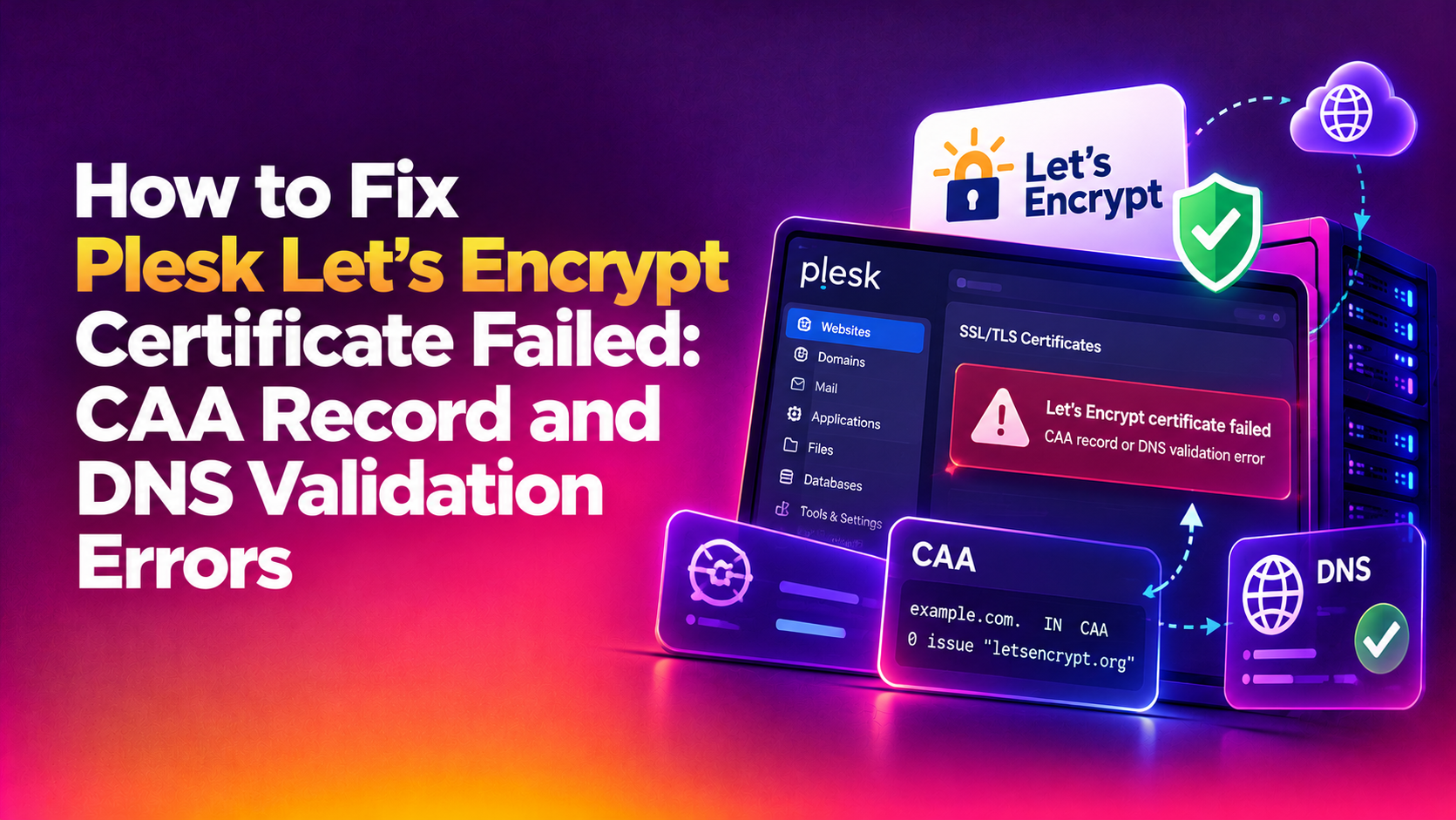
When a Let's Encrypt certificate fails in Plesk, the error message is often cryptic — "DNS problem: SERVFAIL looking up CAA", "CAA record for example.com prevents issuance", or "the domain's nameservers may be malfunctioning". These are not random failures. Each error code points to a specific, fixable problem. This guide covers every common Plesk Let's Encrypt certificate failure related to CAA records and DNS validation, with the exact steps to resolve them.
Understanding the Error Messages
Before diving into fixes, it helps to understand what Plesk is actually telling you:
- SERVFAIL looking up CAA — Let's Encrypt's servers queried your domain's DNS for a CAA record and the DNS server returned a server failure instead of a valid response
- CAA record for example.com prevents issuance — A CAA record exists in DNS but does not authorise letsencrypt.org to issue certificates
- Domain validation failed — Let's Encrypt could not verify domain ownership via HTTP-01 or DNS-01 challenge
- Query timed out during secondary validation — Let's Encrypt's secondary validation servers could not reach your DNS on port 53
- Nameservers may be malfunctioning — Let's Encrypt cannot resolve the domain from multiple geographic locations
💡 None of these worked? Skip the guesswork.
Get Expert Help →Step 1: Check the Exact Error in Plesk Logs
Log in to Plesk → navigate to Tools & Settings → Server Components → click Log next to the Let's Encrypt extension. Alternatively, check the server-level log:
cat /var/log/plesk/panel.log | grep -i "letsencrypt\|acme\|CAA" | tail -50# Check CAA records for your domain
dig CAA example.com @8.8.8.8
# Check if your domain resolves correctly
dig A example.com @8.8.8.8
dig +trace example.comIf dig CAA returns SERVFAIL, your DNS server has a configuration issue. If it returns no records at all (NOERROR with empty answer), Let's Encrypt can issue certificates freely — there's another cause for the failure.
dig CAA example.com @8.8.8.8
dig CAA example.com @1.1.1.1
# If both return SERVFAIL, the external DNS is the problemLog in to your external DNS provider (Cloudflare, Route 53, etc.) and add:
- Type:
CAA - Name:
@(root domain) orexample.com - Flags:
0 - Tag:
issue - CA Domain:
letsencrypt.org
For Cloudflare specifically: DNS → Add Record → Type: CAA → Name: @ → Tag: issue → CA domain name: letsencrypt.org → TTL: Auto → Save.
dig CAA example.com @8.8.8.8
# Expected: example.com. 300 IN CAA 0 issue "letsencrypt.org"
Once dig shows the correct CAA record, wait an additional 2 minutes and retry the certificate in Plesk.
# Check if port 53 is open both TCP and UDP
iptables -L -n | grep 53
firewall-cmd --list-ports 2>/dev/null | grep 53

# On Plesk servers running firewalld:
firewall-cmd --zone=public --add-port=53/udp --permanent
firewall-cmd --zone=public --add-port=53/tcp --permanent
firewall-cmd --reload# Test from an external perspective using a public resolver:
dig A example.com @YOUR_SERVER_IP
# If it doesn't respond, check bind (named) service:
systemctl status named
# Or Plesk DNS:
plesk bin dns --onLet's Encrypt publishes their validation server IPs. If you're running CSF or another strict firewall, ensure these are not blocked. Check the Let's Encrypt FAQ for current ranges.
curl -I http://example.com/.well-known/acme-challenge/testThe response should be 404 (file not found yet) — not a redirect to HTTPS, not a Cloudflare block page.
In Cloudflare DNS settings, set the domain record to DNS-only (grey cloud) during certificate issuance. Re-enable proxying after the certificate is issued.
Plesk → Domains → example.com → Let's Encrypt → verify the document root matches the actual web root for the domain.
Step 6: Fix Let's Encrypt Rate Limit Errors
Let's Encrypt allows a maximum of 5 failed validation attempts per domain per hour, and 50 certificate issuances per domain per week. If you're hitting these limits:
# Check if you've hit the rate limit by looking at the Plesk log
grep -i "rate limit\|too many" /var/log/plesk/panel.log | tail -20
If rate-limited, wait the required time period (displayed in the error message). To avoid hitting rate limits, use Let's Encrypt's staging environment for testing — but note Plesk does not expose this option in the UI directly.
Step 7: Re-Issue the Certificate After Fixes
Once you've applied the relevant fix:
1. In Plesk → Domains → example.com → SSL/TLS Certificates → click Get it free (Let's Encrypt) → check the boxes for the domain and www alias → click Get it free.
2. Monitor the progress in the task queue (Plesk top toolbar → notifications bell). The process typically completes in under 60 seconds if DNS is healthy.
3. Verify the certificate is active:
echo | openssl s_client -servername example.com -connect example.com:443 2>/dev/null | openssl x509 -noout -dates -issuerThe issuer should read Let's Encrypt and the notAfter should be 90 days from today.
Automating Let's Encrypt Renewal in Plesk
Plesk's Let's Encrypt extension auto-renews certificates 30 days before expiry by default. To verify auto-renewal is active:
# Check the cron entry for Let's Encrypt renewal
crontab -l | grep letsencrypt
cat /etc/cron.d/letsencrypt 2>/dev/null

# Manually trigger renewal for all domains
plesk ext letsencrypt --renew-all
If auto-renewal keeps failing on a specific domain, add a monitoring alert in WHM or set up an external SSL expiry monitor (e.g., using certbot renew --dry-run in a test run) so you catch failures before they cause downtime.
Managing SSL certificates across dozens of Plesk domains is time-consuming — especially when external DNS providers introduce CAA edge cases. If you need reliable SSL management as part of a fully managed Plesk environment, CloudHouse's server management team handles Let's Encrypt issuance, renewal monitoring, and DNS configuration for you.