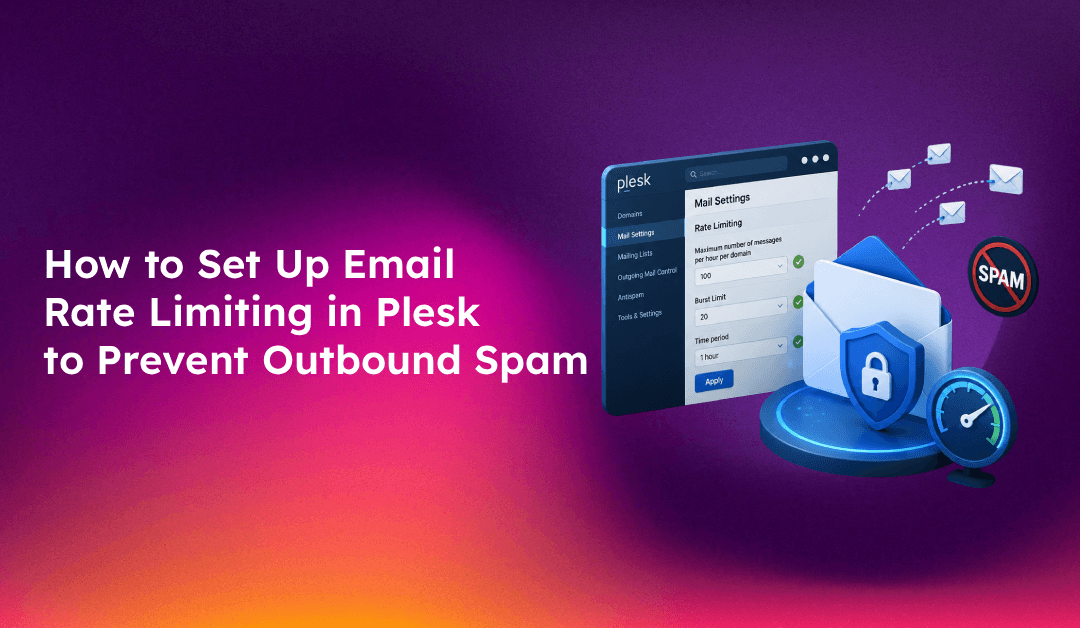
A single compromised mailbox on your Plesk server can blast thousands of spam emails in minutes — putting your IP address on blacklists, triggering hosting provider abuse reports, and disrupting email delivery for every other client on the same server. Plesk's email rate limiting feature lets you cap outbound email volume at the server, domain, and mailbox level, stopping spam campaigns before they destroy your server's reputation.
This guide explains how outbound spam gets through in the first place, where to configure rate limiting in Plesk, and how to tune the thresholds to protect your server without blocking legitimate high-volume senders.
How Compromised Accounts Trigger Outbound Spam Problems
Attackers don't need server access to abuse your mail infrastructure. They need only one thing: valid email credentials. Once they have them (via phishing, credential stuffing, or brute force), they use automated tools to send bulk spam directly through your mail server using authenticated SMTP — which bypasses most spam filters because the traffic is authenticated.
The cascade of consequences happens fast:
- Spamhaus and other real-time blacklists (RBLs) detect the outbound spam volume and list your server IP
- Major email providers (Gmail, Outlook) start deferring or rejecting all mail from your IP
- Your hosting provider's abuse team receives complaints and may suspend your account
- Legitimate email from all domains on the server is affected — not just the compromised account
Rate limiting does not prevent account compromise — but it limits the blast radius to a few hundred emails before the threshold trips, rather than hundreds of thousands.
For a comprehensive email deliverability setup that includes SPF, DKIM, DMARC, rDNS, and rate limiting, managed server support handles the full configuration.
Understanding Plesk Email Rate Limiting Options
Plesk offers rate limiting at three levels, each serving a different protection purpose:
- Server-level limits: Apply to all outbound mail from the entire server — a hard ceiling on total outbound volume
- Domain-level limits: Per-domain caps applied to all mailboxes under that domain — useful for isolating high-volume or compromised domains
- Mailbox-level limits: Per-email-address caps — the most targeted protection, catches individual compromised accounts without affecting other mailboxes
Rate limits in Plesk are defined as a number of messages per time interval (hour or day). When a mailbox or domain hits its limit, Postfix (Plesk's default MTA) returns a 450 temporary failure to the sending application and queues no additional messages from that sender until the window resets.
Step 1: Enable Outbound Mail Limits in Plesk (Server Level)
Log in to Plesk as administrator and navigate to:
Tools & Settings > Mail Server Settings > Outgoing Mail
Under Limits for outgoing messages, configure:
- Maximum number of messages per hour: Set a server-wide hourly limit. For a typical shared hosting server, 10,000-20,000 messages/hour is a reasonable ceiling. Adjust based on your legitimate volume.
- Maximum number of messages per day: Set a daily ceiling. A commonly used value is 5x the hourly limit.
- Action when limit is reached: Choose "Reject" (returns 550 permanent error) or "Defer" (returns 450 temporary error, queues for retry). "Defer" is safer for preventing false positives — messages will eventually send once the window resets.
Click OK to save. Changes take effect immediately via Postfix policy daemon.
Step 2: Set Domain-Level Email Rate Limits
Navigate to a specific domain in Plesk:
Domains > [Domain Name] > Mail Settings
Under Outgoing messages limits:
- Enable domain-level limits (these override server defaults for this domain)
- Set Maximum messages per hour per domain — a typical shared hosting domain might send 100-500 legitimate emails per hour. Set the limit to 2-3x your observed peak volume.
- Set Maximum messages per hour per mailbox — this is the per-address limit within this domain. A limit of 50-200 messages/hour per mailbox is typical for non-newsletter senders.
For domains that legitimately send newsletters or transactional email at high volumes, exclude them from strict limits or use a dedicated IP and relay service.
Step 3: Configure Per-Mailbox Rate Limits
For granular control over individual mailboxes:
Domains > [Domain Name] > Mail > [Email Address] > Mail Account Settings
Under Outgoing messages limits:
- Enable per-mailbox limits
- Set the hourly limit based on that mailbox's role: a contact form mailbox might need 10-20/hour, while a billing notification mailbox might need 500/hour
You can also manage per-mailbox limits via Plesk CLI for bulk configuration:
# Set outgoing limit for all mailboxes in a domain
plesk bin mailmng --set-outgoing-messages-limits     --domain example.com     --outgoing-messages-per-hour 100     --outgoing-messages-per-day 1000
Step 4: Configure Rate Limiting via Postfix Directly (Advanced)
Plesk manages Postfix configuration — but for advanced per-sender limits not exposed in the GUI, you can extend Postfix's policyd-weight or use postfix-policyd-spf. A simpler approach for Plesk servers is editing the Postfix policy service configuration:
# Check Plesk's Postfix main.cf for rate limiting directives
grep -i "rate\|limit\|police" /etc/postfix/main.cf

# View current outgoing message rate limits applied by Plesk
cat /etc/postfix/psa-policyd.cf 2>/dev/null || cat /etc/postfix/reject_non_fqdn.cf 2>/dev/null
For servers with serious abuse problems, consider deploying Postfix-Policyd (Cluebringer) or PolicyD-v2 for quota-based rate limiting with persistent counters that survive Postfix restarts.
Step 5: Monitor Outbound Email Volume
Rate limits only help if you catch violations and act on them. Set up monitoring to alert on suspicious outbound volume:
Via Plesk logs:
# Real-time Postfix mail log monitoring
tail -f /var/log/maillog | grep "status=sent\|status=deferred\|rate limit"

# Count outbound messages per sender in the last hour
grep "$(date '+%b %e %H')" /var/log/maillog | grep "status=sent" |     grep -oP 'from=<[^>]+>' | sort | uniq -c | sort -rn | head -20
Via Plesk GUI:
Navigate to Tools & Settings > Mail > Mail Queue to see deferred messages. A large queue from a single sender is a strong indicator of a compromised account or application issue.
Step 6: Set Up Alerts When Rate Limits Are Triggered
Plesk can send admin notifications when rate limits trip. Configure these under:
Tools & Settings > Notifications > Mail
Enable notifications for:
- Outgoing message limit reached (domain level)
- Outgoing message limit reached (mailbox level)
These email alerts arrive at the admin address when a rate limit is hit — allowing you to investigate the affected account before the spam run completes.
Supplement Plesk's built-in alerts with a simple log monitoring script:
#!/bin/bash
# Alert when any sender exceeds 100 emails in the last 10 minutes
THRESHOLD=100
LOG="/var/log/maillog"

# Extract senders from the last 10 minutes
RECENT=$(awk -v d="$(date -d '10 minutes ago' '+%b %e %H:%M')" '$0 >= d' "$LOG")
echo "$RECENT" | grep "status=sent" | grep -oP 'from=<[^>]+>' | sort | uniq -c |     awk -v t="$THRESHOLD" '$1 > t {print "HIGH VOLUME SENDER: "$2" ("$1" emails in 10 min)"}' |     mail -s "Postfix High-Volume Alert on $(hostname)" admin@yourdomain.com
Schedule this as a cron job running every 10 minutes for near-real-time detection.
Recommended Rate Limit Settings by Server Type
Shared hosting server (50-200 domains):
- Server level: 15,000 messages/hour, 100,000/day
- Per domain: 500 messages/hour, 3,000/day
- Per mailbox: 100 messages/hour, 500/day
VPS with 5-20 client domains:
- Server level: 5,000 messages/hour, 30,000/day
- Per domain: 1,000 messages/hour, 5,000/day
- Per mailbox: 200 messages/hour, 1,000/day
Dedicated transactional email server:
- Implement at the application level with per-campaign limits rather than Postfix rate limiting
- Use a dedicated sending IP with separate reputation monitoring
What to Do When a Rate Limit is Triggered
When Plesk blocks a mailbox for exceeding its rate limit:
- Check the mail log for the sender:
grep "from=<user@domain.com>" /var/log/maillog | tail -50 - Determine if the send pattern looks automated (uniform intervals, identical subjects) or legitimate (varied recipients, human-written subjects)
- If compromised: immediately change the mailbox password, check the account's sent folder, scan for malware on web applications using that mailbox, and review mail headers on a sample of outgoing messages
- If legitimate high-volume: increase the mailbox or domain limit, or move that domain to a dedicated IP
Conclusion
Plesk's email rate limiting is one of the most effective tools for keeping your server's IP reputation intact. Even a single compromised mailbox can cause significant harm without it. Configure server, domain, and per-mailbox limits appropriate to your hosting environment, set up monitoring alerts so you catch violations immediately, and review triggered limits weekly. The small performance overhead of the policy daemon is negligible compared to the cost of IP blacklisting and customer churn from broken email delivery.