If your DirectAdmin server starts throwing 502 errors during traffic spikes, or WordPress sites feel sluggish even on fast hardware, the culprit is almost always PHP-FPM misconfiguration. The default DirectAdmin PHP-FPM settings are conservative — tuned for low-memory servers, not production workloads. Knowing how to tune them correctly can double or triple your server's PHP throughput without adding any hardware.
This guide covers how PHP-FPM works in DirectAdmin, where the configuration files live, how to calculate the right pool settings for your server, and how to diagnose performance issues when something goes wrong.
PHP-FPM vs CGI in DirectAdmin — Why FPM Wins
DirectAdmin supports multiple PHP execution modes: PHP-FPM, FastCGI (CGI), SuPHP, and mod_php. PHP-FPM is the recommended mode for production servers because:
- Persistent processes — PHP-FPM keeps worker processes running in memory, eliminating the startup overhead of CGI (which spawns a new process per request)
- Per-domain pools — each user or domain runs in an isolated pool with its own process limits
- Better resource control — you can limit memory, processes, and request rates per pool
- OPcache compatibility — OPcache works optimally with PHP-FPM, not CGI
To enable PHP-FPM in DirectAdmin, go to Admin Level → PHP Versions and ensure PHP-FPM is selected as the handler for each PHP version.
PHP-FPM Configuration File Locations in DirectAdmin
DirectAdmin manages PHP-FPM configuration through several layered files. Understanding the hierarchy is critical before making any changes.
Global PHP-FPM Configuration
/usr/local/php{VERSION}/etc/php-fpm.conf        # Main config
/usr/local/php{VERSION}/etc/php-fpm.d/www.conf   # Default pool
Per-Domain Pool Files
/etc/php-fpm.d/USER_NAME.conf    # User-level pool (newer DA)
/var/www/php-fpm/USER_NAME.conf  # Alternative location
DirectAdmin auto-generates pool files per user. Any manual edits to these auto-generated files will be overwritten when DirectAdmin rebuilds configs (e.g., after adding a domain or changing PHP settings).
Custom PHP-FPM Settings via DirectAdmin Tokens
To persist custom PHP-FPM settings that survive config rebuilds, use DirectAdmin's custom httpd config tokens:
# In Admin Level → Custom Httpd Configs → select domain → php-fpm
# Add to the custom config:
|?MAX_CHILDREN=50|
|?START_SERVERS=5|
|?MIN_SPARE_SERVERS=5|
|?MAX_SPARE_SERVERS=20|
Or set global defaults via DirectAdmin's CLI:
da config-set php_fpm_max_children_default 50
systemctl restart directadmin
# Rebuild all PHP-FPM configs
echo "action=rewrite&value=httpd" >> /usr/local/directadmin/data/task.queue
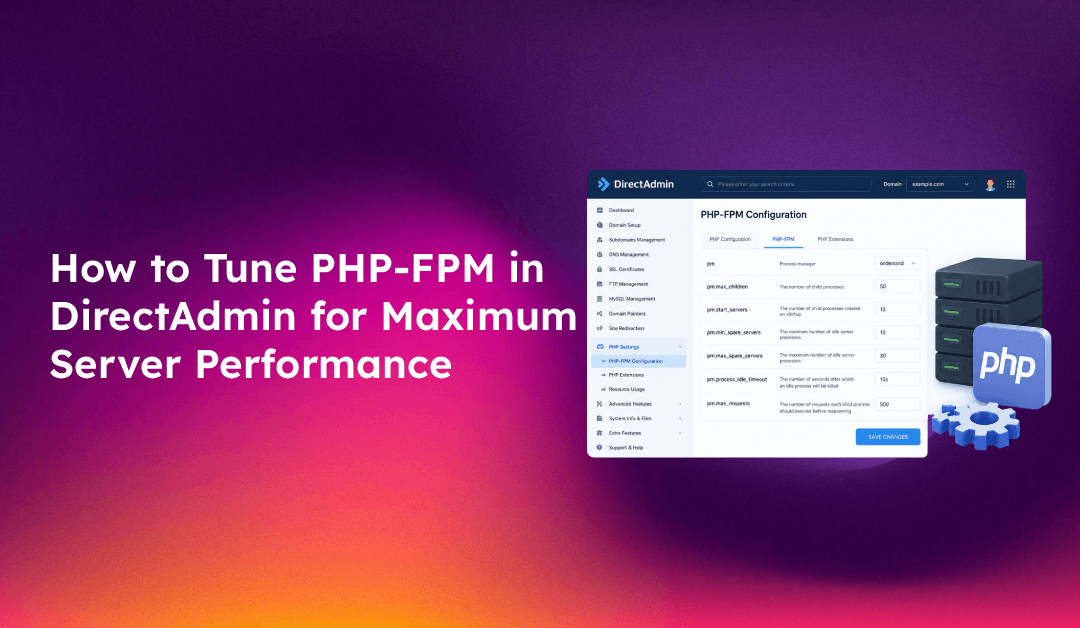
Understanding PHP-FPM Process Manager Modes
PHP-FPM has three process management modes. Choosing the right one is the most impactful tuning decision.
Static Mode
pm = static
pm.max_children = 30
Keeps exactly max_children worker processes running at all times. Best for high-traffic sites with consistent load — eliminates the latency of spawning new processes during traffic spikes. Uses more memory even during idle periods.
Dynamic Mode (Default)
pm = dynamic
pm.max_children = 50
pm.start_servers = 5
pm.min_spare_servers = 5
pm.max_spare_servers = 20
pm.max_requests = 500
Spawns workers on demand up to max_children. Maintains a minimum pool of spare workers. Good balance for variable traffic. The max_requests setting recycles workers after N requests — essential for preventing memory leaks.
Ondemand Mode
pm = ondemand
pm.max_children = 100
pm.process_idle_timeout = 10s
pm.max_requests = 200
Only creates workers when requests arrive. Kills idle workers after process_idle_timeout. Best for servers with many low-traffic domains — conserves memory by not keeping idle workers alive. Not suitable for high-traffic sites due to cold-start latency.
Calculating the Right pm.max_children Value
Setting pm.max_children too low causes 502 errors under load. Setting it too high causes the server to swap to disk when RAM runs out — which is far worse than 502s.
Step 1: Measure Average PHP Process Memory
# For PHP 8.1
ps --no-headers -o "rss,cmd" -C php-fpm81 | awk '{ sum+=$1 } END { printf ("%d%s
", sum/NR/1024,"M") }'

# For PHP 8.2
ps --no-headers -o "rss,cmd" -C php-fpm82 | awk '{ sum+=$1 } END { printf ("%d%s
", sum/NR/1024,"M") }'
This gives you the average RSS memory per PHP-FPM worker in MB. Typical WordPress sites use 50-80 MB per worker. Magento and Laravel apps often use 100-150 MB.
Step 2: Calculate Available RAM
# Check total and available RAM
free -m

# Subtract OS, MySQL, Nginx/Apache, and DirectAdmin overhead
# Rule of thumb: PHP can use ~60% of total RAM on a dedicated PHP server
# On a shared server with MySQL: ~40% of total RAM for PHP
Step 3: Calculate max_children
max_children = Available PHP RAM (MB) / Average PHP process size (MB)

# Example: 8 GB server, 3 GB allocated to PHP, 75 MB per worker
# max_children = 3000 / 75 = 40 workers
For a server with multiple user pools, divide the total across pools based on each site's expected traffic.
Enabling and Tuning OPcache
OPcache dramatically reduces PHP execution time by caching compiled bytecode in memory. Without it, PHP re-parses and re-compiles every file on every request.
Verify OPcache is Active
php -r "echo opcache_get_status() ? 'OPcache active' : 'OPcache disabled';"

# Check from each PHP version
/usr/local/php81/bin/php -r "var_dump(opcache_get_status()['opcache_enabled']);"
Recommended OPcache Settings
Add or update these in the relevant php.ini for each PHP version:
/usr/local/php81/lib/php.iniopcache.enable=1
opcache.memory_consumption=256
opcache.interned_strings_buffer=16
opcache.max_accelerated_files=10000
opcache.revalidate_freq=60
opcache.validate_timestamps=1
opcache.save_comments=1
opcache.fast_shutdown=1The memory_consumption value (in MB) should be large enough to hold all compiled PHP files for sites on the server. A WordPress install with plugins typically compiles 2,000–4,000 files. Set max_accelerated_files accordingly.
PHP-FPM Slow Log — Diagnose Bottlenecks
The PHP-FPM slow log records requests that take longer than a configured threshold. It's the most useful diagnostic tool for identifying what's actually making your PHP slow.
Enable Slow Log in Pool Config
slowlog = /var/log/php-fpm-slow.log
request_slowlog_timeout = 5s
This logs any PHP request taking more than 5 seconds, including a full stack trace showing exactly which function was blocking.
Read the Slow Log
tail -f /var/log/php-fpm-slow.logExample output shows the blocking call:
[05-May-2025 14:32:01] [pool user_example] pid 12345
script_filename = /var/www/vhosts/example.com/httpdocs/wp-admin/admin-ajax.php
[0x00007f6a2c00b990] mysqli_query() /var/www/vhosts/.../wp-db.php:2187
[0x00007f6a2c00b690] query() /var/www/vhosts/.../wp-db.php:1942
This tells you the slow request is blocking on a MySQL query — a database problem, not a PHP-FPM configuration problem.
Troubleshooting Common PHP-FPM Issues in DirectAdmin
502 Bad Gateway errors under load
Cause: pm.max_children is too low — all workers are busy and new requests queue up until they time out.
# Check current PHP-FPM process count
ps aux | grep php-fpm | wc -l

# Check PHP-FPM status (if status page is enabled)
curl http://localhost/fpm-status?full
Fix: Increase pm.max_children and verify you have enough RAM to support the new limit.
High memory usage causing server swap
Cause: pm.max_children is too high — more workers exist than RAM can support.
# Check if server is swapping
free -m
vmstat 1 5
Fix: Reduce pm.max_children, recalculate based on actual average process size, and enable pm.max_requests to limit memory leaks.
PHP-FPM pool not reloading after config change
# Reload without full restart (zero downtime)
systemctl reload php81-php-fpm

# Or for older DirectAdmin setups
kill -USR2 $(cat /var/run/php-fpm/php-fpm.pid)
OPcache not clearing after code deploy
# Force OPcache reset via CLI
php -r "opcache_reset();"

# Or call via HTTP if status page is configured
curl http://yourdomain.com/opcache-reset.php
If you're managing a DirectAdmin server and want expert-level PHP-FPM tuning without the trial and error, CloudHouse Technologies provides fully managed DirectAdmin server management — including performance audits, PHP-FPM pool configuration, and OPcache optimisation for every site on your server.
Conclusion
Tuning PHP-FPM in DirectAdmin comes down to three things: choosing the right process manager mode for your traffic pattern, calculating pm.max_children based on actual RAM and process size (not guesswork), and enabling OPcache with enough memory for your PHP files. Use the slow log to identify actual bottlenecks before adjusting pool settings — most "slow PHP" problems trace back to MySQL queries or upstream API calls, not PHP-FPM configuration itself. With the right settings, a standard 8 GB DirectAdmin server can comfortably handle dozens of active WordPress sites without 502 errors or memory pressure.